

CALPADS error brief · FRMT
FRMT0009
Official CALPADS rule
What CALPADS is rejecting
Focus fields
Fields validated
All SENR fields
Recommended correction path
Suggested resolution
Read the complete validation
CALPADS rule: Invalid column count for file type
Severity: Fatal Type: Input Validation
Fields involved: All SENR fields, 1.01 through 1.35
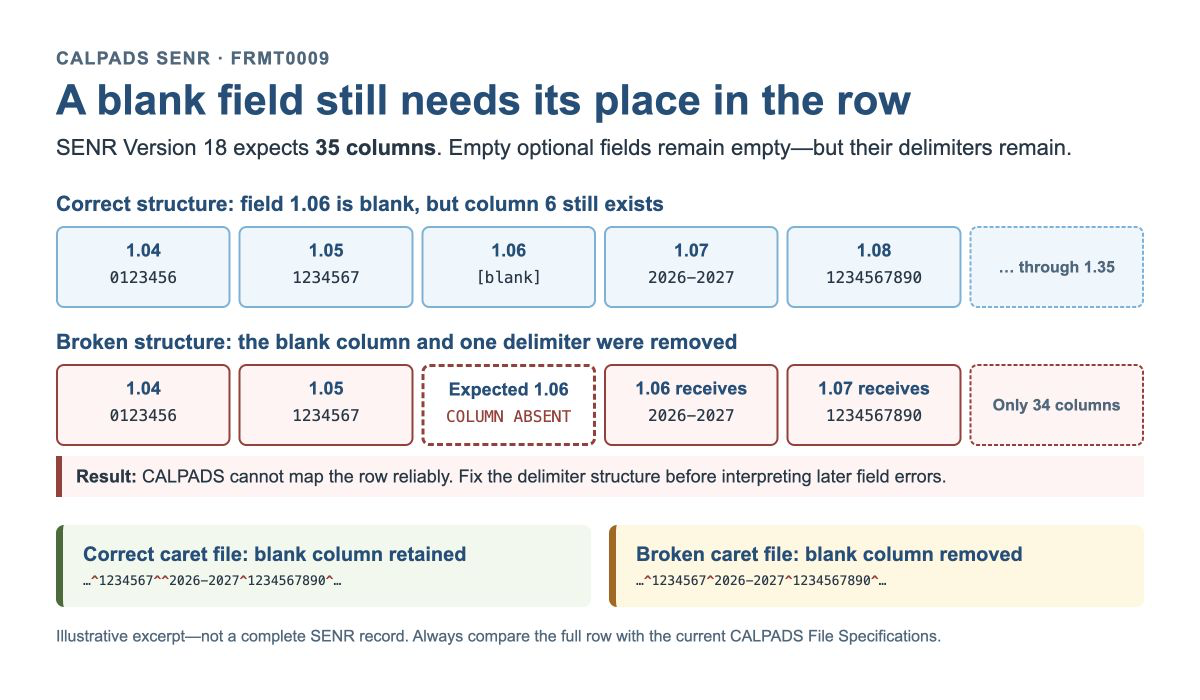
What this means: “Blank” and “missing” are not interchangeable. An optional field may contain no value, but its assigned position must remain in the record so every later value stays aligned with the correct field number.
How the empty position is preserved by file format
| Submission format | How a blank field remains present | Common structural mistake |
|---|---|---|
| Comma-separated values (CSV) | Two adjacent commas preserve an empty position: ,, | Deleting the blank value and one comma shifts every later value left; adding a comma inside a value can create an extra column if the file is not constructed correctly. |
| Caret-separated values | Two adjacent carets preserve an empty position: ^^ | Collapsing ^^ to ^, or allowing an unintended caret inside a value, changes the count. |
| Excel spreadsheet (.xlsx) | The cell remains in its assigned column even when its value is blank. | Deleting a worksheet column, pasting a short range, exporting only populated cells, or using the wrong template changes the layout. |
| XML | The Version 18 specification requires non-required data elements with no value to remain included in the submission. | Omitting an expected element or using a schema/layout that does not match the current file specification breaks the record structure. |
Header-row rule: CSV and caret-separated files must not contain a header row. An Excel spreadsheet may contain one row of column names. Each CSV or caret-separated record must end with a carriage return and line feed.
What commonly produces the wrong count
| Failure pattern | What the rejected row may show | Where to investigate |
|---|---|---|
| Blank field removed | A row contains 34 columns because an optional blank position and one separator disappeared. | Report expressions that skip nulls, string-joining logic, spreadsheet cleanup, or manual editing. |
| Trailing blank fields omitted | The row ends before fields 1.34 or 1.35 because the export stops at the last populated value. | CSV/caret writer settings, variable-length array output, or an outdated SENR extract definition. |
| Extra separator | A row contains 36 columns; two separators may appear where only one field boundary belongs. | Concatenation formulas, manually inserted punctuation, or a separator embedded in source text. |
| Wrong file layout or version | The row consistently contains the column count from an older specification or another CALPADS file type. | Vendor release, report template, saved query, integration mapping, and selected record type. |
| Header included as data | The first CSV or caret row contains labels such as “SSID” or “Enrollment Start Date.” | Export option that adds column headings. Headers are not allowed for CSV or caret submissions. |
| Embedded line break | One logical student record appears as two physical lines, leaving both pieces structurally incomplete. | Copied notes, pasted text, legal-name data, integration transformations, or spreadsheet cells containing returns. |
| Spreadsheet conversion damage | Opening and resaving changes separators, file type, leading zeros, quoting, or the populated range. | Compare the untouched vendor export with the file that was actually uploaded. |
| Mixed record types | Most rows count correctly, but one or more rows follow a different CALPADS layout. | File merge, report filter, appended extracts, or a job that combines different record types. |
Do not add an arbitrary blank at the end: A total of 35 columns is necessary, but it is not sufficient. If a missing field belongs in position 1.06, adding a new empty field after 1.35 may restore the total while leaving fields 1.07–1.35 misaligned. Locate the first structural divergence and restore the field in its correct position.
How this defect moves from source to submission
Diagnostic principle: If many rows fail in the same way, suspect a shared extract, template, integration, or file-handling rule before asking registrars to edit individual student records.
Choose the diagnostic pathway
- Count and align the rejected row
- Which submission format was uploaded?
- How many positions or elements does the rejected record contain?
- Where is the first difference from a correctly accepted SENR row?
- Were empty optional fields preserved in their original positions?
- Does the record continue through field 1.35?
- CSV or caret-separated file
- Are consecutive separators retained for blank values?
- Is there an unintended separator inside a field value?
- Was a header row added even though this format prohibits one?
- Does each physical line contain one complete record and end correctly?
- Was the delimiter changed during a spreadsheet or text-editor step?
- Excel spreadsheet
- Does the sheet use the current SENR template and column order?
- Were any columns inserted, deleted, hidden, or omitted from a pasted range?
- Is there no more than one header row?
- Did the populated range stop before the final SENR columns?
- XML submission
- Does the file use the current CALPADS XML schema?
- Are non-required data elements retained even when they have no value?
- Are elements ordered and nested according to the applicable schema?
- Did an integration omit null elements during serialization?
- Vendor or integration defect
- Did the SIS vendor release the Version 18 SENR layout?
- Are all rejected rows produced by one report, school, user, or scheduled job?
- Does the untouched vendor export already have the wrong count?
- Will the next scheduled extract reproduce the problem?
- Isolated row or source-data trigger
- Does only one student fail while adjacent rows pass?
- Does that student have punctuation, an embedded return, or unusual imported data?
- Did a manual correction alter only this row?
- Can the triggering source value be corrected through the authorized process without changing valid student information?
Find the first structural break
- PreserveSave the untouched row.
- CountConfirm all 35 positions.
- AlignLocate the first shift.
- RepairFix the producing rule.
- RegressTest the affected population.
Primary participants for this error
- CALPADS coordinator
- SIS system owner
- Extract, integration, or vendor support
- Registrar or enrollment staff when a source value triggers the defect
Compare three artifacts
- A correctly accepted row from the same file type.
- The untouched row produced by the SIS or integration.
- The exact row in the file uploaded to CALPADS.
The first difference identifies whether the defect began in extraction or later file handling.
Recommended correction path
Preserve the rejected file and row
Capture the submission ID, file type, row number, export time, untouched source file, and CALPADS error details. Work on a copy so spreadsheet or editor software does not silently alter the evidence.
Confirm the intended record type and specification
Verify that the row is SENR and the producing system uses the current Version 18 layout of 35 ordered fields, 1.01 through 1.35.
Count the actual submitted positions
Use a delimiter-aware text tool, spreadsheet template, XML validator, or vendor diagnostic. Do not count only visible nonblank values; blank positions count too.
Compare with an accepted row
Align both rows field by field. Find the first missing or extra position, unexpected separator, embedded return, omitted trailing field, or layout difference.
Determine the scope
Check whether the defect affects one student, one school, one source value, one export job, or every SENR row. This determines whether the registrar, SIS owner, integration team, or vendor should lead the correction.
Repair the first producing rule
Correct the report layout, null-field handling, delimiter logic, spreadsheet template, XML serialization, or triggering source value. Do not merely append a blank field until the total reaches 35.
Regenerate without manual restructuring
Create a fresh scoped extract from the corrected source. Confirm every value and blank remains in its assigned position through field 1.35.
Submit and regression-check
Confirm FRMT0009 clears, review any newly exposed field-level errors, verify the accepted enrollment, and inspect other rows produced by the same mapping or workflow.
Official CALPADS guidance
Understanding the error: The CALPADS File Specifications document designates a number of fields submitted in a file for upload into CALPADS. One or more fields in this file is missing.
Things to check for in submission: Verify that the fields listed in the Fields Validated column are all included in the file. Suggested Resolution: 1) See http://www.cde.ca.gov/ds/sp/cl/systemdocs.asp for the "CALPADS File Specifications" document for number of fields. OR 2) If the file was produced from a local SIS, contact the vendor or technical resource to determine the reason for the invalid column count and how to resolve it.Before closing the issue
- Confirm FRMT0009 no longer appears for the intended file and affected rows.
- Verify all 35 SENR positions remain present and correctly aligned, including blank optional fields.
- Confirm the regenerated file—not a one-time hand-edited copy—passes the structural check.
- Review newly exposed field-level errors and the accepted enrollment history.
- Document the producing rule, correction owner, affected population, regression test, and prevention step.
Official FRMT0009 troubleshooting page | Current CALPADS File Specifications and schemas | SENR guidance
What SENR does—and does not do
SENR answers enrollment and SSID-context questions such as:
- Does this student have an SSID?
- Which LEA and school own this enrollment record?
- When did the enrollment begin?
- Is it primary, secondary, or short-term?
- What grade level applies to this enrollment?
- Is the enrollment still open?
- If it ended, when and why did the student leave?
- Did the student complete school?
- What is the student’s district of geographic residence?
SENR participant directory
Engage the roles needed for the specific file, student, source-value trigger, or system defect.
- CALPADS coordinator
- Registrar or enrollment staff
- School-site office staff
- Attendance staff
- Counselor or student-records staff
- District student-services administrator
- SIS system owner
- Extract, integration, or vendor support