



Universal Tools and Designated Supports
Explore accessibility resources that can help students interact with California assessments. Search by resource name or description, and filter by resource category.
Always use the current-year matrix
Availability varies by assessment, grade, domain, item, delivery mode, and student need. The descriptions below are a general reference—not authorization to assign or use a resource.
The current California Assessment Accessibility Resources Matrix and applicable test-administration guidance control. Confirm every resource before testing.
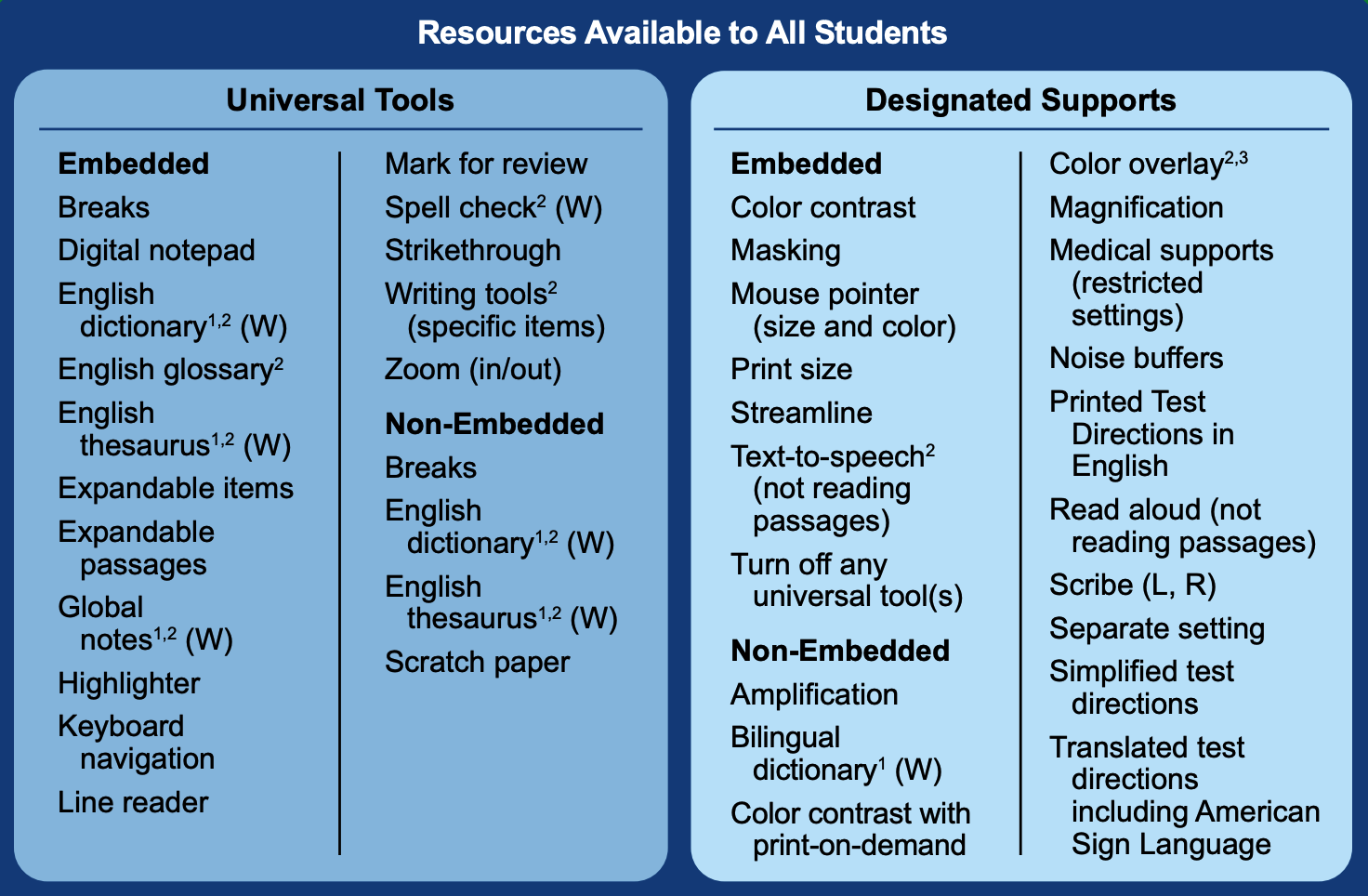
Know the difference
Universal tools
Available to all students on the basis of student preference and selection, subject to the applicable assessment rules.
Designated supports
Available when determined for use by an educator or team of educators—with parent, guardian, and student input as appropriate—or when specified in an IEP or Section 504 plan.
Find an accessibility resource
Accessibility resource reference
Calculator
Universal toolA student can access an embedded, on-screen digital calculator for calculator-allowed items when a student selects the [Calculator] button. For mathematics, this tool is available only on the specific items for which the Smarter Balanced Item Specifications indicated as appropriate in grades six through eight and grade eleven. For science, this tool is available as a four-function (basic) calculator for grade five and a scientific calculator for grade eight and high school. This resource is not applicable to the CAAs.
Digital notepad
Universal toolA student can use the digital notepad for making notes about an item. It is question-specific and available through the end of the test segment. A student can use the embedded speech-to-text accommodation with this universal tool if speech-to-text is assigned as a test setting in TOMS for the student. For CAASPP, notes are not saved when the student moves on to the next segment or after a break of more than 20 minutes. For the ELPAC, notes are saved after a break of more than 20 minutes on the page to which the student is returning if there are multiple questions on the page.
English dictionary
Universal toolA student can use an English dictionary that is available for the full-write portion of an ELA performance task but not for short-paragraph responses. A full write is the second part of a performance task. This resource is not applicable to the CAA for ELA.
English glossary
Universal toolA student can use the English glossary to access grade- and context-appropriate definitions of specific construct-irrelevant terms, in English, in a pop-up window on the screen. This resource is not applicable to the CAAs.
English thesaurus
Universal toolA student can use the thesaurus that is available for the full-write portion of an ELA performance task but not for short-paragraph responses. A thesaurus contains synonyms of terms in the text with which a student interacts on the assessment. A full write is the second part of a performance task. This resource is not applicable to the CAA for ELA
Expandable items
Universal toolA student can expand each item or stimulus so it takes up a larger portion of the screen.
Global notes
Universal toolGlobal notes is a notepad that a student can use for ELA performance tasks in which the student completes a full write; it is not for short paragraph responses. A full write is the second part of a performance task. A student can use the embedded speech-to-text accommodation with this universal tool if speech-to-text is assigned as a test setting in TOMS for the student. This resource is not applicable to the CAA for ELA.
Highlighter
Universal toolA student can use the highlighter—a digital universal tool—for marking desired text, item questions, and item answers (or parts of these) with a color. There are four different colors of highlighters, yellow, orange, mint green and lavender.
Keyboard navigation
Universal toolA student can navigate through text by using a keyboard’s function keys (instead of a mouse or other adaptive device).
Line reader
Universal toolA student can use an on-screen universal tool to assist in reading by raising and lowering the tool for each line of text on the screen.
Mark for review
Universal toolA student can flag items for future review during the assessment.
Science charts
Universal toolA student can use these digital tools (i.e., periodic table of elements and reference sheet) that are available in grade eight and high school for the CAST. When the Spanish stacked–dual language designated support has been assigned, the periodic table of the elements is available in Spanish. This resource is not applicable to the CAA for Science.
Scratch Paper
Universal toolA student can use blank scratch paper to make notes, write computations, record responses, or create graphic organizers. Note the following about scratch paper:
- Only plain paper or lined paper is appropriate for ELA and the ELPAC.
- Graph paper is required beginning in grade six for mathematics; a student can use graph paper on all mathematics assessments.
- A student can use a whiteboard with marker for all assessments.
- It is not acceptable to use graphic organizers or any paper with pre-printed instructions or guidance.
Plain Paper
Plain paper is o.k. to use for all CAASPP and ELPAC tests as a Universal Support for all students.
Writing Paper
Lined paper is o.k. to use for all CAASPP and ELPAC tests as a Universal Support for all students.
Graph Paper
Graph paper is o.k. to use for all CAASPP and ELPAC tests as a Universal Support for all students in grades 3-5 and is REQUIRED to be provided to all students in grades 6-12
Spell check
Universal toolThe writing tool a student can use for checking the spelling of words in student-generated responses, spell check, gives only an indication that a word is misspelled. It does not provide the correct spelling. This tool is available only on specific Smarter Balanced, CAST, and CSA items. This resource is not applicable to the CAAs.
Strikethrough
Universal toolA student can use this digital tool to cross out answer options, with or without the help of a test examiner. Stricken text or a stricken image will be less visible.
Writing tools
Universal toolA student can use selected writing tools (i.e., bold, italic, bullets, undo, and redo) that are available for all student-generated responses. For ELA, mathematics, and science, this resource is available for specific items only. This resource is not applicable to the CAAs.
Zoom (in/out)
Universal toolThe default font size for all tests is 14 point. A student can make text and graphics larger by selecting the [Zoom In] button; and return to the default or select a smaller font size by selecting the [Zoom Out] button.
100's number table
Designated supportA student taking a science assessment at any tested grade level can use the Smarter Balanced paper-based 100s number table for reference. This table, which lists numbers from 1–100, is available at https://www.caaspp.org/rsc/pdfs/CAASPP.hundreds-number-table.pdf.
American Sign Language or Manually Coded English
Designated supportFor the ELPAC, a student who is deaf or hard of hearing (DHH) and who typically uses ASL or Manually Coded English can have the test directions signed as a language support prior to beginning the actual test items.
Amplification
Designated supportA student can adjust the volume control beyond the device’s built-in settings using headphones or other non-embedded devices including, but not limited to, assistive technology or FM systems.
Bilingual dictionary
Designated supportA student can use a bilingual or dual language word-to-word dictionary as a language support for the full-write portion of an ELA performance task but not for short-paragraph responses. A full write is the second part of a performance task.
Calculator
Designated supportA student taking a science assessment who is unable to use the embedded calculator or requires a special calculator, such as a braille calculator or a talking calculator, can use a non-embedded calculator.
For science, the four-function (basic) calculator is a designated support to be used for grade five and a scientific calculator, for grade eight and high school.
Color contrast
Designated supportA student can adjust the screen background or font color on an electronic device on the basis of the student’s need or preference. This may include reversing the colors for the entire interface or choosing the color of the font and background.
Color overlay
Designated supportA student with attention difficulties or with visual impairments or other print disabilities (including learning disabilities) can use this resource to view test content. Choice of color should be informed by evidence of those colors that meet the student’s needs. This resource is for PPTs only. This resource is not applicable to the CAAs.
Designated interface assistant
Designated supportA student who is a technology novice and has limited keyboarding skills that prevent the student from responding can be helped by a designated interface assistant, who is available to help the student interact with, or type, handwritten responses on the test platform. The designated interface assistant should be used only during one-on-one administration.
Illustration glossaries
Designated supportA student can use illustration glossaries, which are a language support provided for selected construct-irrelevant terms for mathematics. Illustrations for these terms appear on the screen when a student selects them. For the non-embedded version, illustrations for these terms appear in a supplement to the PPT and are identified by item number.
Magnification
Designated supportA student can adjust the size of specific areas of the screen (e.g., text, formulas, tables, graphics, navigation buttons, and the mouse pointer) with an assistive technology device or software. Magnification allows the student to increase the size of screen elements and change the color contrast, including the size and color of the mouse pointer, to a level not provided for by one or more of the zoom universal tool, color contrast designated support, or mouse pointer designated support.
Mouse pointer (size and color)
Designated supportThis embedded resource allows the student to use a mouse pointer that has been set to a larger size and has a color that has been changed.
Multiplication table
Designated supportA student taking a science assessment at any tested grade level can use the paper-based multiplication table (1–12) for reference. This is available from Smarter Balanced at https://www.caaspp.org/rsc/pdfs/CAASPP.multiplication-table.pdf.
For the science assessments, this resource is a designated support. For mathematics, refer to the multiplication table accommodation.
Noise buffers
Designated supportA student can use a noise buffer such as ear mufflers, white noise, or other equipment to block external sounds.
Pause or replay audio—Listening or Speaking domain
Designated supportA student who needs the audio to slow down or stop momentarily can have the stimuli of the audio presentation in the ELPAC Listening domain paused or replayed during the administration of the test questions.
(For CAASPP, when audio is present in an item, the ability to pause or replay audio is provided automatically.)
Print-on-demand
Designated supportA student can have paper copies of passages, stimuli, items, or any combination of these printed.
For the ELPAC, this resource is a designated support. For CAASPP, refer to the print-on-demand accommodation.
Print size
Designated supportPrint size is a test setting that sets the default font size the student should have when starting a computer-based assessment. This setting applies to text questions and stimuli only and not the buttons in the global menu bar. The selected font size, within a range of 1.5× to 3×, becomes the default for all questions in that student’s test.
Printed test directions in English
Designated supportA printed copy of the Smarter Balanced for ELA and mathematics oral test directions in English created by Smarter Balanced may be provided to the student.
Read aloud
Designated supportText can be read aloud to a student by a trained and qualified person who follows the administration guidelines and read-aloud protocol at https://portal.smarterbalanced.org/library/en/read-aloud-guidelines.pdf—these protocols apply to both CAASPP and the ELPAC. All or portions of the content may be read aloud.
This resource is a designated support for all ELA items but not for reading passages. Refer to the read aloud accommodation for ELA reading passages.
Read aloud in Spanish
Designated supportText can be read aloud to a student by a trained and qualified person who follows the administration guidelines and read-aloud protocol at https://portal.smarterbalanced.org/library/en/read-aloud-guidelines.pdf —these protocols apply to both CAASPP and the ELPAC (although this specific designated support does not apply to the ELPAC). All or portions of the content may be read aloud.
This resource is a designated support for all CSA items but not for reading passages. Refer to the read aloud accommodation for CSA reading passages.
For mathematics and science Spanish stacked–dual language translation, refer to Read Aloud Spanish Guidelines at https://portal.smarterbalanced.org/library/en/read-aloud-guidelines-in-spanish.pdf.
Science charts
Designated supportA student can receive state-approved paper versions of the science charts (i.e., periodic table of the elements and reference sheet) that are available in grade eight and high school for the CAST.
These resources can be found at https://www.caaspp.org/ta-resources/accessibility/https://www.caaspp.org/ta-resources/accessibility/.
Scribe
Designated supportA student can dictate responses to a person who records verbatim what is dictated. The scribe must be trained and qualified and must follow the scribing protocol at https://portal.smarterbalanced.org/library/en/scribing-protocol.pdf.
This resource is a designated support for all items except the ELA performance task full write and the ELPAC. For the CSA, this resource is a designated support for all non-writing items. Refer to the scribe accommodation for ELA writing, CSA writing, and the ELPAC.
Separate setting
Designated supportA student’s test location can be altered so the student is tested in a setting different from that made available for most students. Separate setting may also include the most beneficial time, special lighting or acoustics, and adaptive furniture.
Simplified test directions
Designated supportThe test administrator or test examiner can simplify or paraphrase the test directions found in a test administration manual. Refer to the Guidelines for Simplified Test Directions at https://portal.smarterbalanced.org/library/en/guidelines-for-simplified-test-directions.pdf.
Streamline
Designated supportThis designated support provides a streamlined interface of the test in an alternate, simplified format in which the items are displayed below the stimuli.
Text-to-speech
Designated supportThe test delivery system reads text in English, including student responses, aloud to a student via embedded text-to-speech technology. The student can control the speed as well as the volume of the voice. For ELA and the CSA, this resource is a designated support for stimuli and items, but not for reading passages. For ELA and CSA reading passages and the ELPAC Listening, Speaking, and Writing domains, refer to the text-to-speech accommodation. This resource is not applicable to the CAAs.
Translated test directions
Designated supportTranslated test directions are a language support. The test delivery system presents a student with a translation of test directions in Spanish prior to beginning the actual test items. As an embedded designated support, translated test directions are automatically a part of the Spanish stacked–dual language translations designated support.
The "Stacked Spanish" universal tool in the CAASPP (California Assessment of Student Performance and Progress) system is designed to assist English Learners (ELs) who are proficient in Spanish by providing them with test content that is presented in both English and Spanish. This tool allows ELs to better understand and demonstrate their knowledge and skills in subjects such as mathematics and English language arts/literacy.
Here's how the "Stacked Spanish" tool works:
-
Bilingual Presentation: Test questions are presented in a "stacked" format, with the English version of the question followed immediately by its Spanish translation. This allows ELs to access the content in both languages simultaneously.
-
Enhanced Comprehension: By providing test content in their native language (Spanish), ELs can better understand the questions and demonstrate their knowledge without being hindered by language barriers.
-
Support for Language Development: Exposure to test content in both English and Spanish can also support ELs in developing their language skills in both languages, as they navigate between the two versions of the questions.
-
Equitable Assessment: The "Stacked Spanish" tool aims to provide a more equitable testing experience for ELs, ensuring that language proficiency does not unfairly impact their ability to demonstrate academic knowledge and skills.
No matching resources
Try a broader term or clear the filters.
Official accessibility guidance
Reviewed August 2026. Verify resource availability and assignment requirements for the current administration year.