



VHL Central Quick Start Guide
Connect an adopted Vista Higher Learning title to the right class, assignments, and evidence of student learning.
VHL Central is the shared portal. Teachers and students may use one account to reach several Vista Higher Learning programs, while each program supplies its own digital textbook, activities, resources, and course workspace. This guide uses a high school world-language title as the main example; the same setup logic applies to other licensed language and literacy titles.
Understand the Layers
Portal
The account, school affiliation, support links, and list of programs available to the user.
Program
The licensed textbook environment—such as a Spanish, French, German, or literacy title.
Course & Section
The teacher-managed instructional space and the individual class roster inside it.
Learning Evidence
Assignments, due dates, submissions, grades, reports, and teacher feedback.
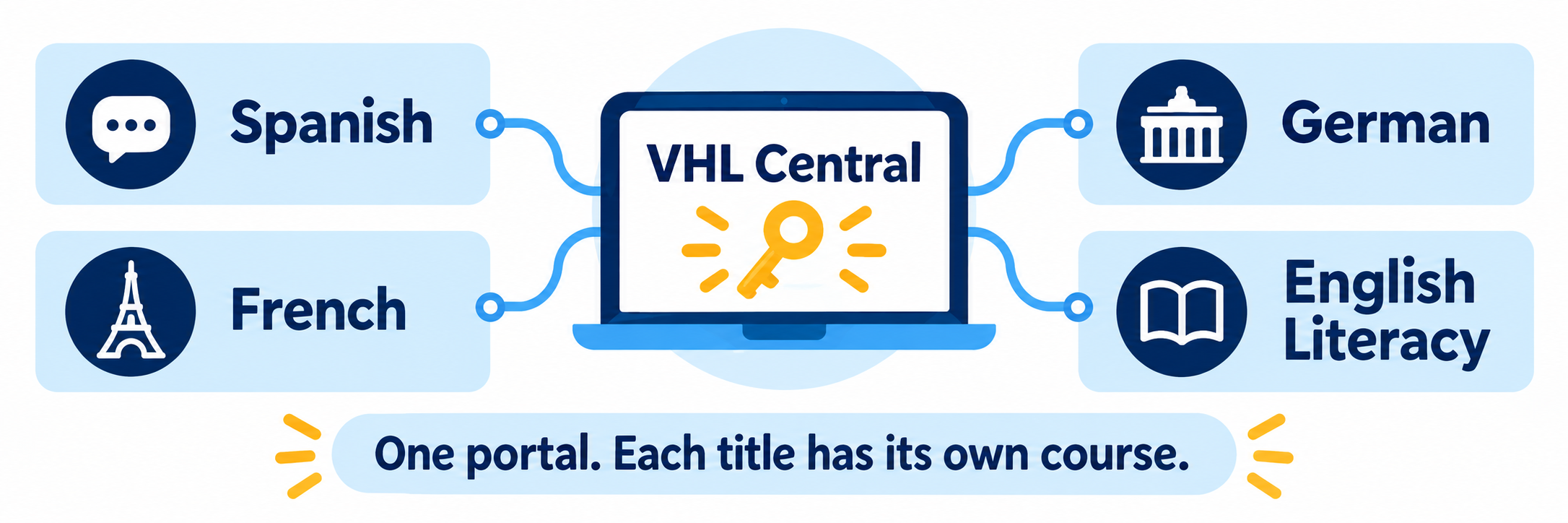
Access to a title is not the same as enrollment in a class. Students may be able to open program activities after redeeming access, but the teacher needs a course and section to publish due dates, communicate with students, and track their results.
District Setup
Establish the route into VHL Central and define which setup tasks are automated.
Choose the district access model
| Model | What it means for staff |
|---|---|
| RosterAssistant with SSO | The district integration can automate users and courses and provide a launch tile. Teachers map rostered classes to the correct VHL program; some course and section controls may be preset or unavailable. |
| RosterAssistant without SSO | Rosters may be automated while users still sign in through the district-approved VHL Central route. |
| Manual VHL Central setup | Teachers or designated staff create courses and sections, and students enroll or receive access using the school’s approved process. |
| LTI Advantage 1.3 | A supported LMS integration can provide links, deep linking, and grade sync after the institution’s administrator and VHL complete setup. |
Document the authoritative source for staff, students, courses, and enrollments. Name the person who corrects source data and the person who opens a VHL support case.
Confirm licensing and title access
Verify that each teacher can see the adopted program under My Programs. Program access may be granted by a Vista specialist or through an instructor code. Never redeem a student code in an instructor account.
- Match the exact title and edition to the adopted course.
- Confirm the school affiliation, license dates, and expected student quantity.
- Identify whether students need codes, rostered access, or an SSO launch.
- Check which digital features are included with that title; availability varies by program.
Set the implementation baseline
Decide who creates or maps courses, how sections are named, when assignments open, which gradebook is authoritative, and how late work and accommodations will be handled. For a world-language course, also test audio playback, microphone recording, text entry, and any district content-filter settings.
Build one pilot path: Use one teacher, one section, and an approved demonstration student. Verify the launch, title, enrollment, first assignment, submitted work, feedback, and grade before expanding.
Teacher Workflow
Move from the adopted title to a complete course experience for students.
Open the correct program and course
Start at VHL Central, select the intended program, and then select the correct course or section from the course/section menu. The dashboard provides shortcuts to assignments, grading, roster information, the calendar, and student requests.
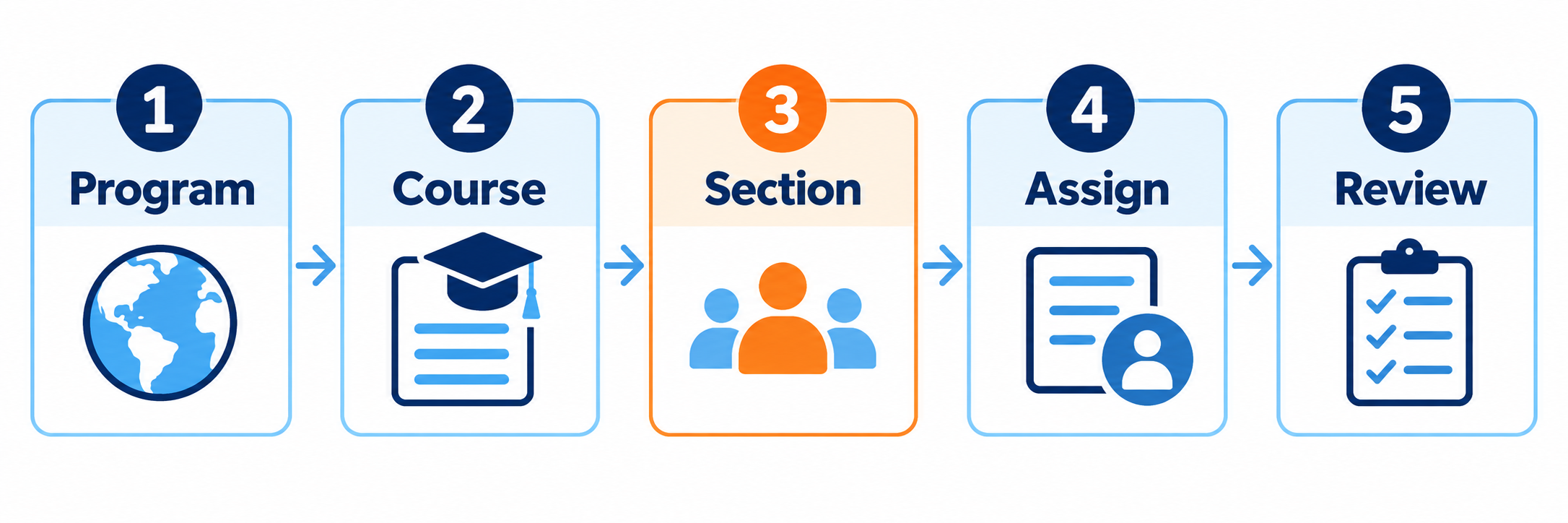
Create the course and section when required
For a manual implementation, use the course wizard to configure Course, Content, Gradebook, and Summary. Then add at least one section—the class that contains students and assignments. A course can contain multiple sections; RosterAssistant schools use the district-managed class structure and may be limited to one section per course.
- Name the course and select the correct school and dates.
- Choose the title content and settings that students should receive.
- Review gradebook categories, weights, lateness rules, and due-time conventions.
- Create the section, confirm enrollment behavior, and add a co-instructor if appropriate.
- Use View as Sample Student before assigning live work.
Assign with the instructional sequence in mind
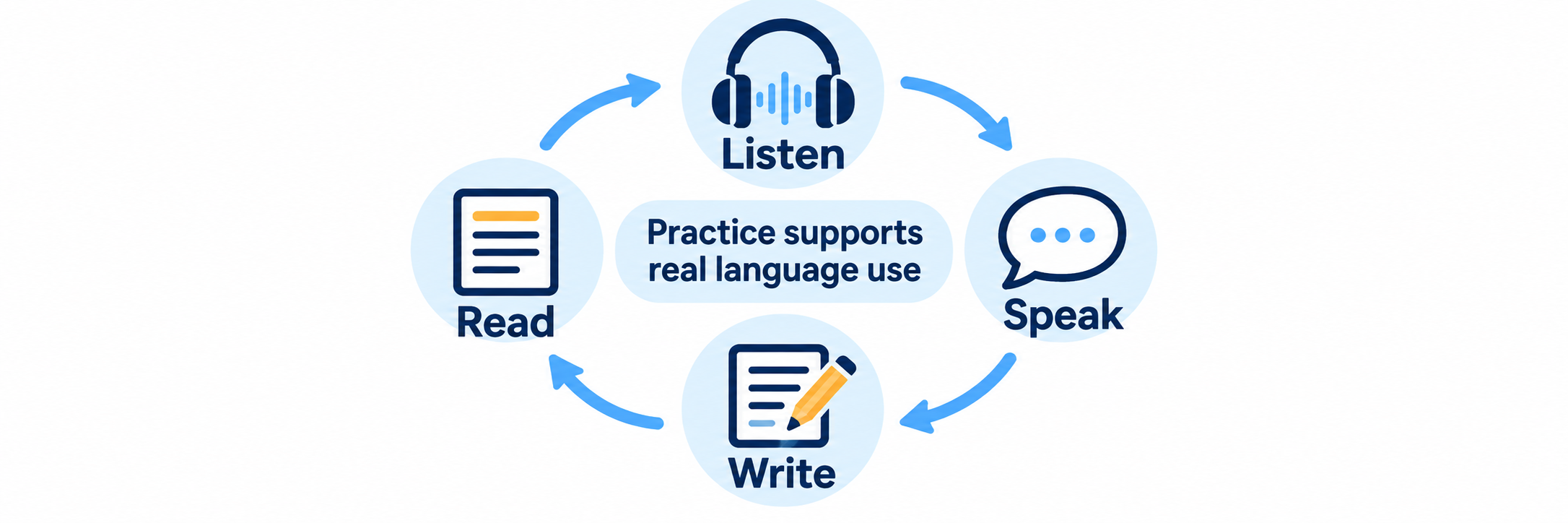
Preview activities and answer keys before assigning them. Select work that supports the current lesson, set realistic availability and due dates, and check what students will see. World-language titles may combine listening, speaking, reading, writing, vocabulary, culture, and assessment; the exact tools vary by title.
| Teacher decision | Practical check |
|---|---|
| Purpose | Can students explain whether they are preparing, practicing, demonstrating, or revising? |
| Mode | Do headphones, microphones, keyboards, and browser permissions support the activity? |
| Timing | Are release dates, due dates, time limits, and late-work rules correct? |
| Access | Can the student open the title, section, resource, and assigned activity? |
| Follow-through | What will the teacher review, discuss, reteach, or use in the next lesson? |
Review work and respond
Use the gradebook and grading tools to inspect both automated results and work that requires teacher judgment. VHL Central supports assignment views, student-by-student and question-by-question grading, score adjustments, comments, external-work grades, reports, and student requests. Use these tools to respond to the learning shown in context.
- Read or listen to open-ended work before accepting an automated signal.
- Use brief, specific feedback that points to the next language or literacy move.
- Check a student’s pattern across assignments, not only one score.
- Return to whole-class instruction when several students share the same need.
- Export or sync grades only after confirming categories, weights, and student matching.
Configure and Verify
Confirm access, content, enrollment, activity, feedback, and grade as one chain.
Test the complete student path
- Launch as an approved demonstration student through the district’s intended sign-in route.
- Confirm the correct identity, school, program title, course, and section.
- Open the digital textbook or assigned resource and complete a short activity.
- Verify audio, video, microphone, keyboard input, and third-party cookie behavior when used.
- Submit the work and confirm that it appears in the teacher grading view.
- Enter feedback or a score, then verify the student can see the intended response.
Verify a roster or course change
Make one controlled change in the authoritative source and confirm the result. In a rostered district, do not try to repair an automated class by rebuilding it manually; correct the source or follow the district’s documented VHL mapping process.
| Check | Evidence |
|---|---|
| Identity | The existing person was updated rather than duplicated. |
| Enrollment | The student appears in the correct rostered class and program. |
| Transfer | The district understands whether prior grades follow the student. |
| Program mapping | The class opens the correct book and edition. |
| Launch | The assigned VHL tile or LMS link opens the expected destination. |
Use evidence within its limits
VHL Central records work completed inside the program. That evidence can show participation, item performance, assignment scores, and patterns that need review. It cannot by itself confirm spontaneous communication, independent authorship, transfer beyond the assigned activity, or the reason a student struggled.
Pair platform evidence with classroom conversation, observation, performance tasks, and student work produced in authentic settings.
For language learning: A completed speaking or writing activity is evidence to examine. Listen or read for meaning, accuracy, fluency, and use of current instruction before choosing the next response.
Resolve common first-use problems
| What you notice | Check first |
|---|---|
| No VHL tile or “User Not Found” | Confirm the district SSO route and that the user is included in the roster data sent to VHL. |
| The required program is missing | Confirm the exact title, edition, school affiliation, and license assignment with the curriculum owner or VHL specialist. |
| The class is missing or cannot be edited | Check the roster source, VHL program mapping, and whether RosterAssistant controls the setting. |
| A student is absent from the section | Verify the source enrollment and sync status before creating another account. |
| The activity will not open or play | Check supported browser, JavaScript, third-party cookies, network filtering, headphones, microphone permission, and the title’s requirements. |
| Work is complete but no score appears | Confirm the correct account and section, submission state, grading requirement, and grade-sync mapping. |
| Students see the book but no due dates | Confirm that the teacher has a course and section and that the work was assigned to that section. |
| The LMS link is stale | Confirm that the course uses the supported LTI Advantage configuration and update copied links as required. |
Good VHL Central Habits
Select precisely
Match the student, class, title, edition, and section before assigning.
Preview first
Open activities and answer keys before setting dates or expectations.
Teach from evidence
Review the work behind the score and plan a concrete response.
Verify the chain
Test sign-in, content, submission, feedback, and grades together.
Official VHL Resources
Use the documentation for the title, account type, and integration enabled in your district.
2026–27 edition. Public Vista Higher Learning and VHL Central resources reviewed September 11, 2026. Program access, content, integrations, rostering, settings, and reports depend on licensing and configuration. Classroom examples and conceptual illustrations are SDLA material.