



edclub School Edition: TypingClub Quick Start Guide
Build fluent keyboarding through short, accurate practice—using one school platform that can support several learning programs.
TypingClub is the primary focus of this guide. It provides sequenced keyboarding courses, student practice, class settings, and progress reports. The same edclub School Edition account can also organize other edclub courses through shared schools, instructors, classes, students, and reporting tools.
This guide uses the four product areas featured on the School Edition page: TypingClub, Vocabulary & Spelling, Digital Citizenship & Digital Literacy, and Social Emotional Learning. The current edclub Help Center also lists Reading and Financial Literacy; check your account and plan before promising any course.
One Platform, Four Featured Learning Goals
TypingClub
Primary focus: build keyboarding technique, accuracy, speed, and independence.
Vocabulary & Spelling
Develop word knowledge, word parts, spelling, and editing through sequenced practice.
Digital Citizenship
Explore online safety, privacy, communication, media, and digital-literacy decisions.
Social Emotional Learning
Practice self-awareness, self-management, relationships, and responsible decisions.
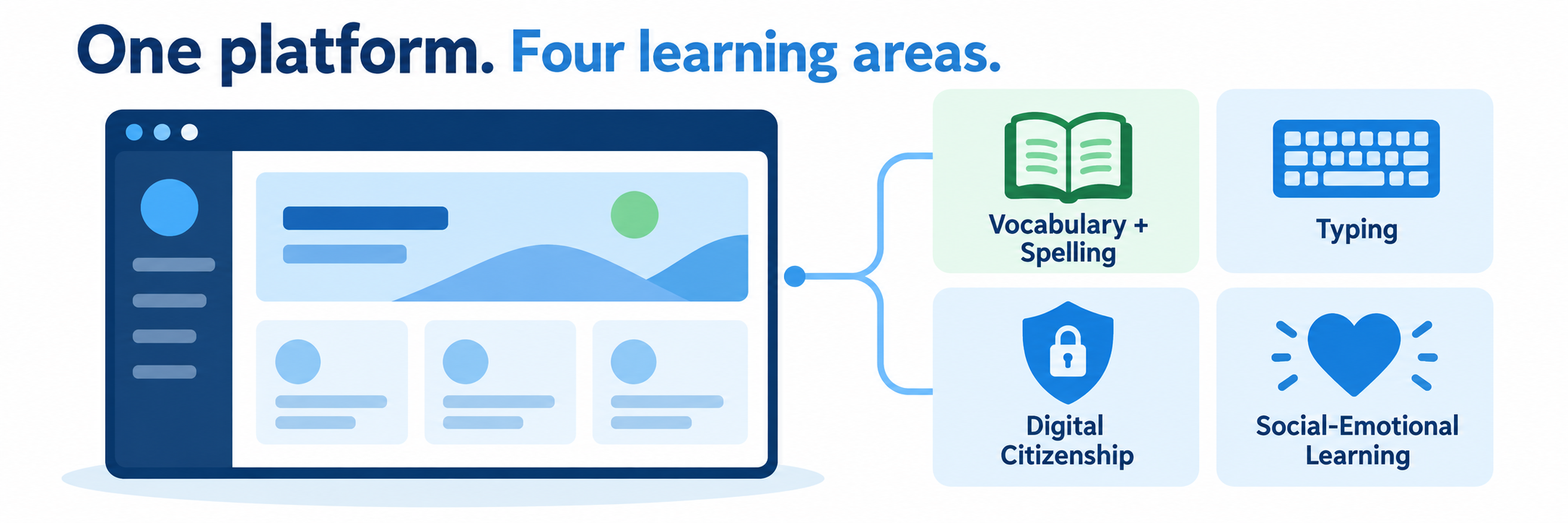
Shared setup does not mean identical instruction. Rosters and classes can serve several edclub products, but teachers still choose the appropriate course, assignments, settings, and evidence for each product. Confirm product access and reporting in the actual account.
District Setup
Establish the common platform once, then configure each product for its own instructional purpose.
Choose the roster and sign-in model
| Route | What to understand |
|---|---|
| Clever or ClassLink automatic integration | For eligible accounts purchasing 200 or more licenses, a school or district administrator shares data through the provider and edclub syncs it periodically. Confirm scope, frequency, and sign-in behavior with edclub. |
| Google Classroom import | A teacher selects classes to import. This is a semi-automatic workflow: changes in Google Classroom require another edclub sync. Google SSO is a related login option, not evidence of an automatic nightly roster sync. |
| Clever Library import | A teacher can import selected classes, but later roster changes require another manual sync. |
| CSV or manual setup | Administrators can create schools, classes, instructors, and students directly or use the Data Import Tool. Preserve stable identifiers and follow the required file order. |
| Automated sFTP | The School Edition page lists sFTP synchronization. Confirm licensing, file specifications, schedule, and support ownership before implementation. |
Choose one authoritative roster workflow and document who corrects source data, initiates re-syncs, handles unmatched records, and removes access. Give families and staff the school’s unique edclub portal address rather than the public individual-edition route.
Prepare the shared school structure
Confirm the district and school names, instructor roles, classes, grade levels, and student enrollments. Then decide which products and courses each class should receive.
| Shared in School Edition | Chosen for each product or class |
|---|---|
| Schools and instructor access | Product availability and course assignment |
| Classes and student enrollment | Lesson sequence or permitted lesson range |
| Portal and approved login options | Typing, accessibility, and content settings |
| Platform reporting framework | The measures and follow-up appropriate to that course |
Use a small pilot: Test one class and one approved demonstration student from roster source to completed lesson and report. Resolve duplicate accounts, missing enrollments, and login-route confusion before expanding.
Set the TypingClub implementation baseline
Select an age-appropriate typing course and establish the expected practice schedule. Define what teachers should monitor, how students receive support, and when a course or lesson-range change is justified.
- Teach posture, hand position, home-row technique, and screen focus before measuring speed.
- Use brief, regular practice sessions that fit the instructional schedule.
- Prioritize accuracy and consistent technique before increasing speed expectations.
- Decide whether students move independently, work within an assigned lesson range, or use teacher-assigned lessons.
- Identify the approved accessibility and accommodation process for individual students.
Teacher Workflow
Launch TypingClub well, read the evidence, and connect related products without blurring their purposes.
Assign the TypingClub course deliberately
Open the intended class and review its course assignments. Select the typing course that matches the students’ age, prior experience, language, keyboard layout, and instructional goal. Check the beginning lessons before releasing them.
- Confirm the correct class and student roster.
- Assign the intended TypingClub course.
- Choose the starting point or permitted lesson range required by the school plan.
- Review class settings for keyboard layout, backspace behavior, virtual hands, sound, narration, and other enabled options.
- Enter as an approved demonstration student and verify the first lesson.
Teach the first practice routine
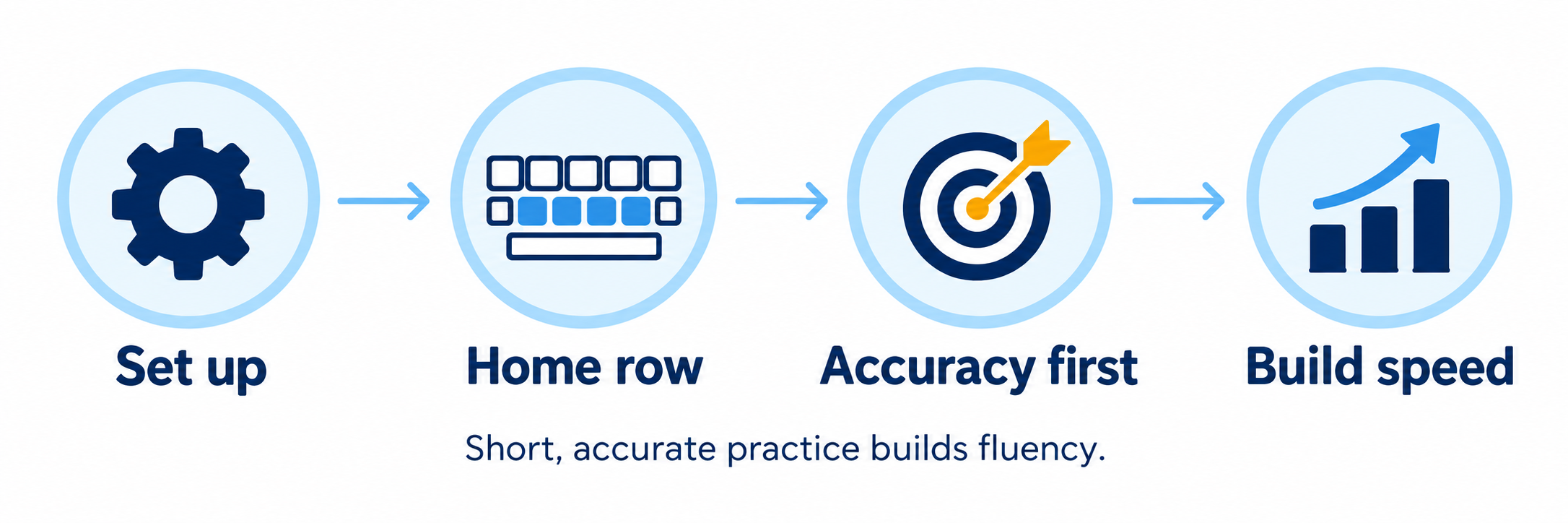
Model the physical routine away from a score: sit with stable feet and relaxed shoulders, center the keyboard, keep wrists neutral, and return fingers to the home row. Students should look at the screen and use the indicated fingers as they work.
Begin with accuracy and controlled movement. A slower accurate attempt reveals more about technique than a rushed attempt with many corrections. Repeat a short lesson when it helps build the movement pattern; avoid turning practice into a race between students.
Observe the learner: The program can record keystrokes and lesson performance. The teacher sees posture, fatigue, frustration, device problems, and whether the student is using the intended fingers.
Monitor evidence and choose the next response
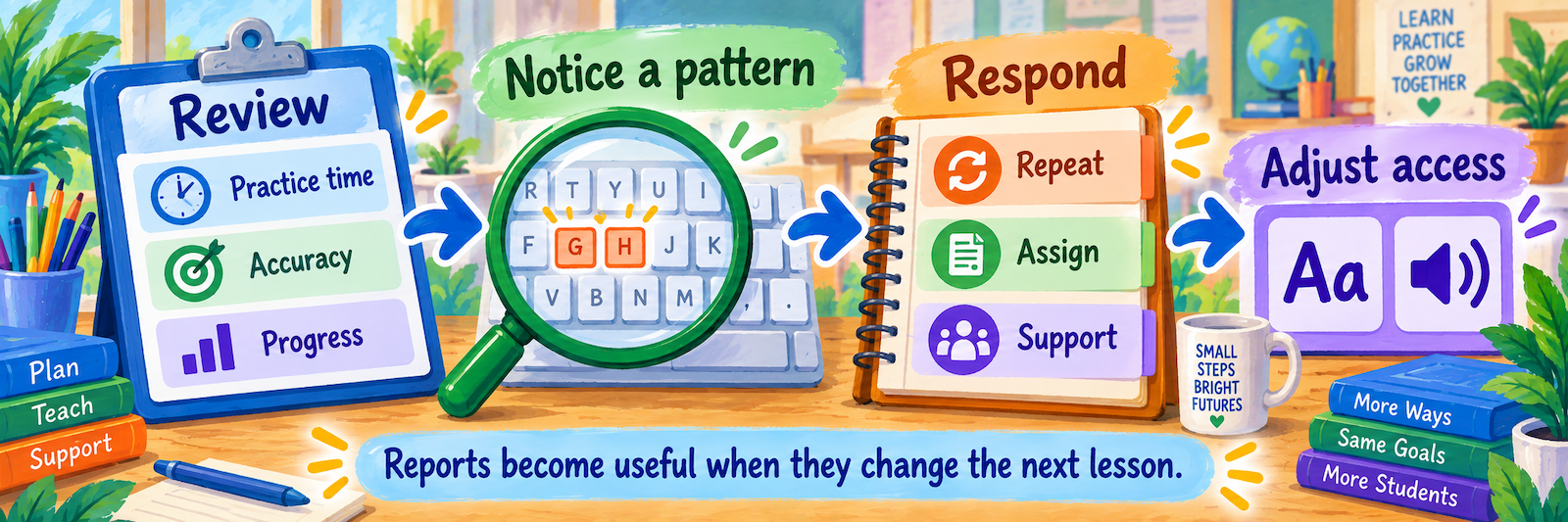
Review the reports available for the class and student. Start with practice time, lesson progress, accuracy, speed, and recurring problem keys or lesson errors. Interpret the measures together: a higher speed with falling accuracy may call for slower practice, while adequate accuracy with little progress may reflect access or scheduling problems.
| Signal to investigate | Possible response |
|---|---|
| Low accuracy across several lessons | Observe technique, reduce pace, reteach the relevant keys, and assign focused repetition. |
| Speed rises while accuracy falls | Reinforce controlled typing and set an accuracy-centered goal. |
| Strong performance on the current range | Preview the next section and expand the available lesson range when appropriate. |
| Repeated difficulty with one pattern | Assign a focused lesson and provide brief teacher-led practice. |
| Little recorded time | Check login, device access, schedule, and whether work appears under the correct account. |
| Access barrier | Review font, narration, keyboard, hand, sound, or other permitted settings and the student’s documented supports. |
Adjust access and challenge with care
TypingClub includes class and student settings that can support different learners. Test the exact setting with the student and confirm that it improves access without changing the learning goal unnecessarily. Document settings that must persist across classes or terms.
If using a built-in placement test, explain its purpose and review the resulting starting point before students continue. A placement result should inform the course entry point; it does not replace observation of technique.
Use the other edclub products through the same class structure
| Product | Teacher use |
|---|---|
| Vocabulary & Spelling | Assign a suitable course, preview its word study and practice activities, and connect the work to current reading and writing. |
| Digital Citizenship & Digital Literacy | Select the grade-appropriate level, preview scenarios and online-safety topics, and plan discussion around student decisions. |
| Social Emotional Learning | Preview the scenarios and reflection activities, establish discussion norms, and keep sensitive student disclosures in the school’s approved support process. |
| Reading or Financial Literacy, if available | Treat these as additional current catalog areas. Verify the licensed course, grade range, resources, and reports before assigning them. |
Do not assume a TypingClub pacing rule or performance target transfers to another product. The common portal simplifies management; the learning goal determines the instruction.
Official product page: Vocabulary & Spelling
Configure and Verify
Confirm the login, roster, course, lesson, and report as one complete chain.
Test the entire student-to-report path
- Use an approved demonstration student in a pilot class.
- Launch from the intended Clever, ClassLink, Google, or school-portal route.
- Confirm the correct account, class, TypingClub course, lesson, and keyboard layout.
- Complete a short lesson and check that progress appears in the teacher report.
- Assign a focused lesson or lesson range and confirm what the student sees.
- Test one needed accessibility setting and verify it during the lesson.
- If another edclub product is in scope, assign one sample course and confirm its separate student and report views.
Verify sync behavior instead of assuming it
After the pilot works, make one controlled roster change in the authoritative source and confirm the expected result. For an automatic Clever or ClassLink integration, verify the actual sync timing with support. For Google Classroom or Clever Library imports, perform the documented re-sync and inspect the affected class.
| Check | Evidence to confirm |
|---|---|
| Identity | The same student record was updated rather than duplicated. |
| Enrollment | The student appears in the correct class and retains appropriate course access. |
| Removal | The district’s approved deprovisioning process handles a withdrawn student as intended. |
| History | Required progress records remain available under the district’s retention practice. |
| Login | The student reaches the school account through the approved route. |
Define what the reports can and cannot show
Reports can document activity and performance inside assigned edclub lessons. They do not, by themselves, establish good physical technique, independent work, transfer to authentic writing, or mastery outside the program.
Use periodic real-world typing tasks—such as composing and revising a short paragraph—to see whether students can apply fluent keyboarding while thinking about content. Combine that work with report trends and direct observation.
Use class comparisons cautiously: Device type, keyboard size, accessibility settings, course placement, practice time, and prior experience all affect performance. Focus feedback on an individual student’s technique and growth.
Resolve common first-use problems
| What you notice | Check first |
|---|---|
| The student reaches the public site or a different account | Use the school’s unique portal URL and approved SSO route; confirm the student identity. |
| A Google Classroom roster is outdated | Run the semi-automatic import again; it is not an automatic nightly sync. |
| A Clever or ClassLink change has not appeared | Confirm the shared data, licensing, sync scope, and timing with the administrator or edclub support. |
| The student can log in but sees no typing course | Check class enrollment, product access, course assignment, and lesson range. |
| Progress appears to be missing | Confirm the student used the intended account, class, course, and date range. |
| The course is too easy or difficult | Review prior experience, placement evidence, lesson performance, and technique before changing the starting point. |
| A setting is unavailable | Check the product, plan, user role, and whether an administrator has locked the option. |
| Another edclub product looks different | Use that product’s setup and reporting guidance; shared rostering does not guarantee identical controls. |
Good TypingClub Habits
Accuracy before speed
Build controlled movement before raising fluency goals.
Observe technique
Watch posture, hands, focus, and fatigue—not only the report.
Respond to patterns
Use repeated evidence to choose a focused next step.
Apply the skill
Check whether keyboarding supports authentic writing and learning.
Official edclub Resources
Use the guidance for the product, plan, and roster method enabled in your school account.
2026–27 edition. Public edclub pages and Help Center reviewed September 11, 2026. Product access, integrations, sync behavior, settings, and reports depend on plan and configuration. Classroom examples and conceptual illustrations are SDLA material.