


Turnitin Feedback Studio Quick Start Guide
Review student writing, investigate source matches, and give feedback students can use to strengthen their next draft.
Feedback Studio supports writing evaluation and response. The teacher provides the writing task, criteria, and instruction. Turnitin brings together submitted writing, similarity evidence, comments, QuickMarks, and rubric-based evaluation.
This guide uses the Standard assignment and enhanced grading and feedback experience. Standard (Classic) assignments and some LMS integrations use different menus. Begin through your school’s approved LMS or Turnitin account, and use the help page that matches your view.
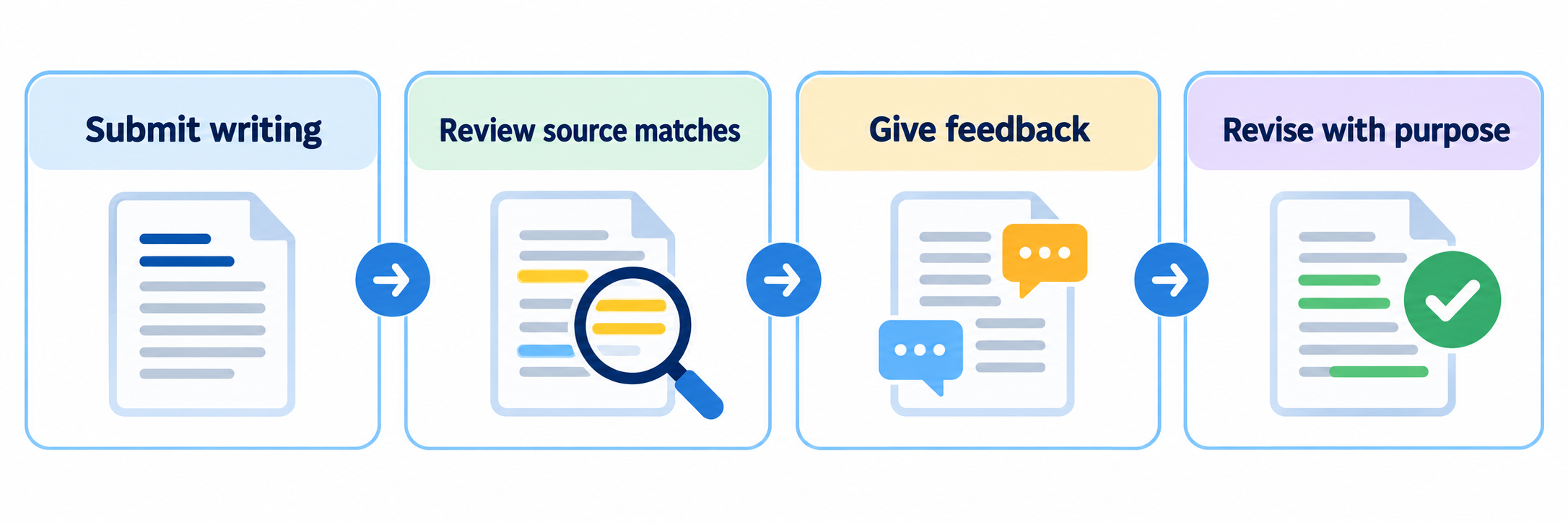
A Writing-Review Cycle
Prepare
Set the writing purpose, criteria, source expectations, and revision plan.
Review
Read the writing and examine matched passages in context.
Respond
Use focused comments and the rubric to explain strengths and next steps.
Revise
Have students interpret the feedback and make a purposeful change.
Read beyond the percentage: The similarity score describes matching text. It does not determine plagiarism or measure writing quality. Review the passages, sources, attribution, and assignment context before reaching a judgment.
District Setup
Establish access, grading responsibilities, and a review process that supports learning.
Confirm access and the grading workflow
- Confirm Feedback Studio access, the intended class, instructor role, and student launch route. Use the existing school account or LMS connection.
- Check which assignment and viewer experience is enabled. If you see Standard (Classic), use the matching Classic guidance.
- Identify the support contact for account access, LMS integration, submission issues, and repository requests.
- Decide where grades and rubrics will be entered. In an LMS integration, choose a consistent grading route and verify how results reach the LMS gradebook.
Official guide: LMS integration workflow
For example, Canvas can use Turnitin grading or Canvas SpeedGrader grading. In the embedded SpeedGrader route, Turnitin’s grade, rubric, and summary controls may be absent because grading occurs in Canvas.
Plan what happens to drafts and feedback
Decide whether this is an initial draft, a final submission, or a feedback checkpoint. Tell students when they will receive comments and where the next version belongs.
| Decision | What to establish |
|---|---|
| Criteria | What makes the argument, evidence, organization, and attribution successful? |
| Source use | Which sources and citation approach are expected, and what assistance is permitted? |
| Feedback | Which comments should students act on before writing the next version? |
| Revision route | Will students submit to a separate revision assignment or use a permitted resubmission? |
| Record of learning | Which drafts and feedback need to remain available for comparison? |
Protect the feedback checkpoint: In a Standard assignment, resubmitting overwrites the previous submission and loses its grading. Plan separate draft/final checkpoints when you need to preserve both versions and their feedback.
Set report and repository expectations
Review whether submissions will be stored for future comparison, which source collections will be compared, and whether students may view their reports. Use your institution’s repository and retention requirements. “Do not store” controls comparison-repository storage; do not describe it as deleting the submitted work.
Official guide: report and repository settings
Use an agreed review process for quotations, citations, and exclusions. Explain to students how similarity evidence will be considered alongside their writing and sources.
If AI writing detection is available: It is a separate indicator with its own limitations. Turnitin says it can misidentify text and must not be the sole basis for adverse action. Examine the writing process and other evidence, and follow the school’s review procedure.
Teacher Workflow
Use the writing, source evidence, and assessment criteria to give actionable feedback.
Create a clear writing assignment
Example: A Pond Habitat. Ask students to make a claim about protecting a local habitat using evidence from assigned readings. Explain the audience, expected length, source requirements, permitted support, and success criteria.
- Launch the Turnitin assignment-creation route supplied by your school and choose Standard when available.
- Enter the title, instructions, maximum points, start date, due date, and Feedback release date.
- Attach the intended rubric and review submission and report settings.
- Create the assignment, then check the student-facing directions.
The feedback release date controls when Turnitin grading and feedback become visible. Student access to similarity results is configured separately.
Verify the submission and read the writing
Ask students to use the required file format, preview the upload, complete the submission process, and retain its confirmation or submission ID. Opening an assignment or choosing a file is not evidence that the upload finished.
Official guide: student assignment and submission details
Open the assignment’s submission list, locate the intended student and version, and launch the paper. Confirm the document is readable and complete. Read for the claim, reasoning, evidence, and organization before deciding what feedback matters most.
Official guide: manage and open submissions
A text-based DOCX or PDF is a practical choice when allowed by the assignment. An image-only scan may not provide usable text for similarity checking. File acceptance and report generation are different checks.
Investigate matches in context
Open the Similarity report and select a highlighted passage or source entry. Read the surrounding paragraph and the matched source. If several sources overlap, inspect the source details rather than assuming the first match explains the student’s process.
Official guide: read the enhanced Similarity Report
| Check | What to consider |
|---|---|
| Exact words | Are borrowed words marked as a quotation where required? |
| Attribution | Does the citation identify the source and connect to the reference entry? |
| Use in the argument | Does the student explain how the source supports the claim? |
| Assignment context | Is the match from a supplied template, required wording, a reference list, or an earlier draft? |
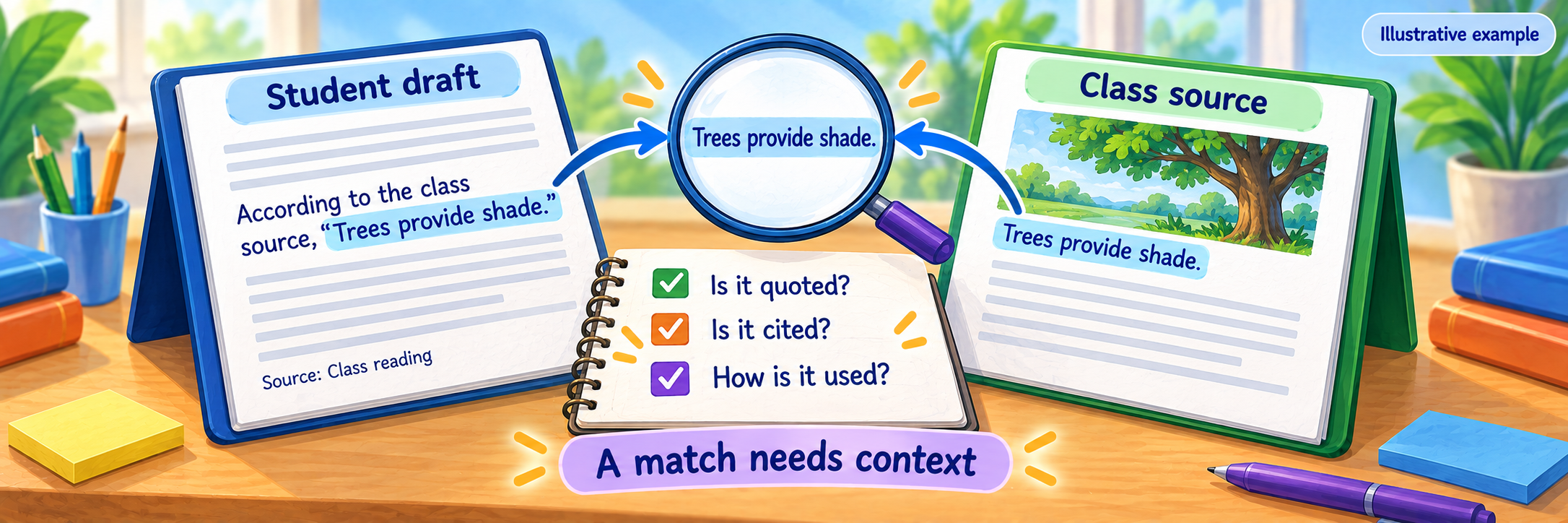
A properly attributed quotation can match, and a low score does not establish that all source use is appropriate. Avoid a universal “safe” percentage. Record the passages and reasons that support your review.
Official guide: interpreting similarity
Apply exclusions consistently when relevant to the assignment. Filters change the report’s comparison view; they do not improve or alter the submitted writing. Keep track of consequential filter changes.
Give focused comments and evaluate the criteria
In the enhanced viewer, open the Feedback panel. Find a relevant QuickMark and drag it to the passage. Open the mark to add a specific explanation, then save. A reusable label is most useful when the student understands the change it calls for.
Official guide: use QuickMarks
For example: “Explain how this evidence supports your claim.” Recognize a strength, then identify one or two priorities. Use a summary to connect the comments into a revision plan; pin important feedback when that option is available.
Official guide: enhanced feedback tools
For a scored rubric, open Rubric, evaluate each criterion, and select Apply to Grade when ready. Check the resulting grade against the assignment’s points and grading approach. Qualitative criteria can support feedback without a numerical score.
Official guide: rubric scoring and Apply to Grade
Optional audio or video summaries can explain tone and priorities. Keep essential directions available in text and verify that students can access the chosen format.
Make the next draft a learning task
After feedback is released, have students reopen their submission and review the comments, summary, and rubric available in their view. Model this route with a demonstration submission.
Official guide: student access to feedback
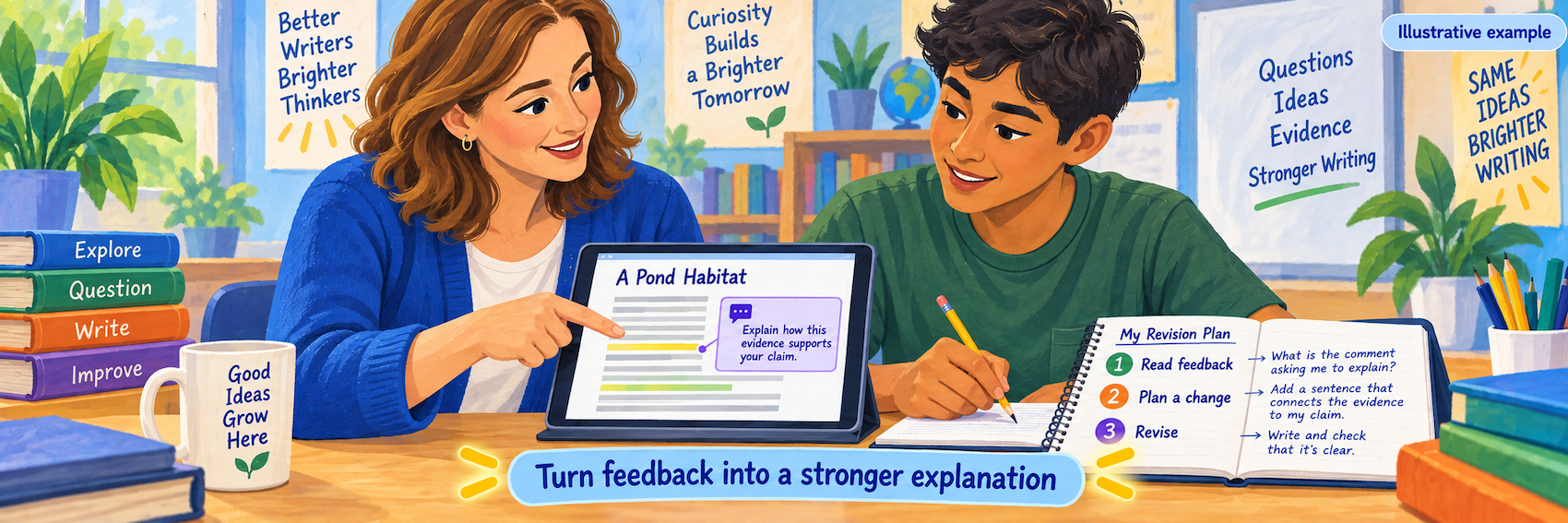
- Ask the student to explain one comment in their own words.
- Identify the sentence or paragraph that needs attention.
- Plan the change: add reasoning, improve evidence, reorganize, or correct attribution.
- Revise and submit through the route you established.
- Include a short reflection: “I changed ___ because ___.”
A conference can focus on the reasoning behind a paragraph without taking over the writing. Review the change against the same criteria used for the original feedback.
Configure and Verify
Confirm that work arrives, feedback is visible, and revision remains possible as planned.
Test the whole submission-to-feedback route
- Use an approved test assignment and demonstration student account.
- Submit a supported sample file, finish the upload, and confirm it appears in the instructor’s list.
- Open the paper and check report availability, readable text, and source matching.
- Add a QuickMark or comment and apply a sample rubric judgment. Reopen the work to check that the feedback persists.
- At the intended release time, return as the demonstration student and locate the feedback and grade.
- If connected to an LMS, verify the grade in its receiving gradebook and check the student’s visibility there.
Test keyboard navigation, readable text, and any audio or video feedback on the devices students use. Provide an accessible route for the required feedback.
Check dates and the revision window
| Control | What it affects |
|---|---|
| Start date | When submission can begin. |
| Due date and late setting | The deadline and whether an eligible late first submission is permitted. |
| Feedback release date | When Turnitin grades and feedback become visible. |
| Similarity access | Whether and when students can inspect the report, separately from feedback release. |
| LMS posting controls | Whether grades are visible in the LMS, which may differ from the Turnitin view. |
Resubmissions must fit the permitted window. Standard assignments limit repeated submissions within a 24-hour period, so do not promise unlimited immediate rechecks. Confirm the settings before students plan a last-minute revision.
Official guide: late work and resubmissions
In Canvas, Turnitin’s release date and Canvas’s grade-posting policy control different views. Test both when that is your integration.
Use evidence to guide follow-up
Compare the revised explanation with the original criteria and the student’s reflection. Decide whether the next step is a short conference, source-use instruction, or practice with a specific writing move.
A Viewed indicator can show that a student opened their submission to view a grade or feedback. It does not establish that they understood or used it.
Official guide: submission-list indicators
If the review raises an integrity concern, document the relevant passages and sources and invite the student to explain their process. Use the institution’s procedures and the full evidence, rather than treating a percentage as a verdict.
Keep reusable QuickMarks and rubrics aligned with the assignment. Rubrics already used for scoring are locked; prepare a separate version for future use when the criteria need to change.
Resolve common first-use problems
| What you notice | Check first |
|---|---|
| The controls do not match this guide | Confirm Standard versus Standard (Classic), the viewer experience, and the LMS launch route. |
| The file uploaded but no report appears | Check processing status, file compatibility, report settings, and which type of report is expected. |
| A student cannot see a report or comments | Check similarity access separately from the feedback release date and LMS grade-posting settings. |
| A large match points to an earlier draft | Inspect the source and the draft/repository workflow before interpreting the match. |
| A student cannot resubmit | Check permission, due date, and the submission limit for the current window. |
| Earlier grading disappeared | Check whether a resubmission overwrote the original Standard submission. |
| Rubric scores did not become the grade | For a scored Turnitin rubric, check Apply to Grade and the resulting grade field. |
| Rubric or summary tools are absent | Check whether the embedded LMS grading route handles those functions instead. |
| A student says the paper was submitted | Verify the correct account, assignment, file, and submission confirmation or ID before requesting a replacement. |
Good Writing-Review Habits
Read the work
Start with the student’s ideas and the assignment criteria.
Inspect the evidence
Read matching passages and their sources in context.
Prioritize feedback
Make the most useful next change clear and achievable.
Look for revision
Ask students to show and explain how their writing improved.
Official Turnitin Resources
Use your school’s approved launch route and the guidance that matches your assignment experience.
2026–27 edition. Official documentation reviewed September 11, 2026. Features depend on license, assignment type, and integration. Classroom examples and conceptual illustrations are SDLA material.