



TCI Alive! Programs Quick Start Guide
Identify the exact TCI curriculum, connect licenses and classes through the district’s approved route, then prepare the blended lesson before assigning and reviewing student work.
“TCI Alive” describes a family of science and social studies programs, not one course or one login method. The shared digital platform can contain different programs, editions, teacher resources, student licenses, assignments, and physical materials. A teacher who can sign in successfully may still need the correct program entitlement, class roster, and LMS connection.
Understand the Whole Program Before Teaching the First Lesson
Identify
Confirm the subject, title, grade or course, edition, schools, teacher access, and student licenses.
Connect
Separate authentication, roster provisioning, program entitlement, LMS delivery, and grade exchange.
Prepare
Coordinate lesson guidance, digital presentation, student text, notebook work, activities, and physical materials.
Verify
Test the student route, review submitted work, and prove any assignment or grade synchronization.
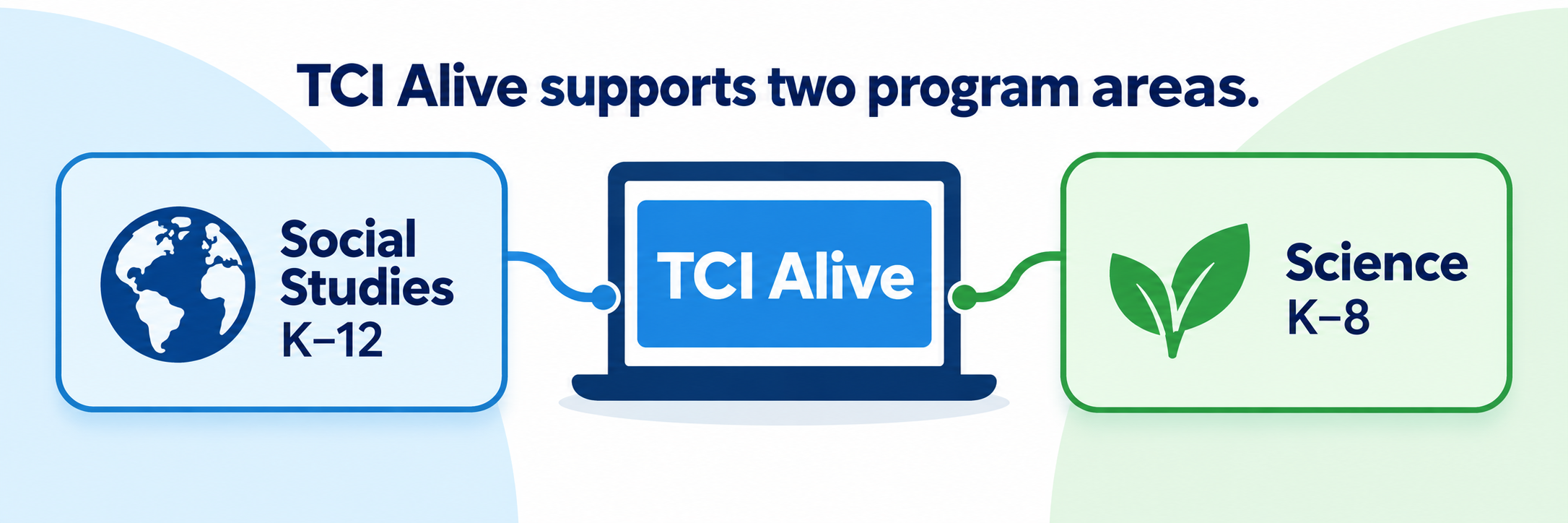
Ask for the full program name. “We use History Alive” does not establish whether the course is The Ancient World, The Medieval World and Beyond, The United States Through Industrialism, World Connections, Pursuing American Ideals, or another licensed title and edition.
District Setup
Connect the purchased curriculum to the correct people and classes before teachers create local workarounds.
Inventory the adoption
Document the exact TCI titles, edition or state version, licensed schools, grade levels, courses, number and type of student licenses, teacher and administrator access, contract dates, and print or kit components. Confirm whether different schools use different courses or editions.
| Family | Typical programs | Components to locate |
|---|---|---|
| Elementary social studies | Social Studies Alive! programs organized by early community, geography, and United States history themes | Teacher guide, student text or stories, journal or notebook, picture cards, activities, assessment, and digital license |
| Middle school social studies | History Alive!, Geography Alive!, and Civics Alive! | Lesson guide, student text, Interactive Student Notebook, placards, activities, video experiences, games, inquiry, and assessment |
| High school social studies | History Alive!, Government Alive!, Econ Alive!, and Geography Alive! | Course-specific text, notebook pages, sources, activities, inquiry projects, assessment, and digital license |
| Elementary science | Bring Science Alive! grade-level programs | Teacher guidance, student reading and notebook work, investigations, digital interactions, kit materials, and assessment |
| Middle school science | Bring Science Alive! domain or integrated grade 6–8 programs | Phenomena, investigations, models, readings, data, notebook responses, kits, and assessment |
Separate the four connection layers
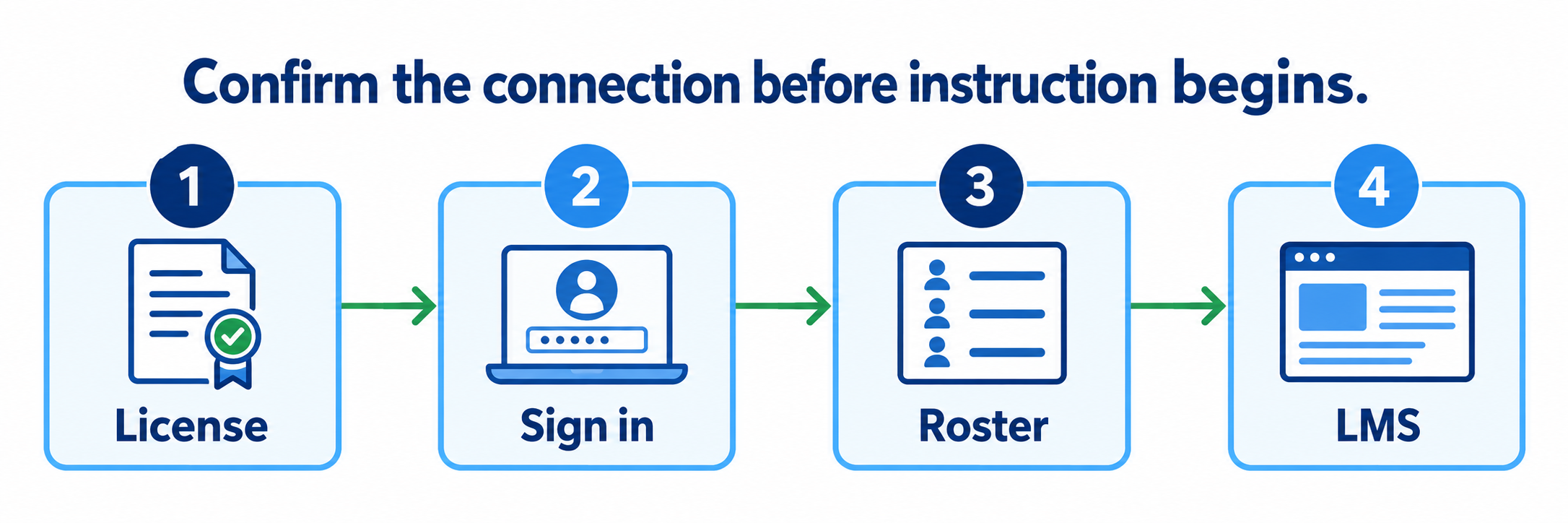
| Layer | Question | Evidence of success |
|---|---|---|
| License and entitlement | What program, edition, school, course, and role may this user access? | The correct teacher and student materials appear. |
| Authentication | How does the user prove identity? | The approved portal, SSO, Google, SAML, LTI, token, or direct route opens one intended account. |
| Roster provisioning | How are accounts, classes, teachers, students, and enrollments created and updated? | Source identifiers and class membership match the authoritative data. |
| LMS exchange | Where are assignments opened, completed, submitted, scored, and synchronized? | The correct course receives the item and supported grades return as expected. |
Choose one authoritative rostering method
TCI documents Clever Secure Sync, OneRoster API 1.1, automated CSV delivery through SFTP, and manual CSV upload through Subscription Manager. Select one primary method, preserve stable identifiers, and correct synchronized records in the source system.
- Share only licensed schools, teachers, students, classes, and enrollments.
- Match teachers to the programs and courses they actually teach.
- Confirm co-teachers, specialists, substitutes, coaches, and administrators receive an appropriate role.
- Test new, transferred, withdrawn, cross-enrolled, and duplicate students.
- Record the sync schedule, error owner, and expected correction timeline.
ClassLink requires a configuration check. TCI lists ClassLink as a technology partner but does not name a distinct ClassLink rostering workflow on its current technical page. Confirm whether the district’s connection uses OneRoster, SAML, LTI, or another TCI-supported arrangement.
Configure sign-in and LMS delivery separately
TCI lists Clever SSO, Google sign-in, SAML 2.0, LTI sign-in, and authentication-token links. For content delivery, TCI documents Google Classroom, Canvas, Schoology, QTI, LTI grade passback, and Google Drive. Use the district-supported path and do not ask teachers to connect a second route independently.
- Publish the exact teacher and student launch location.
- Prevent duplicate accounts created through different sign-in methods.
- Confirm third-party cookies, embedded content, pop-ups, and required network domains.
- Test assignment creation, due dates, student completion, manual grading, automatic scoring, and grade return.
- Name the authoritative gradebook when both TCI and the LMS display scores.
Coordinate physical and digital access
Assign ownership for print texts, teacher guides, journals or notebooks, placards, investigation materials, reusable tools, consumables, replacements, and storage. Map every missing physical component to the lesson date it affects. The digital license organizes access; it does not prepare a simulation, copy a placard set, stage an investigation, or replenish a science kit.
Pilot the complete route
Use one teacher, one class, and approved demonstration students. Confirm the exact program, lesson, assignment, student launch, response, teacher review, and any LMS grade exchange. Repeat with one automatically scored item and one open response. Then test a schedule change and new enrollee before broad launch.
Plan and Teach
Orient to the purchased curriculum, then prepare the complete lesson rather than treating the online text as the program.
Verify your account before creating classes
Enter through the district-approved route and confirm your school, role, program title, edition, classes, and student access. If the district manages rosters, report missing or incorrect records to the integration owner instead of creating a competing class or account.
- Open the Program Dashboard and confirm the expected units and lessons.
- Compare the class list with the authoritative schedule.
- Confirm student licenses are attached to the intended program.
- Locate print, presentation, notebook, activity, assessment, and differentiation resources.
- Complete the in-app foundational training before the first major assignment.
Read the lesson architecture
Begin with the lesson guide, objective, standards, materials, pacing, preparation, activity sequence, checks for understanding, and assessment. Decide which components are essential, which can be adapted, and which require physical preparation or student collaboration.
| History and social studies | Science |
|---|---|
| Prepare primary and secondary sources, maps, timelines, placards, and geographic evidence. | Prepare phenomena, investigation materials, safety procedures, tools, models, and data tables. |
| Plan simulations, experiential exercises, source analysis, discussion, and historical argument. | Plan observation, measurement, investigation, modeling, explanation, and evidence-based revision. |
| Use the Interactive Student Notebook to collect reading notes, visual thinking, analysis, and claims. | Use notebook work to record predictions, observations, diagrams, data, claims, and reasoning. |
| Check perspective, context, sourcing, corroboration, and civic or historical reasoning. | Check investigation quality, variable control, evidence, model limitations, and scientific reasoning. |
Prepare the blended learning sequence
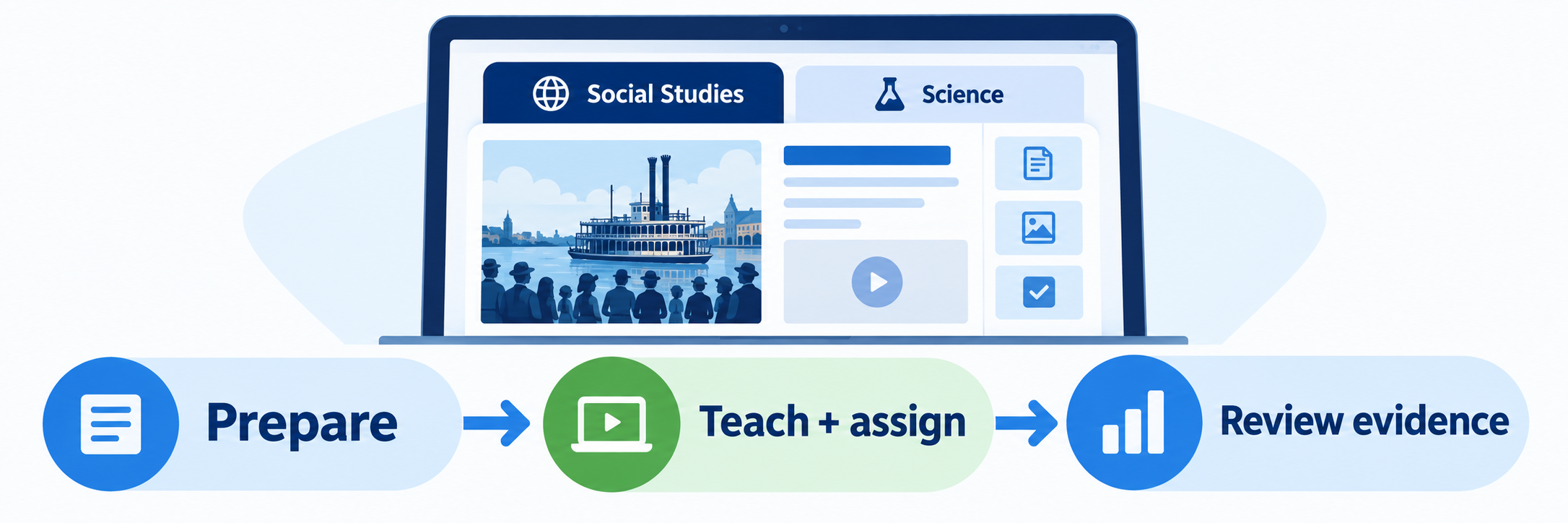
- Stage print, placards, notebooks, devices, lab materials, and group roles.
- Preview the student text, slideshow, videos, interactions, games, and assignment directions.
- Test translations, text-to-speech, speech-to-text, reading supports, and local accommodations.
- Plan transitions among whole-group facilitation, collaboration, hands-on work, reading, and individual response.
- Prepare an offline or low-technology continuation when network access is uncertain.
Create a focused assignment
Use TCI’s assignment controls to specify What students complete, Who receives it, When it opens and closes, and any Optional directions. Assign only the components needed for the learning goal and explain whether students will submit a notebook response, game, investigation record, reading task, or assessment.
Preview as a student. Confirm the assignment title, order, directions, answer visibility, navigation, due date, allowed revisions, and final submission action before sending it to a class.
Facilitate the activity
Use presentation tools and Teacher-Paced Mode when the class needs a shared sequence, but keep the intellectual work with students. Pause for observation, source analysis, prediction, argument, evidence comparison, model revision, and discussion. Reset a slideshow only when you intend to clear its notebook answers and progress for a fresh class.
Review evidence and respond
Use the Grades page and student-work views to see assigned, in-progress, submitted, automatically scored, and teacher-reviewed work. Review by assignment, student, or question as supported; comment on responses, override scores when appropriate, and identify patterns that require reteaching, extension, or a better task.
- Distinguish completion from accuracy and accuracy from explanation.
- Review open responses and notebook work that cannot be interpreted by an automatic score.
- Compare digital evidence with discussion, collaboration, investigation, and written work.
- Use standards reports only for standards actually represented by assigned TCI assessment questions.
- Confirm the LMS displays the intended final score when grade synchronization is enabled.
Assign, Review, and Support
Teach the student route and troubleshoot the layer that failed.
Teach one student entry point
Students may enter through the district portal, Clever, Google, an LMS, or TCI’s direct student sign-in. A directly managed student may need the teacher email or username, student username, and password. Publish the local route and discourage students from creating new accounts when an expected account is missing.
Verify what students see
Confirm that students reach the correct program and class, find the assignment, use the intended reading and notebook supports, complete each required component, and understand the submission action. Student assignment views can distinguish upcoming, completed, and past-due work.
- Test one typical student and one student who requires accessibility or language supports.
- Confirm the assignment opens on the devices students actually use.
- Check that images, video, audio, interactive tools, notebook drawing, and text entry work.
- Verify whether students may revise after submission and what answer information they can see.
- Have students identify where teacher feedback and grades will appear.
Prove LMS assignment and grade exchange
For Google Classroom, Canvas, or Schoology, create the assignment through the supported integrated route rather than pasting an ordinary link and expecting grade synchronization. Complete it as a demonstration student, grade any open response in the required system, and confirm the score reaches the intended LMS course and column.
Pilot every content type. A reading, notebook response, game, multiple-choice assessment, and open response may not share identical scoring or grade-return behavior. Current TCI pages also contain inconsistent historical wording about Google Classroom grade sync, so validate the live district configuration.
Resolve common first-use problems
| What you notice | Check first |
|---|---|
| The teacher can sign in but sees the wrong program | School, role, program title, edition, course entitlement, and teacher license assignment. |
| The student has no TCI account or class | Authoritative roster source, sharing rule, stable identifier, class enrollment, sync history, and student license. |
| A manually created class disappears or conflicts | Whether the district’s next managed synchronization replaced the local record. |
| Clever opens TCI but the roster is wrong | Separate Clever SSO from Clever Secure Sync; inspect the shared schools, sections, roles, and identifiers. |
| ClassLink is present but behavior is unclear | Confirm whether the contracted connection uses OneRoster, SAML, LTI, or another documented TCI method. |
| The student sees TCI but not the assignment | Correct account, class, recipients, program, assignment status, opening date, and delivery route. |
| The LMS assignment opens but no grade returns | Integrated assignment creation, content type, account match, submission, manual grading requirement, sync status, and resync option. |
| Expected notebook or physical material is missing | Edition, program component, shipment, local storage, print permission, kit inventory, and lesson preparation owner. |
| Student work was cleared | Slideshow restart, class selection, assignment revision settings, and whether the teacher intentionally reset progress. |
| A standards report looks incomplete | Which correlated assessment items were actually assigned, completed, and graded. |
Protect records and close the year
Confirm the district’s privacy, retention, and support procedures. Before classes roll over or licenses expire, preserve required grades and student work, inventory reusable materials and consumables, archive or close classes as directed, remove departed staff access, and test the next term’s roster and program assignments.
Good TCI Habits
Name the program
Record the complete title, grade or course, edition, school, and license before troubleshooting.
Separate the connections
Test entitlement, sign-in, roster, assignment delivery, and grade exchange independently.
Prepare beyond the screen
Stage teacher guidance, student materials, placards, notebooks, investigations, and kits.
Review real evidence
Use scores with student responses, explanations, discussion, source analysis, and investigation work.
Official TCI Resources
Use current documentation for the exact program, edition, roster source, and LMS enabled in your district.
2026–27 edition. Public TCI product, technical, onboarding, teacher, and platform-update resources reviewed September 12, 2026. Programs, editions, licenses, integrations, interfaces, standards reports, and grade synchronization depend on the active district agreement and configuration. TCI currently documents Clever SSO and Secure Sync, OneRoster 1.1, automated and manual CSV rostering, Google sign-in, SAML, LTI, Google Classroom, Canvas, and Schoology. ClassLink is shown as a technology partner, but the exact district connection should be verified with TCI. Classroom examples and conceptual illustrations are SDLA material.