


Smarty Ants Quick Start Guide
Give PreK–2 learners a predictable path from a Clever Badge to personalized foundational-literacy practice.
Smarty Ants is a supplemental early-literacy program, not a replacement for the classroom reading program or teacher-led instruction. Its adaptive lessons and embedded assessment can support phonological awareness, phonics, vocabulary, fluency, and comprehension. Successful use begins with accurate identities, an accessible login routine, working audio, and teacher response to what students do.
Four Connected Parts
Roster & Access
The SIS, Clever sharing, licenses, classes, and product assignment must resolve to the correct learner.
Badge Routine
Young students scan a personal Clever Badge, verify their identity, and launch the assigned Smarty Ants tile.
Adaptive Practice
Initial placement and ongoing responses guide the sequence, pace, practice, and scaffolding presented.
Teacher Response
Teachers combine dashboard evidence with observation to plan small-group and individual instruction.
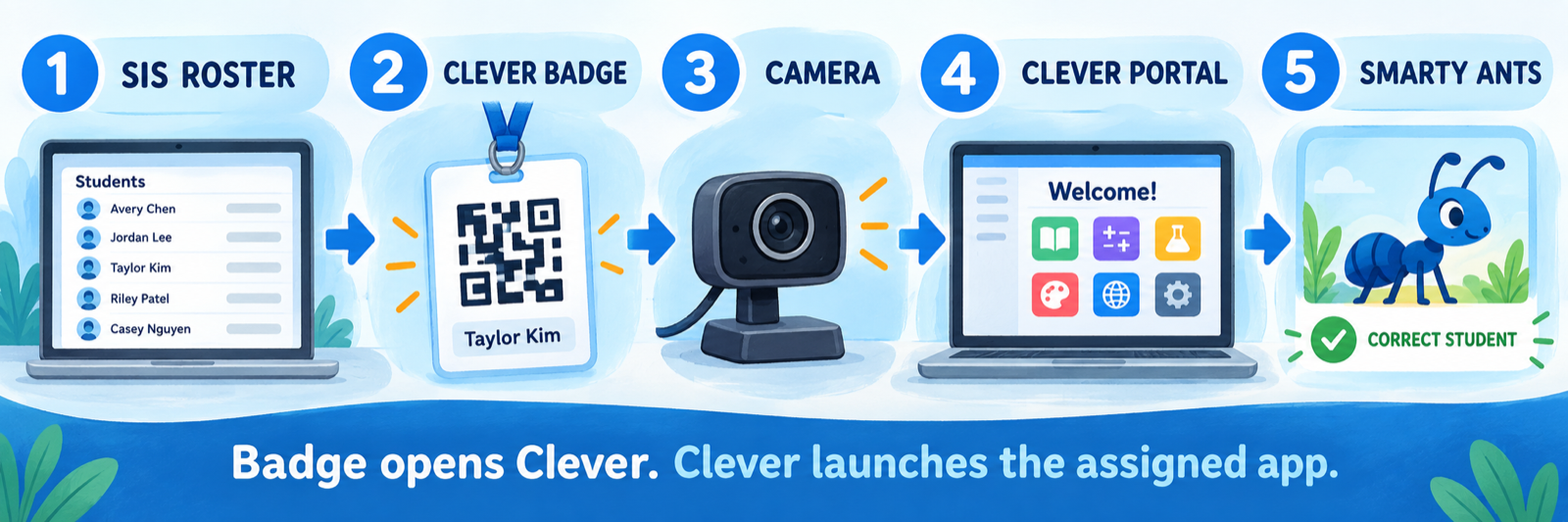
Keep the systems distinct: the Clever Badge signs the student into Clever. Clever then presents the applications shared with that student. Selecting Smarty Ants launches the account that the district’s roster and product configuration have assigned.
District Setup
Connect the right learner to the right product, then prove that the classroom device supports the complete route.
Confirm the operating model
Document the participating schools and grades, purchased Smarty Ants licenses, Clever-to-product connection, authoritative roster source, nightly update schedule, administrator and teacher access, district support route, and expected home-access method.
| Responsibility | Named owner |
|---|---|
| SIS identity and enrollment corrections | District student-information or data team |
| Clever sharing rules and sync errors | District Clever administrator |
| Smarty Ants licenses and product assignment | Curriculum, assessment, or McGraw Hill administrator |
| Teacher dashboard and class access | Site or district application owner |
| Camera, audio, browser, and network support | Technology team |
| Instructional expectations and report use | Early-literacy leadership and teachers |
Validate the roster-to-product chain
A child can appear correctly in Clever and still lack the right Smarty Ants assignment. Verify the complete path from the SIS record through Clever sharing and into the teacher’s actual Smarty Ants class.
- Confirm the student’s stable district identifier, school, grade, active enrollment, and class assignment in the SIS.
- Check that the correct school, section, teacher, and student are included in the district’s Clever sharing scope.
- Confirm that the Smarty Ants application is visible to the intended user group and that the license resolves to the correct product experience.
- Open the teacher dashboard and verify that the same child appears once in the correct class.
- Test a new enrollment, class transfer, withdrawal, and name change before broad launch.
Repair the authoritative source. A manual downstream change may be reversed by the next automated synchronization if the SIS or Clever sharing rule remains wrong.
Enable Clever Badges for the intended students
Use the district-authorized Clever workflow to enable and print Badges for the appropriate K–2 students. Each Badge is a personal sign-in credential represented by a unique visual code. Print a current card with the student’s name, distribute it privately, and maintain a controlled replacement process.
- Do not post class sets of Badges in photographs, public webpages, or family messages.
- Store classroom copies where students can retrieve only their own card.
- Invalidate or replace a Badge according to district procedure when it is lost, copied, or assigned to the wrong student.
- Provide the approved backup login route for a damaged card or unavailable camera.
- Explain to families that the Badge opens Clever first; the student then selects Smarty Ants.
Prepare devices for young learners
Test the actual classroom devices and network. Confirm that the Clever Badge page can use the camera, the Smarty Ants tile launches, sound plays clearly, headphones fit, touch or pointer input works, and the student can return to the district-approved starting page.
| Component | Evidence |
|---|---|
| Camera | The browser or managed-device login surface requests and receives permission; a sample Badge produces a successful scan. |
| Clever portal | The student reaches the correct district portal and sees only the intended application tiles. |
| Smarty Ants launch | The tile opens the assigned student account without an unexpected second credential prompt. |
| Audio | Directions, speech sounds, and feedback are audible through working, appropriately sized headphones. |
| Input | The student can select, drag, trace, and respond using the classroom device configuration. |
| Sign-out | The session ends without leaving the previous child’s account available to the next learner. |
Run a child-centered pilot
Pilot with one teacher, a small roster, representative device types, and approved demonstration or actual accounts. Observe whether six-year-olds can independently find the camera, orient the Badge, recognize their name, select Smarty Ants, put on headphones, begin, ask for help without guessing, and sign out.
Measure independence, not adult success. A technician completing the route does not prove that a first grader can repeat it during a busy literacy block. Record where the child needs prompting and simplify that step before scaling.
Teacher Workflow
Teach a repeatable access routine, protect placement, and connect digital practice to teacher-led literacy instruction.
Verify the class before printing cards
Open the Smarty Ants teacher dashboard and compare the class with the current roster. Check for missing students, duplicates, withdrawn students, unexpected grade placement, and learners attached to the wrong teacher. Submit source-data corrections before creating local workarounds.
Prepare and teach the Badge routine
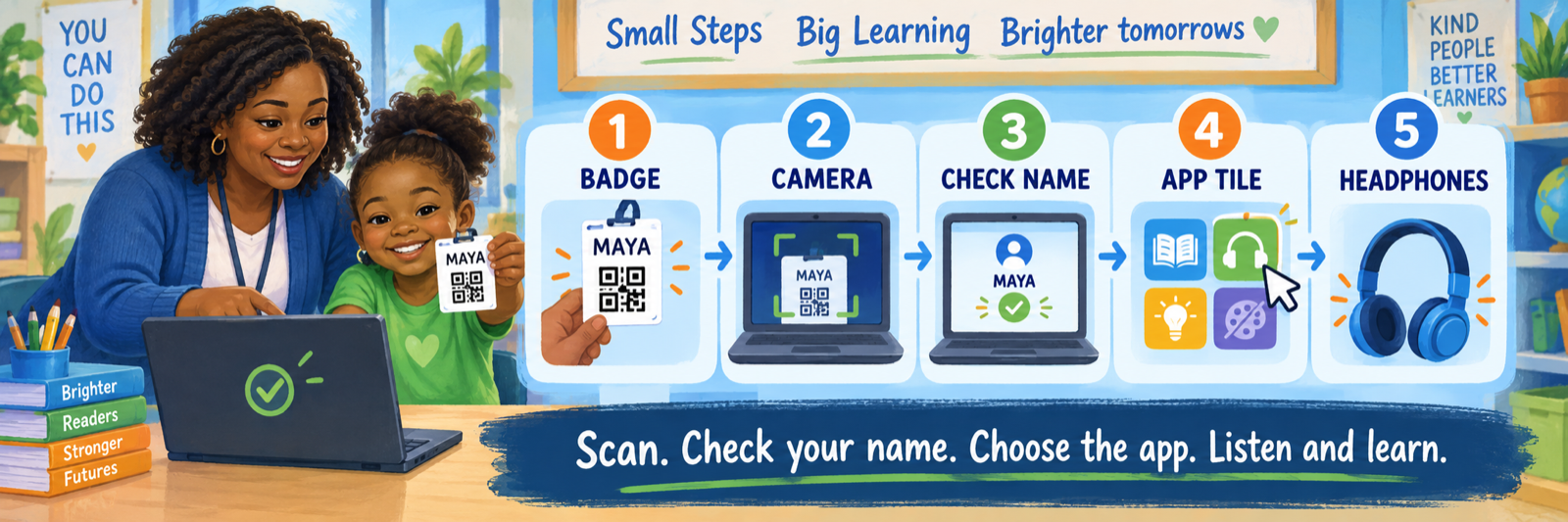
Use the same words and visual sequence each time. Model the routine with a demonstration Badge before students work independently.
- Open the district’s Clever Badge login page or the managed Chromebook Badge sign-in screen.
- Allow camera access when the approved device requests it.
- Hold the student’s own Badge steady and centered until Clever confirms the scan.
- Check the displayed name or avatar before continuing; sign out immediately if it is the wrong learner.
- Select the Smarty Ants tile from the Clever portal.
- Confirm that the expected student experience opens, put on headphones, and begin.
- When finished, exit Smarty Ants and sign out of Clever or the device using the district routine.
Protect the initial placement experience
Smarty Ants uses initial assessment information to place learners in an appropriate part of its sequence. Schedule the first session when the child can hear clearly, work without another student supplying answers, and receive help with equipment rather than literacy content.
- Explain that some items will feel easy and others may feel challenging.
- Help with headphones, volume, login, and navigation; do not identify sounds, letters, words, or answers.
- Pause the session under the product’s current directions if the learner is fatigued, distressed, or unable to hear.
- Document material interruptions so later performance is interpreted with the testing conditions in mind.
- Check the resulting placement against classroom evidence before drawing an instructional conclusion.
McGraw Hill resource: foundational-literacy design and initial placement
Establish a short independent-work routine
Choose a predictable place in the literacy block and teach what successful participation looks and sounds like. Young learners benefit from short, consistent sessions, working headphones, a visual help signal, and a clear stopping routine.
| Teacher prepares | Student routine |
|---|---|
| Correct device, Badge, and headphones | Scan, verify identity, launch, and listen. |
| A defined work period | Follow the coach and complete the current activity. |
| A nonverbal help signal | Stop and ask for help rather than clicking randomly. |
| A closing direction | Finish at the approved stopping point and sign out. |
| A plan for early finishers | Move to the next teacher-approved literacy activity. |
Observe the learner as well as the dashboard
Watch periodically for audio problems, repeated guessing, copied Badge use, accidental account switching, motor-access barriers, and students who appear busy without understanding the task. Record a brief observation when it changes how you interpret the digital evidence.
Productive independence still needs teaching. The goal is not merely a quiet device rotation. Students should attend to spoken directions, make purposeful responses, and transfer growing skills into reading and writing with a teacher.
Turn evidence into direct instruction
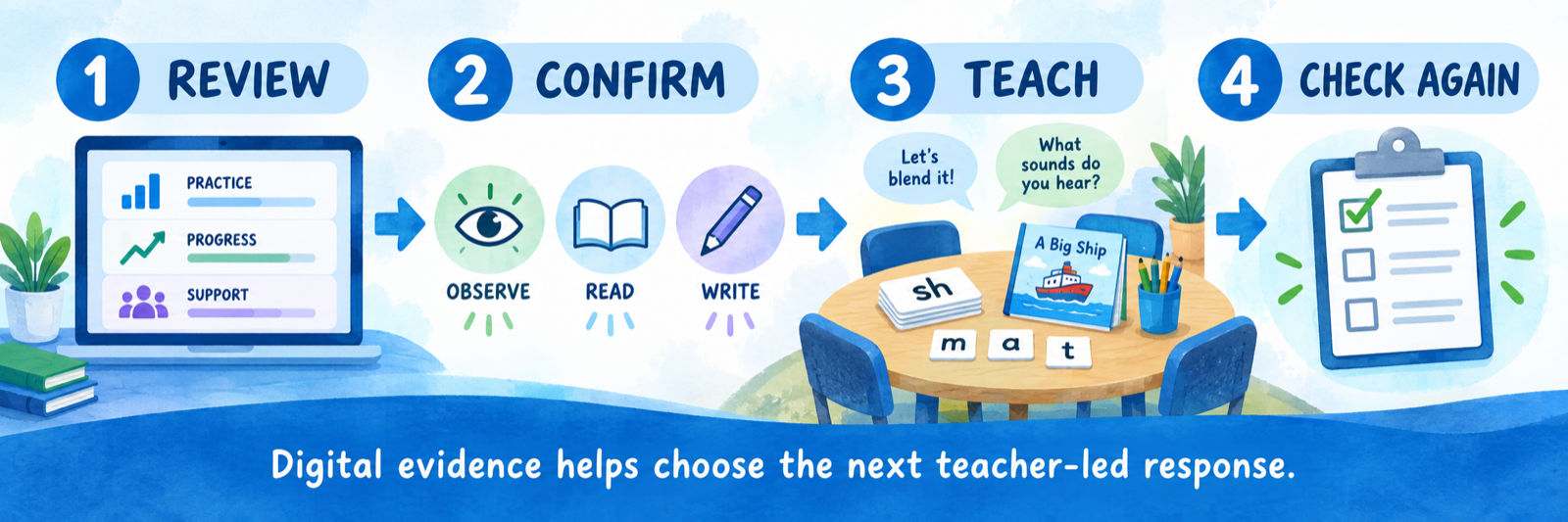
Review progress and usage in the teacher dashboard, then connect the pattern to classroom reading, writing, and oral-language evidence. Use the combined evidence to choose a response such as a phoneme-manipulation routine, explicit grapheme–phoneme practice, word building, decodable reading, vocabulary discussion, or fluency work.
- Confirm the learner actually completed the session under usable conditions.
- Look for a repeated skill pattern rather than reacting to one click or one game.
- Group students by the immediate instructional need, not by a permanent label.
- Teach the skill explicitly and check it outside the program.
- Return to the dashboard later to see whether practice and teacher instruction changed the pattern.
Configure and Verify
Test the exact classroom route, protect student credentials, and diagnose failures at the system where they occur.
Rehearse the complete path
- Use an approved test student whose record follows the normal SIS-to-Clever-to-Smarty-Ants path.
- Scan the current Badge using the same device model and network students will use.
- Verify the student identity before opening Smarty Ants.
- Launch the app, play audio, complete a short interaction, exit, and sign out.
- Scan a different test Badge and prove that the prior child’s account is no longer open.
- Make one controlled roster correction and verify that it reaches Clever and the Smarty Ants class through the expected sync process.
Use a route-based troubleshooting table
| What you see | Check in this order |
|---|---|
| Camera does not open | Confirm the student used the Clever Badge route, camera permission is allowed, the camera is not disabled or in use, and the managed-device policy supports Badge login. |
| Badge will not scan | Improve lighting, hold the card steady and flat, uncover the full code, clean the camera, try the approved backup route, and replace a damaged Badge. |
| Wrong student appears | Sign out immediately. Check the printed name against the Badge, discard the mismatched card, and print the correct current Badge. |
| Smarty Ants tile is missing | Check Clever sharing scope, student school/grade/section, application assignment, license availability, and the next synchronization status. |
| Tile opens another login screen | Confirm the Clever SSO/product connection and the student mapping; collect the time, device, student identifier, and error without sharing the Badge image. |
| Student is absent from teacher dashboard | Compare the SIS, Clever record, shared section, teacher association, and product roster. Correct the authoritative source. |
| Sound is missing or unclear | Check headphones, physical volume, browser tab audio, output selection, device restrictions, and another approved headset before continuing. |
| Progress appears under another child | Stop both sessions, sign out fully, secure the cards, document the affected accounts, and escalate for identity and data review. |
Handle Badges as student credentials
A photo or copy of a working Clever Badge may allow another person to enter the student’s portal. Follow district credential-handling rules even though the card is designed for young children.
- Print only the students assigned to the teacher or approved support role.
- Avoid displaying Badge codes on walls, in screenshots, or during video calls.
- Send home only the individual child’s current card through an approved private method.
- Replace compromised or lost cards promptly and destroy superseded copies securely.
- Never include a usable Badge image in a help-desk ticket; use the student’s approved identifier and describe the symptom.
Verify instructional use after launch
| Evidence | Question it supports |
|---|---|
| Login and access success | Can each student independently reach the correct account? |
| Usage pattern | Is the child receiving the intended opportunity to practice? |
| Lesson and skill progress | Where does the program show progress, repetition, or added scaffolding? |
| Teacher observation | Was the student attending, hearing directions, and responding independently? |
| Classroom literacy evidence | Does the child demonstrate the skill during reading, writing, and oral work? |
| Support records | Is a repeated access or device problem reducing learning time for a group? |
Prepare home access without exposing the class
If the district permits home use, give families the district-specific Clever route, the child’s individual Badge, basic camera and audio directions, the sign-out step, and the correct support contact. Explain that adults may assist with access and equipment but should not answer literacy items for the child.
Use the district route. A generic web search may lead a family to a direct Smarty Ants login that does not match the district’s Clever-connected account. Provide the exact district starting page or approved family instructions.
Good Smarty Ants Habits
Verify the child
Check the displayed identity before opening the app or beginning work.
Listen before learning
Confirm headphones and audio before the placement activity or lesson.
Help with access
Support equipment and navigation without supplying literacy answers.
Teach from evidence
Combine program data with observation and classroom literacy work.
Official Resources
Use current district procedures alongside McGraw Hill and Clever guidance.
2026–27 edition. Public McGraw Hill and Clever resources reviewed September 12, 2026. Access routes, roster timing, dashboard labels, reports, placement behavior, licenses, and instructional expectations depend on district configuration and current product guidance. Clever Badge codes shown in SDLA illustrations are fictional and nonfunctional.