



SmartPass Quick Start Guide
Coordinate trips out of class, make destinations clear, and help students return to learning.
SmartPass supports student movement and school operations. Use digital passes for restroom trips, resource-room visits, appointments, and scheduled events. Staff establish the routines, approve travel where required, and confirm arrival or return.
This guide focuses on Hall Pass. A separate section explains attendance for schools that also use Flex. Start through your school’s approved account and follow its local procedures.
A Clear Routine for Every Trip
Plan
Identify the destination, purpose, route, and expected timing.
Approve
Confirm permission and receiving-staff availability when needed.
Travel
Go directly to the agreed destination and follow the school routine.
Close the trip
Confirm arrival or return, end the pass, and resume learning.
Pass activity and attendance answer different questions. A pass records an authorized trip and its recorded timing. Do not use an active or ended pass alone to establish who is physically on campus, absent, or safely accounted for. Reconcile with staff observations and the school’s attendance, office check-in/out, and emergency procedures.
District Setup
Prepare rooms, access, and consistent routines before students begin using passes.
Prepare accounts, rooms, and responsibilities
- Confirm staff and student access through the school’s approved sign-in route. Check the correct campus and assigned rooms.
- Use clear destination names that match campus signage. Include the resource rooms, offices, and event locations staff actually use.
- Assign responsibility for room settings, account problems, pass follow-up, and attendance reconciliation.
- Decide how substitutes will create and approve passes. Test their assigned access before the first day.
SmartPass offers kiosk access and teacher-account approaches for substitutes. Select the access needed for the assignment and provide credentials through the school’s approved process.
Agree on the trip and approval rules
| Decision | School routine to establish |
|---|---|
| Restroom trip | Expected route, return point, and how to request help for an urgent need. |
| Resource room or appointment | Who confirms that the receiving adult is available and how arrival is acknowledged. |
| Special event | Who schedules the pass, who releases the student, and who takes attendance at the event. |
| Time and capacity | Reasonable travel time, room availability, and who handles exceptions. |
| Student support | How staff honor health, disability, and other individualized needs without exposing sensitive details. |
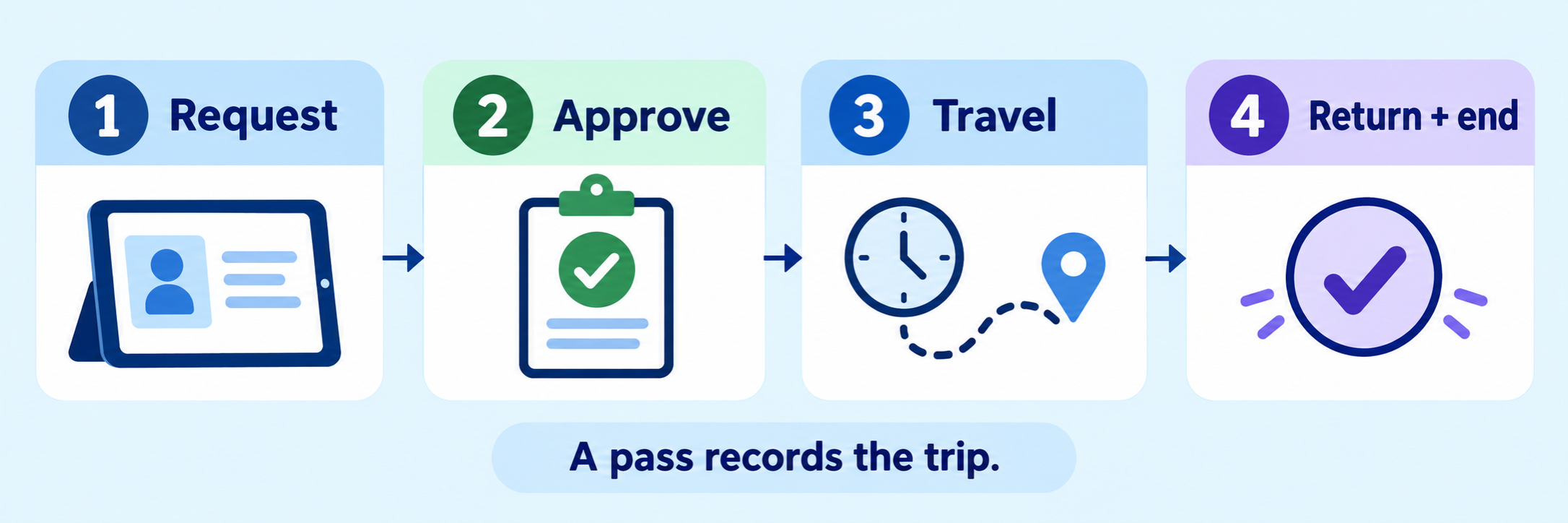
Room restrictions govern requests to a destination. A student’s own device can route approval to designated staff. Kiosk requests route to the origin-room teacher; teacher-written passes bypass room restrictions. Confirm receiving-staff availability separately when those routes are used.
Provide a practical device and backup route
A shared kiosk supports students who are not using an individual device. Assign a teacher to the room, select the correct room on the teacher Home page, open its menu, and choose Kiosk Mode. Configure the school’s preferred student identifier.
Have IT secure the shared device and provide its dedicated login. Demonstrate permission, pass creation, and ending a pass. Students do not need to carry a personal phone to make this routine work.
Official guide: launch and configure a kiosk
Keep movement workable: Establish a staff-assisted process for device failure, unavailable staff, and urgent needs. Explain who is contacted and how the trip is recorded afterward. Keep private reasons out of public screens and illustrations.
Teacher Workflow
Create the right pass, communicate the plan, and close the trip accurately.
Confirm the destination before departure
Example: a scheduled resource-room visit. Check that the student knows where to go, which adult expects them, and whether they will return to this class. Use a short, consistent conversation: “Where are you going? Is the receiving teacher ready? Where will this trip end?”
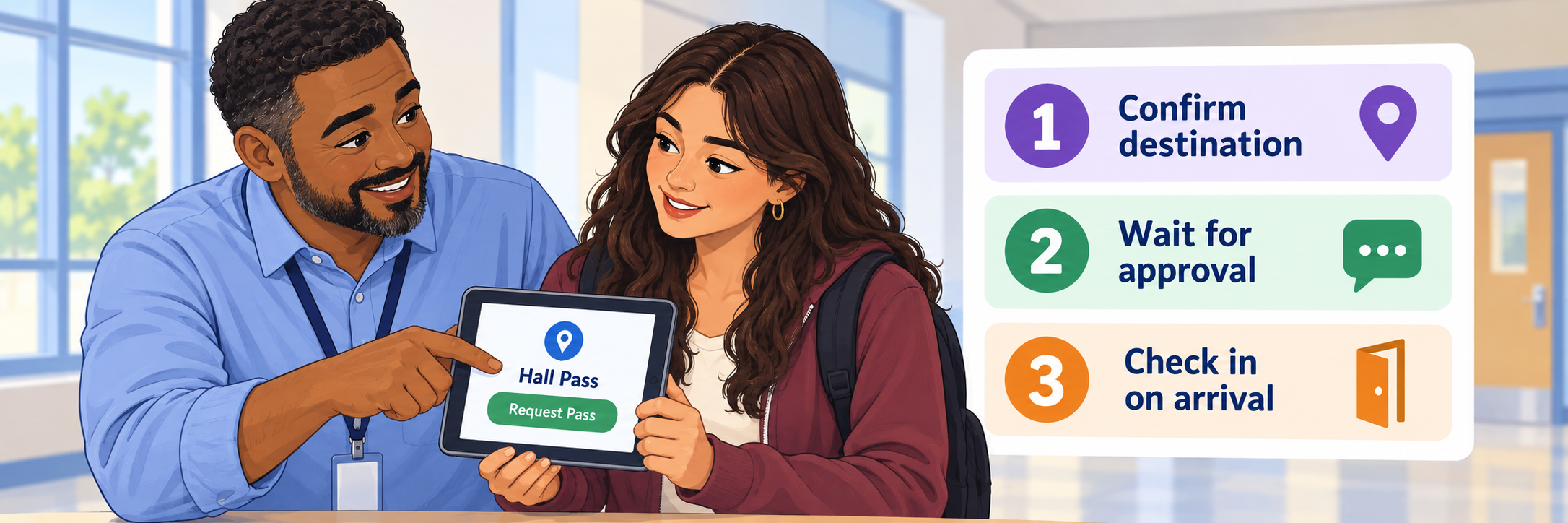
For a student request requiring approval, review Now or Scheduled requests on the teacher Home page. Inspect the details and any message, then approve or deny. A denial can include a brief explanation of the next step.
Create a pass for an immediate trip
- Choose +Create Pass on the teacher page.
- Select the correct student or students.
- Confirm the current room as the origin and choose the intended destination.
- Set the duration within the room’s configured maximum.
- Complete creation when the student is ready to leave; a teacher-created immediate pass starts right away.
Each pass has one origin and one destination. Use separate passes for different routes. If the allowable duration is unsuitable, ask the school administrator to review the room setup; the creation screen cannot extend it beyond that maximum.
Schedule resource visits and events
For a future appointment, choose Schedule Pass. Set the date and time, destination, student or group, and an appropriate duration. Choose whether the student may decline; a non-declinable pass also requires the origin room. Add a concise message if useful, then schedule.
A declinable invitation needs the student’s response. A scheduled pass starts automatically at its assigned time, so staff should confirm that the student is present and ready. If plans change, delete the old scheduled pass and create a replacement; the documented workflow does not edit it in place.
Official guide: scheduling, acceptance, and cancellation
For an assembly or support session, coordinate release and arrival with the receiving adult. Scheduling travel does not by itself complete the event’s attendance check.
Confirm arrival or return and end the pass
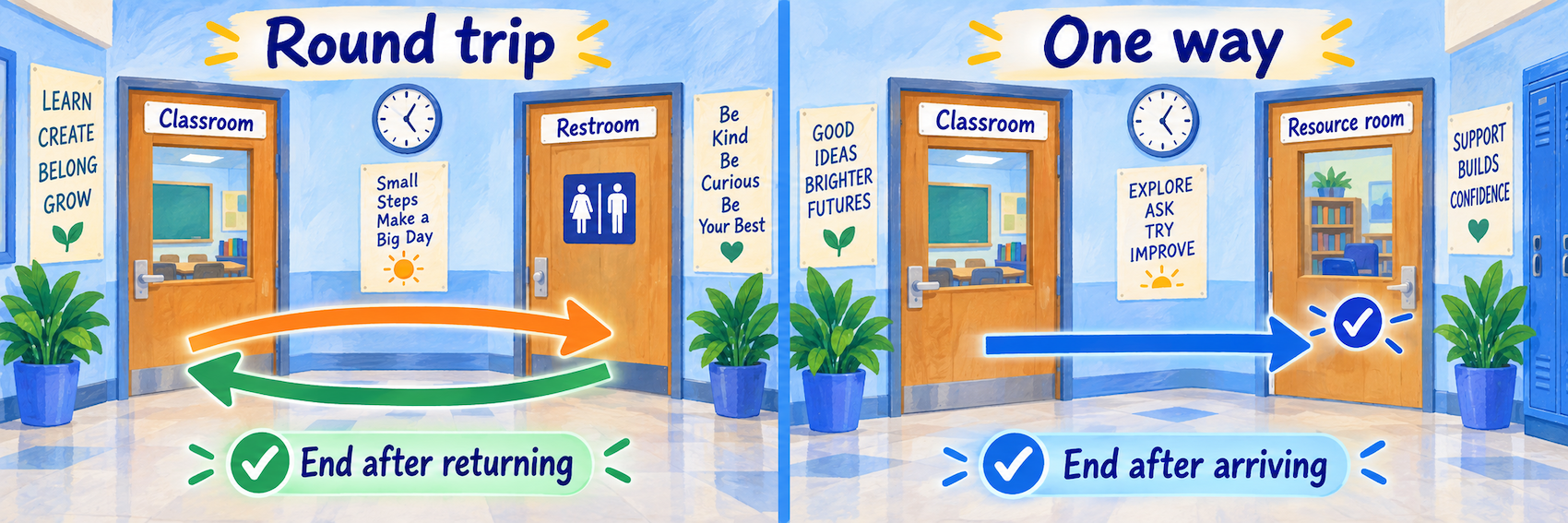
With restricted pass ending, a round-trip pass uses the origin room’s code after return; a one-way pass uses the destination room’s code on arrival. Room codes refresh automatically. A teacher PIN is another supported ending route; staff should enter their own PIN. Kiosk ending does not require a room code.
Official guide: room check-ins and ending restrictions
Teach students to end the pass only after reaching its intended endpoint. If you observe that a student has returned but the pass remains active, end it for them. A timer can continue into overtime and later close automatically under the school’s buffer setting; automatic closure does not verify return.
Official guide: ending passes and overtime
If the student is overdue: Check with the receiving location and follow the school’s student-location procedure. Confirm the student’s whereabouts before treating the trip as resolved.
Review patterns and support the student
Use the classroom’s ended-pass history to review recorded trips. Interpret the timing alongside what staff observed: an appointment, a busy restroom, a forgotten end action, or an inaccurate room selection may explain a record.
Official guide: classroom pass history
Start a private, practical conversation when repeated trips affect learning. Ask what is making the routine difficult, coordinate needed support, and agree on a workable next step. Judge the documented situation and the student’s explanation, not their appearance.
Configure and Verify
Check approval routes, record accuracy, and the handoff between movement and attendance.
Test the complete routine
- Use approved demonstration accounts and a sample trip. Check the student, origin, destination, and duration.
- Test a student request from an individual device, including the required approval.
- Repeat through the classroom kiosk and check who receives the request.
- Try one round trip and one one-way trip. Confirm the correct endpoint and ending method.
- Schedule a future pass and observe its start, then test cancellation with a separate sample.
- Confirm staff can reconcile the recorded trip with observed arrival or return.
- Repeat essential steps with substitute access and the school’s backup procedure.
Check keyboard operation, readable text, and access on the actual devices used at school. Verify the process without assuming a student has a personal phone.
Separate Hall Pass records from Flex attendance
| Question | Record and confirmation to use |
|---|---|
| Who has a recorded trip out of class? | Review the pass activity and confirm the relevant time and location with staff. |
| Did the student arrive at the resource room? | Use the agreed arrival/check-in procedure and receiving-staff confirmation. |
| Who attended a Flex activity? | If Flex is enabled, take attendance in the activity session. |
| Is the student absent or off campus? | Use the school’s official attendance and office departure/arrival records. |
| Is everyone accounted for in an emergency? | Follow the school’s emergency accountability procedure and designated systems. |
If your school has Flex: Open Flex → Daily Overview, choose your activity, and take attendance in its session view. Teachers can check students in and adjust attendance status; students can check in using the room kiosk. Student accounts do not provide self-check-in for Flex. Review the roster against actual arrivals rather than assuming enrollment means attendance.
Check settings and notifications in practice
Verify room durations, approval routes, pass-ending restrictions, and local exception procedures. If a cooldown blocks a necessary trip, follow the staff-assisted route; SmartPass documents teacher-created passes as exempt from that cooldown.
Official guide: pass cooldown and staff assistance
Do not rely on a sound alone: The current SmartPass help article reports problems with sound notifications. Keep a visible request-checking routine and use an agreed direct-contact method for time-sensitive trips.
Official status and guidance: alert sounds
For schoolwide review, administrators can use room-usage reports with a selected date range. Review congestion and room demand to improve routines. The staff-usage report has specific exclusions, so read its scope before comparing counts across staff or kiosks.
Resolve common first-use problems
| What you notice | Check first |
|---|---|
| The intended room is missing | Verify the campus, room setup, room visibility, and staff assignment with the administrator. |
| A request reached the wrong adult | Check whether it came from a kiosk; kiosk approvals go to the origin teacher. |
| A visit began before the destination approved | Check whether staff created the pass directly and confirmed availability separately. |
| The timer started but the student stayed in class | Check for an automatically starting scheduled pass and reconcile the record with staff. |
| A room code will not work | Confirm the code is current and belongs to the correct endpoint for the trip type. |
| The student has returned but still appears active | Confirm return, then end the outstanding pass. |
| An ended pass is mistaken for proof of return | Check whether the student, staff, or automatic timeout ended it; confirm physical arrival. |
| A notification was missed | Check the visible request list and use the agreed communication backup. |
| A Flex student is missing from attendance | Open the correct activity session and verify actual arrival and check-in. |
| The schedule changed | Cancel the outdated scheduled pass and create the correct replacement. |
Good Student-Movement Habits
Make the route clear
Name the destination and the endpoint before departure.
Confirm the handoff
Make sure the receiving adult is ready when needed.
Close the record
Connect the end action to an observed arrival or return.
Use records thoughtfully
Resolve discrepancies and support access to learning.
Official SmartPass Resources
Use your school’s approved sign-in route and the guidance for its enabled features.
2026–27 edition. Official documentation reviewed September 11, 2026. Controls depend on school configuration and enabled products. School routines and conceptual illustrations are SDLA guidance.