



Seesaw LMS Quick Start Guide
Give K–6 students a simple place to receive instruction, create in multiple modes, reflect, and share approved learning with teachers and families.
Seesaw combines classroom workflow with a longitudinal learning journal. Teachers can assign activities and collect photo, video, voice, drawing, text, and uploaded work. The instructional value comes from what students explain and what teachers do next—not from filling the journal with posts.
Four Connected Parts
Classroom
A rostered space with teachers, students, sign-in rules, folders, and visibility settings.
Activities
Teacher-created or library tasks with instructions, response templates, dates, groups, and standards.
Creative Response
Students show thinking through voice, video, drawing, photos, text, files, or combinations.
Journal & Family
Approved work becomes a portfolio that can support feedback, reflection, and family connection.
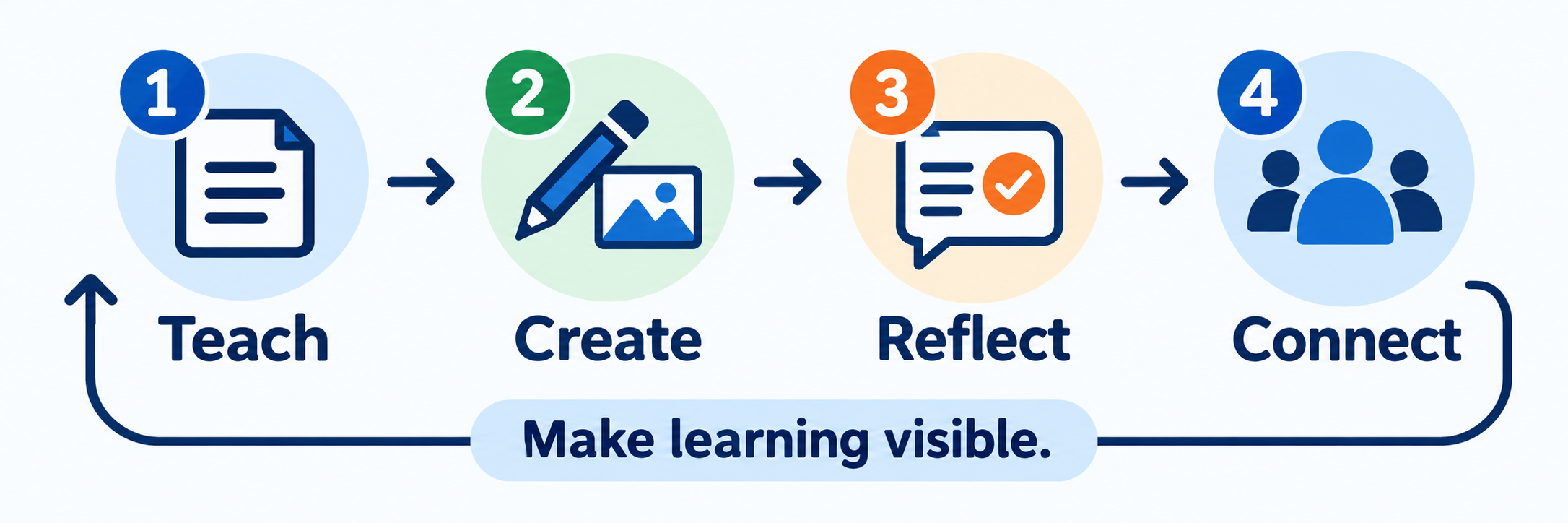
Decide the purpose before choosing the tool. A voice recording may reveal reading fluency, a drawing with narration may reveal mathematical reasoning, and a photo may document a physical product. Ask for the response mode that exposes the learning you need to see.
District Setup
Protect identity and journals first; then scale classes, access, and settings.
Define the district operating model
Confirm the purchased Seesaw package, participating schools and grades, district and school administrators, teacher roles, approved domains, data owner, support route, and the settings that will be controlled centrally.
| Decision | Why it matters |
|---|---|
| Instructional purpose | Clarifies whether Seesaw is primarily used for activities, formative evidence, portfolios, family engagement, messaging, or a defined combination. |
| Administrator permissions | Limits access to classroom insights, settings, rostering, reports, and other district functions according to job responsibility. |
| Student visibility | Determines when students can see classmates’ work and whether teacher approval is required. |
| Family access | Controls when families can see approved work and whether likes or comments are enabled. |
| Record lifecycle | Defines ownership, year-end archiving, transfers, retention, and staff departure procedures. |
Choose one authoritative rostering route
| Route | Use and constraint |
|---|---|
| CSV | Recommended by Seesaw for most individual schools and smaller districts, especially for quick or midyear setup. Preserve exact IDs and validate the file before import. |
| Clever or ClassLink | Available to district or multi-school customers. Share only the intended schools, classes, users, and enrollments; review sync errors before launch. |
| Wonde | Available for single schools and districts where supported. Confirm the approved data scope and ownership of corrections. |
| Teacher-created classes | Use only when the district authorizes it. Teachers should select existing directory students or create them with administrator-provided IDs. |
| Google Classroom import | A teacher connects a class during initial creation and can re-import new students. Existing students are not removed by the import. |
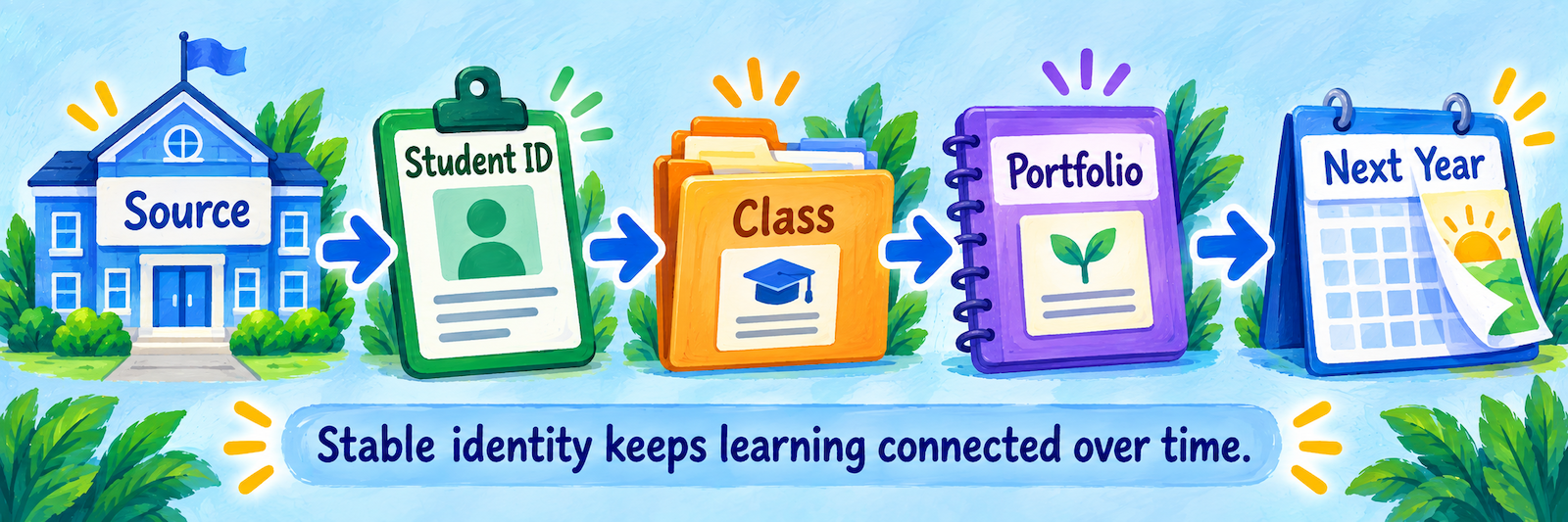
Do not mix methods casually. A duplicate student record can split the journal and break year-to-year continuity.
Select age-appropriate sign-in
| Method | Best-fit consideration |
|---|---|
| Class Code on 1:1 devices | Useful for younger students without accounts. Each student selects and confirms their own name. |
| Class Code on shared devices | Designed for a shared classroom device; review journal visibility carefully because the device is not tied to one identity. |
| Email or SSO | Fits students who can manage credentials; supported options include Google, Microsoft, Okta, Clever, and ClassLink. |
| Home Learning Code | An individual code for home access when a student does not use email or Clever; it protects the student from seeing classmates’ work. |
Train teachers and families on the exact route the district selected. Store QR and text codes as credentials and avoid displaying them where unauthorized users can capture them.
Protect continuity across school years
Use a stable student ID so Seesaw can connect the same learner’s portfolio across classes and years. Create new classes each year and archive the old ones. In subscription schools, administrators handle archiving and next-year setup; teachers should not delete students, work, or classes.
Returning Clever/ClassLink districts: Seesaw directs the district administrator to run a Full Sync at the start of the year before resuming the nightly sync. Review the current back-to-school guide each cycle.
Teacher Workflow
Make student thinking visible, then use it to guide feedback and instruction.
Confirm the class before creating work
Open the intended class and verify the roster, grade level, co-teachers, sign-in mode, folders, student visibility, family access, and approval settings. Ask the administrator before creating a missing student; the learner may already exist under a different class.
Preview and assign one purposeful activity
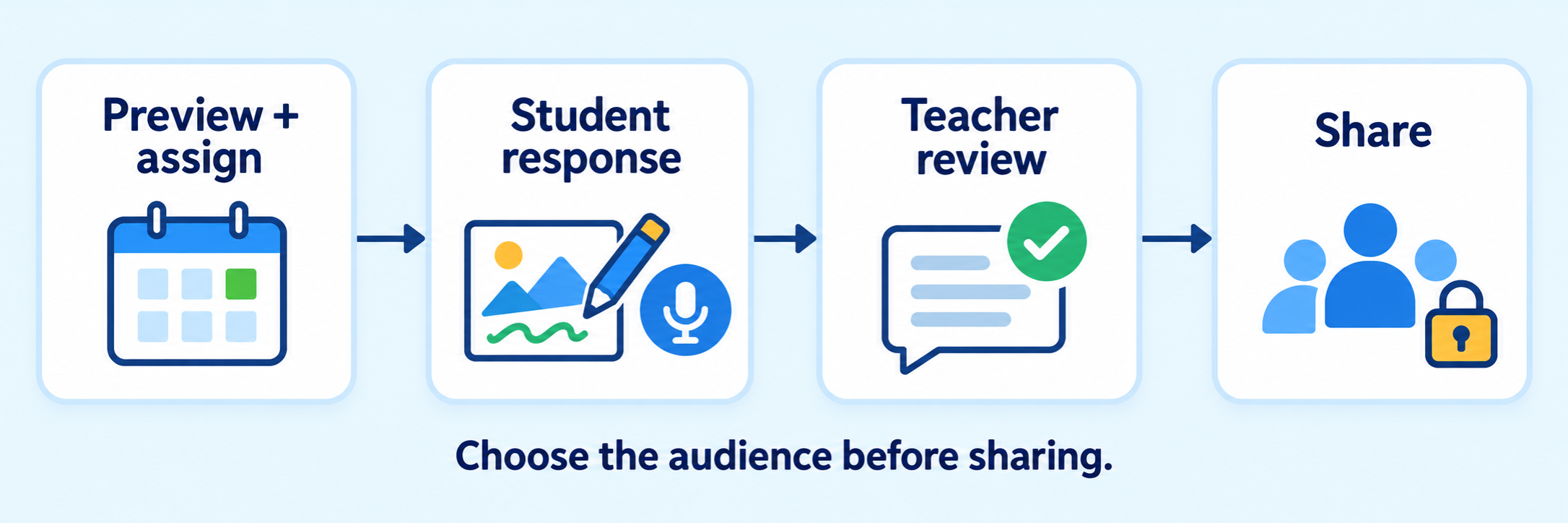
Start with a small activity that asks students to reveal one clear piece of thinking. Create or select the activity, review the directions and teacher notes, choose an appropriate response template, and use Preview as Student.
- Name the learning target in student-friendly language.
- Add concise written, voice, or multimedia instructions appropriate for the age group.
- Choose the class, student group, or individual students who should receive it.
- Set the start date, due date, standards, folder, and post visibility.
- Assign it, then demonstrate the response and submission process with Sample Student.
Teach the response routine
Model how students open the Activities tab, add a response, choose the intended tool, explain their thinking, review their work, and select the green check to submit. For younger learners, keep the number of tools and steps small until the routine is independent.
| Response mode | Example evidence |
|---|---|
| Voice or video | Oral language, reading fluency, explanation, pronunciation, or reflection. |
| Drawing plus recording | A process such as solving a problem, labeling a diagram, or explaining a model. |
| Photo with annotation | A physical product, book page, science observation, or work sample with student explanation. |
| Text or note | A written response, claim and evidence, revision, or metacognitive reflection. |
| Student choice | Multiple valid ways to demonstrate the same target when the teacher can assess them consistently. |
Review, respond, and approve deliberately
Open student responses from the activity or journal. Look at the work behind any score, give actionable text or voice feedback, return work for revision when appropriate, and approve only after checking both content and audience.
- Use Teacher Only visibility for sensitive assessment evidence or private records.
- Use Student and Family visibility when the post should stay within that learner’s support circle.
- Use the class default only when the district and teacher have intentionally configured it.
- Moderate student and family comments according to the class approval settings.
- Invite families to notice growth and ask about learning—not simply react to polished products.
Use the journal as evidence over time
Organize posts with consistent folders, standards, or learning goals. Periodically ask students to select work, describe growth, and identify a next step. A useful portfolio contains evidence with context; a large collection of disconnected posts is harder to interpret.
Keep instruction central: Seesaw can collect and display evidence, but teacher observation, conversation, classroom tasks, and age-appropriate assessment still explain what the student understands.
Configure and Verify
Prove identity, activity flow, visibility, accessibility, and portfolio continuity.
Test every role in one pilot class
- Launch as the teacher and confirm the intended class, roster, settings, and Activity Library access.
- Launch as an approved demonstration student through the selected QR, text, email, or SSO route.
- Complete and submit an activity using each required media permission.
- Confirm the response enters the expected teacher review or approval workflow.
- Approve or return the post, add feedback, and verify the student view.
- Use an approved family test account to verify that only the intended child and approved content are visible.
- Make one controlled roster change and confirm identity, class membership, and journal continuity.
Verify visibility with evidence
Post visibility depends on the post status, visibility folder, class settings, and the viewer’s relationship to the student. Test the actual combination rather than assuming that a folder name controls every audience.
| Check | Question |
|---|---|
| Student identity | Is the work attached to the correct student or tagged group? |
| Content | Does the post contain only school-appropriate information and media? |
| Audience | Should this remain teacher-only, reach the student and family, use the class default, or be published elsewhere? |
| Comments | Are student and family comments enabled, and do they require approval? |
| Location clues | Do photos, names, backgrounds, or documents expose information that should be cropped or withheld? |
Check accessibility in the activity itself
Provide more than one way to receive directions and respond when appropriate. Add captions or transcripts to multimedia, meaningful text labels or custom alt text, and voice support for pre-readers. Test keyboard and screen-reader use on the web when required. Seesaw reports partial WCAG 2.2 AA conformance, so review its current limitations and provide an alternative path where necessary.
Resolve common first-use problems
| What you notice | Check first |
|---|---|
| A student has two journals | Stop creating records; compare Student IDs, email/SSO identity, roster source, and prior-year account before an administrator resolves the duplicate. |
| A student is missing from class | Correct the authoritative roster and sync, or select the existing directory student if teacher-managed setup is authorized. |
| The QR code opens the wrong experience | Confirm 1:1, shared-device, class, and home-learning code type; changing sign-in mode signs students out. |
| The student cannot find an activity | Check the class, assigned students or group, start date, archived status, and student role. |
| A recording or upload fails | Check browser/app version, microphone or camera permission, network filtering, file type, and device storage. |
| A family cannot see work | Confirm the family is connected to the correct student and that the post is approved with family-visible settings. |
| A family sees an unexpected post | Inspect the post-level visibility, class default, group tags, approval status, and family connection. |
| Last year’s work is missing | Check that the same Student ID/account continued and that the prior class was archived rather than deleted. |
Good Seesaw Habits
One clear target
Ask for a response that reveals the learning you intend to assess.
Preview as student
Test directions, tools, timing, and access before assigning.
Approve with care
Check identity, content, and audience before publishing work.
Keep identity stable
Use consistent Student IDs so journals follow learners across years.
Official Seesaw Resources
Use the guidance for your subscription, roster method, student age, and district settings.
2026–27 edition. Public Seesaw product and Help Center resources reviewed September 11, 2026. Features, roles, integrations, settings, reporting, and content depend on subscription and configuration. Classroom examples and conceptual illustrations are SDLA material.