



Raz-Kids Quick Start Guide
Turn digital reading practice into a clear routine: choose a text, listen and read, respond, then use the evidence to plan the next lesson.
Raz-Kids provides digital books and reading activities. Students use Kids A-Z on the web or in the Kids A-Z app; teachers use the web management tools. This guide focuses on Raz-Kids. Your school may license it through Raz-Plus, which includes additional resources and can show different product tabs.
A Simple Reading-Practice Cycle
Choose
Match a book and task to the lesson, the learner, and the support needed.
Practice
Listen, read, and return to the text to answer questions.
Review
Examine completed work, quiz responses, and reading recordings.
Teach
Use the evidence to choose feedback, a small-group lesson, or further practice.
Begin with one book and one purpose: For example, ask students to identify a key event and explain which words in the text support their answer. Teach the routine before adding a longer independent assignment.
District Setup
Prepare the roster, starting reading settings, and a reliable student sign-in route.
Confirm the subscription and class roster
- Identify the school contact responsible for licenses, student accounts, roster updates, and technical support.
- Confirm which teachers and classes have Raz-Kids access. Use the district-approved sign-in and roster process when one is already in place.
- In the teacher web account, open My Classroom or Manage Students → Roster and check the intended students before adding anyone.
- For a manually managed roster, use Add Students, provide a username and text or picture password, and save. Use existing accounts or the approved transfer process for returning students.
For routine additions, leave Replace My Current Roster unselected. Confirm the intended scope before any roster replacement.
Choose a starting point and explain the destinations
Decide whether newly rostered students will use the Reading Placement Tool or start at a level chosen by the teacher. The optional tool takes about 20 minutes and selects from nine entry points. It is a starting-point tool, not an assessment of a student’s exact reading level.
Official guide: reading placement
| Destination | Purpose |
|---|---|
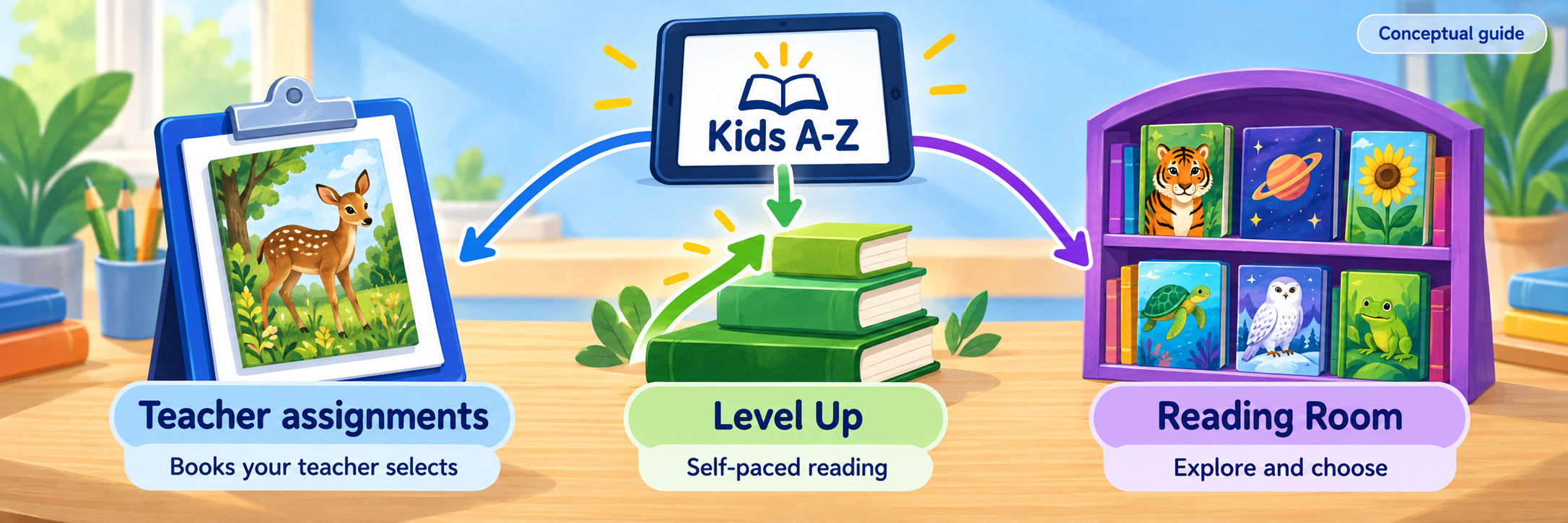
| Teacher assignments | Selected resources for the lesson; look for My Assignment(s) or Assignments. |
| Level Up | A self-paced collection at the assigned text-complexity level. |
| Reading Room | A library for choice, interests, and further practice. |
Set access and prepare the first sign-in
Under the roster’s Raz-Kids tab, review each student’s Level Up assignment and its on/off setting. Changes save automatically. Review Reading Room availability separately; customize accessible categories and books to match the class plan.
Official guide: customize the Reading Room
- Distribute the school-approved login directions or personalized login cards privately.
- For the standard Kids A-Z login, students enter the teacher’s username, choose their own class-chart icon, then enter their password.
- Use Change Teacher if the class chart belongs to another classroom.
- Try one account on a classroom device. On shared devices, sign out of the teacher account before students begin.
Teacher Workflow
Choose a focused task, model the reading routine, and collect evidence you can use.
Select a book for a clear reading purpose
Preview the actual text, language, length, vocabulary, illustrations, and quiz before assigning it. Decide what students should practice and which support they need.
- Choose a manageable first task: identify a detail, retell key events, or explain the main idea.
- Consider students’ current instruction and reading behavior along with the displayed level. For decoding practice, examine whether the text uses spelling patterns already taught.
- Introduce essential vocabulary and model one response with evidence from the text.
- Give the expected destination and stopping point: “Open Assignments, complete this book’s activities, and be ready to explain your answer.”
Assign to the intended learners
- Open the resource page and select Assign.
- Choose the individual students, group, or class that should receive it.
- Review the selected resource and any start date before confirming. A future start date controls when students see the assignment.
- Check the Assignments area in student management, then verify the task appears for an intended student when it starts.
Official guide: assign resources
Use one small assignment to learn the routine before assigning a larger set. Keep the task directions and due date clear in your classroom instructions or LMS.
Model listening, reading, and responding
| Task | What to model |
|---|---|
| Listen | Follow the text while listening. Pause to notice an important word or event. |
| Read | Read the text and revisit a difficult section. Explain when an independent attempt or teacher support is expected. |
| Respond | Answer the quiz or assigned response. Return to the book to explain the answer. |
| Check completion | Finish the activity and use Home at the end. Confirm that its completion mark appears. |
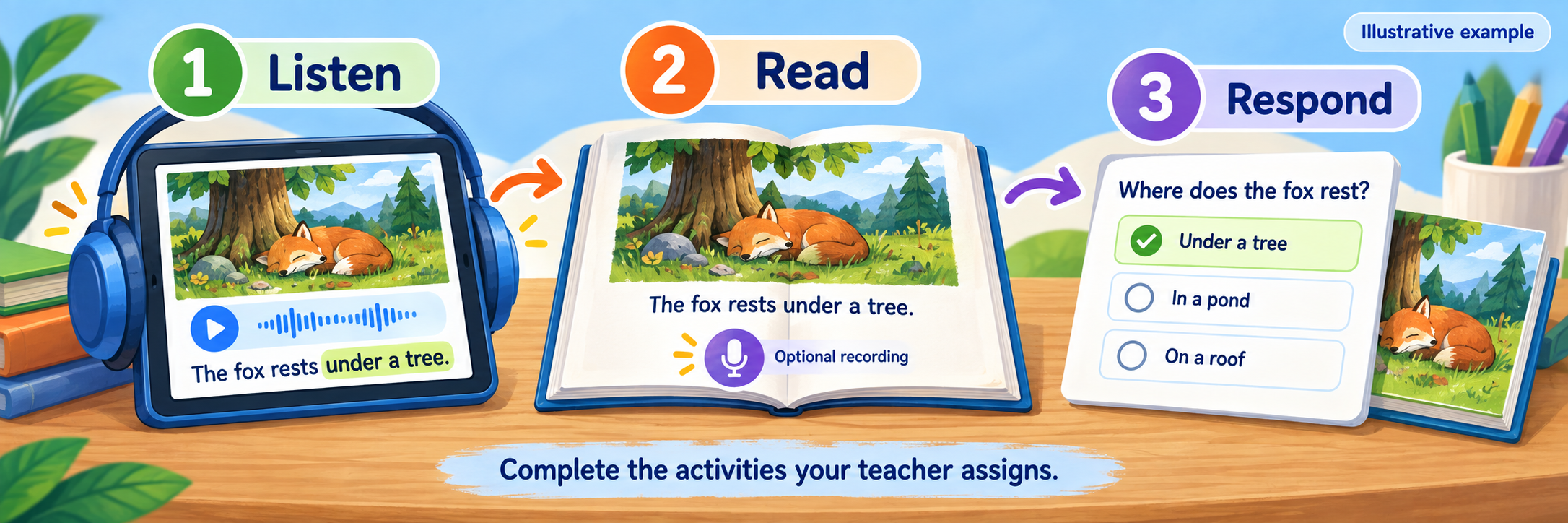
For the standard assignment completion workflow, students finish the assigned listening and reading activities and pass each quiz at 80% or higher. Check the actual activities shown in your assignment. If a completion mark is missing, confirm the student used Home at the end.
Use a recording when it answers a teaching question
To hear how a student reads, open a book’s Read activity, select the microphone tool, choose Record, then Done when finished. The official instructions say recordings of at least 30 seconds are sent automatically to the teacher’s In Basket. A brief microphone test may therefore not appear there.
Official guide: record a reading
Choose a meaningful reading sample, check microphone permission, and replay the sound. A practice recording is distinct from an assigned assessment. Use it to give specific feedback, such as pausing at punctuation or rereading a sentence accurately.
Configure and Verify
Confirm the workflow, interpret the evidence, and make home access understandable.
Test the complete student-to-teacher route
- Use an approved demonstration account and the same device type students will use.
- Sign in, locate one assigned book, play its audio, and complete the planned activities.
- Return Home and verify completion. Reopen the account to confirm the work is still shown.
- If recording is part of the lesson, complete a suitable sample and confirm it reaches the teacher.
- Open the matching teacher report with the correct student and date range. Check that the activity appears.
Test sound output, headphones, keyboard or touch navigation, text readability, and any required access supports before independent work. Use the vendor’s browser check if the device does not behave as expected.
Read the evidence and choose the next lesson
Open Manage Students → Reports. Filter by date, group, or student. For the meaning of a particular report, use its three-dot menu and choose About….
Official guide: reports and data
| Evidence | Question to ask | Possible next step |
|---|---|---|
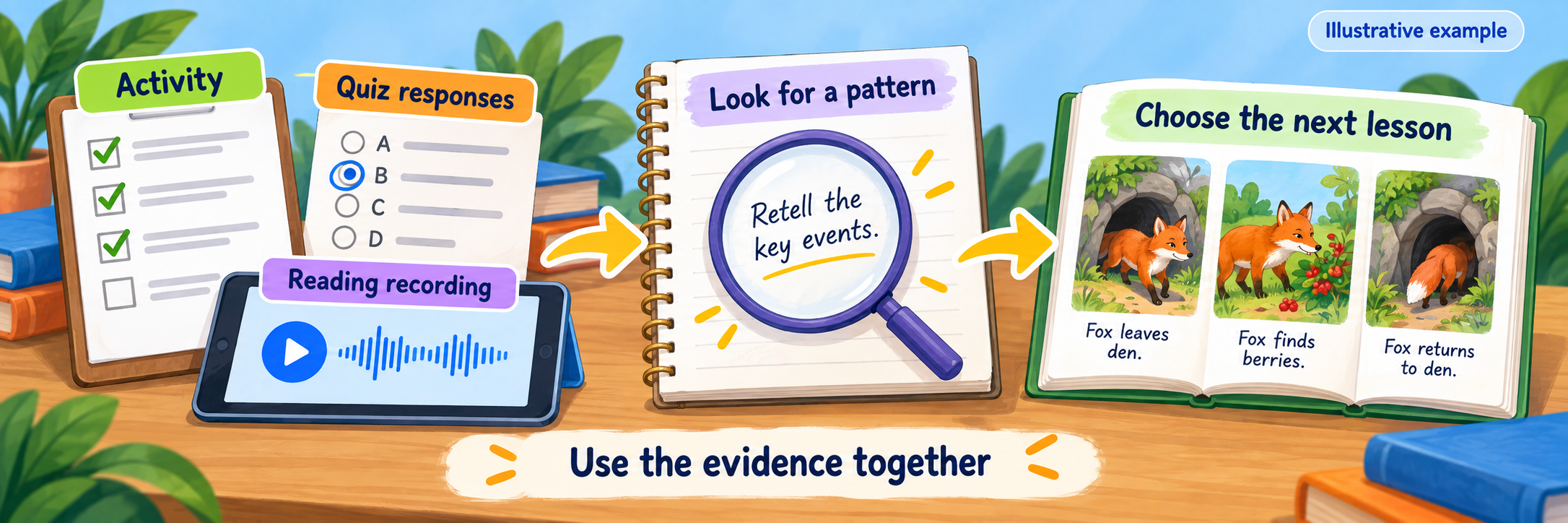
| Activity and assignment completion | Did the student reach and finish the intended task? | Resolve access or routine problems before interpreting missing work. |
| Quiz responses | Which answer or question needs a closer look? | Ask the student to explain the answer using the text. |
| Reading recording | What do accuracy, phrasing, and self-corrections reveal? | Model the specific reading behavior, then listen to another attempt. |
| Retelling or classroom discussion | Can the student explain the important ideas in their own words? | Teach a concise retelling or main-idea routine. |
Review submitted work under Manage Students → In Basket. Use the tools and rubric that belong to that activity; previously reviewed items are under Reviewed.
Official guide: review submitted work
For a more structured check, the available Read-Retell-Respond assessment combines oral reading, a recorded retelling, and a quiz. Teachers review the recordings and rubric evidence; quiz results appear in Skill Reports.
Official guide: Read-Retell-Respond assessments
Interpret progress carefully: Stars reward activity, and moving through books records program progress. Combine those indicators with the student’s actual reading and comprehension before deciding what they can do independently.
Connect families to the same routine
Share the login letter and a short, specific home-reading direction. Ask caregivers to help the child open the correct task, listen to an explanation, and report access problems. Explain when the child should answer independently.
Official guide: login cards and family letters
For progress access, open Roster → student → Edit Student Info → Parent Access, add the verified caregiver’s email, and follow the invitation process. Caregivers can also request access through the student portal for teacher approval. Parent Access provides progress information and messaging; teachers retain assignment control.
Resolve common first-use problems
| What you notice | Check first |
|---|---|
| The wrong class chart appears | Choose Change Teacher and use the intended teacher username or school-approved login route. |
| A student or assignment is missing | Check the class roster, recipient selection, assignment start date, and the student’s account. |
| A completed activity has no check mark | Finish the activity and use Home. Review quiz completion and the required score. |
| Level Up has not advanced | Check the required books and activities. The standard progression requires listening, reading, and quiz scores of at least 80%. |
| A recording is missing | Check microphone permission, completion with Done, and recording length. Replay the sample and inspect In Basket. |
| A report looks empty | Check the student or group, product, date range, and whether work was completed in that account. |
| The starting text is a poor fit | Review the learner’s reading and edit the Level Up assignment deliberately; do not repeatedly reset placement. |
| The mobile app lacks teacher controls | Use the teacher web portal for class and assignment management. |
Before using Reset Reading Level: This control erases progress on the student’s Level Up self-paced assignment and reassigns the Reading Placement Tool. Review existing evidence first; a placement reset is not a routine login fix.
Good Reading-Practice Habits
Name the purpose
Tell students what they are practicing and how to know they have finished.
Return to the text
Ask for the words or details that support an answer.
Listen for meaning
Use a recording or conversation to understand the learner’s thinking.
Act on evidence
Choose one useful next teaching step rather than assigning more by default.
Official Raz-Kids Resources
Use the current help pages alongside your school’s account, instructional, and accessibility expectations.
2026–27 edition. Official documentation reviewed September 11, 2026. Menu labels and available features may change. Classroom examples and conceptual illustrations are provided by SDLA.