


ParentSquare Quick Start Guide
Reach the right families with clear, accessible communication and actionable school communication.
ParentSquare supports district, school, classroom, and direct family communication across web, app, email, text, and voice. Available features, permissions, delivery channels, translations, and workflows depend on district configuration.
A Simple Communication Cycle
Target
Select the correct school, class, group, or individual recipients.
Write
State the purpose, action, deadline, location, and contact in plain language.
Verify
Check the audience, names, dates, attachments, translation clarity, and delivery timing.
Follow up
Review delivery and responses, then resolve unreachable contacts through the approved process.
Use the right channel: Use Posts for group updates, Direct Messages for private conversations, and urgent alerts only under district procedures. Never place private student information in a broad post.
District Setup
Confirm authoritative contact data, staff permissions, schools, classes, groups, language data, and support before launch.
Prepare accounts and contact data
- Use the district-approved ParentSquare sign-in method.
- Confirm each staff member has the correct school, class, group, and posting permissions.
- Verify parent and guardian email addresses, mobile numbers, student relationships, and preferred language from the authoritative source.
- Define support for missing children, duplicate accounts, incorrect contacts, and unreachable families.
Define communication rules
| Decision | Confirm | Owner |
|---|---|---|
| Roster | SIS contacts, guardianship rules, rosters, groups, and sync timing are correct. | IT or data lead |
| Sharing | Posts, private messages, alerts, forms, signups, attachments, and comments follow policy. | Program owner |
| Urgent alerts | Authorized senders, approval, timing, channels, and message templates are defined. | District administrator |
| Language access | Staff write clear source text and know how families set preferred language and notification choices. | Instructional lead |
Protect private information
Send only the information needed for the educational purpose. Verify recipients before discussing an individual student, use private messaging for sensitive conversations, and follow district retention and records requirements.
Teacher Workflow
Choose the correct audience and communication type before drafting. Use plain source language so automated translation has the best chance of preserving meaning.
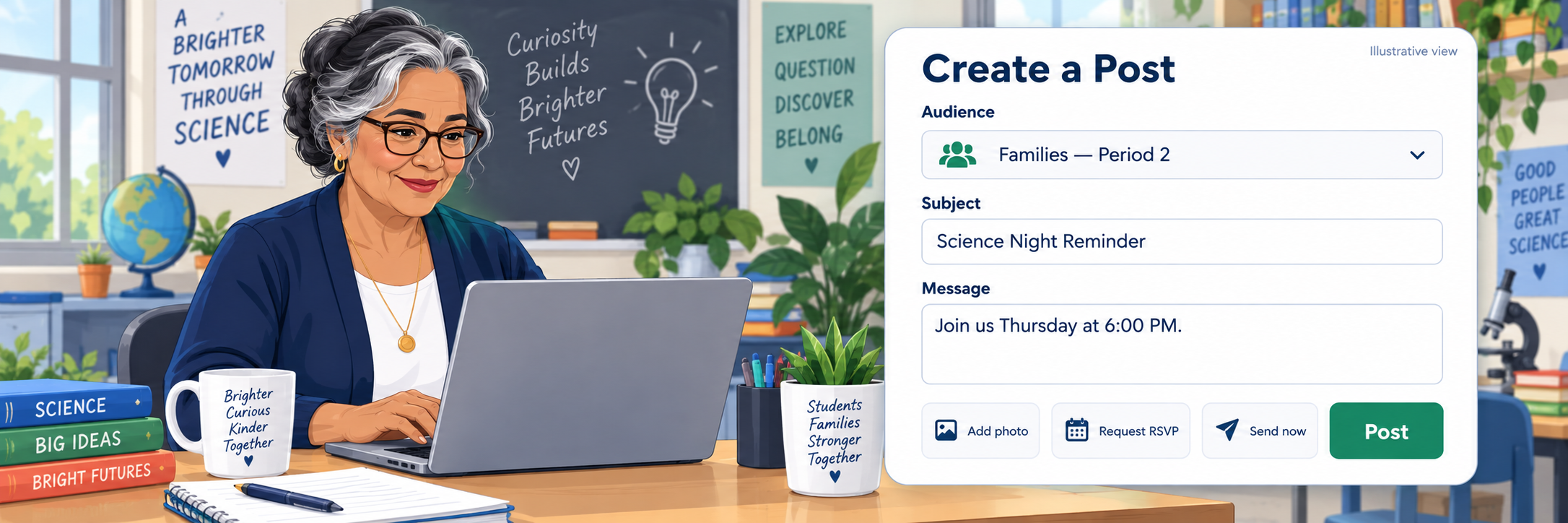
Create and review a post
- Choose New Post and select the intended school, class, or group.
- Add a short subject and put the required action, deadline, time, and location near the beginning.
- Add only approved attachments, photos, RSVP, forms, or signup options.
- Preview the audience and message for translation clarity.
- Schedule or post according to the school communication plan.
Support the family experience
- Activate the account using contact information recognized by the school.
- Confirm children, schools, and contact details.
- Set the preferred language and notification channels.
- Choose Instant or Digest for eligible posts and keep urgent notices enabled as required.
- Reply, RSVP, sign forms, or contact the school through the provided route.

Use direct messages carefully
Use Direct Messages for one-to-one or small-group conversations. Verify recipients, keep the message factual and necessary, and move emergencies or sensitive matters to the district-approved channel.
Configure and Verify
Test staff and family experiences with authorized demonstration accounts before launch.
Run an end-to-end test
- Create a demonstration class or group and test post.
- Confirm delivery through the enabled email, text, app, or voice channels.
- Reply or RSVP from the family view and verify the response.
- Check delivery and response information from the staff view.
- Remove the test content and document unresolved configuration issues.
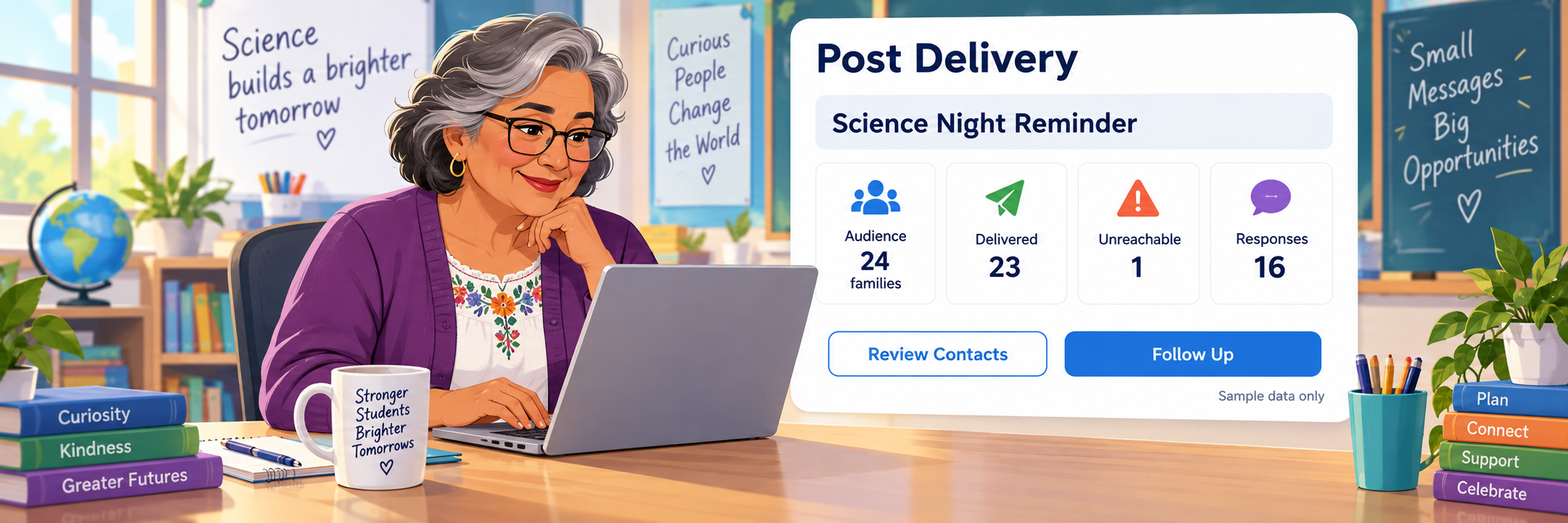
Review delivery and responses
Review delivered, opened, response, and unreachable information available to your role. Correct source contact data through the authorized SIS process instead of editing around an integration.
Check common problems
| What you see | Check first | Next step |
|---|---|---|
| A child or school is missing. | SIS relationship, contact match, duplicate account, and selected account. | Confirm source data with the school. |
| A family cannot sign in. | Email or phone match, invitation, password reset, and account activation. | Correct the account or roster source. |
| A family did not receive a post. | Audience, send time, delivery channel, contact data, and notification preference. | Review the assignment from the teacher view. |
| Translation seems unclear. | Idioms, jargon, long sentences, names, dates, and source-message clarity. | Rewrite the source plainly and use a qualified interpreter for high-stakes communication. |
| A reply or form is unavailable. | Account activation, post settings, deadline, permissions, and selected audience. | Provide the approved school contact route. |
Verification is shared: Administrators provision accounts and controls, teachers define the audience and workflow, and students review their work before submitting or sharing.
Good Family-Communication Habits
Lead with action
Put what families need to know or do at the beginning.
Write plainly
Use short sentences, familiar words, specific dates, and direct instructions.
Check the audience
Verify recipients before posting or starting a private message.
Close the loop
Review replies and unreachable contacts, then follow up through approved channels.
Official ParentSquare Resources
Use current ParentSquare guidance together with district communication, privacy, records, translation, and emergency procedures.