


NWEA MAP Growth Quick Start Guide
Prepare accurate K–12 rosters, start tests in the required sequence, and recover interrupted testing without losing student work.
MAP Growth combines an adaptive assessment with a role-driven administration system. Reliable testing depends on terms, schools, students, classes, staff roles, test assignments, accommodations, devices, and the live Proctor console all agreeing. The most important habit is to read the student’s current status before selecting an action.
Four Parts of a Successful Testing Window
Roster Foundation
Student identity, school, grade, term, class, and instructor associations support testing and reporting.
Roles & Rules
Proctor, coordinator, administrator, and instructor permissions control setup, administration, and report access.
Proctor Sequence
Session creation, assignment, sign-in, confirmation, testing, interruption, and completion follow defined states.
Usable Results
Consistent conditions, engagement, accommodations, and complete roster relationships support interpretation.
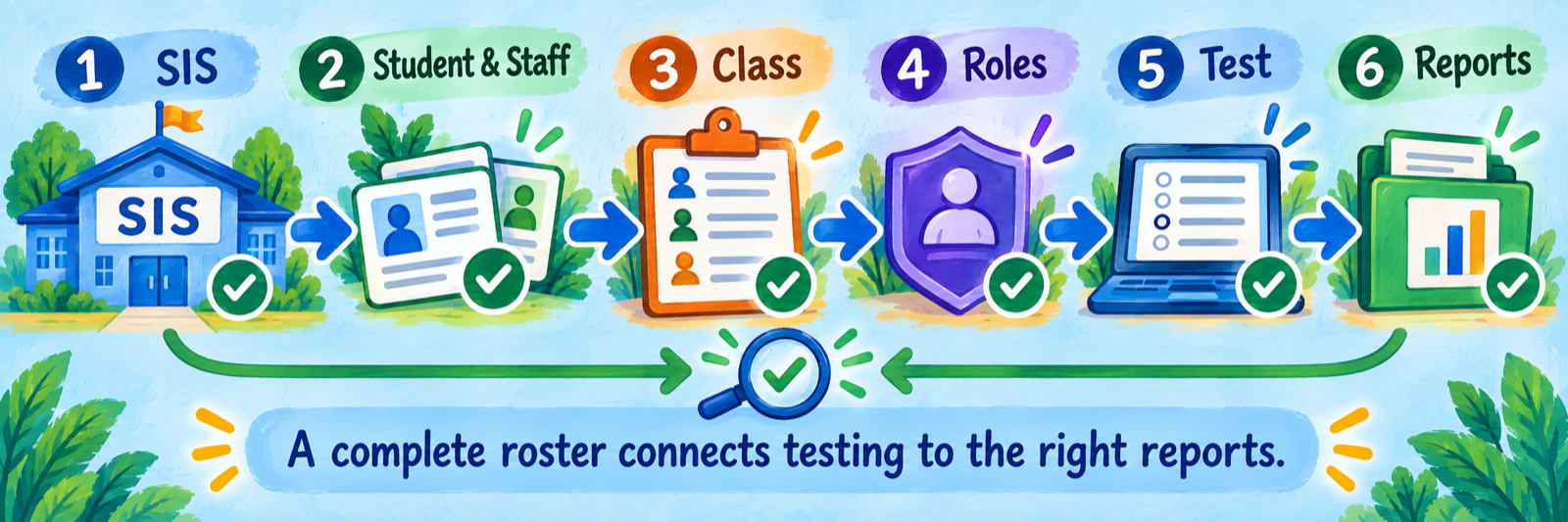
Testing sessions do not organize reports. A session temporarily groups students for administration. Rostered class associations connect students to instructors and determine where students appear in class reports.
District Setup
Make the roster, roles, rules, devices, and escalation path reliable before teachers begin.
Identify the active rostering service
Document which system actually provisions MAP Growth for the current year. NWEA partners may use Automated Rostering with Clever, HMH Rostering Service, or the legacy NWEA roster import. The workflows, identifiers, correction paths, and timing differ.
| Model | Operational consequence |
|---|---|
| Automated Rostering with Clever | NWEA documents nightly updates from the SIS through Clever. Establish identifier mapping, sharing rules, duplicate cleanup, error review, and the owner who corrects the SIS. |
| HMH Rostering Service | Some partners use HRS for HMH-connected products, with Clever, ClassLink, or file-based options. Follow the HRS workflow assigned to the district. |
| Legacy NWEA import | A Data Administrator prepares and imports NWEA’s roster CSV. Standard Add/Update is the usual method; Overwrite removes associations not represented in the submitted schools. |
| Manual exception | Use limited manual edits only under a documented rule. An automated nightly process may reverse a local correction if the source remains wrong. |
Official guide: Automated Rostering with Clever
Build the complete reporting relationships
Prepare the roster to establish more than student accounts. The file or roster service must associate students with the correct school, grade, term, classes, and instructors. Those relationships determine which teachers can see which results.
- Preserve the district’s stable student and staff identifiers across terms.
- Use the current term and exact NWEA school mappings.
- Include complete class assignments for students and instructors.
- Resolve duplicate identities before broad testing.
- Verify new, transferred, withdrawn, and cross-enrolled students.
- Check a teacher’s report access with the same classes used for testing.
Assign roles by responsibility
MAP roles control what each user can see and do. Teachers typically receive Instructor for class reports and School Proctor when they administer tests. Assessment coordinators monitor testing and policy; Data Administrators manage roster data; broader administrator and district roles should be limited to staff who need them.
| Responsibility | Typical MAP role consideration |
|---|---|
| Administer tests at one school | School Proctor provides Manage Test Sessions access for the assigned school. |
| Lead proctors across schools | District Proctor can work across the district and create sessions other proctors can use. |
| Monitor testing and reports | School or District Assessment Coordinator supports operational oversight without automatically serving as the proctor. |
| Import and correct rosters | Data Administrator receives roster preparation and import functions. |
| Review class results | Instructor access depends on the teacher’s rostered class associations. |
| Manage users and preferences | System Administrator is a powerful role and should be assigned narrowly with backup coverage. |
Set testing policy before the window
Publish the testing dates, approved tests by grade and subject, session naming convention, make-up schedule, device model, secure-browser expectation, accommodation rules, rapid-guessing response, retesting authority, and escalation route.
- Use test restrictions to reduce wrong-test assignment and control once-per-term testing.
- Leave enough time in the window for make-ups and approved retesting.
- Specify who may terminate a test or authorize Start Test Over.
- Define when a proctor should pause, suspend, contact the site coordinator, or submit a support ticket.
- Train proctors with the current NWEA directions and a practice session rather than relying on memory from last year.
Prepare devices and accessibility
Run the current NWEA workstation diagnostic on representative devices and networks. Confirm operating system and browser versions, screen resolution, secure testing browser deployment, allowlists, audio, headphones, keyboard, touch input, and local procedures for device replacement.
Assign accommodations before testing. Accommodation selections can persist within a session, must be reassigned in a new session, and may differ by test. Once a student begins, changing an accommodation generally requires Suspend, Test Again, adjustment, sign-in, and confirmation.
Run a roster-to-report pilot
Use one school, one teacher/proctor, one class, and approved demonstration students representing each sign-in and accommodation pattern. Verify the entire path from source roster to test completion and class reporting. Then make a controlled schedule change and confirm that the expected nightly sync or file correction updates the right relationships.
Reconcile before opening the window: Compare expected and active students, students without classes, classes without instructors, staff without required roles, duplicate identities, invalid grades or schools, and unresolved sync/import errors. Record each exception and owner.
Teacher & Proctor Workflow
Follow the status sequence; interruption recovery depends on the student’s current state.
Create or open the correct session
Sign in at the NWEA Start Page, open MAP Growth, and select Manage Test Sessions. Follow the district’s chosen method: Test My Class, Find Students to Test, or a saved session. Confirm the school, session name, students, and the tests assigned to each student.
- A testing session groups students for administration; it does not change reporting relationships.
- Each student can have a different approved test, so inspect assignments before confirmation.
- Assign accommodations to the intended students before they start.
- Start the session and display or distribute the session name and password using the approved local procedure.
- Keep the Proctor console open and refresh it as students move through sign-in.
Move students through sign-in and confirmation
Students launch the secure testing browser or the approved browser route and enter the session information. They select their identity and test. The Proctor console must then move them through the required status sequence.
| Status or action | What happens |
|---|---|
| Awaiting Student | The student is available to join the session. |
| Student signs in | The student enters the session and selects the displayed identity and assigned test. |
| To Be Confirmed | The proctor refreshes the console, verifies the student and test, then selects Confirm. |
| Confirmed | The student is authorized to proceed but has not yet begun answering. |
| Start Test | The student selects Start Test on the testing device. |
| Testing | The proctor monitors progress, status, device issues, and engagement without coaching test content. |
Do not confirm blindly: This is the final opportunity to catch a wrong student or test before responses begin.
Use the correct interruption action
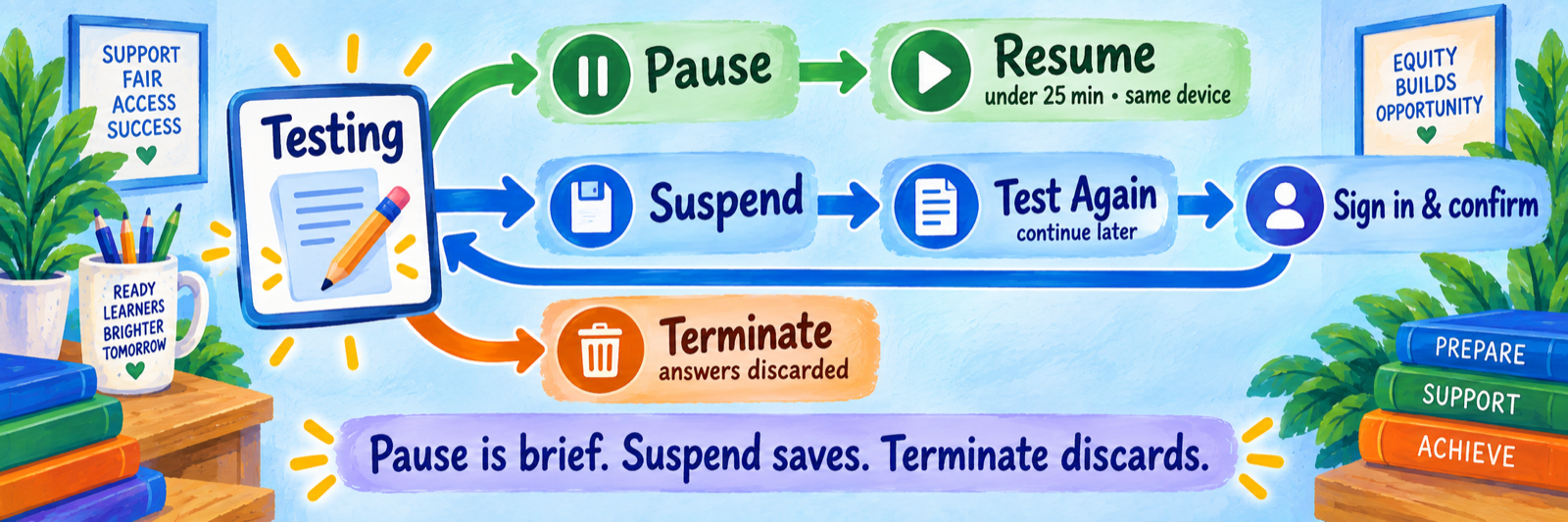
| Action | Use and consequence |
|---|---|
| Pause | Use for a brief interruption of up to 25 minutes. Resume on the same device; the test continues with the next question. After 25 minutes, it becomes suspended. |
| Resume | Restarts a paused test. The student may also need to select Resume on the testing device. |
| Suspend | Preserves the incomplete test for continuation later or after substantial troubleshooting. NWEA allows up to 28 days and recommends completing within 14 days because intervening instruction may affect the score. |
| Test Again | Moves a suspended student back toward Awaiting Student so the learner can sign in again. It does not mean that prior responses are discarded when resuming the saved test. |
| Resume Test prompt | When an incomplete test is found in a later session, choose the option that continues the suspended test rather than starting over. |
| Terminate | Permanently discards the answers from that test. Use only under the district’s rule, commonly for a wrong assignment that should not be preserved. |
| Start Test Over | Terminates the prior attempt and begins from the first question. Obtain required approval because once-per-term restrictions and retesting policy may apply. |
Recover a student in the order the interface requires

For a student who left the browser, changed devices, encountered a white screen, or cannot rejoin, use the saved-test recovery sequence:
- Read the student’s current status in the Proctor console.
- If the student is still Testing, select the student and choose Suspend.
- Select the suspended student and choose Test Again.
- Confirm that the status returns to Awaiting Student.
- Have the student reopen the testing browser and sign into the session again.
- Refresh the Proctor console and verify To Be Confirmed.
- Confirm the student and make sure the continuation prompt preserves the suspended test.
- Have the student resume; the test continues with the next unanswered question.
The unintuitive step is Test Again. In this recovery path, it prepares the suspended test for another sign-in. It does not by itself mean “erase the test and begin over.” Read the continuation prompt carefully.
Respond to rapid guessing without coaching
MAP Growth can automatically pause when repeated rapid guessing is detected. Approach quietly, confirm the student is ready to reengage, and remind the learner to take time on each question without discussing an answer. Resume from the Proctor console; do not give the Proctor PIN to the student.
- A rapid guess is based on response time for an item, not simply a short total testing time.
- Review repeated alerts promptly and decide whether the student should continue another day.
- Use Suspend when the learner is not ready to reengage.
- Follow the district’s written retesting policy before Start Test Over.
- Download session progress before ending when needed to preserve operational evidence about engagement.
Account for every student before ending
Review completed, testing, paused, suspended, absent, and unresolved students. Save the session when many of the same students will continue later. Ending the testing session does not discard incomplete test results; students can resume in the saved session or another appropriate session.
Record make-up needs, accommodation requirements, device incidents, rapid-guessing concerns, and any students whose test requires coordinator review. Avoid sharing test content in tickets or local notes.
Configure and Verify
Rehearse the difficult states, reconcile the window daily, and interpret results in context.
Practice the state changes before live testing
Use approved demonstration students or NWEA practice resources to rehearse the complete start, a short pause and resume, a suspend and same-day rejoin, a saved-session continuation, an accommodation change, a rapid-guessing response, and ending a session. Each proctor should be able to explain what is preserved and what is discarded.
Post the decision aid: Keep the Pause/Suspend/Terminate table beside every Proctor console. The interface labels are too consequential to rely on intuition.
Verify accommodations in each session
| Moment | Required check |
|---|---|
| Before testing | Select only students who share the intended accommodation settings and verify the assigned test. |
| Text-to-Speech | Assign it for the specific eligible test according to district and NWEA rules. |
| New testing session | Reassign accommodations, including for students resuming suspended tests in a make-up session. |
| After the test has started | Suspend, choose Test Again, change the accommodation when permitted, and have the student sign in and be confirmed again. |
| Device replacement | Confirm assistive technology, audio, display, and secure-browser settings on the replacement device before resuming. |
| After testing | Use the authorized data export or local record to document accommodations as required. |
Use a status-first troubleshooting table
| What you see | Check and action |
|---|---|
| Student is missing at sign-in | The student must be Awaiting Student. If Confirmed, use Do Not Confirm and confirm again later; if Testing or Suspended, follow the Suspend/Test Again recovery path. |
| Wrong test before confirmation | Choose Do Not Confirm, return the student to Awaiting Student, assign the correct test, and have the student sign in again. |
| Wrong test after testing begins | Follow district policy. Suspend if the attempt may be needed later; Terminate only when the responses should be discarded. Then Test Again, assign correctly, and re-sign in. |
| White screen or “raise your hand” | Suspend, close the testing browser, choose Test Again, reopen the browser, sign in, confirm, and continue. |
| Broken question must be skipped | NWEA directs the proctor to Pause and then Resume so the test advances; use the problem-item reporting procedure when appropriate. |
| Testing is slow | Use the Reset control or approved browser refresh method before escalating; do not terminate the test. |
| Student is ineligible | Check grade, term, test, frequency restriction, prior attempt, and coordinator policy. |
| Action Needed to Continue | Choose Resume Test to preserve the suspended attempt. Start Test Over discards the original; Do Not Confirm can terminate and restrict another test that term. |
| Teacher cannot find students in reports | Check rostered class and instructor associations, not the testing session used during administration. |
| Roster correction disappears overnight | Repair the SIS or roster-service source; the automated synchronization may overwrite a manual MAP change. |
Reconcile the window daily
Review roster and sync errors, untested students, suspended tests, completed tests, rapid-guessing indicators, accommodations, device incidents, and unexpected test assignments. Route each issue to the designated data, technology, assessment, or site owner.
| Evidence | Decision supported |
|---|---|
| Roster/sync error report | Which identities or class relationships must be corrected before testing? |
| Session progress download | Who completed, paused, suspended, or showed engagement concerns? |
| Operational testing reports | Which students still need testing or coordinator review? |
| User Roles Report | Which staff lack or exceed the access needed for their responsibility? |
| Device incident log | Is the failure isolated, room-specific, model-specific, or network-wide? |
| Help-desk category counts | Which step requires clearer training, interface guidance, or district process repair? |
Interpret results after administration quality is known
Before using a result, consider test completion, rapid guessing, elapsed time, accommodations, interruptions, roster accuracy, and whether the student took the intended test. MAP Growth scores describe performance under those conditions; they do not independently identify a mastered instructional skill or explain why performance changed.
Use authorized student and class reports with classroom evidence, curriculum measures, teacher observation, and other assessment information. Report access depends on MAP roles and rostered class relationships.
Good MAP Growth Habits
Read the status
Choose the next action from the student’s current Proctor console state.
Suspend to preserve
Use Suspend for later continuation or substantial troubleshooting.
Terminate cautiously
Termination permanently discards answers and may affect retesting restrictions.
Reconcile every day
Connect roster, session, accommodation, engagement, completion, and reporting evidence.
Official NWEA Resources
Use the current guidance for the district’s roster service, MAP roles, testing policies, and licensed products.
2026–27 edition. Public NWEA and MAP Growth documentation reviewed September 12, 2026. Rostering service, roles, tests, restrictions, accommodations, interfaces, and reports depend on the district agreement and configuration. Local procedures should follow current NWEA guidance and district assessment policy. Conceptual illustrations are SDLA material.