


myON Quick Start Guide
Turn a large digital collection into purposeful student choice, active reading, meaningful response, and informed teacher conversation.
Renaissance myON is a personalized pre-K–12 digital reading environment. Its library is the foundation, but student interests, reading-range information, recommendations, audio, annotation tools, assignments, responses, quizzes, news, and reports create the instructional experience around the books.
More Than a Digital Bookshelf
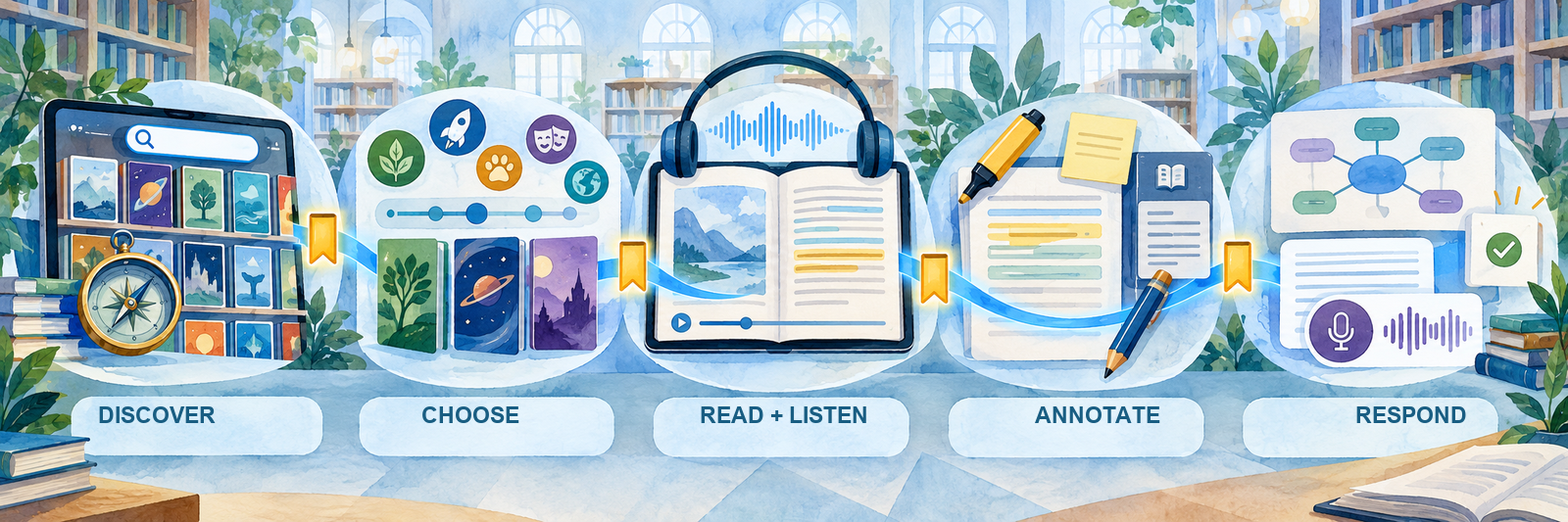
Access
Provide simultaneous, around-the-clock access to the district’s licensed fiction, nonfiction, multilingual, and optional news collections.
Personalize
Use interests, grade, reading range, prior reading, and ratings to help students discover promising books.
Teach
Build assignments with books, news, writing, graphic organizers, oral responses, fluency recordings, and custom activities.
Understand
Connect reading activity and student work with conferences, classroom evidence, assessment, and later transfer.
Connect and Configure
A working login is only the first layer. A complete implementation connects the correct license, organization, student identity, roster, collection, reading-range source, settings, and teacher visibility.
Document the district’s actual myON environment
- Name the district myON administrator, Renaissance administrator, roster owner, identity or SSO owner, curriculum and library leads, accessibility and privacy contacts, school contacts, and support route.
- Record licensed schools and grades, subscription dates, Core collection, optional publisher collections, myON News availability, Star Reading and Accelerated Reader connections, mobile-app use, and professional-learning plan.
- Identify the official launch path: myON.com, Renaissance Home, Renaissance Next, Clever, ClassLink, or another district-provided route.
- Define which system owns student, staff, school, grade, class, enrollment, and stable identifier records.
Choose one roster authority
| Pathway | What it may provide | What to verify |
|---|---|---|
| Renaissance Home or Renaissance Next | Access alongside other Renaissance products; users and rosters flow into myON, commonly through an overnight process | The correct Renaissance organization, role, school, current roster, and timing of changes |
| Clever or ClassLink | District launch and supported automated rostering | Sharing rules, schools, sections, staff roles, stable IDs, last synchronization, direct URLs, and duplicate-account behavior |
| SFTP or CSV enrollment | Managed file-based user and roster loading | File owner, schedule, required fields, validation, rejected records, term rollover, and correction process |
| Authorized manual setup | Direct creation or roster assignment when automation is not authoritative | Local ownership, naming conventions, identifiers, transfers, exits, archive process, and whether later automation will replace the record |
Do not manually repair an automated roster. Correct the authoritative source or use the district escalation route. A local edit may create a duplicate or be reversed during the next synchronization.
Identify the source of every reading range
| Source | How it enters myON | Interpretation |
|---|---|---|
| Star Reading | Available Star results can flow into myON when the products and student identity are connected | A tested reading-range source with a visible assessment date; confirm that the latest intended administration arrived. |
| myON placement | An adaptive placement assessment enabled by subscription and building settings | Typically recommended for grades 2 and above; the administrator controls availability, requirement, and retest timing. |
| Lexile placement or benchmark | A subscription-specific assessment route used instead of the myON placement and Star pathway | Confirm the assessment type and date; this configuration does not use Star Reading for placement. |
| Grade default | Automatically used when no applicable assessment result is available | A starting estimate based on grade, not a tested student reading level. Investigate before describing it as assessment evidence. |
Placement helps organize recommendations. It does not by itself identify interests, background knowledge, language access, topic maturity, text quality, or the purpose for reading.
Set collection and reader policies deliberately
- Configure available collections, grade-level access, individual book restrictions, whether assigned books may exceed ordinary grade settings, and the student-level exception process.
- Review placement-assessment windows, myON book quizzes, Accelerated Reader quiz access, book reviews, annotation and literacy tools, recordings, interface languages, displayed metrics, assignment sharing, and school-year dates.
- If myON News is licensed, set access for sensitive or locally regulated topics and identify who reviews article-level restrictions. myON News is a K–8 current-events collection with its own reading and reporting behavior.
- Explain the educational reason for settings and record who may change them at district and building levels.
Pilot the entire student journey
Test one class with several representative students, including a newly enrolled student, a schedule change, a multilingual learner, and a student using accessibility supports. Confirm login, interest inventory, placement source, recommendations, search, restricted and assigned books, reading tools, submission, teacher visibility, and logout.
- Test audio, highlighting, dictionary, annotations, microphone permission, book quizzes, AR quiz launch where licensed, and shared-device privacy.
- Verify that the selected browser, headphones, filtering, bandwidth, and managed-device settings support reading.
- Test supported mobile-app downloads and later synchronization before promising offline reading. Current guidance allows up to 20 downloaded books at a time.
- Teach staff where to see the roster source, placement source, student work, reading activity, and support contact.
Discover, Read, and Respond
Students need more than a login and a reading-level band. Teach them how to discover appealing books, choose with purpose, use supports, notice meaning, complete assigned work, and talk about what they read.
Complete the interest inventory thoughtfully
On first use, students identify topics they care about. myON combines those choices with grade, reading range, previous reading, and book ratings to generate recommendation bands. Students can revise their interests later as their reading identity develops.
A recommendation is an invitation, not a restriction. Teach students to use recommendations as a starting point and to browse, search, ask for help, and challenge an unhelpful suggestion. Access restrictions are controlled separately.
Teach several ways to find a book
- Search by title, author, series, publisher, description, or topic when the student already has a direction.
- Browse recommendation bands, subject categories, fiction and nonfiction, graphic novels, new titles, books popular in the grade, and books related to prior reading.
- Use grade, ATOS, Lexile, guided reading, language, length, audio, and other available filters as supports for a purpose, not as a single definition of what a student may read.
- Open the book details before assigning or recommending it. Check topic, publisher grade recommendation, reading demand, language, length, audio, AR availability, and fit with the instructional goal.
Use reading tools to increase access and attention
| Tool | Useful teacher prompt | Important limit |
|---|---|---|
| Audio and synchronized highlighting | “Listen to the sentence, then reread it and explain what changed in your understanding.” | All Core books include audio, but some advanced or specialized books may not. Decide whether the task measures listening, reading, or both. |
| Dictionary | “Which definition fits this sentence, and what context supports your choice?” | Current myON guidance identifies dictionary support for English books; do not assume the same tool is available in every language. |
| Highlight and sticky note | “Mark the detail that supports your idea and write why it matters.” | Quantity of marks does not demonstrate close reading. Teachers can inspect student entries when the tools are enabled. |
| Journal, drawing, and shapes | “Organize the relationship, sequence, or image the author is building.” | Use the tool only when it clarifies thinking and remains accessible to the student. |
| Student recording | “Read this passage, listen to yourself, and identify one place to improve phrasing or accuracy.” | Recording depends on account settings, consent and privacy practices, microphone access, device support, and student need. |
Build an assignment around evidence of reading
Assignments, previously called Projects, can combine books and news with writing, oral response, oral fluency, graphic organizers, custom activities, instructions, reader settings, and completion rules. Start with the learning objective, then choose only the components that provide useful practice or evidence.
- Choose whether students read every selected book or make a choice from a curated set.
- Decide whether audio, recording, highlighting, book review, quiz, and literacy tools should be available for this task.
- Add a prompt that requires students to use the text: identify evidence, compare sources, explain vocabulary, summarize a relationship, or apply new knowledge.
- Preview shared or myON Made assignments, duplicate the useful structure, and edit it for the local curriculum and students.
- Coordinate co-teachers before publishing. Duplicate assignments from different teachers can ask students to complete the same work twice, and assignment progress may remain visible only to the assigning teacher.
Teach the student completion sequence
Model how to open the correct assignment, distinguish not-started, in-progress, and completed activities, save writing for later, submit finished work, grant microphone access only when directed, review a recording, complete any required reading or quiz, and confirm final completion before the due date.
Hold a short reading conference

- Why did you choose this book, and would you continue?
- What did you learn, notice, question, or change your mind about?
- Show the passage, image, or feature that supports your thinking.
- Which support helped, and when did it become unnecessary?
- What would be a productive next book, source, or reading goal?
Connect Collections and Evidence
The public myON catalog can help educators connect familiar classroom literature with digital access. myON reports can then help teachers investigate opportunity and response, provided each measure is interpreted for its actual purpose.
Download the public Core catalog
The public myON Digital Library currently lists about 9,094 Core titles and provides a downloadable CSV. The searchable table includes title, language, author, pages, audio duration, grades, ATOS, Lexile, copyright, fiction or nonfiction, date added, and AR quiz availability. Preserve ISBN-13 as text when importing a catalog into Excel so the identifier is not converted or altered.
Browse and download the official myON Digital Library catalog
Connect the classroom bookshelf to the digital library
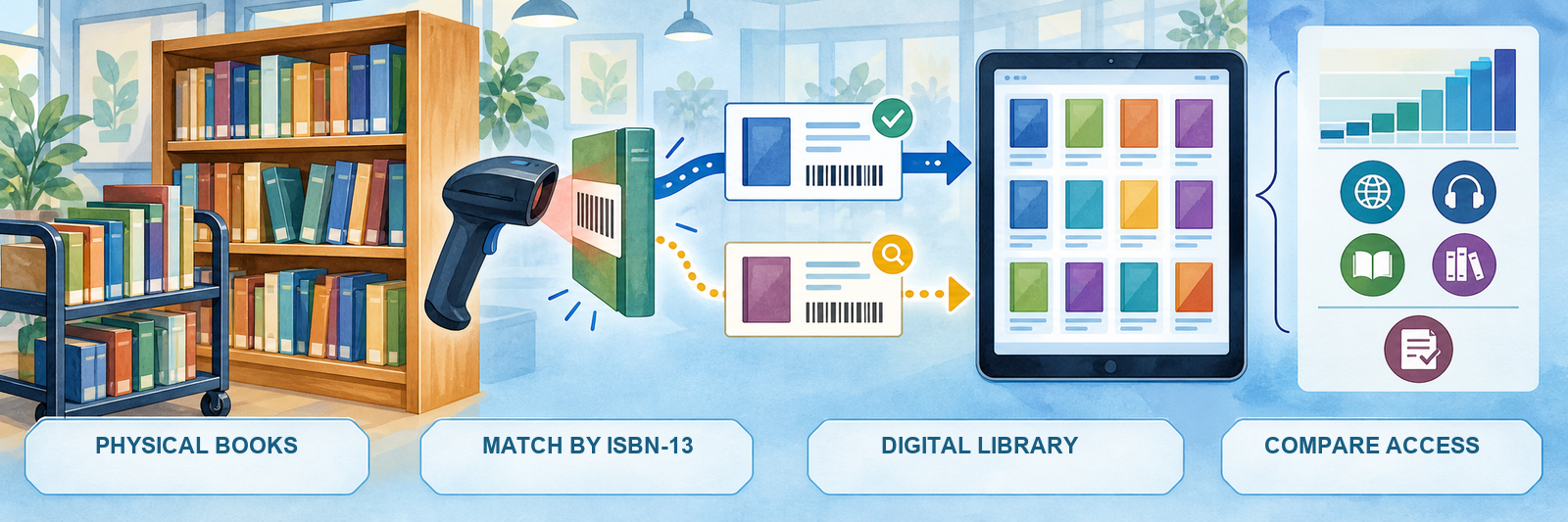
| Pass | Method | Result |
|---|---|---|
| Exact edition | Match ISBN-13 stored as text | High-confidence physical-and-digital match for the same edition; verify duplicates and malformed identifiers. |
| Possible work match | Normalize title and author, then compare subtitle, series, publisher, copyright, language, and ISBN | Candidate match for manual review when paperback, hardcover, revised, translated, adapted, or digital editions differ. |
| Instructional profile | Compare grade recommendation, ATOS, Lexile, language, fiction/nonfiction, length, audio, and AR quiz availability | Visibility into access, format, language, and reading-demand patterns; these fields do not determine literary quality or curricular suitability. |
| Local availability | Filter the public catalog to the district’s Core and purchased add-on collections, then check grade and student restrictions | A realistic view of what local students can open rather than everything Renaissance markets. |
Public catalog is not local entitlement. The Core collection contains more than 9,000 titles, and schools may license more than 13,000 additional publisher titles. Document the collections the district actually purchased and the restrictions students actually encounter.
Distinguish reading evidence from reading achievement
| Evidence | Useful for | Does not establish by itself |
|---|---|---|
| Days, minutes, pages, and books | Opportunity, frequency, volume, patterns, and a starting point for conversation | Attention, independent reading, comprehension, text quality, or instructional impact |
| Book completion | Whether the platform recorded the title as finished | That every page was read closely or understood |
| myON five-question book quiz | Immediate performance on main idea, vocabulary, supporting detail, inference, and interpretation items | Complete comprehension, durable learning, or progress toward an AR goal |
| Accelerated Reader quiz | Separate AR Reading Practice evidence and progress toward configured AR goals | myON assignment completion; AR and myON quizzes have different records and purposes |
| Writing, organizer, oral response, annotation, or recording | Student reasoning, evidence use, vocabulary, fluency, strategy, misconception, and revision | Independent performance unless task conditions and supports are known |
| ATOS ZPD or Lexile history | Reading-range information over time with a visible placement source and date | A list of mastered skills, a complete reading profile, interest, maturity, or a mandate to read only within the band |
Use myON and Accelerated Reader as distinct products
When both are licensed, students can read a myON book and launch an available AR Reading Practice Quiz. AR quiz coverage spans nearly the entire English Core collection. The myON book quiz and AR quiz remain separate: they differ in length, purpose, records, reports, restrictions, and contribution to AR goals.
- Confirm that the title has an AR quiz and that the student is launching the intended quiz.
- Check AR date, time, level, interest, retake, monitor-password, and network-location restrictions when a quiz is unavailable.
- Look for AR results in the AR Record Book and myON quiz results in myON reports.
- Avoid routinely requiring two quizzes merely because both buttons exist; align assessment to the instructional purpose and student need.
Review access and reading patterns at several levels
Teachers can use the dashboard and classroom reports to examine reading range, reading activity, quizzes, assignments, and recordings. Building and district administrators can study patterns across schools, grades, groups, categories, and titles according to their roles. Investigate differences in opportunity before interpreting differences in activity.
- Compare rostered students with students who actually launched, found a book, and read.
- Disaggregate access by school, grade, class, student group, device route, language, collection, and time period according to local privacy rules.
- Check whether students had current placement data, appealing available titles, appropriate language and audio access, instructional time, working devices, and adult support.
- Use reports to ask better questions, then inspect student work and speak with students and educators.
Maintain the library connection
Renaissance adds Core titles during the year, publisher collections and local entitlements may change, and classroom shelves continue to evolve. Keep a dated catalog export, preserve identifiers, record the local collection set, and rerun the physical-to-digital comparison on a planned schedule. Share new matches with teachers by unit, grade, topic, language, reading demand, and accessibility feature rather than sending one overwhelming list.
Resolve the Failed Layer
| What you notice | Check first |
|---|---|
| The student cannot sign in | Official district route, myON.com versus Renaissance Home or Next, Clever or ClassLink requirement, school selection, username, stable identifier, account status, and duplicate record. |
| The teacher signs in but sees no students | Role, school, authoritative roster, staff-to-section relationship, sharing rules, last synchronization, overnight timing, term dates, and duplicate teacher account. |
| A student shows a reading range but has not tested | Placement source. The displayed ATOS ZPD and Lexile may be based on the grade default when no assessment is available. |
| Star Reading results are missing or old | Correct student identity, Renaissance access route, available administration, score date, overnight transfer, placement configuration, direct-myON account linkage, and duplicate records. |
| Recommendations do not fit the student | Interest inventory, grade, placement source and date, reading history, ratings, available collections, restrictions, and whether the student knows how to search beyond recommendations. |
| A teacher can find a book that a student cannot open | Licensed collection, student grade, publisher grade recommendation, district and building restrictions, individual override, assigned-book exception, language, and school entitlement. |
| Audio is unavailable | Whether the title includes audio, teacher assignment settings, play control, device and browser volume, headphones, muted tab, filtering, bandwidth, and app download status. |
| Recording will not start | District recording setting, assignment activity, browser microphone permission, selected microphone, device policy, supported browser or app, privacy requirements, and student-specific exception. |
| Students see the same assignment twice | Which teacher assigned each copy, co-teacher coordination, shared assignment duplication, student list, due date, and whether the old item should be archived rather than reassigned. |
| Staff are looking for Projects | Use Assignments. Renaissance renamed Projects and moved the updated Assignment Creator into the main navigation. |
| The AR quiz button is absent or blocked | AR license, quiz availability for the title, grade and student settings, IP or location restriction, date and time, book or interest level, retake rule, monitor password, and correct Renaissance account. |
| Offline reading is missing from reports | Correct mobile-app account, downloaded-book limit, device ownership, app version, storage, completed synchronization, network return, and shared-iPad student selection. |
| Minutes look high but student work is weak | Session conditions, audio use, open-book time, shared device, task completion, annotations, quiz or response, student explanation, text fit, and teacher observation. |
Good myON Habits
Verify the source
Know where the identity, roster, collection, reading range, assignment, and result originated.
Protect student choice
Use recommendations and reading ranges as supports while honoring interests, purpose, language, maturity, and teacher knowledge.
Ask for evidence
Connect time and completion with the passage, explanation, annotation, response, recording, or transfer that reveals reading.
Connect the shelves
Use ISBN-13 and catalog metadata to reveal where familiar physical titles also provide digital and accessible reading options.
Official myON and Renaissance Resources
Collections, titles, integrations, assessments, settings, mobile support, interfaces, and recommendations may change. Confirm the district’s active license and current vendor guidance.
2026–27 edition. Official Renaissance and myON product, public-catalog, administration, role, access, roster, placement, student, assignment, reader-tool, reporting, Accelerated Reader, News, mobile-app, and educator materials reviewed September 13, 2026. Collection counts, title availability, publisher options, assessments, integrations, mobile support, reading tools, AI-supported recording analysis, settings, quiz behavior, terminology, reports, and interfaces may change. District curriculum, library, assessment, privacy, student-record, recording, accessibility, content-access, device, and procurement policies remain controlling. Conceptual illustrations are SDLA material.