


MagicSchool AI Quick Start Guide
Use AI to accelerate a thoughtful educator workflow while keeping human judgment, student learning, and district governance in control.
MagicSchool is more than a chatbot. It combines educator-facing creation and feedback tools, teacher-directed MagicStudent Rooms, and—when licensed—district administration and integrations. AI output begins the work. An educator must verify, revise, and deliberately choose what reaches students.
Begin with Four Responsibilities
Govern
Define approved users, purposes, data, integrations, safeguards, support, and records before broad use.
Direct
Provide a specific task, audience, context, source material, constraints, and desired form.
Verify
Check every consequential claim, example, citation, accommodation, translation, and recommendation.
Teach
Design student AI use to strengthen reasoning, authorship, verification, revision, and reflection.
Recognize Three Connected Environments
| Environment | Primary user | Purpose |
|---|---|---|
| Educator tools | Teachers and authorized staff | Draft plans, rubrics, questions, differentiated resources, feedback, communications, presentations, and other materials. |
| MagicStudent Rooms | Students under educator direction | Use only the tools and instructions selected for a teacher-created room while the educator reviews activity and interactions. |
| Enterprise administration | District and school leaders | Manage institutional access, integrations, organization settings, shared resources, visibility, implementation, and support. |
Teacher use and student use are different approval decisions. Allowing staff to draft materials does not automatically authorize students to enter rooms, create accounts, submit work, or provide information to an AI system.
District Governance and Setup
Decide what the district is approving, who is responsible, and how access will work before treating individual teacher adoption as an institutional implementation.
Name the educational purpose
Begin with specific, supportable use cases: drafting a lesson outline, generating practice questions, adapting teacher-authored text, creating a rubric, producing initial feedback, or running a guided student activity. Identify uses that require additional review or are prohibited under local policy.
- Separate teacher productivity, instructional-material creation, student learning, assessment, communication, and sensitive documentation.
- Name the responsible program, curriculum, technology, privacy, security, accessibility, and student-services staff.
- Define when a human must approve an output and what evidence that review leaves behind.
- Provide an escalation route for unsafe output, suspected disclosure, account misuse, or inaccurate high-impact content.
Identify the active plan
| Plan | Best understood as | Check before training |
|---|---|---|
| Free | Individual exploration with core educator and selected student capabilities under standard usage limits | Current generation limits, student features, output history, export routes, and whether local policy permits independent use. |
| Plus | Expanded individual subscription with higher or unlimited capacity and additional tools | Current feature set, billing owner, ownership of work, and transition process if an institution later purchases Enterprise. |
| Enterprise | School- or district-managed access with administration, oversight, integration, and implementation support | Licensed modules, sites, user populations, SSO, rostering, LMS behavior, organization controls, analytics, support, and renewal terms. |
Current MagicSchool plan comparison
Check before paying personally. A teacher may begin with Free or purchase Plus and later discover an institutional Enterprise agreement. Verify district availability and use the vendor’s current account-transition or refund process when applicable.
Complete the local AI and privacy review
MagicSchool states that it does not sell student or educator data, use it for targeted advertising, or permit third-party AI providers to train models with student data. It also describes encryption, role-based controls, moderation, U.S.-based processing, data agreements, and independent certifications. Treat those statements as inputs to district review rather than a substitute for it.
- Review the contract, privacy policy, data-processing agreement, subprocessors, security evidence, breach terms, retention, deletion, portability, and account-transition procedures.
- Define whether names, student IDs, education records, disability information, behavior information, family communications, work samples, images, or voice may be entered.
- Confirm how COPPA authorization, parent or guardian notice, age eligibility, FERPA school-official treatment, California requirements, and local board policy apply.
- Test accessibility, translation quality, content moderation, false-information warnings, and the process for reporting harmful or biased output.
Map sign-in, roster, and LMS behavior separately
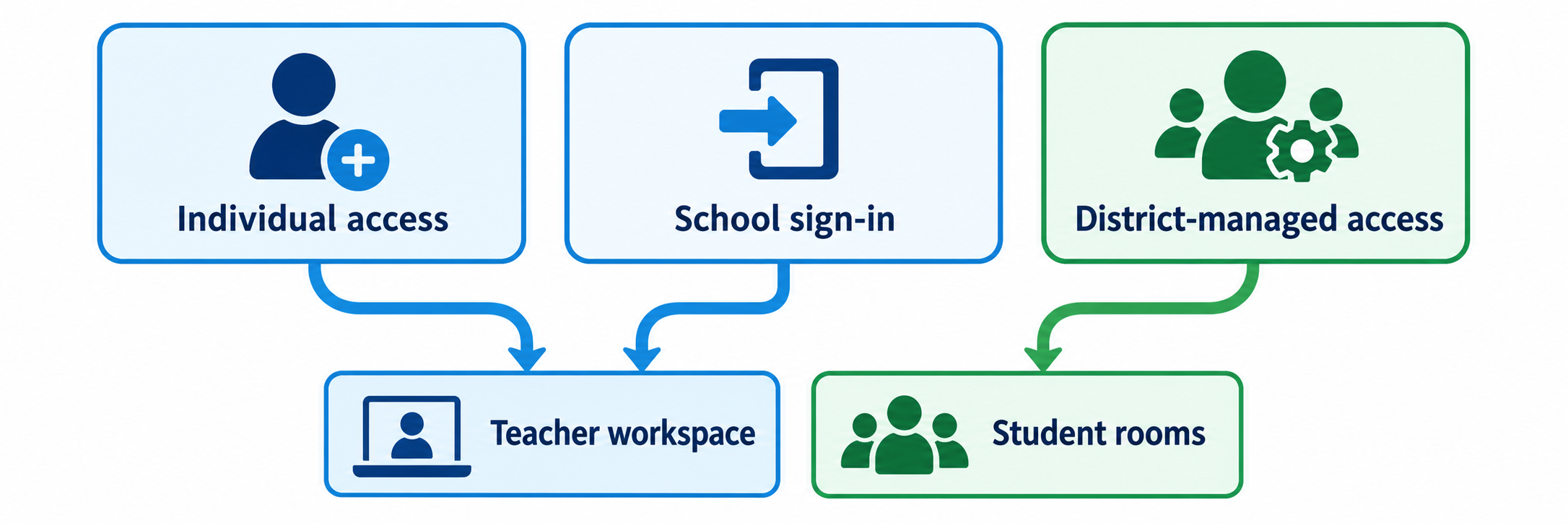
| Connection | Documented purpose | Operational question |
|---|---|---|
| Sign-in and Google Classroom workflows across plans | Does the action export a resource, create an assignment, or provide persistent student access? | |
| Microsoft | Microsoft sign-in across plans and selected export/workflow support | Which tenant, account type, files, and destinations are approved? |
| Clever | Enterprise secure, roster-enabled login | Which schools, roles, sections, and students are shared, and how quickly do changes arrive? |
| ClassLink | Enterprise one-click LaunchPad access | Does the local implementation provide sign-in only or additional provisioning? |
| Canvas | Enterprise placement of Student Rooms in course materials and review through SpeedGrader | What launches, what submits, where is student activity retained, and what appears in the gradebook? |
| Schoology | Enterprise in-LMS launch of MagicStudent Rooms without separate codes or tabs | Which course context, identity, room, and student record are passed? |
Configure institutional controls
- Verify organization ownership, administrator roles, site assignments, staff access, student eligibility, tool availability, and shared resources.
- Publish the approved login route and identify whether personal accounts should be converted, joined, or discontinued.
- Configure district curriculum, rubrics, policies, or custom tools only after confirming ownership, version control, scope, and update responsibility.
- Define what administrators can see in educator and student activity and communicate that visibility clearly.
- Align retention and deletion with instructional, student-record, investigation, and public-record obligations.
Pilot the complete workflow
Use test educator and student accounts to verify sign-in, role, school, roster, room creation, tool restrictions, sharing, moderation, teacher visibility, pause or closure, exports, LMS behavior, accessibility, and data deletion. Include a new student, withdrawn student, changed class, duplicate account, blocked prompt, inaccurate output, and incident report.
A product demonstration proves possibility. A district pilot establishes what actually works with local identities, policies, licenses, browsers, devices, filters, courses, and support responsibilities.
Create, Review, and Share
Use MagicSchool to produce a workable starting point, then apply professional knowledge before the output becomes instruction, feedback, communication, or documentation.
Enter through the approved account
Use the district portal or approved Google, Microsoft, Clever, ClassLink, Canvas, or Schoology route. Confirm the institutional organization, role, license, and tools before creating work. Avoid building important material in an unrelated personal account that may lack district controls or become inaccessible later.
Choose a tool from the task
Start with what the educator must accomplish: design, differentiate, assess, provide feedback, communicate, or organize. A purpose-built tool can prompt for the information needed to structure that task. Raina or another open chat may suit exploration and revision when the user can supply stronger directions.
| Task | Useful inputs | Human decision |
|---|---|---|
| Plan instruction | Standard, learning goal, prior knowledge, time, materials, instructional model, and evidence | Whether the sequence is accurate, coherent, feasible, and appropriate for the actual class. |
| Differentiate a resource | Teacher-approved source, intended skill, language demand, accessibility need, and elements that must remain | Whether adaptation preserves meaning, rigor, dignity, and access. |
| Create an assessment | Learning target, taught content, item types, cognitive demand, examples, and scoring expectations | Whether items measure the intended learning and produce interpretable evidence. |
| Draft feedback | Assignment, rubric, student work, desired feedback focus, and local data rules | Whether feedback is correct, specific, useful, equitable, and supported by the student’s work. |
| Draft communication | Purpose, audience, verified facts, tone, language, required notice, and response route | Whether the message is accurate, accessible, lawful, culturally appropriate, and ready to send. |
Write a structured prompt
- Role and task: state what assistance is needed without transferring the final professional decision.
- Audience: include grade, course, relevant knowledge, and language or accessibility context without unnecessary personal information.
- Source: provide approved text, standards, rubric, curriculum, examples, or facts the output must use.
- Constraints: specify length, format, time, vocabulary, cognitive demand, required elements, and prohibited changes.
- Quality criteria: explain what a successful result must demonstrate.
- Uncertainty: ask the system to flag missing information, assumptions, and claims requiring verification.
Treat every output as a draft
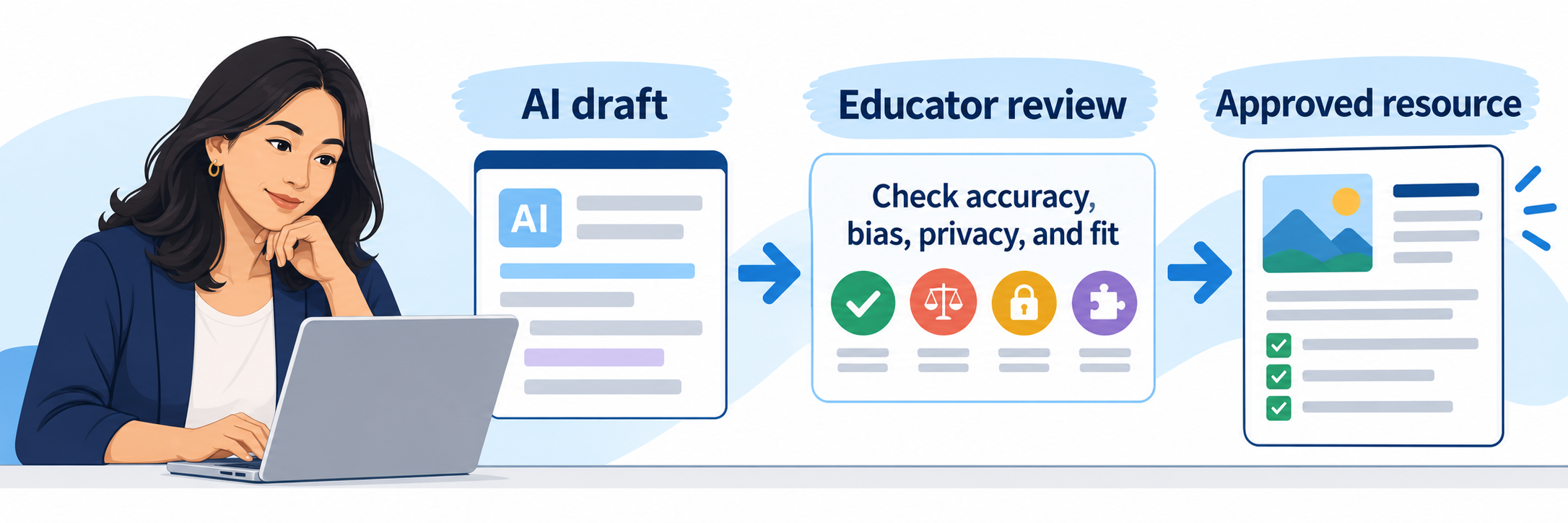
| Review | Ask |
|---|---|
| Accuracy and evidence | Are facts, calculations, examples, quotations, citations, standards, translations, and answer keys correct and verifiable? |
| Bias and representation | Whose experiences are centered or omitted? Do names, roles, behavior, ability, language, culture, gender, or family structure reflect stereotypes? |
| Privacy and sensitivity | Does the prompt or output expose information that was unnecessary, prohibited, misidentified, or unsuitable for the destination? |
| Accessibility and language | Can intended learners perceive, navigate, understand, and respond? Are reading level and language supports appropriate without reducing the learning goal? |
| Instructional fit | Does the material match what was taught, the actual students, available time, local curriculum, and the evidence the teacher needs? |
| Originality and rights | Does the resource imitate protected material, misattribute a source, or require citation, permission, licensing, or replacement? |
Revise inside or outside the platform
Ask for a targeted revision, edit directly where the plan permits, or move the approved draft to Google Docs, Slides, Forms, Microsoft tools, PDF, or another supported destination. Recheck after every meaningful change: a polished format can conceal an inaccurate answer, weak item, invented citation, or inaccessible structure.
Export is a delivery action, not an approval signal. A document appearing in Google Classroom, an LMS, a PDF, or a shared drive does not establish that anyone checked it.
Use added care with consequential work
IEP language, behavior documentation, evaluations, grades, recommendations, family notices, disciplinary material, health information, and legal or compliance communications may affect rights and services. Use only locally approved workflows, minimize entered information, verify against authoritative records and required criteria, involve the responsible professional, and retain the final human-approved record in the designated system.
MagicStudent Rooms
Give students a bounded AI experience with an explicit learning goal, selected tools, visible teacher oversight, and evidence of their own thinking.
Decide whether students need AI
Use a Student Room when interacting with AI materially supports the learning goal: practicing questions, receiving formative coaching, comparing explanations, revising writing, studying, translating with verification, or building AI literacy. Keep the task outside AI when independent recall, unaided performance, protected discussion, or another method produces better evidence.
Preview before building
Use the MagicStudent Tools Playground to experience the selected tool as a learner. Try an expected prompt, a vague prompt, an off-task request, a misconception, a request for an answer without reasoning, and a potentially unsafe prompt. Then use a Starter Room or create a room that fits the actual lesson.
Design a bounded room
- Name the learning target and the product students must create, explain, revise, or submit.
- Select only the tools required for this activity.
- Customize grade, context, source material, behavior, scaffolds, and stopping point.
- Tell students what information they may enter and what must remain private.
- Define acceptable AI assistance and what must show the student’s unaided thinking.
- Require source checking, revision, citation or acknowledgment, and reflection as appropriate.
- Preview the finished room on the intended student device.
Choose the student entry route
| Route | Use | Verify |
|---|---|---|
| Join link, code, or QR code | Provides room access without a full LMS integration | How students identify themselves, whether work persists, duplicate names, room status, and how the teacher matches activity to a student. |
| Google Classroom | Places room information or an activity into the teacher’s existing classroom workflow | Correct class, directions, due date, student sign-in, submission expectation, and where work is reviewed. |
| Clever or ClassLink | Uses an Enterprise district access route | Correct student account, roster, site, room, and current enrollment. |
| Canvas | Adds a Student Room to course materials with supported SpeedGrader workflow | Student launch, submission, teacher review, gradebook behavior, retries, and copied-course behavior. |
| Schoology | Embeds or launches a Student Room inside the course under Enterprise | Course placement, student identity, no-code launch, room state, and teacher visibility. |
Teach the complete activity
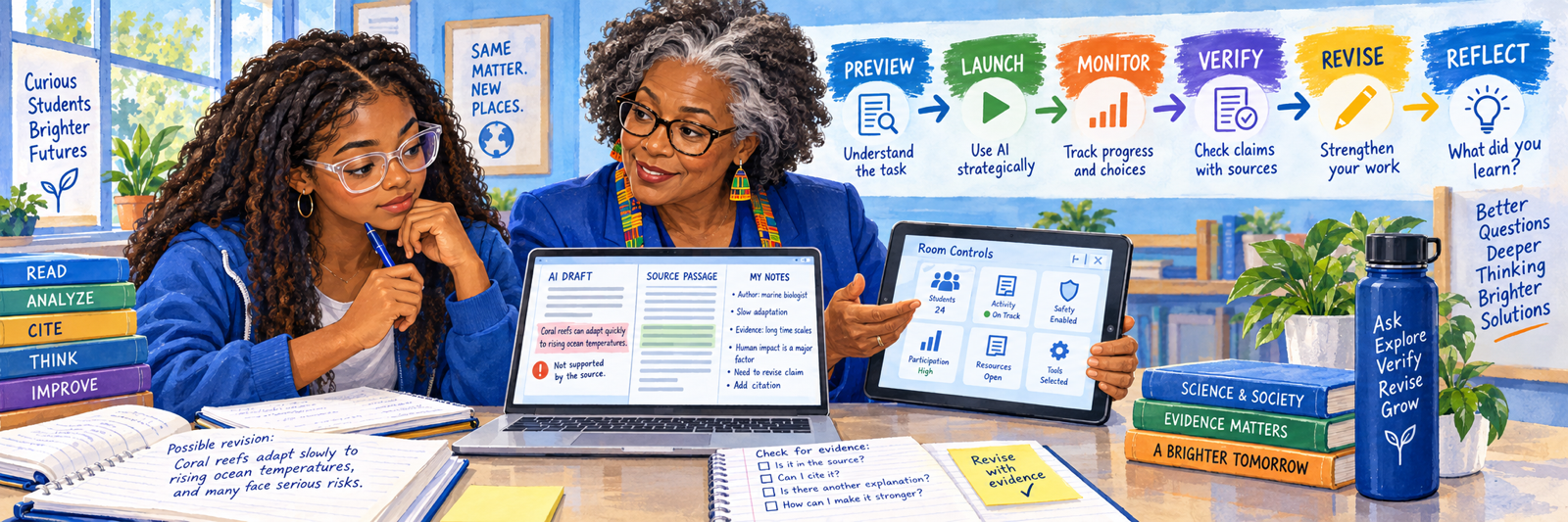
| Phase | Student action | Teacher evidence |
|---|---|---|
| Understand | Restate the task, learning target, allowed AI help, and privacy boundary. | The student can explain the purpose before prompting. |
| Interact | Ask purposeful questions, provide appropriate context, and notice the system’s assumptions. | Room activity shows engagement with the intended tool and task. |
| Verify | Compare claims, calculations, examples, and citations with approved sources. | Annotations identify supported, uncertain, inaccurate, or biased content. |
| Revise | Strengthen the work using subject knowledge, evidence, feedback, and original reasoning. | The revision differs meaningfully from the AI draft. |
| Reflect | Describe what the AI contributed, what the student changed, and what remains uncertain. | The student demonstrates AI literacy and ownership of the final work. |
Monitor, intervene, and close the room
Review participation and student interactions during the activity, not only after submission. Address unsafe, off-task, overdependent, or misleading exchanges. At the end, confirm the required work was submitted or retained in the intended location, lock or close access as appropriate, document concerns through the local process, and use what students revealed to plan the next lesson.
Visibility is not the same as understanding. An activity log can show what a student and system exchanged. A conversation, annotation, oral defense, revision history, or new problem is still needed to understand what the student learned.
Resolve the Failed Layer
| What you notice | Check first |
|---|---|
| Teacher can sign in but lacks district features | Account email, organization membership, license assignment, role, site, purchase status, and whether a personal account was joined correctly. |
| Student cannot enter a room | Room status, link or code, sign-in route, roster match, student eligibility, browser, device, filter, and local access setting. |
| Students appear twice or under ambiguous names | Roster identity, join-code naming, prior account, duplicate enrollment, SSO match, and which record contains the activity. |
| Canvas or Schoology opens the wrong experience | Enterprise entitlement, course context, placement link, room selection, copied course, user role, and integration configuration. |
| Generated content contains an error or false citation | Original prompt, supplied sources, unsupported assumptions, human review, and whether the error was already exported or shared. |
| Output is biased or inappropriate | Prompt context, source material, moderation result, student age, tool settings, local reporting route, and whether affected students need support. |
| Student submitted polished work but cannot explain it | Allowed-use directions, interaction history, drafts, source notes, revision evidence, reflection, and a comparable unaided task. |
| Confidential information was entered | Stop further sharing, preserve necessary evidence, notify the designated privacy/security lead, identify recipients and systems, and follow the district incident process. |
Good MagicSchool Habits
Minimize data
Use the least personal or sensitive information required for the approved educational task.
Show the source
Ground important work in approved curriculum, evidence, standards, rubrics, and verified facts.
Preserve judgment
Verify, revise, and own the final instructional, assessment, feedback, and communication decision.
Require thinking
Ask students to question, check, improve, explain, and reflect on AI-assisted work.
Official MagicSchool Resources
Features and plan boundaries change quickly. Confirm current behavior in official materials and the district’s active configuration.
2026–27 edition. Official MagicSchool platform, pricing, integration, MagicStudent, FAQ, and trust materials reviewed September 13, 2026. MagicSchool is a rapidly changing AI platform; tools, limits, prices, exports, rooms, integrations, administrative visibility, safeguards, data practices, and interfaces may change and depend on the active plan and configuration. Vendor privacy and compliance statements should be evaluated through the district’s own legal, privacy, security, accessibility, curriculum, and procurement processes. AI outputs require human review. Conceptual illustrations are SDLA material.