



Imagine Math Quick Start Guide
Identify the original Imagine Math product, verify the assessment connection, and turn personalized practice into responsive teaching.
This guide covers the original Imagine Math program: the PreK–2 learning environment and the Grades 3+ environment extending through Geometry. It does not cover Imagine+ Math, Imagine MyPath, or Imagine IM. Imagine Math Facts is a separately licensed companion.
Start with Four Questions
Identify
Which product, learning environment, schools, grades, and licenses are active?
Connect
Which system owns identity, classes, authentication, and assessment placement?
Personalize
How will grade assignment, assessment evidence, and remediation shape each pathway?
Respond
What will teachers do with usage, mastery, help, and progress evidence?
Confirm Which Imagine Math You Have
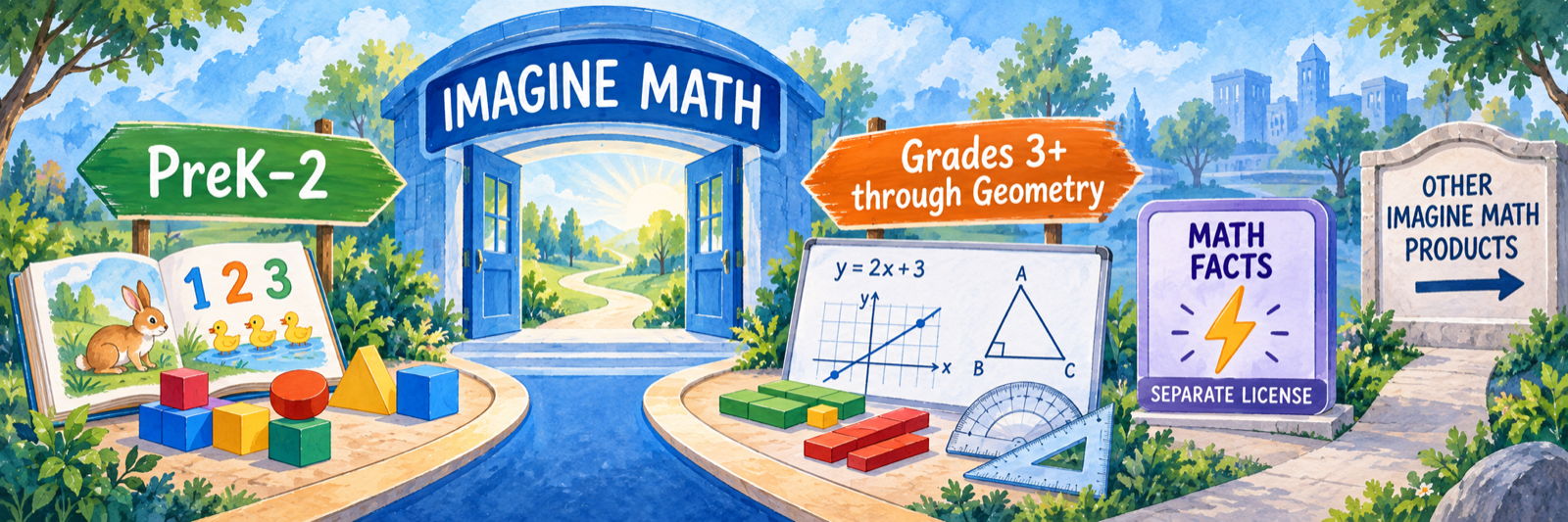
| Product or environment | Primary use | Operational point |
|---|---|---|
| Imagine Math PreK–2 | Early mathematics in a storybook-style environment with English and Spanish support. | Rostered grade normally places students here. Confirm age-appropriate access before instruction begins. |
| Imagine Math 3+ | Supplemental mathematics from Grade 3 through Geometry, including adaptive support and Live Teaching. | On-screen text is primarily English; selected Spanish audio, worksheets, glossary supports, and bilingual Live Teachers are available. |
| Imagine Math Facts | Gamified practice for addition, subtraction, multiplication, and division fluency. | A separate companion license; access to Imagine Math does not by itself establish access to Math Facts. |
| Imagine+ Math, Imagine MyPath, and Imagine IM | Other Imagine Learning mathematics products. | Outside this guide. Check the tile, contract, administrator console, and current product documentation before applying these directions. |
Do not train from the name alone. Ask staff to show the exact tile and landing page they will use. Product naming and current offerings can change while an existing district continues using an earlier licensed product.
District Setup and NWEA Connection
Build one dependable identity and data route before using placement or progress reports for decisions.
Inventory the active implementation
- Record the exact product, license term, schools, grades, courses, languages, and administrator structure.
- Confirm whether Imagine Math Facts is included and whether the district uses PreK–2, 3+, or both.
- Name the Customer Success and district technical contacts.
- Document the expected launch route, roster source, assessment option, sync schedule, support process, and privacy requirements.
Choose one controlled sign-in and roster route
Imagine Learning documents SSO through Clever, ClassLink, or custom SAML. The product connection must be configured separately for each purchased Imagine Learning product. ClassLink and custom SAML implementations also depend on a supported roster exchange, commonly through SFTP.
| Layer | What it controls | What to verify |
|---|---|---|
| Roster | Schools, users, grades, classes, and enrollments | Stable IDs, included schools, grade values, teacher-student relationships, update timing, and withdrawals. |
| SSO | How an authorized user signs in | Correct product tile, role, school, account match, and device-specific behavior. |
| License | Which product and features open | Imagine Math versus Math Facts, environments, dates, schools, and entitlements. |
| Assessment connector | Which eligible score may shape placement | Assessment option, test term, matching student, received date, and pathway result. |
Select the assessment-placement option
The original Imagine Math supports its Embedded Benchmark or an NWEA MAP Growth integration. District administrators make this implementation choice with Imagine Learning. A district generally uses one provider, although a different choice may be configured by school or grade; it is not ordinarily switched student by student.
With Embedded Benchmark, the first benchmark appears automatically at initial login and later benchmarks are assigned by an authorized educator. Imagine Learning recommends allowing about 90 days between benchmarks. With NWEA, students test in NWEA and the connected result is used by Imagine Math.
Treat NWEA as a linked data process
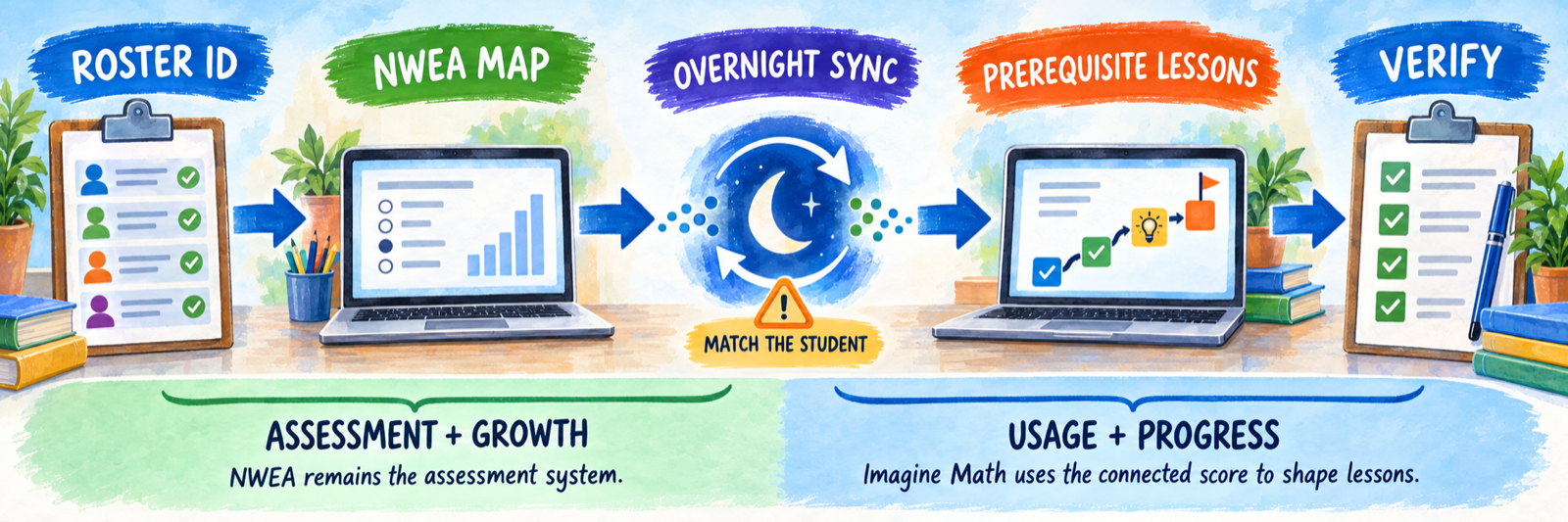
- Complete the eligible NWEA MAP Growth test in NWEA.
- Maintain the required automatic nightly roster synchronization through Clever, ClassLink, or the approved SFTP process.
- Allow for the documented overnight score exchange; do not promise immediate placement.
- Confirm that the correct student, term, score, grade, and school matched.
- Verify that prerequisite lessons appeared in the intended Imagine Math pathway.
- Use NWEA for assessment and growth information; use Imagine Math for pathway activity, usage, and lesson progress.
Pilot edge cases before launch
- New and returning students
- Students who change schools, classes, grade, or local ID
- Duplicate or unmatched records
- Students tested before appearing in the current roster feed
- Students with a completed NWEA test but no changed pathway
- Teachers assigned to more than one school
- Shared devices, tablets, QR cards, and the intended browser
A successful login does not prove a successful implementation. A user can authenticate and still have the wrong role, school, class, environment, license, assessment match, or pathway.
Pathways and Student Experience
Begin from the rostered grade and assessment evidence, then use teacher judgment to check whether the resulting work fits the learner.
Preview both the teacher and student route
Teachers should enter through the district-approved portal and confirm the correct classes and products. Students may use Clever, ClassLink, another approved SSO route, or a direct Imagine Learning login with username, password, and Site Code. Supported devices may also use a QR-code login card. Use the local route consistently so duplicate accounts do not separate students from rostered classes or history.
Understand the default pathway
Automated rostering assigns a grade-level pathway that matches the student’s rostered grade. Grade 9 normally receives Algebra I; students in Grades 10–12 normally receive Geometry. An assessment-based remediation option can insert prerequisite lessons, and pathway remediation can add support after an unsuccessful lesson.
Personalized does not mean unattended. The pathway reflects the information and rules available to the system. Teachers still compare it with current classwork, course expectations, accommodations, and direct observation.
Check placement before changing it
- Verify the student’s rostered grade and intended course.
- Confirm the selected assessment option and most recent eligible result.
- Review the assigned pathway and inserted prerequisite lessons.
- Compare digital performance with classroom tasks and student explanation.
- Distinguish unfinished work, language access, device difficulty, and misconception.
- Document why a prebuilt, domain-specific, or custom pathway is added.
Give students a complete learning routine
| Student action | Teacher expectation |
|---|---|
| Read or listen to the problem and identify what is known and unknown. | Teach students to slow down, use available language supports, and restate the mathematical goal. |
| Represent and attempt the problem. | Require visible thinking through a model, notes, workspace, or oral explanation. |
| Use corrective feedback and Math Help. | Frame help as part of learning, while checking whether students click through support without processing it. |
| Seek Live Teaching when available and needed. | Teach appropriate chat, whiteboard, persistence, and help-seeking behavior. |
| Reflect and connect the lesson to classroom mathematics. | Ask for a short explanation, worked example, error analysis, or transfer problem. |
Set a sustainable schedule
Legacy Imagine Math 3+ guidance recommends approximately 60–90 minutes and two to three lessons per week, with attention to lesson pass rate. Treat that as a planning reference, then use the current implementation plan, student age, local calendar, and actual learning evidence. Protect consistent sessions, allow time for thoughtful work and help, and avoid turning minutes alone into the learning goal.
Monitor, Teach, and Support
Use program evidence to choose a teacher action, then check whether that action improved student reasoning.
Know where help comes from
Explain Live Teaching accurately
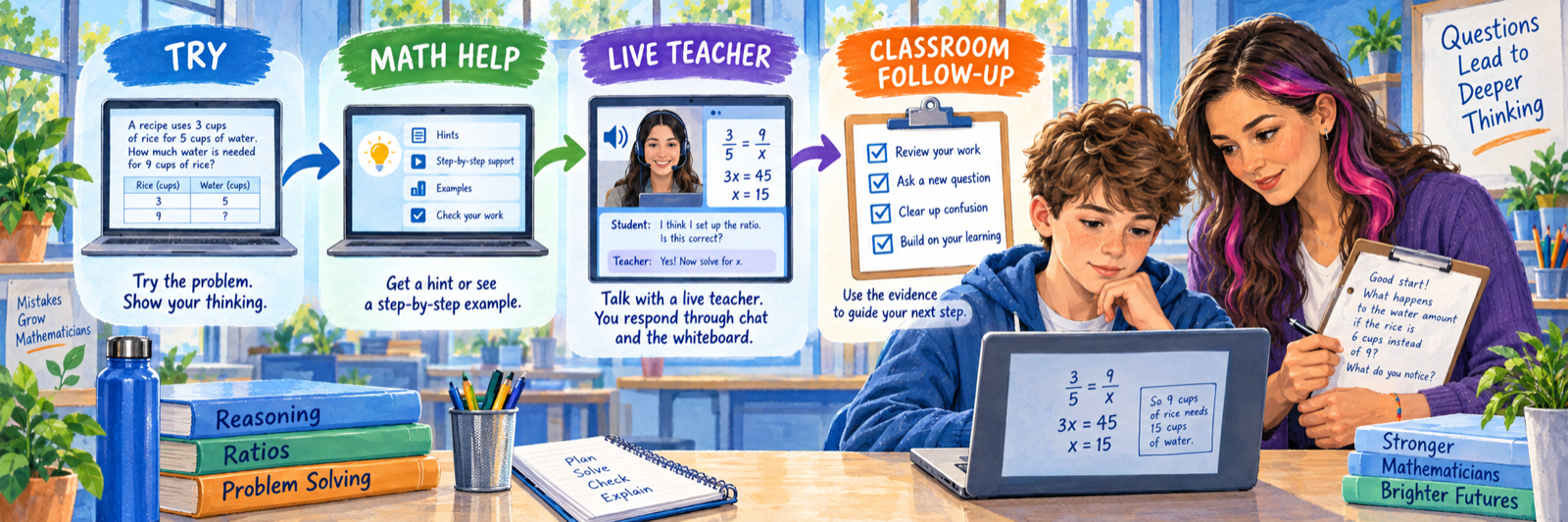
Live Teaching belongs to Imagine Math 3+. Students generally encounter Math Help 1 and Math Help 2 before the Live Teacher option becomes available, although proactive intervention may open it sooner. The student hears the certified teacher through one-way audio and responds through chat, voice-to-text, and the interactive whiteboard. Bilingual English/Spanish Live Teachers are available during published service hours.
Teach students that Live Teaching is a supported mathematical conversation. They should share work, answer questions, use respectful chat, and remain engaged. Transcripts are retained, and safety or behavior concerns may be communicated to school personnel.
Read reports as signals for action
| Report or evidence | What it helps reveal | Teacher response |
|---|---|---|
| Usage | Time, lessons attempted and passed, and use of help or Live Teaching | Check access, schedule, persistence, lesson quality, and whether time produced meaningful work. |
| Mastery | Skill patterns that may support grouping or reteaching | Inspect examples, ask students to explain, then choose a targeted mini-lesson or practice. |
| Student Progress | Movement through assigned pathways and lessons | Look for stalled, skipped, repeatedly unsuccessful, or unexpectedly easy work. |
| Activity and Weekly Progress | Recent participation and completion patterns | Follow up quickly on access barriers and establish a short, observable goal. |
| Benchmark | Embedded Benchmark performance when that option is used | Combine the result with classroom evidence; NWEA-connected districts review assessment evidence in NWEA. |
Use a short response cycle
- Notice: identify one meaningful pattern across usage, progress, help, errors, and classroom work.
- Verify: talk with the student and inspect actual mathematical reasoning.
- Respond: reteach, regroup, adjust a pathway, provide language or accessibility support, or repair access.
- Recheck: name the next evidence and review date.
Keep assessment claims precise. A placement score or lesson status can guide a next step. It does not, by itself, establish every skill a student has mastered, explain why the student struggled, or replace teacher observation.
Troubleshoot the failed layer
| What you notice | Check first |
|---|---|
| Student cannot open the product | Approved launch route, product tile, license, account match, school, role, browser, and device support. |
| Teacher signs in but sees no class | Teacher ID, school assignment, section relationship, sharing rules, last roster sync, and duplicate account. |
| Student enters the wrong environment | Rostered grade, product tile, license, and whether a local change conflicts with the authoritative roster. |
| NWEA score did not affect placement | Eligible test and term, nightly roster requirement, student match, score receipt, selected assessment option, and processing time. |
| Student has minutes but little progress | Lesson attempts, help use, pass patterns, off-task behavior, reading/language demands, device interruptions, and actual work. |
| Live Teacher is unavailable | Imagine Math 3+ access, published service hours, prior Math Help sequence, lesson state, connectivity, and local restrictions. |
| Report differs from NWEA | Whether the comparison mixes NWEA assessment/growth data with Imagine Math usage/pathway data, plus dates and student identity. |
Good Imagine Math Habits
Use the right tile
Name the exact product and environment in every training, support request, and local direction.
Keep one identity
Launch through the approved route and correct source records instead of creating duplicate accounts.
Verify the pathway
Compare grade, assessment connection, assigned lessons, and classroom evidence.
Respond and recheck
Turn a report signal into a named action and a date to review its effect.
Official Imagine Math Resources
Use the district’s current implementation plan together with official documentation for the original Imagine Math product.
2026–27 edition. Official Imagine Learning product and Help Center materials reviewed September 13, 2026. This guide covers the original Imagine Math product and separates it from Imagine+ Math and other Imagine Learning mathematics offerings. Product names, environments, assessment options, languages, licenses, SSO, rostering, reports, Live Teaching availability, hours, and interfaces depend on the district agreement and current configuration. District staff should validate all launch, roster, assessment, placement, and reporting behavior in a test account before broad use. Conceptual illustrations are SDLA material.