


ExploreLearning Gizmos Quick Start Guide
Connect the right people and classes, select a standards-aligned simulation, and turn student manipulation into observable reasoning and evidence.
Gizmos is a Grades 3–12 library of interactive math and science simulations and virtual labs. It supplements a course or curriculum. The teacher still chooses the learning goal, prepares the investigation, decides what students must record, facilitates sensemaking, and reviews the resulting evidence.
Connect the System, Then Teach the Investigation
Connect
Confirm license, product entitlement, sign-in route, roster source, and any LMS services.
Prepare
Preview the model, learning goal, variables, lesson materials, student directions, and evidence.
Investigate
Ask students to predict, vary conditions deliberately, observe, record, compare, and explain.
Respond
Review assessment results with written reasoning, discussion, models, and other student work.
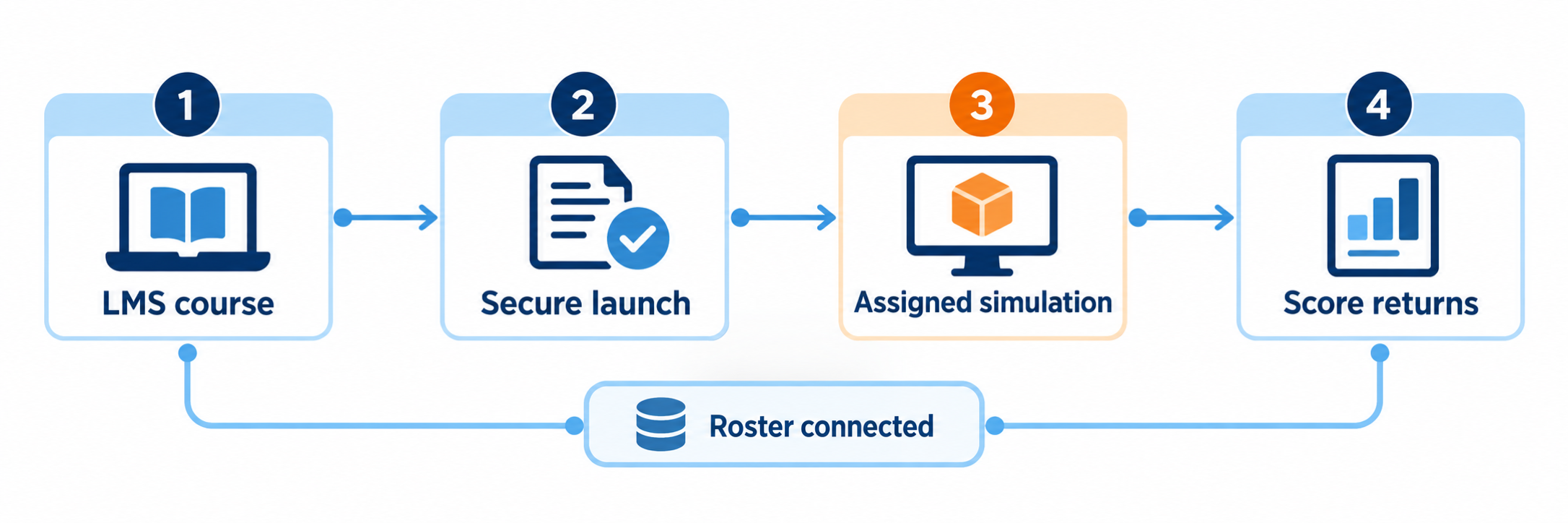
Connected does not have one meaning. A user may be able to launch Gizmos from an LMS while classes remain manually managed, specific Gizmos still require ordinary links, and assessment results remain only in Gizmos. Verify each promised behavior with a complete teacher-and-student pilot.
District Setup and LTI
Establish one supported access architecture and document exactly what each connection does.
Inventory licenses and products
Confirm the licensed schools, grades, subjects, contract dates, teacher and student access, administrator roles, professional learning, and whether the subscription includes Gizmos, Reflex, Frax, Science4Us, or more than one product. The ExploreLearning product picker may show multiple products, but each product has its own instructional purpose and entitlement.
- Confirm whether the teacher has paid, trial, or free access.
- Identify the official educator and student launch locations.
- Document who invites staff and assigns administrator privileges.
- Test whether transferred users retain the intended account and prior work.
- Name the district owner for licensing, authentication, roster, and classroom support.
Understand what LTI is
Learning Tools Interoperability, or LTI, is an open 1EdTech standard that allows an LMS to establish a trusted connection with an external learning tool. At launch, the LMS can securely tell the tool which institution, course, user, and role are involved. This lets a student open an authorized tool from a course without repeating an ordinary sign-in.
LTI is a family of versions and optional services. Saying “we have LTI” does not establish which version is installed or which services are enabled. LTI Advantage builds on LTI 1.3 and defines three major services: Deep Linking, Names and Role Provisioning Services, and Assignment and Grade Services.
| Capability | What an educator may experience | What to verify for Gizmos |
|---|---|---|
| LTI Core launch | A trusted link opens the external tool with the user’s identity, role, institution, and course context. | ExploreLearning publicly confirms LTI as an SSO option. Test teacher and student launches from the actual LMS course. |
| Deep Linking | A teacher searches the external library from inside the LMS and places a direct link to a selected activity into the course. | Do not infer this from LTI sign-in alone. Ask whether the contracted Gizmos deployment supports content selection and direct resource links. |
| Names and Role Provisioning Services | The tool can request people and roles associated with an LMS course. | Confirm whether it is enabled and how it interacts with the district’s chosen ExploreLearning roster method. |
| Assignment and Grade Services | The tool can create or associate a gradebook line item and return a supported score to the LMS. | ExploreLearning’s public Gizmos guidance reviewed for this guide does not promise grade return. Complete and score a test assignment before describing it as available. |
Separate LTI from SSO and rostering
| Term | Question it answers | What it does not prove |
|---|---|---|
| SSO | Can this user authenticate once and open the tool without another ordinary password? | That the correct class exists, a specific resource can be embedded, or a score will return. |
| LTI | Can the LMS make a trusted contextual launch and, if supported, use additional learning services? | That every LTI Advantage service is implemented or enabled. |
| Automated rostering | How are schools, users, classes, and enrollments created, changed, and removed over time? | That users launch from an LMS or that grades synchronize. |
A useful mental model: SSO opens the door. LTI can hand the tool a signed course pass and may add content or grade services. Rostering maintains the people and classes behind the door.
Choose one supported roster method
ExploreLearning documents three automated approaches for Gizmos, Reflex, Frax, and Science4Us. A subscription can use only one integrated roster method.
| Method | How it works | Operational point |
|---|---|---|
| Clever | Clever shares accounts, organizations, classes, and enrollments with ExploreLearning. | Clever rostering must be paired with Clever SSO; updates synchronize nightly. |
| ClassLink API | The district authorizes ClassLink to send roster information to ExploreLearning. | Updates synchronize nightly; authentication is configured separately through an approved route. |
| OneRoster files | The district sends required OneRoster CSV files to ExploreLearning by SFTP. | ExploreLearning pairs this roster process with an LTI or SAML configuration and nightly updates. |
Rostered classes show a synchronization indicator and are controlled by the source system. Teachers should report missing or incorrect records rather than renaming or rebuilding synchronized classes locally.
Use manual classes only when they fit the local design
Schools without automated rostering may use teacher-created classes, manual accounts, CSV imports, or eligible Gizmos class codes. ExploreLearning currently documents class codes for secondary schools whose lowest grade is 5 or higher and that do not use SSO or rostering. These routes are workable, but they place more account and password support on teachers.
Teachers can also create a manual class in a rostered district and draw from students already on the school roster. The district should define when that is appropriate so temporary workarounds do not become competing records.
Pilot the promised LTI behavior
- Launch as a teacher from the intended LMS course and confirm the correct ExploreLearning account and role.
- Launch as a student and verify the intended class and Gizmos access.
- Test whether the launch opens only the product home page or a specific assigned Gizmo.
- If content selection is promised, place a Gizmo into a test LMS module and copy the course.
- If grade return is promised, submit the built-in assessment and confirm the correct LMS column, student, score, and retry behavior.
- Change one enrollment in the authoritative source and confirm when the update reaches Gizmos.
Google Docs is not Google Classroom integration. Gizmos Exploration Sheets may be available as Google Docs, but ExploreLearning states that it does not support Google Classroom integration or rostering and does not support Google SAML. A teacher may still distribute a document or ordinary link through Google Classroom as a separate local workflow.
Plan and Teach
Use the simulation as an environment for inquiry, visualization, and discussion rather than an isolated screen activity.
Enter through the district-approved route
Rostered teachers and students should launch from the district portal, Clever, ClassLink, or LMS route selected during implementation. On first use, a teacher may be asked to link an existing ExploreLearning account or create a new one. Complete that step carefully: a second account can separate the teacher from rostered classes or prior materials.
- Confirm the correct school, teacher role, classes, and product entitlements.
- Open the Gizmos dashboard from the ExploreLearning product picker.
- Use the district route again before reporting a missing synchronized class.
- Remember that students do not receive instructional access until the teacher assigns Gizmos to the class.
Find the right Gizmo
Search by keyword or browse by academic standard, grade and topic, or textbook correlation. Gizmos spans Grades 3–5, 6–8, 9–12, and some college topics. Preview the simulation and Lesson Info before adding it to a class.
- Start with the learning goal, not the most visually impressive simulation.
- Identify the variables students can manipulate and the data the model produces.
- Check whether the representation fits students’ prior knowledge and course vocabulary.
- Notice what the model simplifies, assumes, or leaves out.
- Decide whether students need a physical investigation before, during, or after the Gizmo.
Prepare the complete lesson
Every Gizmo includes instructional materials. The Teacher Guide provides objectives, vocabulary, background, a suggested sequence, and teaching ideas. The Student Exploration Sheet includes prior-knowledge questions, a warm-up, and scaffolded activities. Teachers also receive an answer key and vocabulary sheet.
Lesson materials can be viewed, printed, or downloaded. PDF preserves the prepared layout; Word supports local editing; Student Exploration Sheets may also be available as Google Docs. Students can see the Exploration and Vocabulary Sheets, while the answer key remains restricted to educators with qualifying access.
Teach an investigation cycle
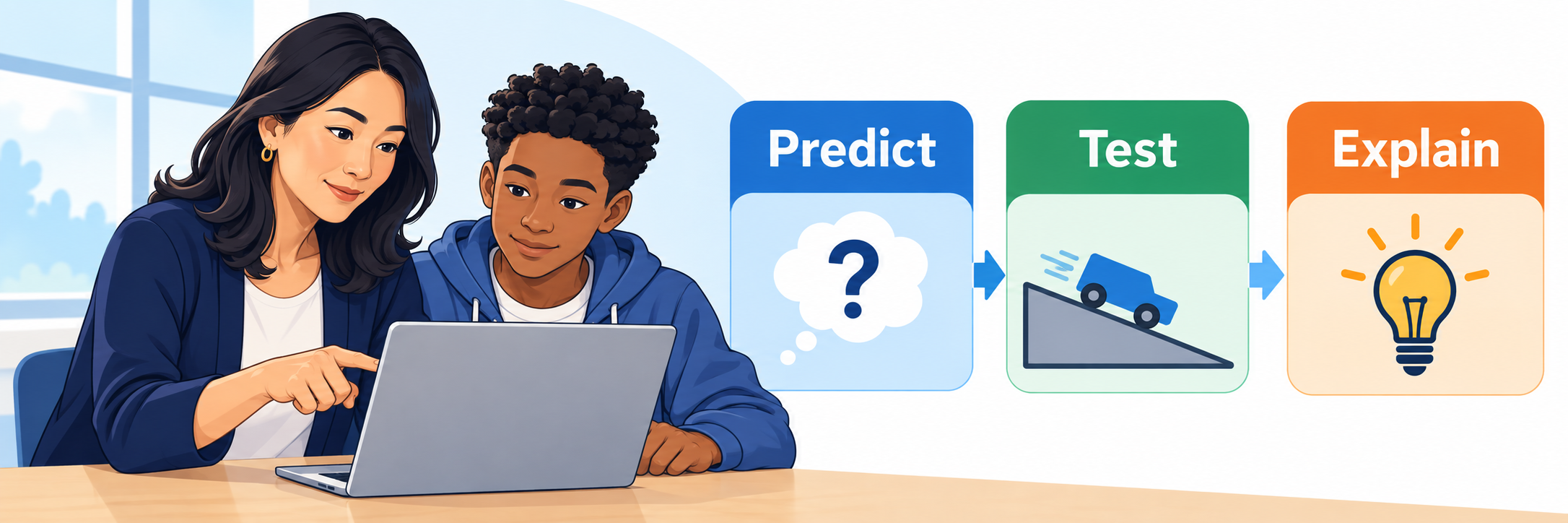
| Phase | Student action | Teacher prompt |
|---|---|---|
| Predict | State an expected result before running the model. | What do you think will happen, and why? |
| Change | Alter one condition while holding relevant variables constant. | Which variable changed? What stayed the same? |
| Observe | Run repeated trials and record measurements, representations, or patterns. | What do you notice across trials? |
| Explain | Use evidence to describe the relationship and acknowledge model limits. | Which evidence supports your claim? What can this model not establish? |
Assign with a visible evidence requirement
Add the Gizmo to the intended class or to a saved list assigned to that class. Then tell students exactly what completion means. Opening and manipulating the simulation may be only the first part of the task.
- Name the Gizmo and learning target.
- Specify the required Exploration Sheet sections or teacher-created questions.
- Explain where students will write, upload, or hand in their work.
- State whether the built-in assessment is practice, a formative check, or part of a grade.
- Give an expected time, collaboration structure, due date, and stopping point.
- Preview the assignment through a student account before class.
Use Gizmos flexibly
A Gizmo can support a teacher-led demonstration, partner investigation, small-group station, individual exploration, pre-lab orientation, replacement experience when a physical investigation is not feasible, or follow-up model after hands-on work. In whole-class use, let students control the model when practical and ask them to verbalize and justify their thinking.
Use the model for what it does well. Gizmos can make invisible processes visible and make repeated trials efficient. Physical investigations remain important when students must handle materials, make measurements, experience uncertainty, develop technique, or evaluate real-world variation.
Evidence and Support
Decide where each kind of evidence lives, then troubleshoot the specific layer that failed.
Distinguish three evidence pathways
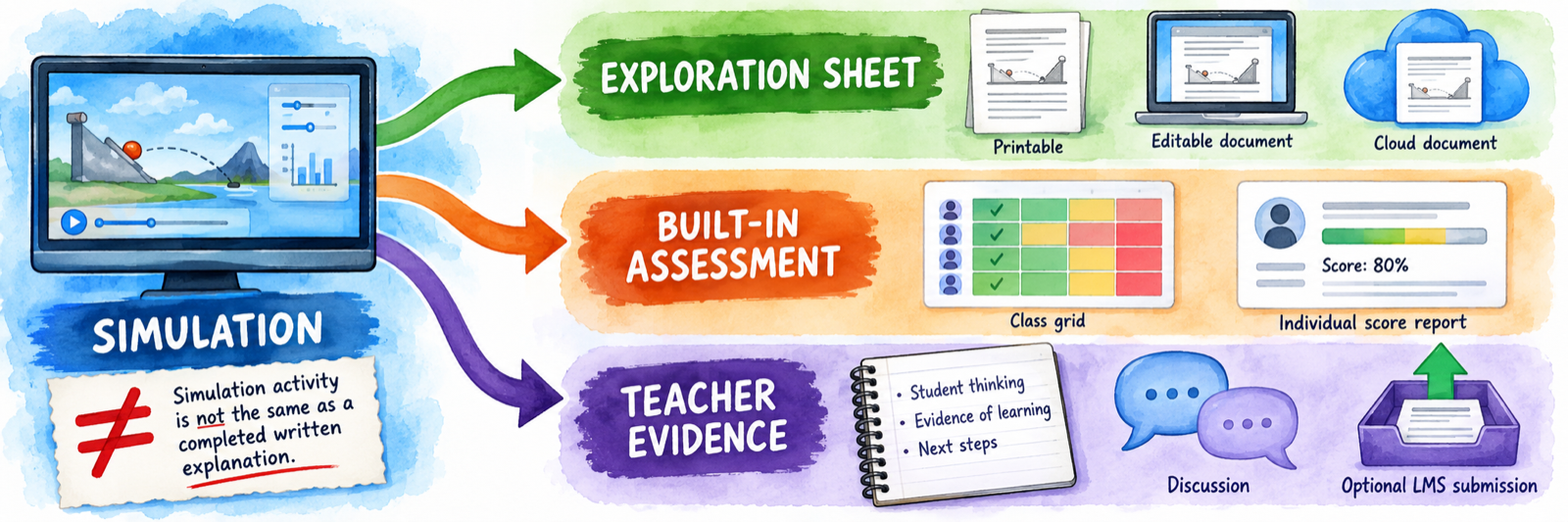
| Evidence | Likely location | What it can show |
|---|---|---|
| Simulation activity | The live Gizmo and any student-created screenshots or notes | Conditions, representations, and observations; manipulation alone is not a complete explanation. |
| Student Exploration Sheet | Printed paper, Word file, Google Doc, or teacher-selected LMS submission | Predictions, recorded data, scaffolded analysis, and written responses. |
| Built-in assessment | Gizmos class results and individual reports | Responses to the multiple-choice questions included with most Gizmos. |
| Teacher-selected evidence | Notebook, discussion, lab record, model, presentation, exit ticket, or LMS | Reasoning, collaboration, explanation, transfer, and misconceptions beyond a short score. |
Review the built-in assessment
Most Gizmos place multiple-choice assessment questions beneath the simulation. After a student selects Check Your Answers, the student receives a result summary and item-level feedback. Teachers open the class, locate the assigned Gizmo, and select Results to view class or individual performance and print or save reports.
Treat the result as a focused formative check. Combine it with the student’s recorded procedure, data, explanation, discussion, and transfer to a new problem before drawing a broader conclusion about understanding.
Clarify free and paid access
A free Gizmos account provides a rotating, limited set of simulations. When a Gizmo rotates out, a previously assigned item can become unavailable to students, its Teacher Guide becomes inaccessible, and students can no longer take its assessment. Existing assessment results remain visible. Answer keys require a paid subscription or qualifying customized trial.
Check district access before purchasing or planning. A teacher may already have paid district access through the official portal. A lesson built around a personal free account may lose access when the free collection changes.
Troubleshoot the failed layer
| What you notice | Check first |
|---|---|
| The ExploreLearning launch works, but Gizmos is missing | Product entitlement, licensed school, user role, and subscription dates. |
| LTI opens an error or the wrong account | LMS course deployment, launch URL, user identifier, role mapping, existing-account link, cookies, and pop-up settings. |
| The user enters Gizmos, but a class is missing | Whether the class is rostered; authoritative SIS, Clever, ClassLink, or OneRoster record; sharing rules; and nightly sync status. |
| The class exists, but the student sees no assignment | Correct class, Gizmo added to class, student-view visibility, product entitlement, and teacher’s first rostered login. |
| An LMS link opens only the Gizmos home page | Whether the deployment supports a direct resource link or only an LTI product launch. |
| The Gizmo works, but no grade returns to the LMS | Whether Assignment and Grade Services or another grade-return method is actually supported and enabled; line item, submission, score, and user match. |
| A Google Doc exists, but no work appears in Google Classroom | How the teacher distributed the document and created the Classroom assignment; Gizmos does not provide native Google Classroom integration. |
| The teacher cannot edit a class name or roster | Look for the synchronization indicator and correct the record in the authoritative source. |
| A free Gizmo is gray or unavailable | Whether it rotated out of the current free collection or the subscription changed. |
| A score exists, but reasoning is unclear | Exploration Sheet, data record, written explanation, discussion, model, and teacher observation. |
Ask precise integration questions
- Which LTI version is installed: 1.0, 1.1, or 1.3?
- Does the connection provide only LTI launch, or does it include LTI Advantage services?
- Can teachers select and deep-link a specific Gizmo from inside the LMS?
- Does Gizmos use Names and Role Provisioning Services, a separate roster feed, or both?
- Can built-in assessment scores return to the LMS? Which scores and fields?
- What happens when an LMS course is copied, a section is combined, or a student changes classes?
- Which system is authoritative for names, roles, classes, assignments, and final grades?
- Who owns vendor escalation when the LMS, roster provider, and ExploreLearning each show different data?
Protect access and close the year
Follow district privacy, accessibility, retention, and support procedures. Before licenses or classes roll over, preserve required assessment records and locally collected student work, remove departed staff access, resolve duplicate accounts, document reusable Gizmo lists, and test the next term’s roster and LTI launch with demonstration users.
Good Gizmos Habits
Name the connection
Document whether a feature comes from SSO, LTI launch, an LTI Advantage service, or a roster feed.
Plan the evidence
Tell students what to record, where to submit it, and how the built-in assessment will be used.
Teach the model
Connect variable changes and patterns to reasoning, physical experience, and the model’s limits.
Pilot the route
Prove teacher launch, student launch, class membership, assignment access, evidence, and any score return.
Official Gizmos and LTI Resources
Use current documentation and the district’s active contract to confirm the exact connection and classroom behavior.
2026–27 edition. Public ExploreLearning product and support documentation and official 1EdTech LTI resources reviewed September 12, 2026. ExploreLearning publicly identifies LTI as an SSO option and supports OneRoster files paired with LTI or SAML, Clever rostering with Clever SSO, and ClassLink API rostering. Public documentation reviewed for this guide does not establish that a particular Gizmos deployment includes LTI Deep Linking, Names and Role Provisioning Services, or Assignment and Grade Services; verify those capabilities through the active contract and a local pilot. Interfaces, licenses, free content, integrations, and district configurations can change. Classroom examples and conceptual illustrations are SDLA material.