


GeoGebra Quick Start Guide
Use free dynamic mathematics tools with or without student accounts, then choose deliberately how learners join, how teachers watch their thinking, and where lasting evidence will be kept.
GeoGebra does not require a district roster to be instructionally useful. A teacher can launch a live GeoGebra Lesson and monitor students who join by link as guests. This low-support model can serve small districts and charter schools well, provided the school establishes clear procedures for identity, re-entry, privacy, and preservation of student work.
A Roster-Free Tool Still Needs an Implementation Plan
Choose
Decide whether students need a calculator, a guest Lesson, saved account work, Google Classroom, or Exam Mode.
Prepare
Preview the mathematics, copy or create the Activity, and identify what students should notice, test, and explain.
Observe
Use a GeoGebra Lesson to see task status, constructions, graphs, selections, and written responses in real time.
Preserve
Choose an account, download, LMS submission, or other approved record when the work must survive the live session.
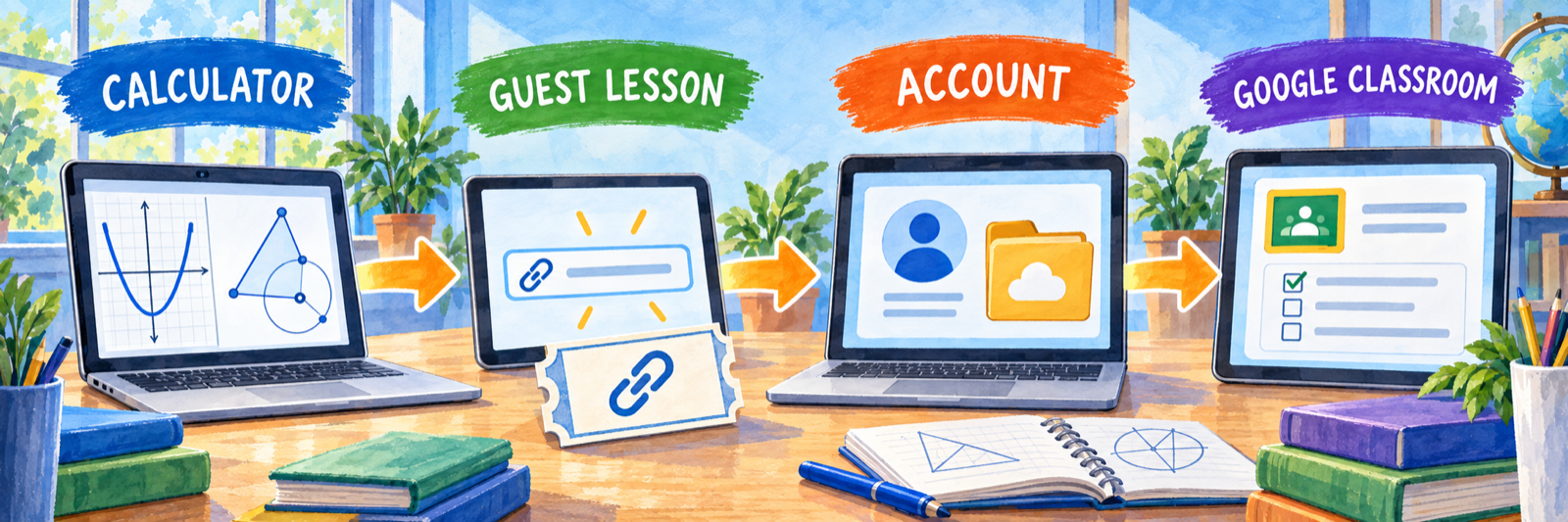
No roster can be a valid design choice. The school trades automated enrollment and longitudinal reporting for immediate access. Name the classroom procedures that will replace those system functions before students begin.
Small-School Setup
Replace a large integration project with a short, explicit set of instructional and operational decisions.
Define the approved use models
| Model | Identity and setup | Best use | Main limitation |
|---|---|---|---|
| Standalone calculator | No account or roster | Graphing, construction, calculation, demonstration, and exploration | No automatic teacher view of student work |
| Guest GeoGebra Lesson | Teacher account plus shared student link | Live formative activity with rapid classroom entry | Guest identity, re-entry, and long-term persistence need procedures |
| Account-based Lesson | Teacher and approved student accounts | Work students need to save and revisit | Account consent, support, lifecycle, and ownership |
| Google Classroom | Existing Google class and assignment context | Familiar distribution and collection workflow | Functions depend on local Google configuration; it is not SIS analytics |
| Exam Mode | Selected app plus device procedure or MDM | Restricted calculator use during an assessment | Exam security does not create an instructional progress dashboard |
Choose the supported math app
GeoGebra offers Calculator Suite, Graphing Calculator, Geometry, 3D Calculator, CAS Calculator, Scientific Calculator, Classic, Notes, Math Practice, and Exam Mode. Identify which application teachers should use for regular instruction and which features are allowed during assessment. Calculator Suite is the broad daily-use environment; narrower calculators intentionally omit some capabilities.
- Publish the approved web address or managed app.
- Test representative Chromebooks, tablets, laptops, browsers, and networks.
- Confirm saving, downloading, sharing, pop-ups, embedded content, and accessibility.
- Separate ordinary classroom use from high-stakes or restricted calculator use.
- Document an offline option when connectivity is unreliable.
Official comparison: GeoGebra apps Official guide: Exam Mode
Set the account and naming policy
GeoGebra accounts can use GeoGebra credentials or connect to services such as Google and Microsoft. Current public documentation does not describe Clever, ClassLink, OneRoster, or SIS-managed provisioning. Treat social sign-in as individual authentication rather than evidence of centralized rostering.
- Decide whether students participate as guests or use approved accounts.
- Give guests a consistent naming format that lets the teacher distinguish students without exposing unnecessary information.
- Define school or parent authorization for student accounts, especially for younger learners.
- Assign ownership of teacher-created Activities, Books, folders, and links.
- Document what happens to resources and saved work when a teacher or student leaves.
Official guide: GeoGebra accounts Official resource: privacy policy
Curate a trustworthy starting library
GeoGebra hosts resources created by the GeoGebra team and a global community. Begin with GeoGebra-created or clearly verified resources, then teach staff how to inspect community materials before classroom use. A resource can be copied and adapted to local goals.
- Check mathematical accuracy, learning target, grade demand, and prerequisite knowledge.
- Complete every task and test draggable objects, sliders, inputs, questions, and reset behavior.
- Inspect authorship, embedded video or websites, language, accessibility, and Creative Commons terms.
- Copy the resource before changing instructions, questions, or applet settings.
- Use a local naming convention for course, unit, lesson, version, and owner.
Official guide: find resources Official guide: create and copy resources
Pilot the complete student route
Use one teacher, one reviewed Activity, and approved demonstration students. Test the exact link or Google Classroom route, guest naming or account sign-in, live teacher visibility, pause and re-entry behavior, and the final save or submission method. Record what is recoverable after the browser closes or the device changes.
The student link is part of the lesson record. Store it with the lesson title, date, class, owner, and intended evidence route so another adult can support the class.
Teach a Live GeoGebra Lesson
Use dynamic mathematics to make student conjectures and revisions visible, then turn the live display into discussion and feedback.
Begin with the mathematical action
Name what students should notice, predict, manipulate, measure, compare, construct, test, and explain. Decide what evidence would distinguish understanding from random dragging or answer hunting.
- Write one focused learning target.
- Identify the objects students may change and the relationships that must remain invariant.
- Prepare questions for prediction, justification, counterexample, and generalization.
- Decide when students work privately, compare with a partner, or discuss as a class.
- Plan a non-digital representation or written explanation when it strengthens the evidence.
Preview, copy, and prepare the Activity
Open the resource details, confirm the author and intended level, and complete the Activity as a student. Copy it when directions, sequence, media, applet behavior, or questions need revision. A GeoGebra Activity can combine applets with text, images, video, websites, PDFs, open questions, and multiple-choice questions.
Create the Lesson and invite students
Turn the selected Activity or Book into a GeoGebra Lesson. Give the session a recognizable name, add a co-teacher when appropriate, and distribute the student link through the school’s dependable channel. If using Google Classroom, assign the resource to the correct class and test it through a student account.
| Expectation | Example |
|---|---|
| Identity | Use the teacher-assigned display name or approved account. |
| Starting point | Wait on Task 1 until the teacher gives the prompt. |
| Mathematical record | Keep constructions and written explanations that show the reasoning. |
| Discussion | Expect selected work to be displayed anonymously for comparison. |
| Completion | Download, save, or submit the specified evidence before leaving. |
Monitor thinking, not screen activity

GeoGebra Classroom can show whether tasks are started, work in progress, constructions, selections, and written answers. Look for mathematical patterns: a productive invariant, a repeated misconception, an unexpected construction, or two contrasting strategies worth discussing.
Pause, compare, and respond
Pause the Lesson before projecting student work. Hide student names, select examples that advance the learning goal, and ask students to notice and explain before evaluating. Resume when the discussion gives learners a useful idea to test.
Completion is a weak signal by itself. A student may manipulate every object without understanding the relationship. Use the construction history visible in the work, written explanation, discussion, and a final independent response.
Evidence and Support
Separate what the teacher can watch during the Lesson from the record that must remain afterward.
Choose where the work will live
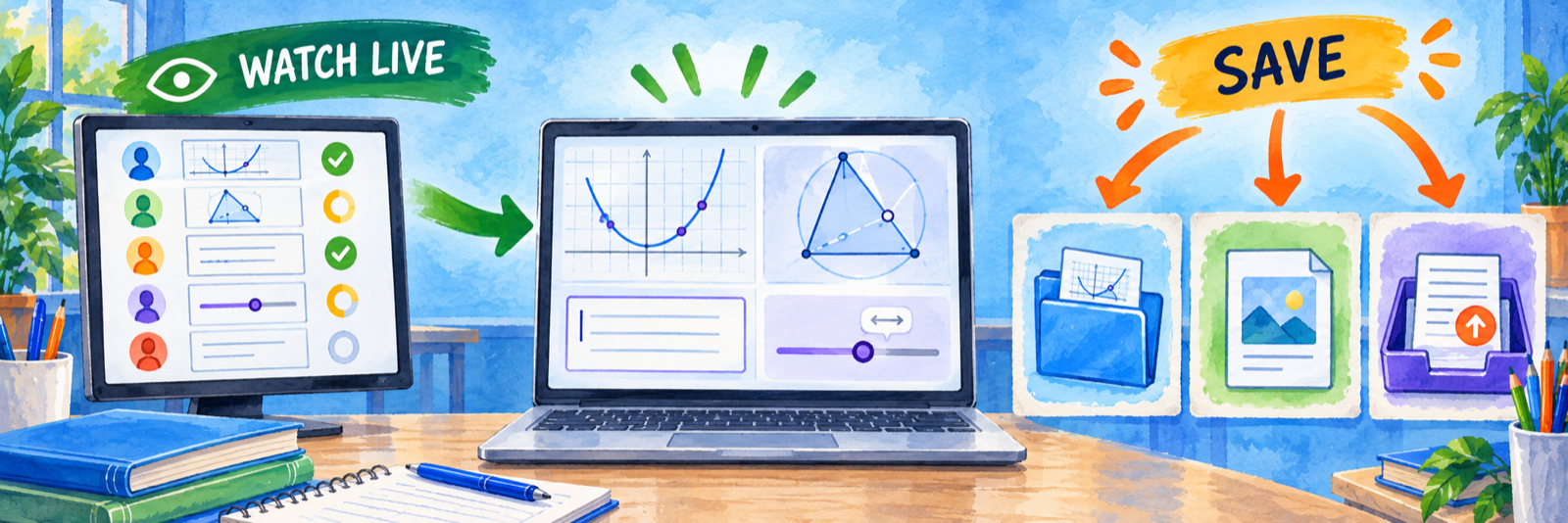
| Evidence route | Use when | Verify |
|---|---|---|
| Live Lesson view | The teacher needs immediate formative evidence and discussion. | Correct student identity and teacher visibility during the session. |
| GeoGebra account | The student must save, reopen, or continue the work. | Approved account, successful save, ownership, and future access. |
| Downloaded image or file | A snapshot or construction must be attached elsewhere. | Readable mathematics, filename, student identifier, and successful upload. |
| Google Classroom or LMS submission | The school needs a familiar assignment and grading record. | Correct course, student, attachment or turn-in state, and teacher access. |
| Written exit response | The learning target requires explanation beyond the construction. | An independent claim, representation, and mathematical justification. |
Use Google Classroom deliberately
GeoGebra documents direct assignment to Google Classroom while retaining the real-time character of GeoGebra Lessons. Test the workflow with district-managed accounts. Confirm how students enter, whether their work is associated with the expected identity, what they must turn in, and where the teacher later finds it.
Resolve common first-use problems
| What you notice | Check first |
|---|---|
| The teacher sees no student work | The teacher view, active Lesson, exact student link, network, and whether students joined the intended session. |
| The wrong or duplicate student name appears | The guest naming convention, browser re-entry, shared device, or account used to join. |
| A student cannot return to earlier work | Whether the student joined as a guest, closed the session, changed devices, or needed an account-based save. |
| The activity opens but is not monitored | Whether the teacher shared the resource page or calculator instead of creating a GeoGebra Lesson. |
| The construction resets unexpectedly | Applet reset controls, task navigation, browser refresh, local save, and whether the activity was tested as a student. |
| The Google assignment opens under the wrong identity | The active browser profile, district Google account, class membership, and original assignment link. |
| The teacher needs a grade but has only live work | The planned evidence route; collect a saved file, image, explanation, or LMS submission. |
| A public resource contains unsuitable material | Author, embedded content, copied version, school curation, and whether every task was previewed. |
Protect students and public resources
GeoGebra can be used without registration. When accounts are used, follow the school’s approval and consent process. Avoid placing unnecessary student information in display names, public profiles, filenames, Activity text, or shared resources. Teach staff to distinguish a private classroom response from a resource published to the global community.
Official resource: GeoGebra Privacy Policy Official resource: Terms of Service
Close and carry the lesson forward
Before students leave, complete the chosen save, download, or submission step. Record the Lesson link with the plan, note examples or misconceptions for follow-up, and keep a clean teacher-owned copy of any adapted resource. At year-end, review teacher accounts, public materials, shared folders, saved student work, and links needed by the next teacher.
Good GeoGebra Habits
Use the lightest route
A calculator, guest Lesson, account, and LMS assignment solve different problems.
Preview the mathematics
Complete every task and test the dynamic objects before sharing the activity.
Watch for reasoning
Use live work to notice strategies, pause, question, compare, and discuss.
Preserve with purpose
Choose the account, download, submission, or written response before class begins.
Official GeoGebra Resources
Use current documentation for the exact app, account, Lesson, and device model your school supports.
2026–27 edition. Public GeoGebra product, help, privacy, and tutorial resources reviewed September 12, 2026. GeoGebra features and interfaces can change. This review found current official support for individual accounts, account-free GeoGebra Lessons, and Google Classroom assignment, but no current official documentation for Clever Secure Sync, ClassLink rostering, OneRoster, SIS synchronization, or a district longitudinal analytics console. Local account, privacy, device, assessment, and evidence procedures remain necessary. Classroom examples and conceptual illustrations are SDLA material.