



Flocabulary Quick Start Guide
Move from a memorable video to discussion, vocabulary, reading, evidence, assessment, and student creation.
Flocabulary is a K–12 supplemental literacy and instructional platform. Its standards-aligned hip-hop videos introduce concepts and academic language across ELA, mathematics, science, social studies, current events, vocabulary, and life skills. A teacher can use a video with the whole class, or a school can enable student accounts, assignments, results, and broader analytics. Those are different implementations.
The Video Opens the Lesson
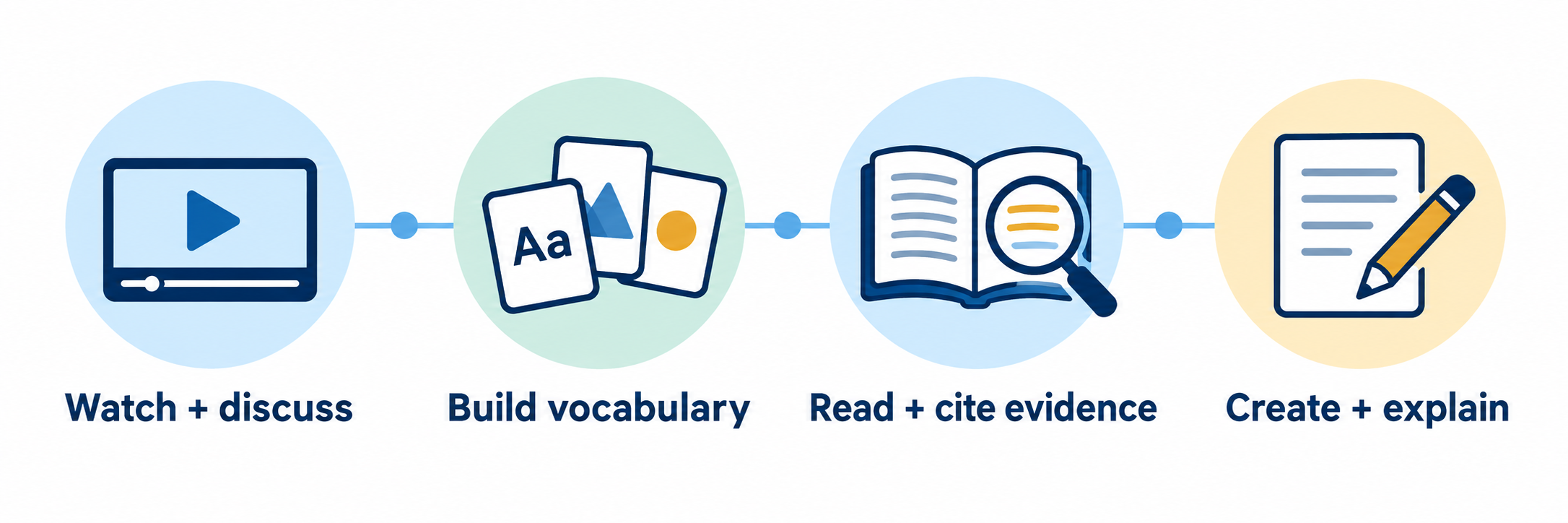
Introduce
Use music, narrative, images, lyrics, and discussion to establish context and make key language noticeable.
Strengthen
Revisit academic vocabulary through cards, examples, games, reading, writing, and spoken explanation.
Examine
Use questions, text-dependent reading, quizzes, and video evidence to reveal what students understand.
Create
Ask students to synthesize the concept through a lyric, poem, explanation, storyboard, or another accessible response.
License, Connect, and Roster
Begin by identifying what the district purchased and how accounts are supposed to arrive. A teacher who can open and play a lesson may still lack student accounts, assignments, Plus activities, or analytics.
Identify the subscription before troubleshooting features
| Access pattern | What it commonly supports | Confirm locally |
|---|---|---|
| Trial or individual Lite access | Teacher exploration, videos, lyrics, lesson resources, and selected whole-class activities | Trial end date, renewal owner, student accounts, assignment capability, reporting, and whether the district already licenses the product |
| School or district Lite | Shared access to the core lesson library and Lite features across licensed educators | Which schools and educators are entitled, how they sign in, and which student-facing functions are enabled |
| School or district Plus | Student accounts, classes, assignments, results, performance dashboards, personalized vocabulary practice, Flocabulary Mix, Break It Down, selected Nearpod Originals, Spanish-language collections, and additional support | Exact purchased term, available content, analytics roles, training, integrations, AI settings, and any feature changes |
Do not buy a second doorway. Before purchasing or renewing an individual account, check whether the school or district already provides Flocabulary through a managed license. Joining through the approved route preserves the correct entitlement, classes, student history, and support path.
Assign implementation ownership
- Name the district product administrator, instructional lead, roster owner, identity or SSO owner, LMS owner, privacy and accessibility contacts, school contacts, and vendor support route.
- Record licensed schools, grade span, subscription level, start and end dates, renewal owner, student-data terms, and professional-learning plan.
- Decide whether teachers will use Flocabulary mainly for whole-class instruction, independent assignments, vocabulary routines, content-area literacy, intervention, or several of these purposes.
- Define which system owns student, staff, school, class, enrollment, and stable identifier records.
Keep five connection layers separate
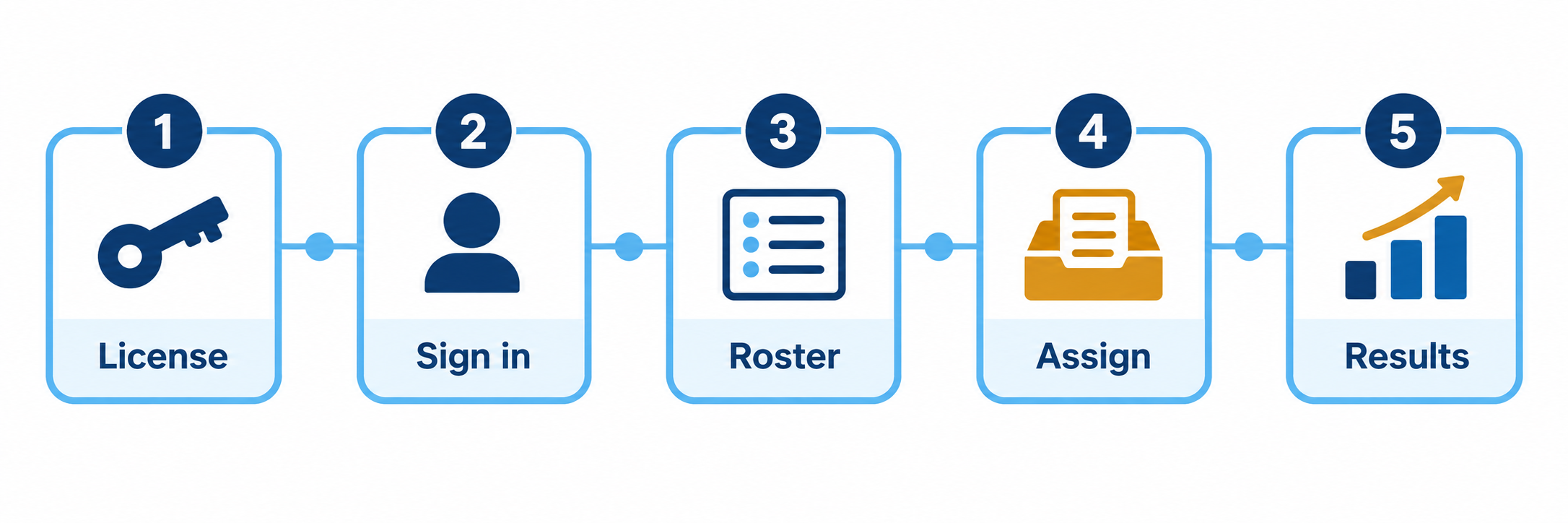
| Layer | Possible Flocabulary route | What to verify |
|---|---|---|
| License | Individual, school, or district Lite or Plus subscription | The user reaches the purchased organization and features rather than a separate trial or personal account. |
| Sign-in | District launch route, supported identity provider, or an LMS connection using LTI 1.0 | The route opens the correct existing account, organization, school, and role. Confirm that the district still permits the vendor’s supported LTI version. |
| Roster | Automated rostering through Clever or ClassLink, Google Classroom class import, or another district-approved setup method | Current students, teachers, classes, enrollments, school ownership, and stable identifiers arrive without duplicates. |
| Assignment | Direct Flocabulary assignment or a published Google Classroom assignment link | The intended students receive the selected lesson activities, due date, and correct destination. A playlist itself cannot currently be assigned. |
| Results | Flocabulary assignment results and Plus performance dashboards | Completion, responses, scores, feedback, vocabulary evidence, and teacher access appear in the expected account. Do not assume LMS grade passback without a local test. |
Pilot the complete student journey
Use one teacher, one class, and a few representative students. Test a newly enrolled student, a student with a schedule change, a co-teacher if used, and at least one accessibility workflow. Have the teacher locate a lesson, select activities, assign it, and review submitted work. Have students launch through the official route, complete the work, return later, and log out.
- Confirm that embedded media, audio, captions, lyrics, and required domains work on the student network and managed devices.
- Test headphones, volume controls, browser permissions, content filtering, and shared-device logout.
- Verify that a Google Classroom post launches Flocabulary and that results appear where staff were trained to look.
- Document the exact support route for license, login, roster, content, assignment, and device problems.
Teach the Full Lesson
Choose the activity sequence that serves the learning objective. Not every lesson needs every component, but the video should connect to deliberate language, reading, reasoning, and response.
Preview the lesson as instructional media
- Check the standard, concept, grade and reading level, key words, background knowledge, pace, lyrical density, humor, figurative language, representation, and historical framing.
- Review captions, lyrics or transcript, visuals, audio, activity directions, response demands, and available supports before students begin.
- For current-events content, confirm the publication date, preview sensitive material, and supplement a summary with current reliable or primary sources where appropriate.
- Identify where to pause, what question to ask, which word or misconception to foreground, and what evidence students will produce.
Engagement is an opening condition, not the learning target. Name what students should know, explain, compare, calculate, cite, or create after the music ends.
Use the lesson sequence intentionally
| Component | Instructional purpose | Teacher move |
|---|---|---|
| Video and Discuss Mode | Introduce the concept, context, vocabulary, narrative, and memorable language | Set a purpose, pause at planned prompts, invite prediction and explanation, and replay a short segment when evidence is needed. |
| Vocab Cards | Develop word meaning through definitions, examples, images, related words, sentences, and drawings | Model one word deeply, examine morphology and multiple meanings, then ask students to connect the term to the lesson concept. |
| Vocab Game | Provide retrieval practice with definitions, images, synonyms, antonyms, and context | Use immediate feedback to identify the word relationship that remains unclear rather than treating the beat as the objective. |
| Read & Respond | Apply vocabulary and concepts in passages with text-dependent questions | Ask students to locate the sentence or detail that supports the answer and explain why alternatives are weaker. |
| Break It Down (Plus) | Analyze video content, select a supporting clip, and explain evidence | Model the difference between choosing a relevant moment and explaining how it supports a claim. |
| Quiz | Check vocabulary and key-concept retrieval | Review item patterns and student explanations; use the score as one source of immediate evidence. |
| Lyric Lab | Synthesize learning using lesson vocabulary in an original composition | Assess conceptual accuracy, word use, reasoning, and revision. Offer equivalent response forms when performance or rhyme is not the goal. |
Plan access without reducing rigor
- Preteach a small number of essential words and activate the cultural, historical, mathematical, or scientific knowledge needed to understand the video.
- Use captions, lyrics, transcript, replay, chunking, audio controls, partner talk, visuals, sentence frames, word banks, and read-aloud support according to student need and local accommodation plans.
- Flocabulary Plus includes authentic Spanish-language collections for supported K–8 content. Confirm that the selected topic is available; Spanish content is an additional resource rather than an automatic translation of every lesson.
- Allow students to demonstrate synthesis through a written verse, poem, spoken response, storyboard, annotated evidence, or direct academic explanation when those forms preserve the learning target.
Model the student workflow before assigning independently
Show students how to use the district launch route, open the correct class and assignment, navigate only the selected activities, save or submit a response, interpret feedback, revise when allowed, and log out. Explain whether students may explore other videos or should remain within an assigned sequence.
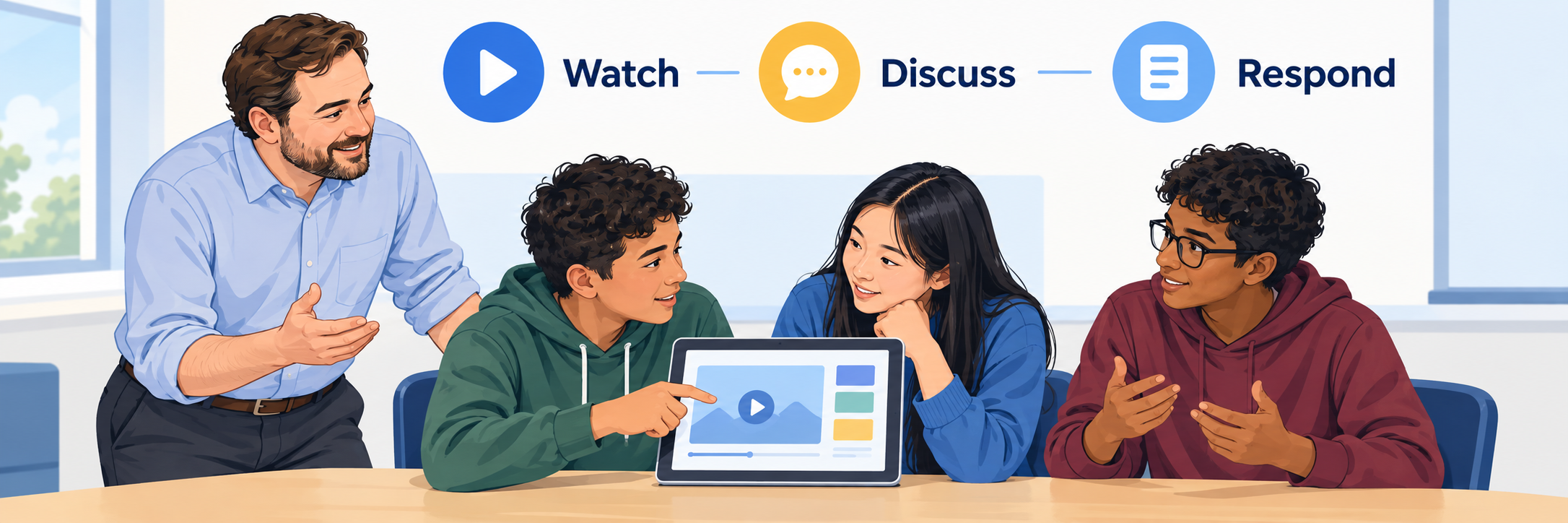
Assign the activities students actually need
Choose the class or students, lesson, activities, instructions, availability, and due date. Different groups may need different combinations: a whole-class video and discussion, vocabulary practice for one group, Read & Respond for another, or Break It Down for students ready to analyze a claim. Preview the student view and avoid assigning every component merely because it is available.
Review, Respond, and Extend
Flocabulary results are most useful when teachers connect platform evidence to discussion, student writing, classroom observation, curriculum assessments, and later transfer.
Name the evidence before interpreting it
| Evidence | Useful for | Does not establish by itself |
|---|---|---|
| Assignment completion | Whether the submitted platform steps were reached | Attention, understanding, independent work, or instructional quality |
| Vocab Game or practice result | Immediate recognition and retrieval across practiced word relationships | Durable vocabulary knowledge or use in unfamiliar reading and writing |
| Read & Respond or Quiz score | Performance on the lesson’s passages, concepts, and questions | Overall reading achievement, mastery of a complete standard, or the cause of an error |
| Break It Down response | Selection of relevant video evidence and the student’s explanation | Transfer to a new source or independent argument without additional evidence |
| Lyric Lab or creative response | Vocabulary use, conceptual synthesis, explanation, voice, and revision | Understanding when rhyme, performance anxiety, language production, or accessibility barriers obscure the target |
| Plus vocabulary analytics | Platform-recorded word exposure, practice, modeled proficiency trends, and candidates for targeted practice | A complete measure of vocabulary, comprehension, or reading achievement |
Respond to the student’s reasoning
- Read open responses and selected evidence, not only the total score.
- Look for vocabulary used accurately in a new sentence or explanation, not simply repeated from the video.
- Ask the student to explain an answer, revise an unsupported claim, or apply the concept to a new text, problem, source, or phenomenon.
- Reassign or supplement practice when evidence shows a specific need, while preserving teacher feedback and previous attempts where the platform provides them.
Use playlists as planning and presentation tools
Teachers can manually collect and order related videos into playlists. Plus users may also generate playlists from a prompt, unit-plan excerpt, or standard using AI, and can access the fuller curated playlist library. Review every recommended lesson for accuracy, grade fit, sequence, accessibility, and the intended curriculum before use.
A playlist is not a student assignment. Flocabulary currently describes playlists as collections that teachers can curate, share, and play. Assign the underlying lesson activities when individual student work and results are required.
Build a repeatable classroom rhythm
Use Flocabulary at purposeful points in instruction: launch a unit, preview academic language, pause for retrieval, revisit a concept, analyze a media text, strengthen content-area literacy, or create a synthesis task. Return to important words in later discussion, reading, writing, laboratory work, problem solving, and assessment so that learning extends beyond the platform.
Share only the evidence the audience needs
Teachers need actionable class and student results. Coaches may need implementation patterns and examples of strong instructional use. School and district leaders may need access, activity, and vocabulary trends. Families need plain-language learning goals and useful ways to revisit words and concepts. Apply local privacy, student-record, media, and accessibility requirements to exports, dashboards, student creations, and public sharing.
Resolve the Failed Layer
| What you notice | Check first |
|---|---|
| The teacher can play videos but cannot create student assignments | Account type, trial or Lite versus Plus entitlement, organization, school assignment, role, subscription dates, and whether the teacher joined through the district route. |
| The district has a license, but the teacher sees a trial or purchase screen | Official launch route, email or identifier, duplicate personal account, licensed school, entitlement sync, invitation status, and product administrator. |
| A Clever or ClassLink tile opens, but a student has no class | Authoritative roster, sharing rules, school, class, teacher enrollment, stable ID, last synchronization, and duplicate accounts. Sign-on success does not prove roster success. |
| Google Classroom students or classes are missing | Correct Google account, Classroom membership, archived status, import permissions, teacher role, refresh or re-import process, and mismatched Flocabulary account. |
| A Google Classroom assignment opens, but work or scores are not where expected | Whether the link opens the correct Flocabulary assignment and account, completion status, selected students, due date, Flocabulary results view, and locally verified grade-passback behavior. |
| Students cannot hear or play the video | Headphones, device volume, muted browser tab, autoplay or media permissions, filtering, required domains, bandwidth, browser version, and managed-device policy. |
| A student cannot find a Plus activity | Subscription level, lesson availability, assigned activity selection, class membership, student account, content language, and whether the feature is limited to school or district Plus. |
| The teacher created a playlist but students cannot open it as assigned work | Current playlist behavior. Use the playlist for planning or playback and assign the underlying Flocabulary lessons and activities separately. |
| Results look incomplete | Correct class and date range, assignment status, student identity, saved versus submitted response, reassignment attempt, active filters, and whether the activity produces an automatically scored or teacher-reviewed result. |
| A video held attention but students cannot explain the concept later | Learning target, planned pauses, vocabulary practice, reading and evidence work, retrieval, feedback, student creation, and transfer to a new task. |
Good Flocabulary Habits
Check the doorway
Confirm the license, sign-in, roster, assignment, and results layers before creating accounts or buying access.
Pause with purpose
Preview the media, set a learning target, plan discussion points, and ask students to explain.
Return to the words
Build repeated encounters across speaking, listening, viewing, reading, writing, and later content work.
Look beyond the score
Examine evidence, reasoning, original language, misconceptions, accessibility, and transfer to a new task.
Official Flocabulary and Renaissance Resources
Subscriptions, features, content, integrations, interfaces, and recommendations may change. Confirm the district’s active license and current vendor guidance.
2026–27 edition. Official Flocabulary and Renaissance product, content, lesson-sequence, subscription, integration, playlist, update, vocabulary, research, privacy, and service-status materials reviewed September 13, 2026. Flocabulary is part of Nearpod and Renaissance. License names, content counts, Plus features, AI capabilities, Spanish-language coverage, integrations, LTI support, assignment behavior, analytics, terminology, and interfaces may change. District curriculum, instruction, assessment, privacy, records, accessibility, artificial-intelligence, media, and procurement policies remain controlling. Conceptual illustrations are SDLA material.