


Discovery Education Experience Quick Start Guide
Confirm what the district licenses, connect the right users and classes, then find, adapt, assign, and verify engaging K–12 instructional resources.
Discovery Education is both a learning platform and a portfolio of curriculum products. Discovery Education Experience is the broad cross-curricular platform. Techbooks, curriculum packs, and products such as DreamBox, Reading Plus, Mystery Science, and Pivot Interactives may be licensed separately and can follow different workflows.
One Platform, License-Dependent Experiences
Confirm
Identify the products, schools, grade bands, subjects, and user roles included in the district agreement.
Connect
Provision identities and classes through the district’s authoritative SSO and rostering process.
Create
Find and preview resources, save them in My Content, and adapt lessons or activities in Studio.
Verify
Prove that students can open the intended resource and that teachers can see the expected evidence.
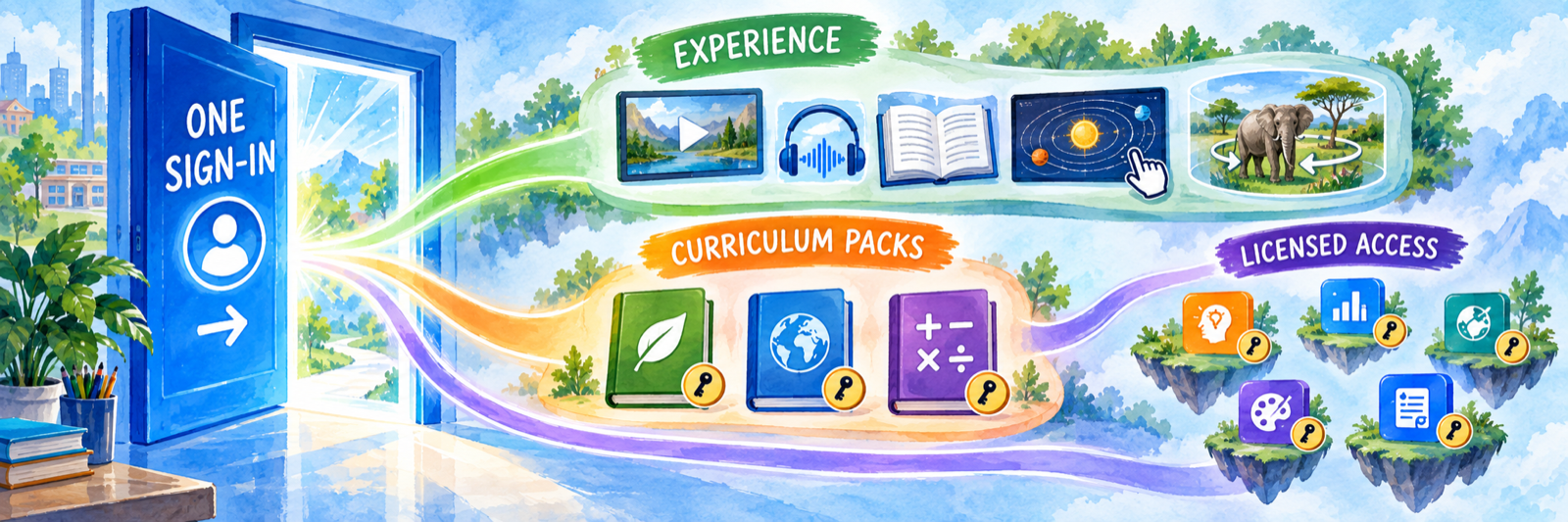
Begin with the account, not the catalog. After signing in, review the Curriculum Packs shown on the home page and confirm local licensing with the district application owner. Two users can enter through the same portal and see different resources because of school, role, grade, subject, or license assignment.
District Setup
Establish a stable access chain before asking teachers to build or assign content.
Inventory products and entitlements
Record the exact Discovery Education products purchased, their contract dates, licensed schools and grades, and whether the license is intended as core curriculum, supplemental content, intervention, or professional learning. After login, users can review active services under Curriculum Packs.
| Layer | Typical purpose | Local question |
|---|---|---|
| Discovery Education Experience | Cross-curricular K–12 media, lessons, strategies, activities, quizzes, and creation tools. | Which schools and users receive Experience? |
| Curriculum packs and Techbooks | More structured subject or course resources, lessons, assessments, and dashboards. | Which grade levels and courses were licensed? |
| Other Discovery Education products | Purpose-specific programs such as adaptive math or reading and specialized science resources. | Does the product share the same launch and roster workflow? |
Choose one authoritative identity and roster route
Document the district’s supported sign-in address and how teachers, students, classes, and enrollments reach Discovery Education. Supported configurations include Google, Microsoft 365, ClassLink, Clever, SAML/ADFS, and direct accounts; CSV imports and other synchronization methods can manage rosters.
- Share only the intended schools, staff, students, classes, and grade levels.
- Preserve stable teacher, student, school, and class identifiers across updates.
- Confirm co-teachers, specialists, instructional coaches, substitutes, and administrators receive the correct role.
- Test new, transferred, withdrawn, cross-enrolled, and duplicate students.
- Publish the exact login route teachers and students should use.
Correct synchronized data at its source. If a class is managed through Clever, ClassLink, SSO imports, or another district process, a manual change in Discovery Education can disappear during the next synchronization.
Decide where assignments will live
Select a supported district workflow: assign inside Discovery Education, place an authenticated resource in the LMS, or use a configured LMS integration. Canvas, Schoology, Google Classroom, Brightspace, and Infinite Campus have documented integration resources, but available functions differ.
| Route | Student destination | Verify |
|---|---|---|
| Discovery Education assignment | The student’s My DE learning plan. | Class membership, start and due dates, completion, and teacher results. |
| Assignment Link | A link distributed by email, LMS, or another approved channel. | Student authentication, school eligibility, enrollment in the assignment, and results. |
| LMS embed or assignment | The district LMS course or assignment area. | LTI setup, account matching, content launch, submission behavior, and any grade passback. |
Pilot one complete data and learning path
Use one teacher, one class, and approved demonstration students. Confirm the teacher reaches the correct products, finds a representative resource, assigns it through the intended route, and sees a student completion or response. Repeat with a media resource, Studio activity, and scored item if each will be supported.
- Test on representative teacher and student devices and networks.
- Confirm video, audio, captions, transcripts, interactive content, pop-ups, cookies, and embedded content.
- Verify the student cannot inadvertently enter through an unlicensed or duplicate account.
- Document where teachers find results for Experience and each licensed Techbook.
- Record the district owner for licensing, rostering, LMS integration, curriculum, privacy, and help-desk escalation.
Find, Build, and Assign
Start with the learning goal and use the platform to strengthen the lesson rather than filling time with attractive media.
Verify your workspace
Enter through the district-approved login. Confirm your school, role, classes, and Curriculum Packs before planning. If a colleague sees a resource or tool you do not, compare license and account context before rebuilding the lesson or requesting a purchase.
Find and preview the right resource
Search by concept, topic, or standard, then narrow results by grade, subject, resource type, language, duration, and other available filters. Open the complete resource page before using it with students.
- Check alignment to the specific learning target and local curriculum.
- Review the full video, text, image, audio, interactive, or virtual field trip.
- Confirm reading demand, language, captions, transcript, audio, and accessibility supports.
- Inspect source information, publication context, point of view, and age suitability.
- Decide whether the resource will launch whole group, small group, or independently.
Save, adapt, and organize
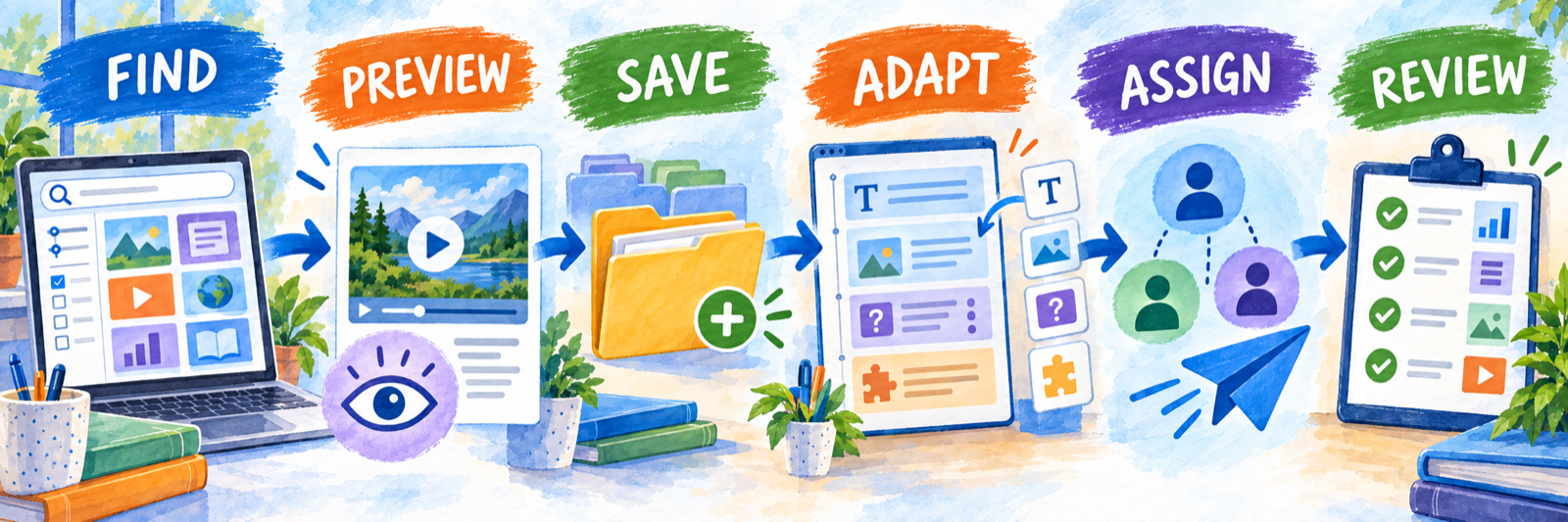
Save selected resources in My Content and organize folders by course, unit, or instructional purpose. A saved item is a bookmark; it is not automatically assigned. Ready-to-use activities can be copied into Studio so the teacher can revise directions, sequence media, add prompts, and create a coherent student task.
Copy before customizing. When a ready-to-use lesson fits the goal, make a teacher-owned copy, rename it clearly, and inspect every component before assigning it.
Choose assign, share, or present
| Action | Use when | Remember |
|---|---|---|
| Present | The teacher will pause, question, model, discuss, or annotate with the class. | Plan the prompts and interaction; playing media alone is not the lesson. |
| Assign | Named students need an item in their learning plan with dates, directions, and trackable completion. | The students need accounts and the intended class or assignment-link route. |
| Share a link | An authenticated resource needs to be placed in an LMS, message, document, or QR code. | The link does not remove the Discovery Education login requirement. |
| Assign a Studio activity | Students need context, sequenced resources, prompts, or a response space. | A read-only shared board behaves differently from an individually assigned activity or quiz. |
Official guide: assign content Official guide: share content
Review evidence and choose the next move
Use Assignment Manager, the applicable Techbook dashboard, Studio responses, quiz results, and classroom observation to determine what students opened, completed, selected, wrote, or created. Completion confirms an action occurred; it does not by itself establish understanding.
- Compare completion with response quality and the learning target.
- Look for students who never opened the item or entered through the wrong account.
- Use incorrect responses and student explanations to plan reteaching or extension.
- Confirm short-answer or constructed responses that require teacher review.
- Document where the authoritative score resides when an LMS is involved.
Student Delivery and Support
Verify the student’s route before assuming that a visible link is a working assignment.
Teach the expected sign-in route
Students may enter through district SSO, Discovery Education credentials, or a teacher-managed QR code, depending on local configuration. Provide one supported route and teach students how to recognize the correct account, class, and assignment area.
Verify identity, class, assignment, and evidence
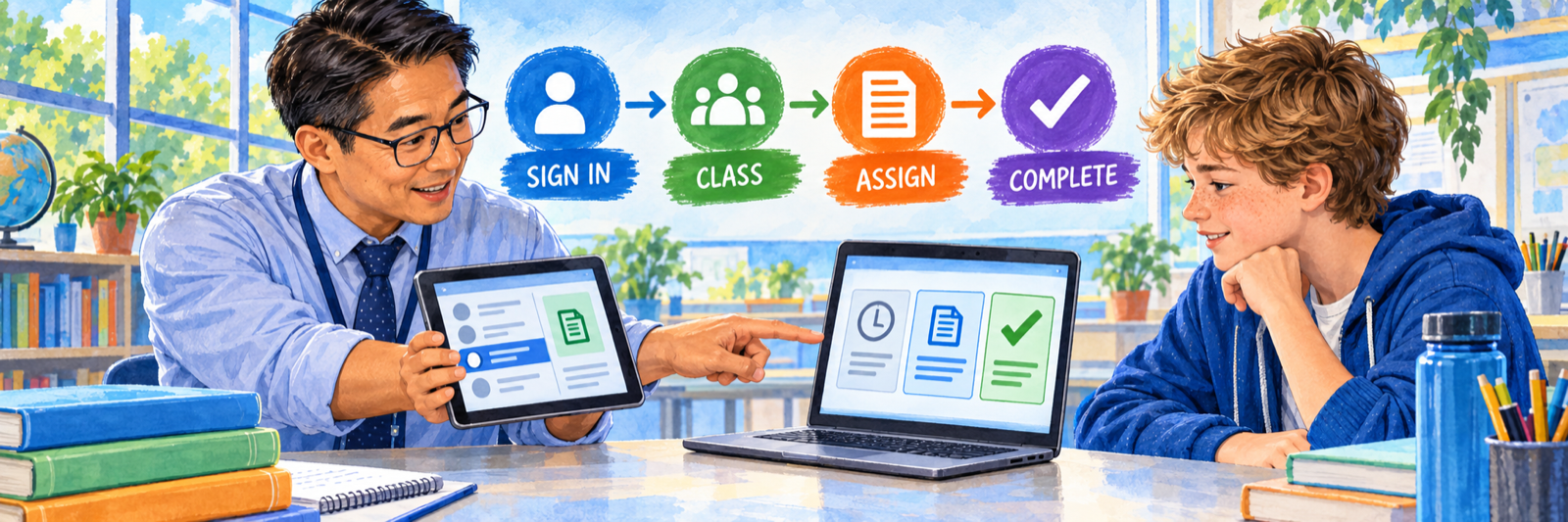
- Sign in as the teacher through the approved district route.
- Confirm the correct class and student membership.
- Assign one representative item with clear directions.
- Launch through the same route students will use.
- Open and complete the item as an approved demonstration student.
- Return to the teacher account and confirm the expected status or response.
- If the LMS is involved, verify where the submission and score appear.
Know what students see
Assignments delivered inside Discovery Education appear on the student’s My DE homepage and learning plan. Students can see assignment details and status, including upcoming, completed, and overdue work. Students may also browse available content unless local controls limit exploration.
Resolve the first failure at the correct layer
| What you notice | Check first |
|---|---|
| A teacher cannot see an expected product | Account, school, role, Curriculum Packs, active license, and the district’s entitlement assignment. |
| A student is missing from a class | The authoritative SIS or roster share, stable identifier, enrollment status, and synchronization history. |
| A manual roster correction disappeared | Whether a managed sync overwrote the local change; correct the source system or sharing rule. |
| A shared link asks the student to sign in | This is expected for licensed resources; authenticate through the district route first. |
| The student opens Discovery Education but sees no work | Correct account, correct class, assignment start date, assignment route, and teacher-selected recipients. |
| The item works for the teacher but not the student | Student entitlement, grade or school access, resource permissions, browser settings, and device/network behavior. |
| The LMS grade is missing | Whether the content type supports grade passback, the LTI launch, account and class matching, submission state, and any response requiring manual grading. |
| A Studio link is read-only | Whether the teacher shared a viewing link instead of assigning an individual or collaborative activity. |
Official guidance: authentication for shared and LMS resources
Close the term deliberately
Confirm the district process for preserving required student work, results, and instructional materials before rosters roll over or licenses expire. Review shared School Content and District Content, remove obsolete materials and staff access as appropriate, and test the next term’s synchronization before teachers begin assigning.
Good Discovery Education Habits
Check access first
Confirm the account, school, role, class, and active Curriculum Packs before planning.
Preview everything
Review the full resource, accessibility supports, context, and instructional fit before students see it.
Assign with purpose
Add directions, timing, recipients, and a meaningful student response or discussion.
Test as a student
Prove the launch and evidence path through the same device, login, class, and LMS route.
Official Discovery Education Resources
Use documentation for the exact products, licenses, and integrations enabled in your district.
2026–27 edition. Public Discovery Education product and help resources reviewed September 12, 2026. Products, licenses, integrations, interfaces, and administrator controls vary by district agreement and configuration. Microsoft Teams is omitted as a recommended workflow because Discovery Education’s dedicated help page says that integration ceased to be supported on June 1, 2024. Classroom examples and conceptual illustrations are SDLA material.