



Diffit Quick Start Guide
Create an adaptable classroom resource, review every generated component, and deliberately choose how students will receive and complete it.
Diffit is a teacher resource-development workspace. Teachers can begin with a topic, standard, prompt, text, PDF, image, book, or transcript; generate readings and activities; adjust language and reading level; and export the finished material. Students do not create Diffit accounts or join Diffit classes. Their work happens on paper, in Google tools, or in the district learning management system.
A Teacher-Controlled Resource Cycle
Define
Name the grade-level learning goal, source, student need, and evidence the task should produce.
Generate
Create readings, vocabulary, questions, organizers, models, or activities from approved inputs.
Review
Check facts, sources, rigor, language, accessibility, directions, answer keys, and scoring guidance.
Deliver
Print, export to Google or Word, or upload the finished resource to the district LMS.
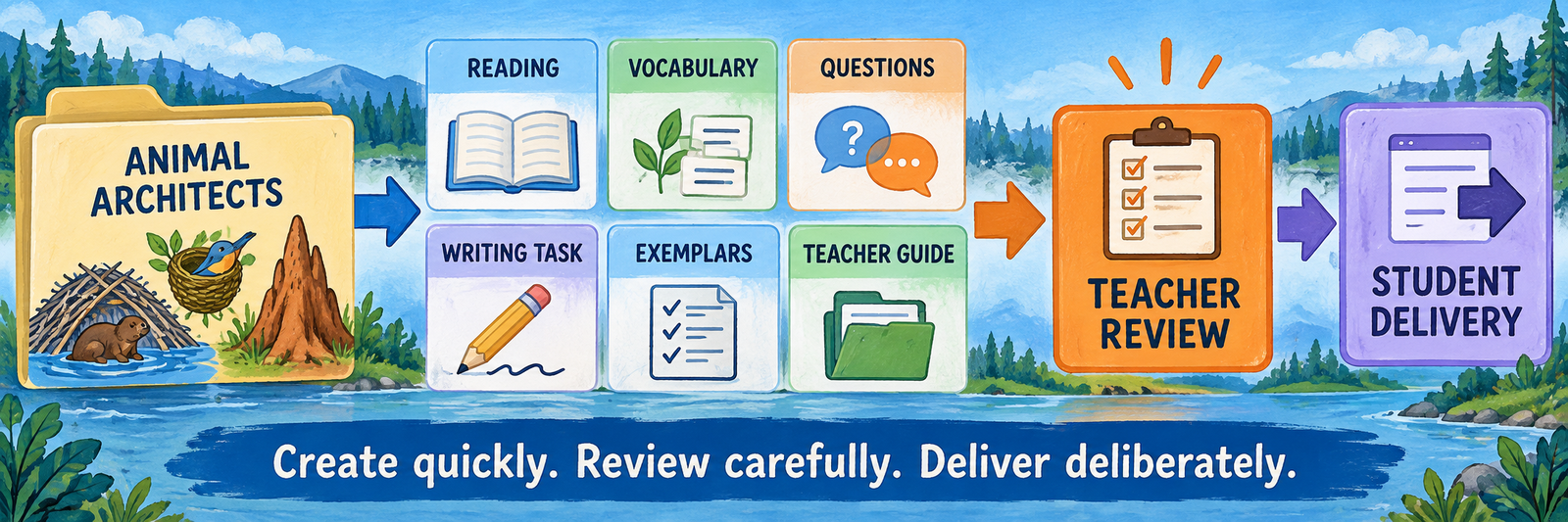
Diffit produces a draft instructional resource, not an automatic student assignment. The teacher decides which pages students receive, where students work, how responses are collected, and whether the final material is ready for instruction.
Example: Animal Architects Performance Task
The supplied 13-page PDF demonstrates the breadth of a resource set that can be created in Diffit for a Grade 3 informational-writing lesson. It contains a short source passage with vocabulary and images, four comprehension questions, an informational essay prompt and writing space, four scored writing exemplars, student questions comparing the exemplars, a teacher scoring rationale, and an answer key.
| Pages | Contents | Intended audience |
|---|---|---|
| 1–3 | Animal Architects passage, vocabulary, images, and comprehension questions | Students |
| 4–5 | Informational-writing prompt, directions, and response space | Students |
| 6–10 | Writing exemplars scored 2, 4, 8, and 10, with comparison questions | Students with teacher direction |
| 11–13 | Teacher scoring rationale and answer key | Teacher only |
Open the Animal Architects example PDF
Local instructional example: This packet is a Diffit-created practice resource supplied for this guide. It is not an official CAASPP item, secure test material, released test question, or substitute for the official rubric. Compare its scoring language with the current official Grade 3–5 informational-writing rubric before classroom use.
District Setup and Licensing
Configure adult access, entitlement, acceptable use, and approved delivery destinations.
Recognize the account model
Diffit accounts belong to adult educators and administrators. Teachers can sign in with Google, Microsoft, or email and password. Students under 18 do not create accounts, and there is no student class roster inside Diffit.
| Layer | What to establish |
|---|---|
| Teacher authentication | Choose the approved Google, Microsoft, or email sign-in route and require the district work identity. |
| School entitlement | Invite teachers with the same work email already associated with their account or provide the organization join link. |
| Student delivery | Use paper, Google Classroom, Google tools, Word, or an LMS; student identities remain in that destination. |
| Support ownership | Name the local owner for license invitations, blocked OAuth access, exports, content review, and renewals. |
Compare Basic and Premium before training
| Basic/free access | Premium access |
|---|---|
| Generate and edit core readings, questions, and vocabulary | Includes Basic capabilities plus broader resource and activity controls |
| Adjust reading level, length, or language | Align to standards, skills, MTSS tiers, and DOK levels |
| Print and download PDF | Export to Google Docs, Slides, Forms, Classroom, and Microsoft Word |
| Access resources created during the preceding 90 days | Access the full resource history |
| Use shorter text or PDF inputs and limited book access | Use longer inputs, advanced customization, graphic organizers, and expanded book access |
Trials can hide the boundary. A teacher may temporarily see premium exports and organizers, then revert to Basic access. Before purchasing individually, check for an existing school license, invitation, trial expiration, and the district’s intended delivery method.
Onboard staff without student rostering
- Identify the organization administrator and add at least one backup administrator.
- Invite staff by work email, bulk email list, or the organization join link.
- Have existing users accept or follow the invitation while using the same email as their existing Diffit account.
- Confirm each teacher appears as Invited or Active in Manage Users and assign the intended role.
- Test Google or Microsoft authentication and premium access with a representative teacher.
- Add Diffit to Clever or ClassLink only as a teacher launch tile when locally useful; this does not create a roster integration.
Official guide: invite teachers to a subscription
Approve inputs and AI-use boundaries
- Use curriculum, text, images, PDFs, and web sources the district is authorized to process and reproduce.
- Do not enter student names, IEP records, disability information, assessment histories, or identifiable student work.
- Require teachers to review generated facts, quotations, sources, translations, questions, answer keys, rubrics, and images.
- Decide whether teachers may create assessments, scoring exemplars, translated resources, and public share links.
- Document where final resources are stored and who can access teacher-only materials.
Create and Review
Turn an approved source into a differentiated resource and correct it before students see it.
Define the learning before entering a prompt
Specify the grade, subject, standard or skill, source material, learning target, student activity, response evidence, reading level, language, scaffolds, and expected rigor. Describe a learner need without identifying a student.
Example request: Create a Grade 3 informational-writing practice set about how animals build homes. Include a short source text with cited sources, essential vocabulary, text-dependent questions, an informational prompt aligned to W.3.2, student-friendly directions, contrasting exemplars, and a teacher scoring guide based on the official Grades 3–5 informational-writing rubric.
Generate a manageable resource set
Begin with the approved source or topic, then use Adapt, Align, Chat, and the activity library to create only the components the lesson requires. Diffit can produce many pages quickly; more pages do not automatically create a stronger lesson.
- Select up to five reading levels or languages only when the class will use and review those versions.
- Request cited sources when Diffit searches for information, then open and verify every citation.
- Add vocabulary, images, organizers, sentence frames, questions, or exemplars for a defined purpose.
- Separate student-facing pages from teacher keys, scoring rationales, and instructional notes.
- Give each saved resource a title that identifies the course, unit, grade, purpose, and version.
Official guide: adjust reading level
Preserve the grade-level learning goal
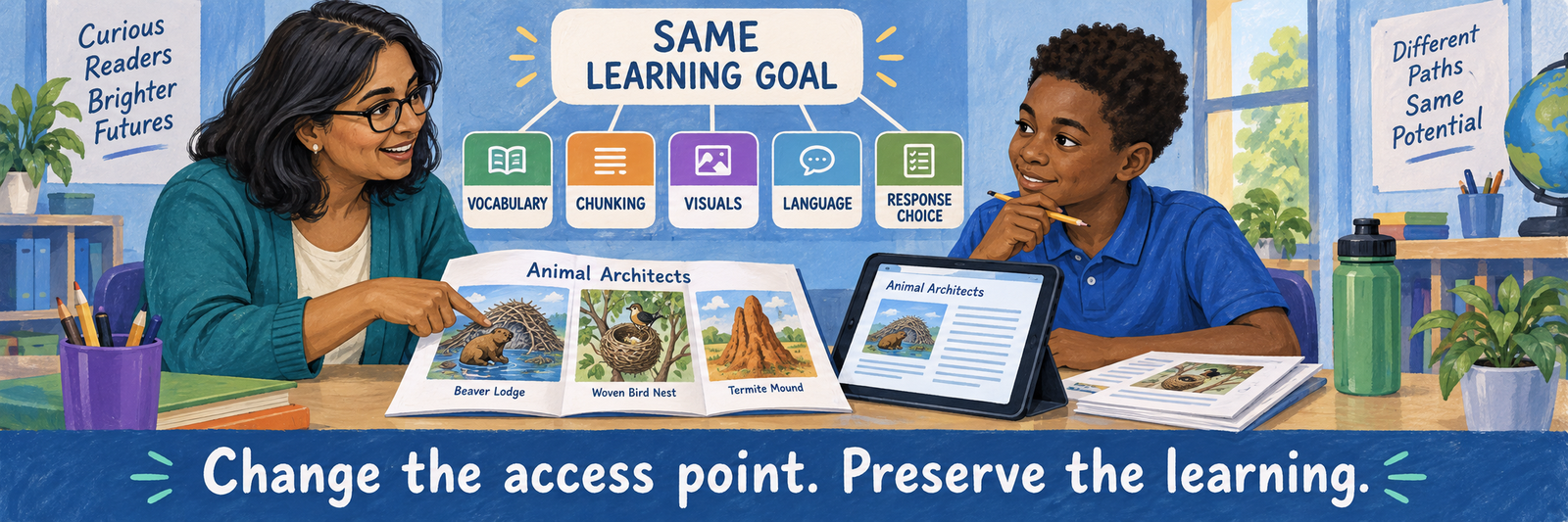
Use adaptation to change access conditions while retaining the concept and evidence expected from the learner. A lower reading level, translation, visual vocabulary card, chunked passage, sentence frame, or alternate response format should help the student reach the intended content rather than quietly replace it.
| Change | Teacher verifies |
|---|---|
| Reading level | Important domain language, relationships, evidence, and conceptual complexity remain intact. |
| Translation | Meaning, register, directions, examples, and culturally specific language are accurate. |
| Visual support | The image is accurate, relevant, described when needed, and licensed or permitted for use. |
| Questions and scaffolds | Prompts support reasoning without giving away the answer or reducing the intended cognitive work. |
| Response format | The student can demonstrate the same learning through an approved accessible mode. |
Audit the Animal Architects packet
The example is instructionally useful and visually clear, but it also demonstrates why generated material needs a human review before distribution.
| Check | Teacher action |
|---|---|
| Assessment identity | Label it as locally created CAASPP-style practice rather than an official CAASPP performance task. |
| Rubric alignment | Compare the 4-point Organization/Purpose, 4-point Evidence/Elaboration, and 2-point Conventions scoring with the current official rubric language. |
| Scoring rationale | Correct the rationale that treats “bever” as a failure to capitalize a proper noun; “beaver” is a common noun and “bever” is a spelling error. |
| Source and image evidence | Verify claims about the animals and confirm the source, attribution, and reuse rights for every photograph or illustration. |
| Student versus teacher pages | Keep pages 11–13, including rationales and the answer key, out of the student distribution copy. |
| Accessibility and printing | Check reading order, contrast, image descriptions or equivalents, response space, duplex breaks, and legibility after copying. |
AI review should be visible professional practice. Correcting a small classification error, replacing an unsupported image, or revising an exemplar is part of preparing the resource—not evidence that the entire tool is unusable.
Create a clean student and teacher edition
- Duplicate the reviewed resource before making audience-specific changes.
- Create a student edition containing only the passage, activities, writing space, and approved exemplar analysis.
- Create a teacher edition containing the student pages plus answers, annotations, scoring rationale, and instructional notes.
- Add a version date and identify the local author or course team responsible for the revisions.
- Preview both versions in the exact export format the class will receive.
Deliver and Verify
Move the reviewed resource into the classroom system and prove what students can see, complete, and submit.
Choose the student destination first
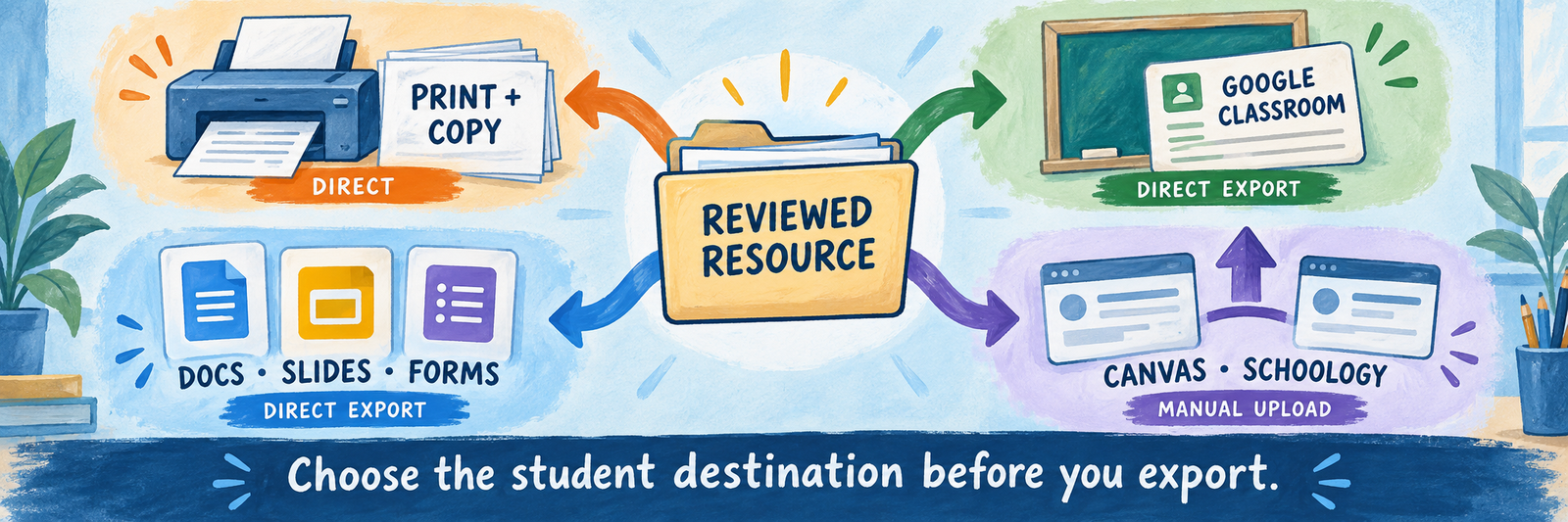
| Route | Teacher action | Where students work |
|---|---|---|
| Print and copy | Select Export, print the student pages, and inspect one physical copy before producing the class set. | On paper; teacher collects and scores the packet. |
| Download the student edition and post or upload it through an approved system. | In a PDF tool or on a printed copy; Diffit does not collect responses. | |
| Google Docs or Slides | Export, inspect the converted file, set sharing and copy behavior, then distribute it. | In the assigned Google file. |
| Google Forms | Export, verify questions and answer settings, configure response collection, and assign the form. | In Google Forms; response data remains in Google. |
| Google Classroom | Choose Export and Google Classroom, then finish the class, assignment, audience, directions, and due-date settings in Google. | In the resource posted through Classroom. |
| Canvas or Schoology | Export a PDF or Word file, or create an approved Google resource or Form link; add it manually to an LMS assignment, page, module, or folder. | In the LMS or linked tool; Diffit provides no native grade passback. |
Use paper as a complete workflow
For Animal Architects, export or print the student edition only. Inspect page order, margins, grayscale contrast, image clarity, writing space, stapling, and whether students need a separate planning page. Print one proof before copying the class set.
- Provide accessible print such as enlarged text, reduced visual clutter, or a separate response booklet when required.
- Keep the teacher key in a visually distinct file or paper color.
- Decide whether students complete the passage questions before the writing task or use them as planning evidence.
- Collect the same evidence required by the learning target; do not let the delivery format redefine the task.
Configure Google delivery after export
The premium export creates or passes the resource into a Google destination; the teacher remains responsible for the Google settings. Confirm the correct account, Drive location, Classroom, students, attachment permissions, due date, topic, answer-release settings, and accessibility before posting.
| Destination | Verify before assigning |
|---|---|
| Docs | Each student receives the intended copy or view permission; teacher-only notes and answers are absent. |
| Slides | Reading order, font size, alt text, contrast, keyboard navigation, and editable response areas survive conversion. |
| Forms | Required questions, answer keys, point values, feedback, response collection, accessibility, and release settings are correct. |
| Classroom | The correct class, students, post type, topic, due date, instructions, attachment state, and grading destination are selected. |
Treat Canvas and Schoology as manual destinations
Current public Diffit documentation does not describe a native Canvas or Schoology integration. Export the reviewed student resource, then build the LMS assignment using the district’s normal file, page, module, external-link, or Google integration workflow.
Export is not integration. Uploading a Diffit PDF to Canvas or Schoology does not create automatic scoring, roster synchronization, completion data, or grade passback. Those functions must come from the LMS or another assigned tool.
Verify as a student before release
- Open the exact posted item with an approved demonstration student account or student-view tool.
- Confirm only the student edition is visible and that answers, scoring rationales, and teacher notes are absent.
- Complete every response type on a representative student device and network.
- Confirm students can save, submit, reopen, and locate feedback in the chosen destination.
- Verify the teacher can identify submissions and score or respond through the intended workflow.
- Correct the source file and replace every posted copy if the content changes after export.
Resolve common first-use problems
| What you notice | Check first |
|---|---|
| Students cannot sign in to Diffit | Students should not create Diffit accounts; direct them to the paper packet, Google assignment, or LMS destination. |
| Google export is unavailable | Confirm whether the teacher is using Basic, a premium trial, an individual subscription, or a school license. |
| The school has Premium but the teacher sees Basic | Check invitation status and confirm that the account email matches the organization invitation. |
| The full packet exposed the answer key | Remove the post, create separate student and teacher editions, and verify student view before reposting. |
| Canvas or Schoology shows no Diffit app | Use an exported file or approved Google link; current Diffit documentation does not list a native integration. |
| A PDF is hard to use on screen | Use an accessible Google format, enlarge and restructure the document, or provide the approved assistive format. |
| A generated fact, translation, or answer seems wrong | Return to the source, verify with authoritative references, correct the resource, and replace all distributed versions. |
| Different versions no longer assess the same target | Compare each version with the original standard, task, required evidence, and scoring criteria. |
Good Diffit Habits
Name the goal
Define the grade-level content and evidence before asking AI to create material.
Check every part
Review facts, sources, rigor, language, images, answers, and scoring guidance.
Separate audiences
Create distinct student and teacher editions before printing or posting.
Verify delivery
Open the actual paper, Google, or LMS experience before the class begins.
Diffit and Assessment Resources
Use the current documentation for the teacher’s actual plan and export destination.
2026–27 edition. Public Diffit, Diffit Help Center, and CAASPP resources reviewed September 12, 2026. Product features, trials, exports, pricing, and interfaces can change. The Animal Architects packet is a locally supplied Diffit-created example and is not an official CAASPP assessment item. Classroom examples and conceptual illustrations are SDLA material.