



DeltaMath Quick Start Guide
Confirm the account and license first, then design focused math practice and use the response history to decide what students need next.
DeltaMath is a teacher-directed mathematics practice and assessment system. It supplies randomized problem sets, immediate feedback, autograding, assignment controls, and detailed response data. It does not select a complete curriculum sequence or automatically create an individualized learning path. Teachers align the skills to their course, teach the mathematics, set the practice conditions, and interpret the evidence.
Start With the Entitlement
Check
Find the existing teacher account, declared school, district license, and approved sign-in route.
Connect
Use one rostering or LMS pathway and preserve the district identity across classes and years.
Configure
Choose the skill, required score, penalty, attempts, workload limit, dates, and supports.
Respond
Read completion, accuracy, attempts, timestamps, and student work before choosing the next step.
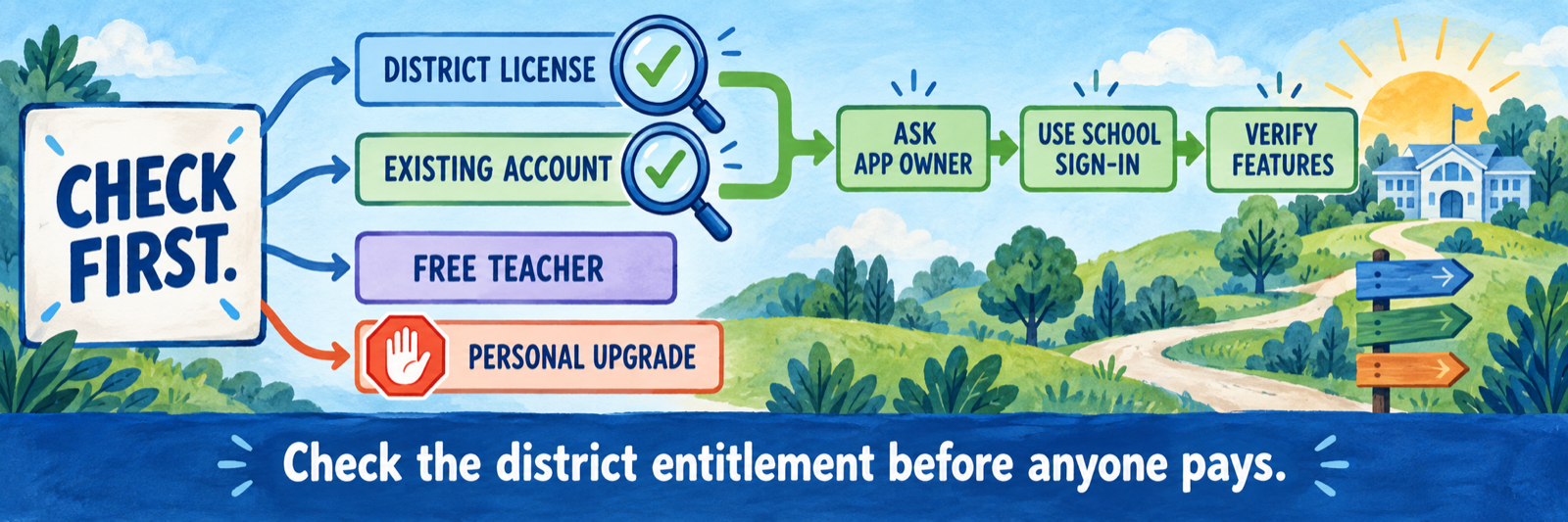
Before any personal purchase: Ask the district application owner whether the school already has a PLUS or INTEGRAL site license, whether the teacher has been invited, which work email and school association must be used, and whether access begins through DeltaMath, Google Classroom, Clever, ClassLink, Canvas, Schoology, or Infinite Campus. A second account or individual subscription can leave a teacher outside the district roster and support path.
District Setup and Licensing
Prevent duplicate accounts, redundant purchases, and unsupported integrations before instruction begins.
Inventory entitlement before purchase
Record what the district, school, and individual teacher already have before recommending an upgrade. Confirm the account email, declared school, license owner, covered teachers, renewal date, approved login route, integration, and local support contact.
| Access level | What it establishes |
|---|---|
| Free Teacher | Unlimited assignments and student practice, premade problem types, autograding, detailed data and timestamps, progress evidence, cheat-prevention tools, assignment sharing, and Google SSO. |
| Individual PLUS or INTEGRAL | A paid license for one teacher and that teacher’s officially rostered students. Features depend on the selected level; it is not a shared school license. |
| Site PLUS | Covers site teachers and adds premium instructional and assessment tools, Google Classroom integration, co-teachers, organization features, standards maps, and an admin portal. |
| Site INTEGRAL | Adds district-scale integrations and rostering, grade passback where supported, printing, student-work uploads, richer administrator reporting, and shared assessments or diagnostics. |
The product name alone does not identify the workflow. Two teachers can both say they use “DeltaMath” while seeing different integrations, test tools, print options, videos, and administrator controls.
Keep the teacher inside the district license
- Have the teacher sign in with the district work identity and locate TOOLS → LOGIN/SCHOOL INFORMATION.
- Confirm the account is associated with the correct school; teachers must declare their school annually.
- Confirm the teacher appears in the site license or has accepted the administrator invitation.
- Open the PLUS/INTEGRAL tab in the top toolbar to verify the active subscription level.
- If the expected integration or premium feature is missing, stop and resolve the account or invitation before creating a second account or buying personally.
Official guide: teacher account and school information
Official FAQ: accounts, integrations, and annual school declaration
Choose one authoritative roster route
Document the route teachers and students must use. Test it with one teacher, one class, and approved demonstration students before broad release.
| Route | Operational behavior |
|---|---|
| Direct DeltaMath | Teacher creates a class; students register with a link or eight-character class code. Returning students sign in to the existing account before joining. |
| Google Classroom | Teacher imports a Classroom class; students are automatically rostered. Re-sync after membership changes. |
| Canvas or Schoology | INTEGRAL supports LTI launch, on-the-fly rostering, and grade passback. A student appears after launching from the LMS; cross-listing behavior differs by LMS. |
| Clever or ClassLink | Automatic onboarding, class creation, and rostering require a site INTEGRAL license and district sharing/configuration. |
| Infinite Campus Learning Suite | A site INTEGRAL integration supports roster and grade passback, with administrator configuration and subsequent synchronization. |
Assign administrative ownership
- Name the primary DeltaMath administrator; only that account exposes site integration credentials.
- Name the SIS, identity, LMS, curriculum, privacy, procurement, and help-desk owners.
- Define who invites teachers, corrects a wrong school association, resends or verifies access, and removes departed staff.
- Document who approves a new license or feature request and how staff check existing entitlement first.
- Publish the supported login route and screenshots or directions for the district’s actual configuration.
Pilot the full data exchange
Create a small assignment through the intended route. Confirm the student launches from the correct account, appears once in the correct class, completes a problem, and returns a grade when grade passback is expected. Then test a new enrollee, schedule change, transfer, co-teacher, and withdrawn student.
On-the-fly roster means first launch matters. In Canvas and Schoology, a student may not appear in DeltaMath until that student launches DeltaMath from the LMS. A roster count taken before first launch can look incomplete even when the integration is functioning.
Teacher Workflow
Align the problem set, configure its practice conditions, and respond to the student’s mathematical evidence.
Verify the account before building
Use the district-approved sign-in route and confirm the correct work email, school, class list, and license level. If a colleague has a feature you do not see, compare entitlement and integration before assuming the interface is broken.
Do not purchase first and reconcile later. Ask the site or district application owner to verify whether your existing account can be invited or associated with the licensed site.
Choose a focused mathematical target
Start with the course objective and select the DeltaMath skill or problem subtype that actually represents it. Preview several randomized problems, directions, accepted answer forms, scaffolds, calculator behavior, and explanations. Teach prerequisite ideas before assigning independent practice.
- Use a small number of well-aligned skills for the first assignment.
- Solve representative problems yourself, including likely alternate forms and boundary cases.
- Decide whether the assignment is guided practice, independent practice, retrieval, intervention, extension, or assessment.
- Give students a place to show reasoning; a correct entry alone may not reveal the method.
- Use videos or teacher-created problems only when the active license includes them and they serve the lesson.
Shape the student workload deliberately
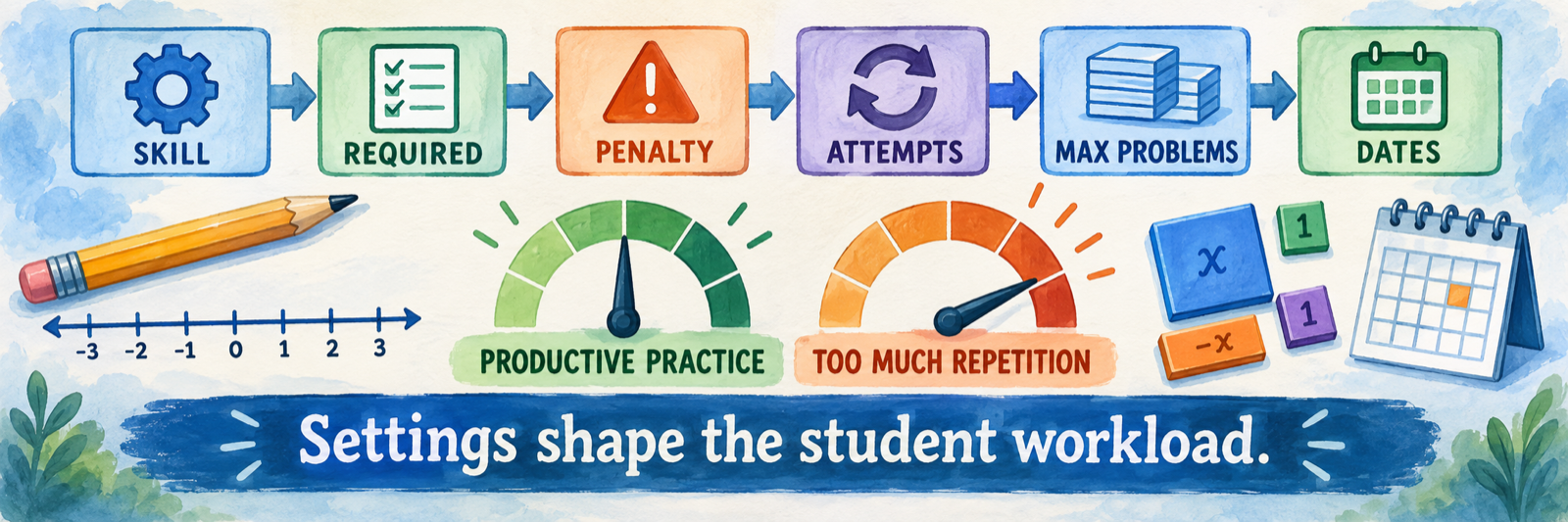
DeltaMath’s required score and penalty interact. A student’s grade is based on the highest score reached, while an incorrect answer can lower the current progress toward the required score. Attempts and maximum problems further change the amount and experience of practice.
| Setting | Instructional question |
|---|---|
| Required | How high must the student’s score rise to receive full credit for this skill? |
| Penalty | What happens to current progress after an incorrect response: none, partial, one point, or back to zero? |
| Attempts | How many submissions may the student make for each generated problem? |
| Max Problems | Is practice unlimited, or is there a humane cap? A cap can prevent a student from reaching 100 percent. |
| Weight | How much does this skill contribute to the assignment grade? Weight zero can make it optional. |
| Dates and late credit | When does work open, close, and receive reduced credit, if that paid feature is available? |
Official guide: required score, penalty, attempts, maximum problems, and weight
Preview, assign, and explain the scoring
Assign the work to the correct class, group, or students; group and individual assignment controls depend on the subscription. Tell students the learning target, required score, penalty, maximum problems, due date, available help, and what written reasoning to retain.
Completion is not the same as accuracy. A student can eventually reach the required high score after many errors. Another student may stop because a maximum-problem cap prevents full credit. Explain the rules before students begin.
Monitor the response path, not just the grade

Use the assignment and student views to examine total problems, correct responses, percentage, attempts, exact submissions, timestamps, and—when available—uploaded written work or video use. Confer with the student when the record does not explain the reasoning.
| Pattern | Possible response |
|---|---|
| High completion, low first-attempt accuracy | Reteach the concept or representation; reduce unproductive repetition. |
| Repeated syntax or entry errors | Clarify answer format, notation, device input, and how to read feedback. |
| Few attempts and unfinished work | Check access, directions, time, confidence, and whether the task was visible. |
| Accurate work with efficient reasoning | Continue, vary the representation, or extend the mathematics. |
| Correct online answers, unclear written reasoning | Ask the student to explain or reconstruct a representative solution. |
Configure and Verify
Test entitlement, roster behavior, assignment settings, data interpretation, and recovery before broad use.
Prove the complete student route
- Sign in as the teacher through the approved district route and verify the active license.
- Create or import one class and confirm its roster source.
- Launch as an approved demonstration student through the same route students will use.
- Open the assignment, submit correct and incorrect responses, and confirm the intended penalty and attempts.
- Reach or approach the maximum-problem limit and confirm the student experience.
- Verify the teacher can see completion, accuracy, attempts, timestamps, and exact responses.
- If integrated, confirm the assignment and grade passback appear in the correct LMS course and gradebook column.
Interpret the data within its limits
The student view can show exact responses and timestamps, but the displayed time is an estimate. DeltaMath excludes video time and treats more than ten minutes on one problem as inactive time. Problem Logs contain recent problem history rather than a permanent complete record and exclude timed modules.
- Read grade percentage and completion percentage as different measures.
- Use the response sequence to find misconceptions, guessing, input trouble, and persistence.
- Compare online data with written work, explanation, classroom observation, and other assessment evidence.
- Do not treat elapsed time, a green check, or eventual full credit as proof of independent mastery.
Prepare assessment and recovery procedures
Tests and automated test corrections require a premium license. Before using a timed test, practice the teacher controls for adding time, resetting a question or test, and reviewing data. DeltaMath does not provide a class-wide pause for a timed test; if a test spans periods, allow the timer to expire and add time for the next period.
Resolve common first-use problems
| What you notice | Check first |
|---|---|
| Expected paid features are missing | Open PLUS/INTEGRAL, verify the exact account and school, and ask whether the teacher accepted the site-license invitation. |
| The teacher already paid personally | Record the individual subscription and renewal; ask the district license owner and DeltaMath support how the existing work account should be associated before buying again. |
| The integration reports that a higher license is needed | Confirm whether the account is Free, PLUS, individual INTEGRAL, or site INTEGRAL and whether it is associated with the correct school. |
| A Canvas or Schoology student is absent from DeltaMath | Have the student launch from the correct LMS course; on-the-fly rostering occurs at first launch. |
| A Clever or ClassLink launch fails | Confirm a site INTEGRAL license, district sharing, teacher role, matching work email, school association, and license activation. |
| The student has duplicate classes or accounts | Stop creating records; compare sign-in method, email or username, class source, prior membership, and school. |
| The student works indefinitely | Review required score, penalty, attempts, and the default unlimited maximum-problems setting. |
| A student receives full credit after many errors | Compare completion with total problems, accuracy, response history, and written reasoning. |
| The LMS grade is missing or stale | Verify the integrated launch, correct LMS assignment, roster match, grade-passback entitlement, and resend option. |
Official guide: LTI error messages and account-license mismatches
Protect student records and close the year
Confirm the district’s approved data-sharing, retention, and support process. DeltaMath records submitted answers, correctness, time spent, timestamps, completion, and late-work information. Before classes change or staff leave, define who preserves required records, archives classes, removes access, and verifies the next term’s roster source.
Good DeltaMath Habits
Check before paying
Verify the district license, teacher invitation, work account, school, and login route.
Preview the math
Solve representative problems and confirm that the problem type matches the taught objective.
Cap practice thoughtfully
Balance required score, penalty, attempts, and maximum problems to prevent unproductive repetition.
Read the path
Use accuracy, attempts, response history, written reasoning, and conversation to choose the next step.
Official DeltaMath Resources
Use the documentation for the exact account, license, integration, and interface enabled in your district.
2026–27 edition. Public DeltaMath product and help resources reviewed September 12, 2026. Features, integrations, pricing, interfaces, and administrator controls depend on the active individual or site license and local configuration. Classroom examples and conceptual illustrations are SDLA material.