



Classworks Quick Start Guide
Connect five related jobs without confusing their purposes: screen, individualize, instruct, monitor, and document decisions.
Classworks is an integrated K–8 personalized-learning and MTSS platform. It can bring assessment, reading and mathematics instruction, weekly progress monitoring, intervention documentation, and district reporting into one environment. These functions exchange information, but each answers a different educational question.
One Platform, Five Different Jobs
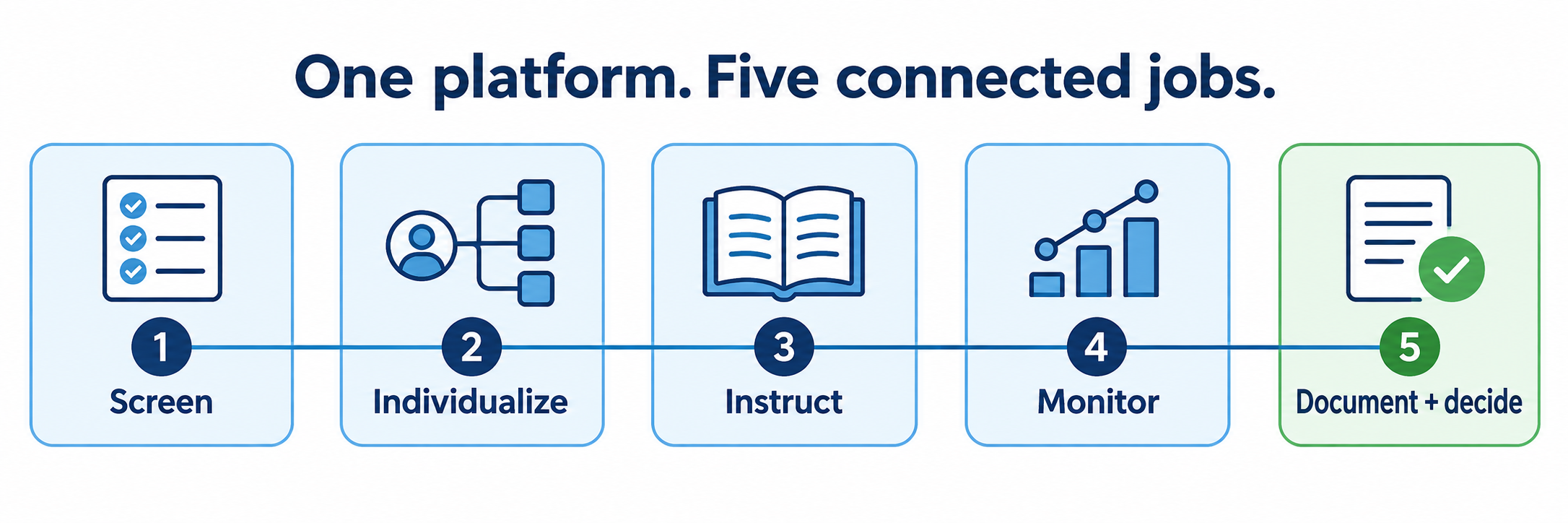
| Workspace | Question it answers | Primary evidence | Typical cadence |
|---|---|---|---|
| Screen | Who may need additional support? | Universal screener percentile, readiness indicators, and partner-assessment results | Typically fall, winter, and spring |
| Individualize | Which skills is this student ready to learn next? | Matched assessment results translated into an Individualized Learning Path | After new assessment or progress data |
| Instruct | What lesson, modeling, and practice will address the need? | Reading, language arts, and mathematics lesson performance plus teacher observation | Scheduled weekly intervention time |
| Monitor | Is the intervention producing sufficient improvement? | Repeated, equated CBM probes, rate of improvement, goal line, and trend | Usually weekly for identified students |
| Document and decide | What did the team provide, observe, change, and decide? | Plan details, fidelity, notes, observations, phase changes, reports, and multiple data sources | Continuously and at team review points |
Optional tools do not redefine the core workflow. Social-emotional and behavioral resources, science assignments, SMART goals, AI-assisted tools, particular assessments, and dashboards may appear when licensed and enabled. Confirm the district’s purchased components before training staff.
Begin with Four Responsibilities
Connect
Establish authoritative identities, rosters, classes, sign-in, assessment transfers, roles, testing windows, and school ownership.
Teach
Protect scheduled learning time, orient students, monitor lesson fit, provide direct support, and connect online work to classroom instruction.
Measure
Use the right assessment for the right purpose and administer repeated probes under consistent conditions.
Decide
Interpret multiple evidence with the student and team, document the intervention, and record why support continues or changes.
Connect the District System
Classworks depends on one stable student identity across several technical layers. A working launch tile proves only that a page opened; it does not prove that the correct student, class, assessment result, or learning path arrived.
Name the authoritative systems and owners
- Identify the district and site Classworks system administrators, instructional lead, assessment lead, MTSS lead, special-education lead, roster owner, help-desk route, and Classworks contact.
- Record the district’s unique Classworks site code and URL, licensed schools, grade span, subjects, assessments, intervention tools, AI features, optional modules, and renewal dates.
- Define which system creates students, staff, school groups, classes, enrollments, and stable identifiers.
- Schedule beginning-of-year loading, nightly synchronization, assessment imports, fall-winter-spring windows, term changes, summer use, and end-of-year archive work.
Separate four connection layers
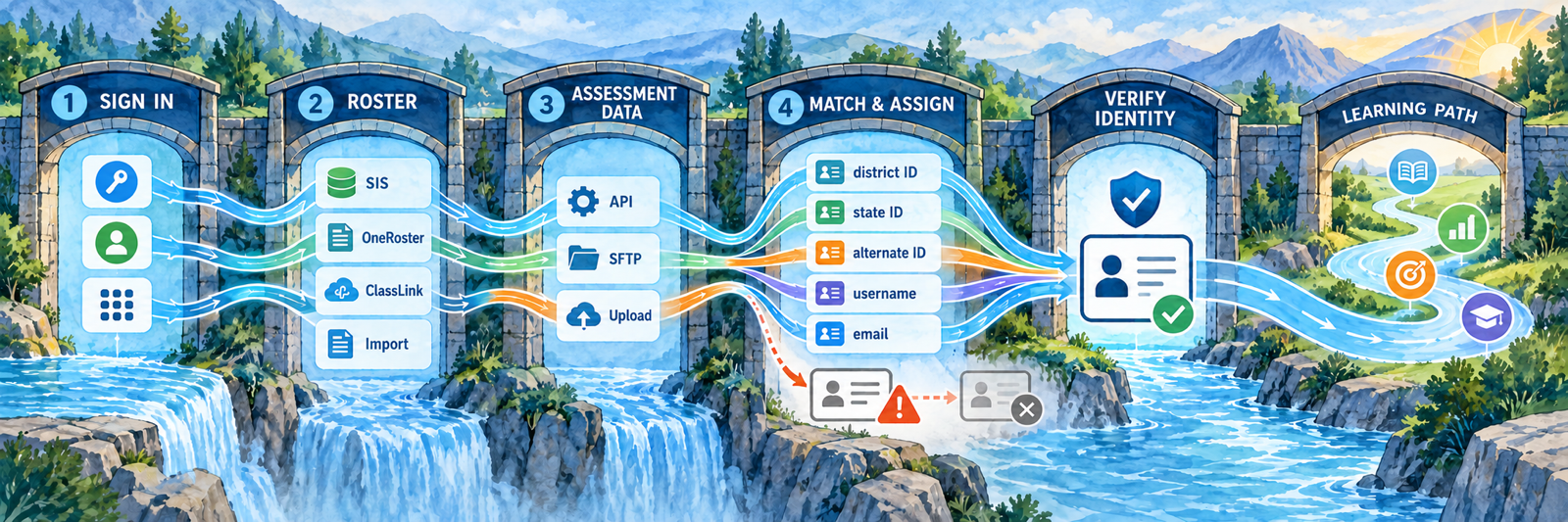
| Layer | Possible route | What to verify |
|---|---|---|
| Launch and sign-in | District Classworks URL, Google or Microsoft SSO, assigned Classworks credentials, or a Clever/ClassLink launch tile | The tile opens the correct district database and the user reaches the correct existing account and role. |
| Roster provisioning | PowerSchool OneRoster, ClassLink rostering, district import, or authorized manual administration | Students, staff, schools, classes, grade levels, enrollments, and group memberships synchronize from the named source. |
| Assessment transfer | NWEA MAP API, Renaissance Star SFTP, or supported file upload such as i-Ready | The correct subject, administration, date, score type, and student-matching field arrive on schedule. |
| Match and assignment | District ID, state ID, alternate ID, username, or email as configured | Each result joins one student record and creates or updates the intended learning path without duplicates or cross-student matches. |
Configure roles, groups, classes, and windows
District administrators can work across schools; site administrators work within assigned schools; teachers generally see their authorized classes. Group membership determines visibility and administrative capability. Configure assessment windows centrally and confirm who can create users, edit classes, share instruction, enable modules, and view district data.
Reconcile before creating users manually
Search by name and every stable identifier, inspect current and archived records, check the source roster, and review the last synchronization. Classworks warns that a manually created student or teacher may be disabled overnight when an automated roster remains authoritative.
Repair the source when the source is wrong. Creating a second record may separate assessment history, intervention documentation, learning-path activity, classes, and family-visible progress.
Run an end-to-end pilot
- Test one administrator, one teacher, and several students representing different schools, grades, classes, and assessment histories.
- Verify sign-in, role, class visibility, screener assignment, partner data, recommended path, student dashboard, teacher reports, and logout.
- Confirm accommodations, audio, Spanish-language options where enabled, browser/device behavior, filters, pop-ups, session timeout, and accessibility.
- Correct the source record, synchronize again, and verify the persisted result before expanding the rollout.
Screen, Individualize, and Teach
These three connected functions form an instructional sequence. The screener identifies possible need, the path identifies a skill sequence, and instruction provides the intervention experience.
Prepare the universal screener
Classworks recommends periodic screening in fall, winter, and spring. Confirm the district window, assigned reading or mathematics assessment, testing level, language, accessibility features, make-up plan, device readiness, proctoring expectations, and conditions for valid administration.
- Explain that screening identifies readiness and possible support; it is not a grade or diagnosis.
- Protect a consistent environment and active proctoring across schools.
- Monitor completion and unusual testing events before interpreting results.
- Use the same rules for pausing, restarting, invalidating, and make-up testing across sites.
Interpret suggested tiers as a starting signal
Classworks displays color-coded suggested support based on percentile ranges: below the 10th percentile for urgent intervention, the 10th through 25th percentiles for intervention, the 25th through 40th percentiles as on watch, and the 40th percentile or above as at or above grade-level readiness.
A suggested tier is not an automatic placement. Review classroom performance, prior instruction, attendance, language development, disability-related needs, state and local measures, family and student information, and other relevant evidence through the district’s MTSS process.
Verify the Individualized Learning Path
Classworks can use its screener or matched partner-assessment data to identify skills a student is ready to learn. Before beginning, the teacher or interventionist should confirm the source assessment, date, subject, identity match, starting level, sequence, accommodations, and connection to the documented intervention goal.
- Look for work that is too easy, too difficult, misaligned, duplicated, or based on stale data.
- Distinguish automatically generated learning-path instruction from teacher-assigned activities and assessments.
- Use role-approved controls to adjust, supplement, disable, or reassign content when evidence supports a change.
- Document important changes rather than silently editing the path.
Teach the student dashboard and complete exit
Model the district launch route, student sign-in, Reading or Math area, screener, My Progress Check, My Learning Path, teacher-assigned work, available supports, monthly results, and logout. Students should know why they are working, where to begin, how to request help, and what completion looks like.
Teach students to exit an activity and log out. Classworks notes that time on task may continue while a student remains inside an activity, even when ordinary inactivity would otherwise end the session.
Protect intervention time and adult support
Schedule consistent reading and mathematics sessions aligned with the district’s intervention design. During use, circulate, listen for reasoning, address misconceptions, support accessibility, and connect the online lesson to explicit instruction, guided practice, peer interaction, and transfer beyond the platform.
Read instructional data for the right purpose
| Measure | Useful for | Do not infer by itself |
|---|---|---|
| Screener percentile or readiness result | Identifying possible need, baseline, broad skill areas, and a starting point | Final tier placement, disability, cause of difficulty, or the complete intervention plan |
| Learning-path activity or unit score | Checking immediate lesson performance, errors, effort, and need for teacher follow-up | Generalized mastery, intervention effectiveness, or sufficient growth |
| Minutes and units completed | Monitoring opportunity, routine, dosage, and implementation | Learning, quality, engagement, or fidelity without observation |
| Weekly CBM and rate of improvement | Estimating response to an intervention over repeated administrations | The intervention that was actually delivered, why performance changed, or the team’s decision |
Monitor, Document, and Decide
Progress monitoring is a repeated measure of the student’s response to an intervention. It works only when the team also knows what intervention occurred, under what conditions, and with what fidelity.
Assign the right monitoring approach
| Approach | Measures | Use when |
|---|---|---|
| Curriculum Sampling CBM | Repeated samples from the broader grade-level curriculum using parallel forms | The team needs a general outcome measure across an intervention period. |
| Domain-Based CBM | Repeated measurement within a selected essential domain or strand | The intervention and goal focus on a specific academic domain. |
| Mastery Measurement | Performance on discrete objectives within an instructional sequence | The teacher needs to know whether a particular taught skill is ready to advance. |
For CBM progress monitoring, Classworks describes 12-week sessions with a new probe available weekly. Select the level, domain where applicable, goal, start date, responsible adult, administration routine, and review calendar deliberately.
Define the intervention outside the graph
- Name the skill, instructional method, materials, group size, session length, weekly frequency, setting, provider, start date, and accommodations.
- Record how staff will check fidelity, attendance, student engagement, and interruptions.
- Identify which Classworks instruction is part of the intervention and which instruction occurs with an educator or in another program.
- Set the review date and decision rules before interpreting the first fluctuation.
Administer weekly probes consistently
Use the assigned probe under comparable conditions, ensure the student completes the correct weekly form, and record unusual events. Review completion separately from performance. A missing probe, duplicate session, wrong level, assistance, interruption, or long delay changes what the trend can support.
Interpret multiple evidence with the student
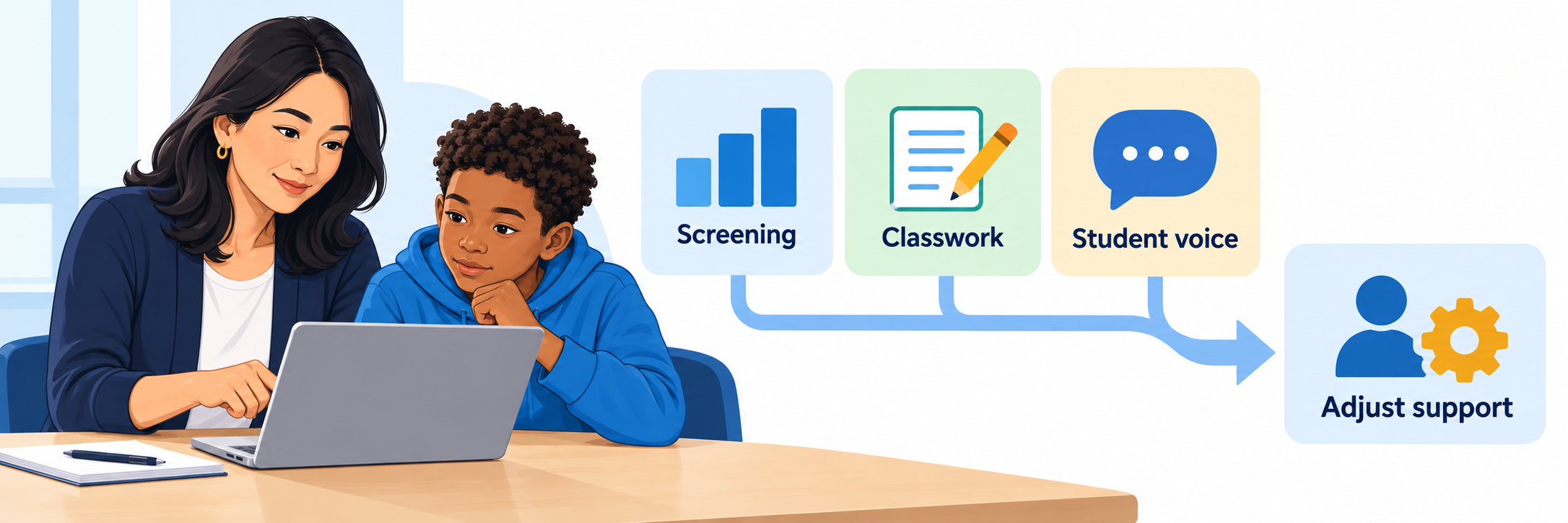
- Compare the student’s trend with the goal line and rate-of-improvement target.
- Examine classroom work, lesson performance, attendance, fidelity, observations, screening and diagnostic information, and the student’s explanation.
- Look for level, slope, variability, patterns around absences or changes, and whether gains transfer to new tasks.
- Ask what is helping, what remains confusing, and what support the student believes would improve access and learning.
Record a phase change when the intervention changes
When evidence supports a modification, record the date and describe the actual change: increased frequency or duration, smaller group, different explicit strategy, new materials, altered level, additional language or accessibility support, or a different intervention. Continue monitoring after the change so the next segment of the graph can be interpreted against the revised plan.
Do not move the line without changing the instruction. A phase marker should correspond to a documented intervention change, not a retrospective attempt to explain ordinary score variation.
Make and communicate a team decision
At the planned review point, determine whether to continue, intensify, modify, fade, discontinue, or investigate further. Record the evidence considered, the student and family perspective, the team’s reasoning, the next plan, responsible staff, and review date. Classworks evidence may support MTSS or special-education processes, but software output does not determine eligibility or services.
Write notes for the people who may read them
Classworks can preserve progress-monitoring notes and academic or behavioral observations, including information about supports outside Classworks. Some observations may be visible to students and families and can remain available when a student changes schools within the district. Use objective, specific, instructionally relevant language; distinguish observation from interpretation; and follow local privacy, records, and family-communication requirements.
Resolve the Failed Layer
| What you notice | Check first |
|---|---|
| Launch tile opens, but the user cannot sign in | Correct district URL and site code, identity provider, existing Classworks username, account status, browser, role, and whether the tile is only an external link. |
| Student or teacher is missing | Authoritative SIS or roster source, sharing rules, school, grade, class, stable ID, last synchronization, excluded status, and roster-owner escalation route. |
| A manually created account disappears or becomes disabled | Automated roster authority, duplicate records, matching identifiers, overnight synchronization, and whether the source system must be corrected. |
| Teacher cannot see a student or class | School group, class membership, teacher assignment, role, site permissions, duplicate account, and current enrollment. |
| Partner assessment result is absent | Integration type, enabled status, schedule, file or API delivery, subject, administration date, processing history, matching field, and unmatched-result log. |
| Learning path looks wrong | Student identity, assessment source and date, subject, test level, match field, starting placement, newer results, manual changes, and copied or duplicate records. |
| No suggested tier colors appear | Current-window screener completion or partner result, valid score, processing, identity match, subject filter, and selected testing window. |
| Student cannot find the weekly probe | Active session, start date, correct week, assigned subject and level, completion status, student dashboard, call-to-action marker, and duplicate account. |
| Minutes appear much higher than expected | Whether the student exited the activity and logged out, inactivity behavior, open tabs, shared device, session dates, and observed schedule. |
| The graph changes, but no one knows what intervention occurred | Written intervention plan, provider, dosage, fidelity, attendance, notes, observations, phase changes, and team review history. |
Good Classworks Habits
Keep one identity
Match rosters, assessment results, classes, history, and learning paths to one authoritative student record.
Name the measure
Distinguish screening, lesson performance, dosage, mastery checks, and CBM rate of improvement.
Describe the intervention
Record what adults provide, how often, under what conditions, and whether it occurred as designed.
Document the decision
Use multiple evidence, student and family voice, a clear rationale, responsible staff, and a next review date.
Official Classworks Resources
Purchased modules, assessment partners, integrations, AI features, roles, interfaces, and recommended practices may change. Confirm the active district configuration and current official guidance.
2026–27 edition. Official Classworks product, administration, sign-in, roster, assessment-integration, universal-screener, individualized-learning, progress-monitoring, observation, family, and research materials reviewed September 13, 2026. Classworks is a TouchMath company. Purchased components, grade coverage, assessment partners, AI capabilities, data routes, roles, dashboards, terminology, recommendations, and interfaces may change. District MTSS, assessment, special-education, privacy, records, accessibility, procurement, and instructional policies remain controlling. Conceptual illustrations are SDLA material.