


Canva for Education Quick Start Guide
Turn ideas into clear visual stories while teaching students to plan, create, review, and share responsibly.
Canva for Education supports K–12 graphics, presentations, webpages, videos, and other creative projects. Available tools, generative AI features, Classrooms, integrations, and sharing choices depend on the school account, region, age, and administrator settings.
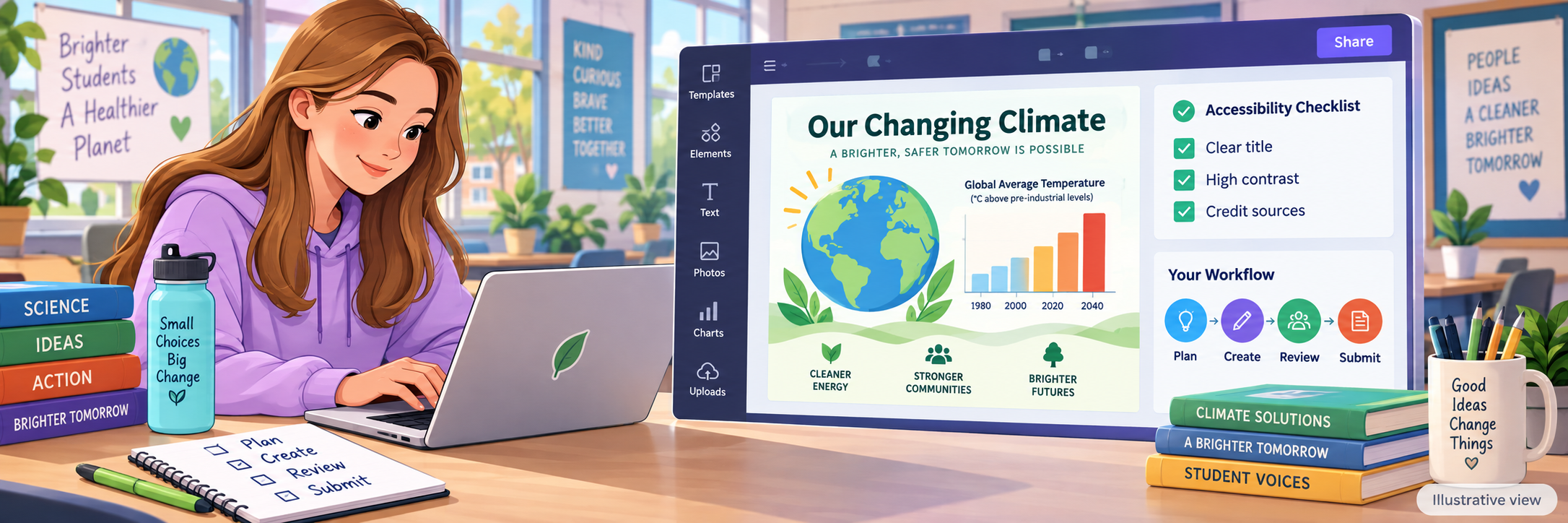
A Simple Creative Workflow
Plan
Define the audience, purpose, message, evidence, format, and success criteria.
Create
Build with approved templates, original ideas, accessible design choices, and credited sources.
Review
Check accuracy, readability, permissions, attribution, and the assignment requirements.
Submit
Turn in or share through the teacher-approved classroom or learning platform.
Teach creation and judgment together: Students remain responsible for accuracy, originality, permission, attribution, and appropriate use even when a template or generative AI tool helps create part of a project.
District Setup
Confirm account provisioning, educator and student profiles, enabled services, sharing rules, and support before classroom use.
Provision education accounts
- Use the district-approved Canva deployment and sign-in method.
- Confirm users enter the correct school profile when a profile switcher appears.
- Verify educator roles before expecting Classrooms or assignment controls.
- Define support for missing licenses, profiles, classes, and projects.
Set classroom and content expectations
| Decision | Confirm | Owner |
|---|---|---|
| Roster | Approved domains, classroom membership, and sync method are correct. | IT or data lead |
| Sharing | Publishing, public links, collaboration, galleries, and downloads follow policy. | Program owner |
| Generative AI | Enabled features, grade-level expectations, disclosure, and review are clear. | District administrator |
| Accessibility | Teachers know the district standard for captions, contrast, reading order, and alternatives. | Instructional lead |
Protect student information
Keep personal data out of public projects and prompts. Use the least-public sharing choice that meets the instructional purpose, review collaborators, and follow district retention and media-release rules.
Teacher Workflow
Create a bounded assignment with a clear audience, permitted formats, source expectations, feedback plan, and submission route.
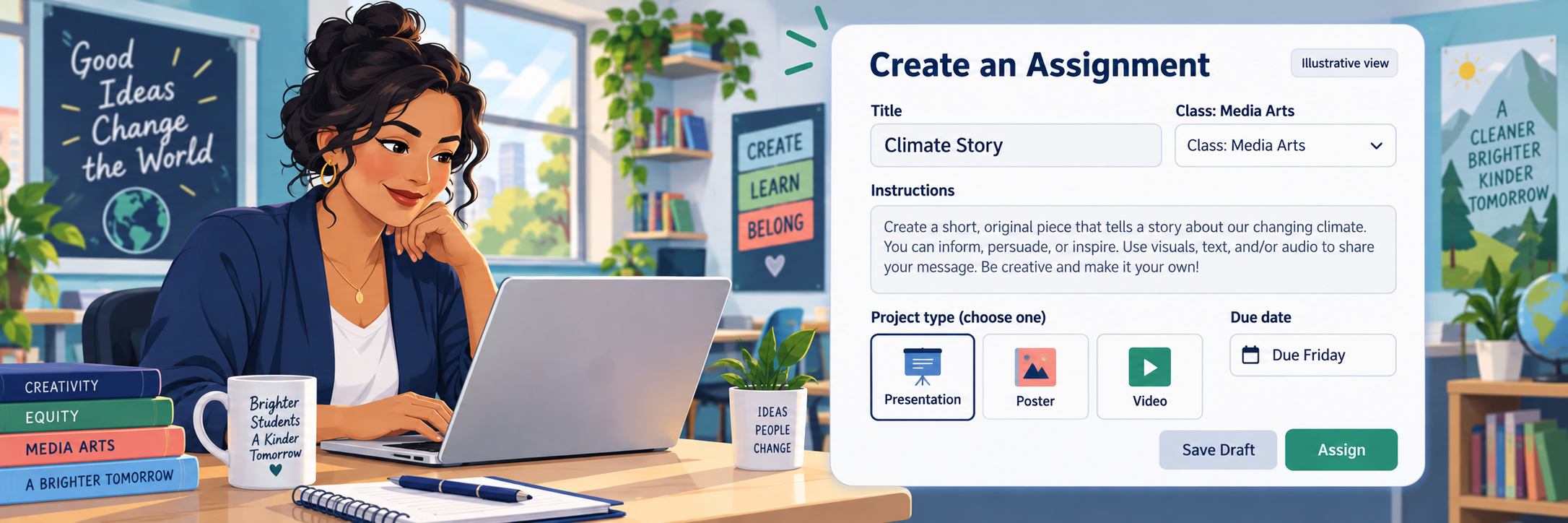
Create the assignment
- Open Classrooms and select the intended class.
- Choose Create assignment, then add a title, instructions, due date, and class.
- Select up to the permitted project types and an optional starter template.
- Choose whether the public sharing should be available.
- Save a draft for review or assign it when ready.
Teach the student workflow
- Open the correct school profile, classroom, and assignment.
- Read the prompt and plan the message before choosing a design.
- Create with original work and properly permitted, credited media.
- Review content, accessibility, spelling, links, and assignment criteria.
- Submit in Canva or use the teacher-approved LMS process.
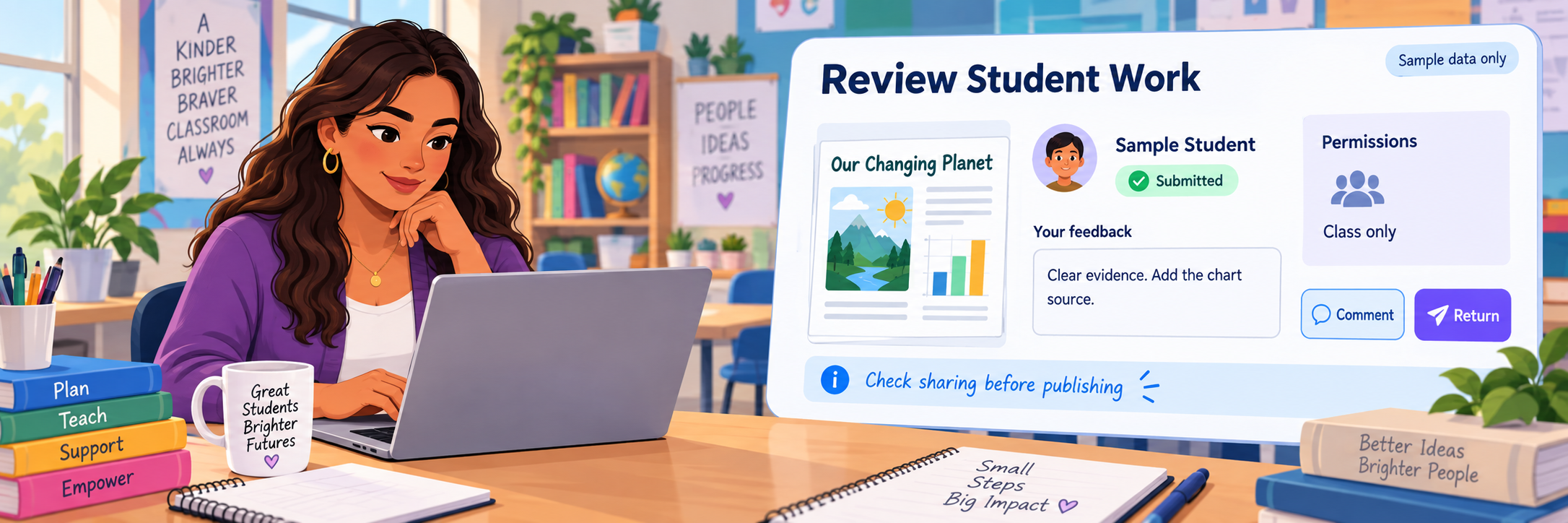
Monitor and comment
Teachers can view work after a student starts and provide comments during the project cycle. Give specific feedback tied to the purpose and rubric; avoid rewriting the project for the student.
Configure and Verify
Test the teacher and student experience with demonstration accounts before assigning a full class.
Run an end-to-end test
- Create a demonstration classroom and assignment.
- Join through the student’s approved route and confirm the correct profile.
- Start a project, add a comment, continue it from the expected entry point, and submit.
- Verify the teacher can see progress and the completed work.
- Test the LMS handoff or project link if the class will use one.
Review before publishing
Check names, images, copyright permissions, source credit, links, accessibility, and the selected audience. Before public sharing, remove hidden pages, presenter notes, cropped content, and private information; then make a clean copy so earlier revisions are not exposed.
Check common problems
| What you see | Check first | Next step |
|---|---|---|
| Classrooms is missing. | Education account, school profile, educator role, and region. | Confirm provisioning with IT. |
| Student cannot join. | Approved school domain, invite method, class code, and school profile. | Correct the account or roster source. |
| Assignment is missing. | Class membership, assigned class, status, link, and profile. | Review the assignment from the teacher view. |
| Work appears missing. | Student profile, assignment entry point, Your Stuff, and project ownership. | Do not start a duplicate until the original is located. |
| Submission or LMS handoff fails. | Share permissions, link access, download option, and LMS instructions. | Use the locally approved alternate submission route. |
Verification is shared: Administrators provision accounts and controls, teachers define the audience and workflow, and students review their work before submitting or sharing.
Good Creative-Project Habits
Plan first
Identify the audience, message, evidence, and format before opening a template.
Credit sources
Use permitted media and record creator, source, license, and link information.
Design accessibly
Use readable contrast and type, captions, useful link text, and a clear visual order.
Review the audience
Confirm who can view, comment, copy, or remix before sharing the project.
Official Canva for Education Resources
Use current Canva guidance together with district account, privacy, accessibility, copyright, and publishing requirements.