



Boom Cards Quick Start Guide
Use interactive, self-checking activities for focused practice while keeping assignment, access, and reporting choices clear.
Boom Cards are interactive digital activities called decks. Teachers can assign decks for student practice, present them to a group, or share them through supported links. Membership, roster, reporting, and integration features vary by account and school configuration.
A Simple Practice Cycle
Select
Choose a deck that matches the skill, learner, accessibility needs, and instructional purpose.
Assign
Assign the deck to a class or student when progress data needs to be connected to an account.
Practice
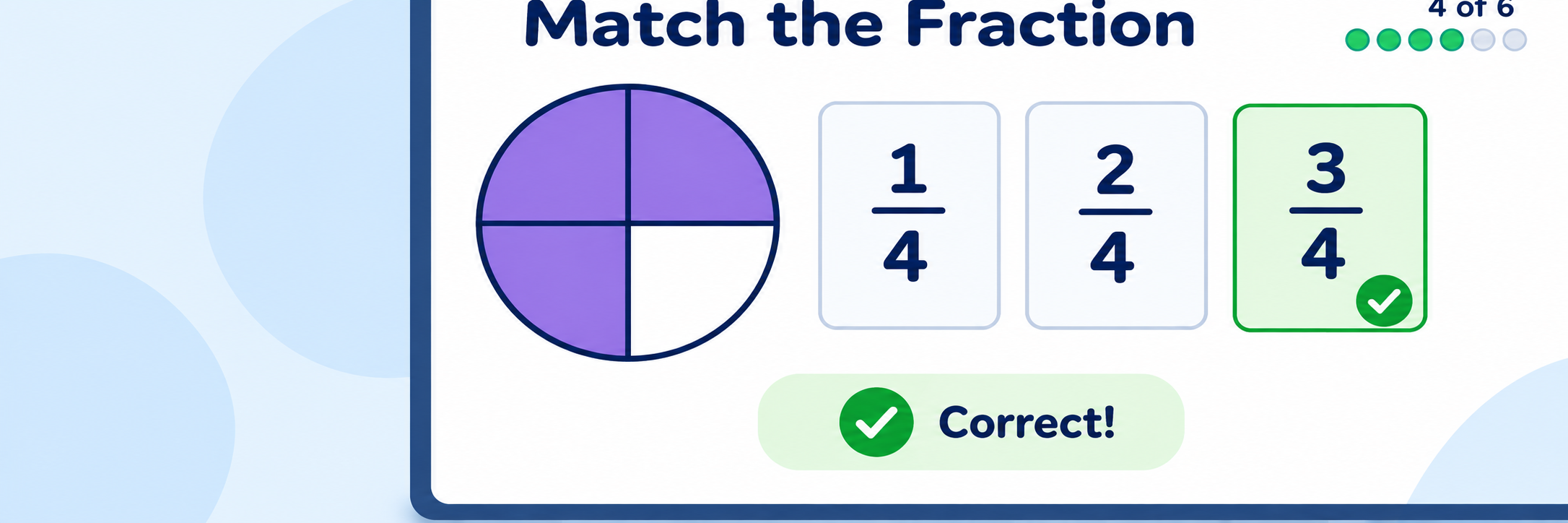
Students interact with cards and receive immediate feedback as configured by the deck.
Respond
Review play data, confer with students, and choose the next practice or support.
Choose the sharing method intentionally: Assignments and HyperPlay can connect activity to student accounts and reporting. Fast Pins offer quick login-free access and should not be treated as a substitute when identified student progress is required.
District Setup
Confirm membership, teacher access, rosters, licensed decks, reporting, and the school’s approved sign-in method before classroom use.
Prepare accounts and classrooms
- Use the district-approved Boom Learning sign-in or integration.
- Confirm existing teacher accounts are connected to the managed school account when applicable.
- Create or import classrooms and verify student membership.
- Define support for missing subscriptions, decks, students, and classes.
Choose access and data expectations
| Decision | Confirm | Owner |
|---|---|---|
| Roster | Class membership, student identifiers, and roster integration are correct. | IT or data lead |
| Sharing | Assignment, HyperPlay, Fast Pin, Presentation, and live-session uses follow policy. | Program owner |
| Reporting | The membership supports the live or stored reports the school expects. | Program administrator |
| Accessibility | Teachers preview decks for readable text, audio needs, motor demands, and alternate access. | Instructional lead |
Protect student information
Use only approved student identifiers, do not share student credentials, and review vendor privacy terms and district retention requirements. Treat Fast Pins and public links according to local access expectations.
Teacher Workflow
Preview the complete deck, choose the correct delivery method, and explain how students will sign in and what completion looks like.
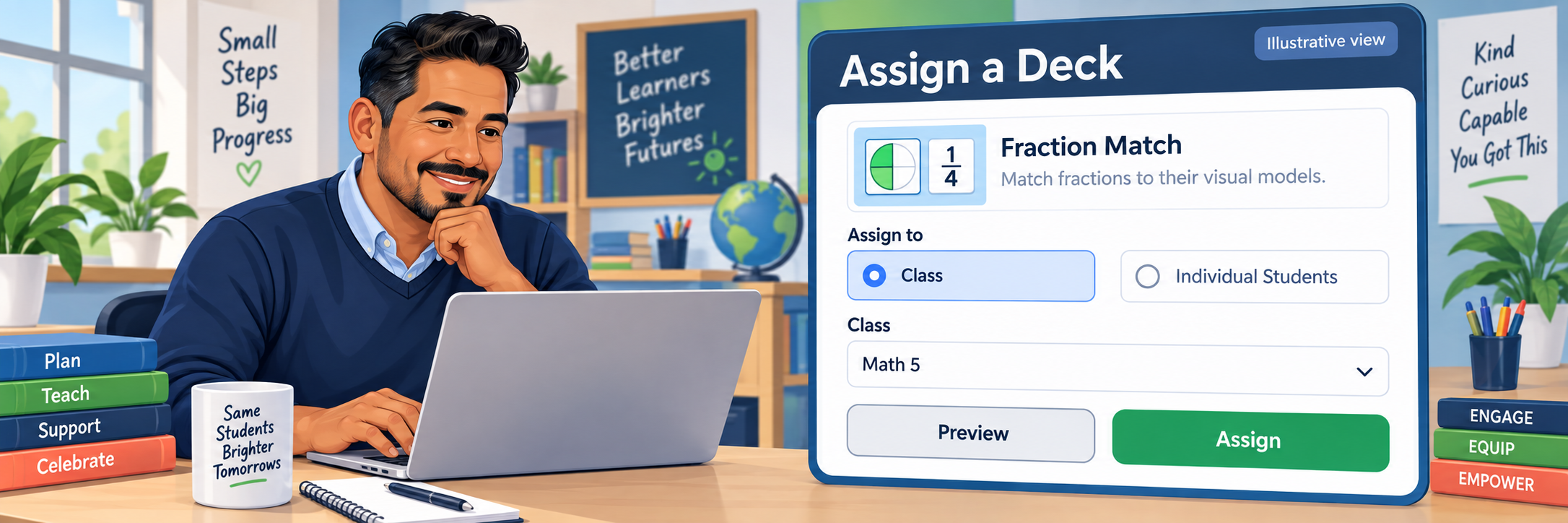
Preview and assign a deck
- Open the Library and locate the intended deck.
- Preview the content, answers, card order, audio, and interaction requirements.
- Choose Assign for a classroom or individual student when identified play data is needed.
- Use Fast Pin only when quick login-free practice fits the purpose.
- Confirm the selected students and assignment before sharing.
Teach the student practice routine
- Use the sign-in or link method provided by the teacher.
- Open Assignments and select the intended deck.
- Read or listen to each card and complete its interaction.
- Use immediate feedback to correct misunderstandings rather than guessing quickly.
- Finish the deck and sign out on a shared device.
Monitor and respond
When the account supports student data, use classroom or deck reports and live monitoring to see who has started, completed, or may need help. Interpret repeated plays and errors with classroom evidence.
Configure and Verify
Test the complete teacher and student experience with demonstration accounts before assigning a full class.
Run an end-to-end test
- Create a demonstration classroom and add a test student.
- Sign in through the student’s approved route and confirm the correct class.
- Assign and complete a short test deck.
- Verify the teacher can see completion, score, plays, and item information expected by the membership.
- Test the LMS, HyperPlay, QR, or other approved entry point if used.
Review play data
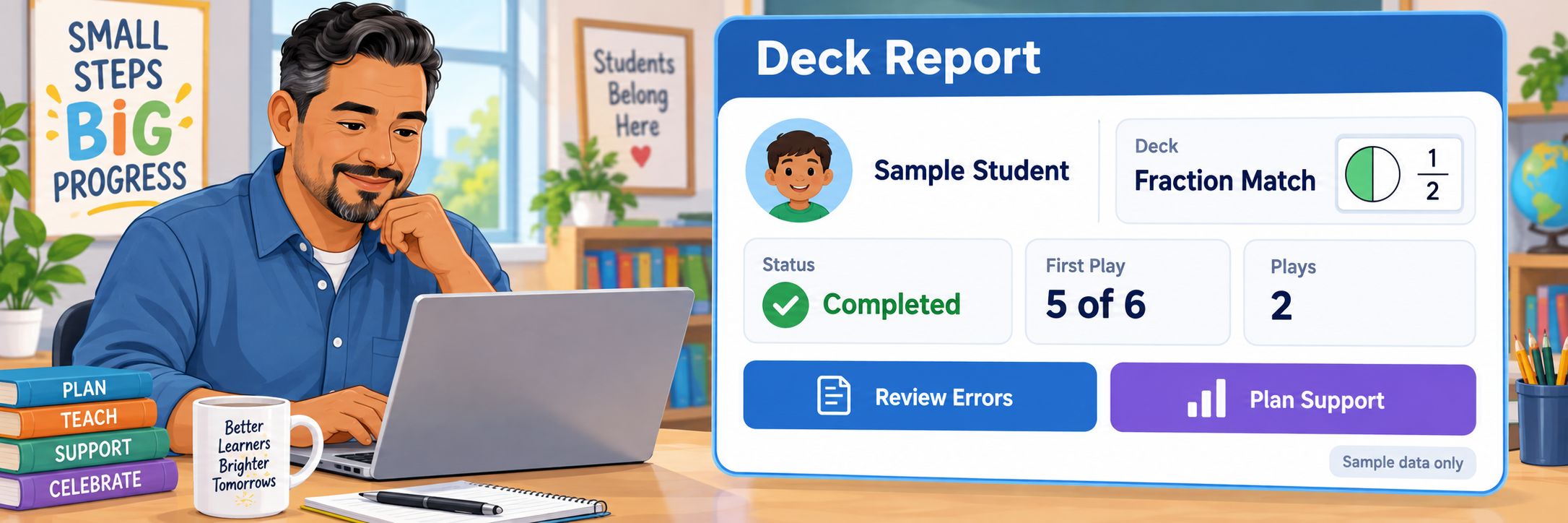
Verify the student, deck, completion, score, number of plays, and date range. Review errors for instructional patterns and avoid treating one deck score as a complete measure of mastery.
Check common problems
| What you see | Check first | Next step |
|---|---|---|
| A student cannot sign in. | Assigned sign-in method, username, password, QR code, or linked account. | Verify the account and reset credentials through the approved process. |
| A student or class is missing. | Roster source, selected class, integration, and sync timing. | Correct the authoritative roster; do not create a duplicate. |
| A deck is missing. | Library ownership, assigned students, class, and sharing method. | Review the deck action and assignment from the teacher view. |
| Report data is missing. | Membership level, student login, assignment method, filters, and completion. | Confirm that the chosen sharing method collects identified play data. |
| A deck will not load or play. | Browser or app version, network, device, link, and technical requirements. | Retry through the approved route or contact local support. |
Verification is shared: Administrators provision accounts and controls, teachers define the audience and workflow, and students review their work before submitting or sharing.
Good Practice Habits
Preview first
Complete the deck yourself before assigning it to students.
Match the purpose
Choose Assign, HyperPlay, Fast Pin, Presentation, or Live based on the goal.
Check access
Check reading load, visual contrast, audio, input method, and device fit.
Use data carefully
Use results to prompt feedback and instruction, not as isolated proof of mastery.
Official Boom Learning Resources
Use current Boom Learning guidance together with district privacy, accessibility, instructional, and support requirements.