


Amplify Science Quick Start Guide
Prepare the unit storyline, materials, digital tools, and student access so K–8 learners can investigate phenomena and construct explanations from evidence.
Amplify Science is a complete blended curriculum, not a screen-based science application. Units combine hands-on investigations, discussion, reading, writing, models, simulations, assessments, print resources, and teacher guidance. The digital platform organizes and extends that work; it does not replace the physical investigation or the teacher’s facilitation.
A Coherent Investigation Cycle
Encounter
Students meet an anchoring phenomenon or design problem and adopt the role of a scientist or engineer.
Investigate
They collect evidence through hands-on work, texts, media, simulations, models, and discussion.
Reason
Students compare evidence, revise claims or models, and explain how the evidence supports an idea.
Apply
They use the developing model in a new context and demonstrate three-dimensional understanding.
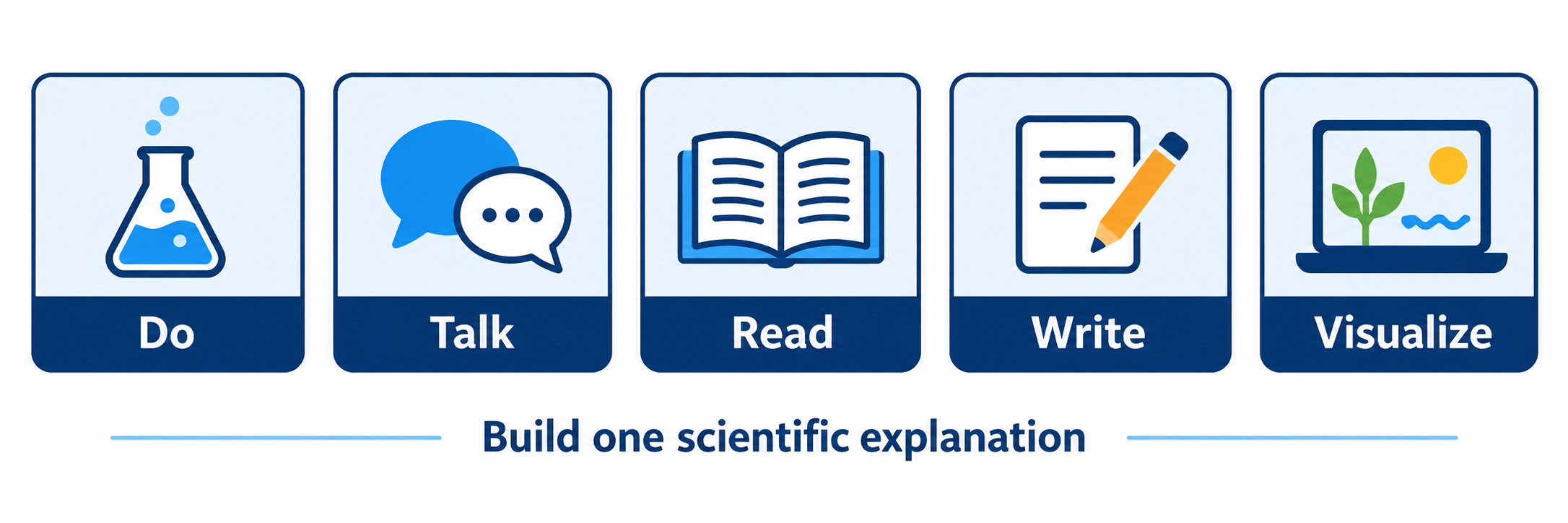
Follow the storyline, not a menu of activities. Do, Talk, Read, Write, and Visualize are coordinated ways for students to build and revise understanding of the same phenomenon. Removing one component can also remove evidence another component depends on.
District Setup
Coordinate curriculum access, roster identity, physical materials, technology, and support before the first unit begins.
Identify the purchased experience
Confirm the licensed grades, programs, schools, staff roles, and whether the district uses the current digital experience, a classic Amplify Science environment, or a combination during transition. Current features such as Educator Home, Student Home, integrated slides, assignments, live review, and LMS connections can depend on the license and rollout.
| Decision | Why it matters |
|---|---|
| Digital experience and edition | Determines which home page, navigation, slides, assignments, and review tools teachers see. |
| Grade and course assignment | Controls which units, Teacher’s Guides, student resources, and assessments are available. |
| Instructional sequence | Clarifies district unit order, calendar, prerequisites, and local additions. |
| Device model | Establishes individual, partner, shared-device, projection, and assessment expectations. |
| Physical-material ownership | Names who inventories kits, orders consumables, stages materials, and resolves shortages. |
Choose one authoritative rostering route
Document whether Amplify receives users and classes through Clever, ClassLink, OneRoster or batch upload, Google-managed classes, or another contracted method. Preserve stable source identifiers and correct the authoritative system when enrollment changes.
- Share only the intended schools, classes, teachers, students, and grade levels.
- Confirm that co-teachers, specialists, substitutes, and instructional coaches receive the access their responsibility requires.
- Check new, transferred, withdrawn, cross-enrolled, and duplicate students before launch.
- Verify that each class receives the correct Amplify Science program and grade or course.
- Record the expected synchronization schedule and the owner who reviews roster errors.
Connect login, classes, and assignments
Test the district’s actual sign-in path at learning.amplify.com or through its SSO portal. Confirm that teachers reach Educator Home, students reach Student Home, class selectors show the correct sections, and assigned lessons appear for the intended learners.
| Layer | Evidence of success |
|---|---|
| Authentication | The teacher and student enter through the approved SSO or Amplify route without creating an unintended second account. |
| Role | The educator receives teacher tools and the student receives the student experience. |
| Class membership | The same roster and readable class name appear in assignment and review workflows. |
| Program license | The correct grade or course, units, and digital resources are available. |
| Assignment delivery | The student sees the assigned lesson in the correct class and the teacher can locate submitted work. |
Prepare the physical program
Inventory Teacher’s Guides, Student Books or articles, Investigation Notebooks, unit kits, reusable tools, consumables, safety materials, and classroom displays. Map every shortage to a lesson date and owner rather than discovering it after students arrive.
- Keep each unit’s materials organized separately and label shared components.
- Replenish consumables before the unit begins.
- Review safety requirements, cleanup, storage, and disposal with district procedures.
- Provide accessible alternatives for manipulating, observing, recording, or communicating when required.
- Download permitted projections, videos, and printable resources when network reliability is uncertain.
Official implementation hub: unit kits and teaching resources
Validate devices and network
Test representative teacher and student devices on the instructional network. Verify supported browsers, cookies and pop-ups, audio and video, digital books, simulations, modeling tools, uploads, drawing and recording inputs, presentation mode, live review, printing, and assessment delivery.
Plan for shared technology. Amplify documents both one-device-per-student and shared-device models. In grades 6–8, student-facing technology appears in roughly 30–50 percent of lessons depending on the unit; hands-on investigations and discussion remain central.
Pilot the complete lesson route
Use one teacher, one class, one representative lesson, and approved demonstration students. Preview the teacher guidance, stage the materials, present the lesson, open a student-facing tool, submit a response, review it live, and verify that completed work remains connected to the correct student and class.
Pilot the transition points: most failures occur between systems or modalities—login to class, slides to materials, investigation to notebook, simulation to evidence, assignment to student, and submission to teacher review.
Plan and Teach
Use the platform, print resources, and hands-on materials to advance one coherent scientific explanation.
Orient to the unit storyline
Begin with the unit overview rather than opening Lesson 1 and improvising. Identify the anchoring phenomenon or design problem, the student’s scientist or engineer role, the unit question, expected model or explanation, assessment points, vocabulary, prerequisite ideas, and how each chapter advances the storyline.
Prepare the lesson before presenting it
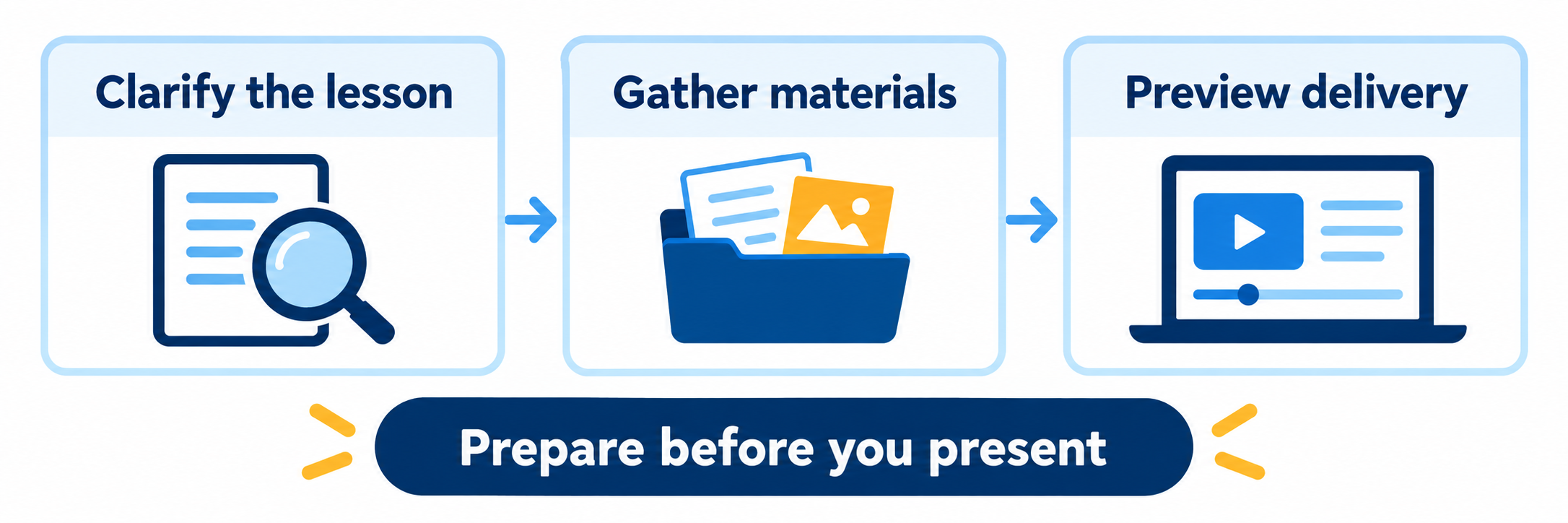
- Read the lesson purpose and identify what students should figure out—not merely what they will do.
- Review the Teacher’s Guide, embedded teacher talk, anticipated ideas, differentiation, and assessment opportunities.
- Stage and test hands-on materials, safety supplies, Student Books or articles, notebooks, and printed handouts.
- Preview every slide, video, simulation, modeling tool, and student response screen.
- Choose individual, partner, small-group, or whole-class structures for each part of the lesson.
- Confirm student assignments and access before instruction begins.
- Prepare a low-tech continuation for essential learning if a digital component becomes unavailable.
Official implementation resources: lesson planning and Classroom Slides
Launch the phenomenon without explaining it away
Introduce the problem, context, and student role. Invite initial observations, questions, claims, or models before providing the scientific explanation. Record ideas so the class can revisit and revise them as evidence accumulates.
| Instead of | Try |
|---|---|
| Giving the answer before investigation | Ask what students notice, wonder, predict, or need to find out. |
| Treating every idea as equally supported | Ask which evidence supports the claim and what remains uncertain. |
| Correcting a model immediately | Use the model as a record of current thinking and return to it after new evidence. |
| Letting vocabulary lead the lesson | Introduce precise terms when they help students communicate an emerging idea. |
Coordinate Do, Talk, Read, Write, and Visualize
Use each mode for a specific contribution to the explanation. A hands-on investigation may reveal a pattern; discussion may expose competing interpretations; text may add evidence students cannot collect directly; writing may clarify reasoning; and a simulation or model may make an invisible process observable.
- Do: manipulate materials, measure, test, observe, and collect data.
- Talk: compare observations, challenge reasoning, and build shared language.
- Read: obtain information and evidence from purpose-written scientific texts.
- Write: record observations, construct explanations, and connect claims with evidence and reasoning.
- Visualize: use diagrams, physical models, simulations, and modeling tools to represent systems and processes.
Use the digital lesson as an orchestration tool
Open the correct class and lesson, then preview before selecting Present or Assign. Follow the lesson’s intended navigation mode and make sure student devices are used at the specified moments rather than remaining open throughout the period.
| Teacher action | Instructional purpose |
|---|---|
| Preview | Inspect the student experience, teacher prompts, response types, and transitions. |
| Present | Guide the whole-class sequence and display shared visuals or prompts. |
| Assign | Send the intended lesson or activity to the correct class with an appropriate date. |
| Student Home | Give students one place to locate current work, past work, apps, and the selected class. |
| Live review | Observe responses during the lesson, identify patterns, and select useful work for discussion. |
Official overview: teaching and assigning in the digital experience
Close with a revised explanation
Return to the investigation question, model, or claim. Ask students to identify which evidence changed their thinking and explain the mechanism or relationship that now makes sense. Preserve unresolved questions when the next lesson is designed to address them.
Activity completion is not the endpoint. The lesson becomes coherent when students use evidence from its parts to revise a model, defend a claim, solve the design problem, or explain the phenomenon.
Review and Verify
Use live student thinking, classroom evidence, and planned assessments to choose the next instructional move.
Review student thinking during the lesson
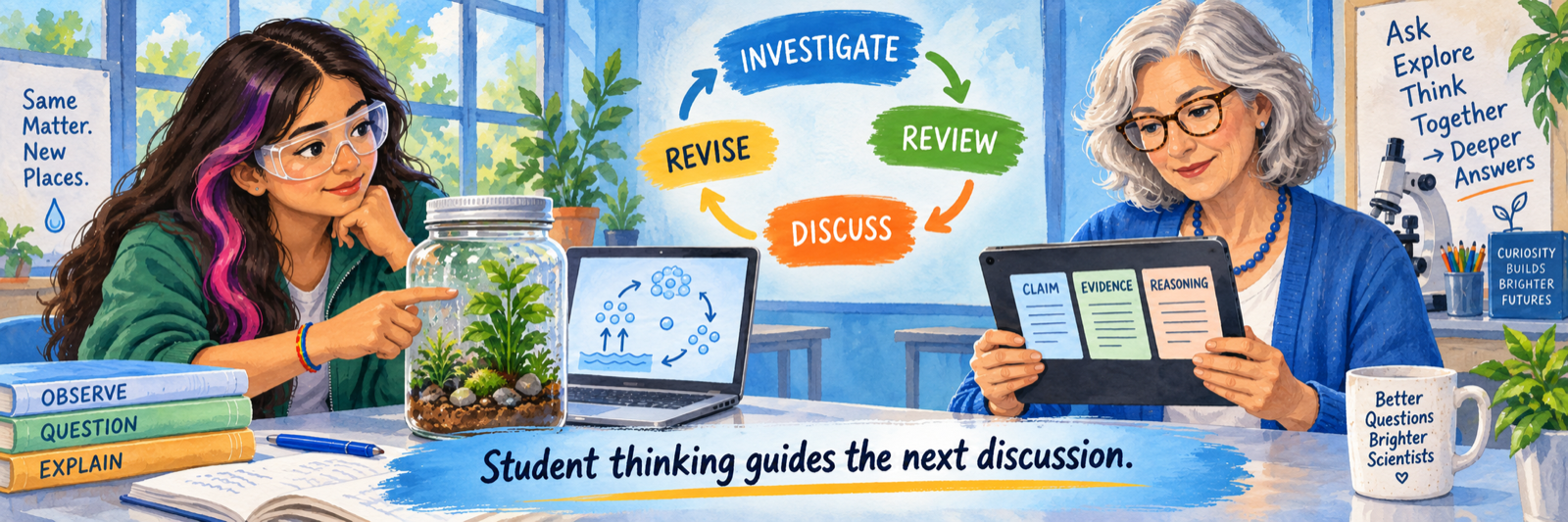
Use live review to scan written, drawn, recorded, photographed, or uploaded responses while students work. Look for a productive range of ideas, a common misconception, an unexpected strategy, or evidence worth discussing. When appropriate, share work anonymously and ask the class to compare the reasoning.
- Read the response in the context of the prompt and current point in the storyline.
- Distinguish an incomplete response from an incorrect scientific idea.
- Check whether the student used evidence or only repeated a claim.
- Listen to partner and whole-class talk before deciding what the written response means.
- Protect student identity when projecting or discussing work.
Use assessment at the intended point
Amplify Science includes embedded formative opportunities and unit assessments. The specific sequence varies by grade band and unit. Preserve the timing and purpose of each measure so evidence collected before instruction is not confused with evidence collected after substantial support.
| Evidence | Use |
|---|---|
| Pre-unit evidence | Surface entering ideas and establish a baseline for the unit storyline. |
| Embedded formative prompts | Adjust questioning, grouping, pacing, representation, or the next instructional move. |
| Critical Juncture assessment | In applicable units, identify students who need targeted support before advancing. |
| Science Seminar and argument | In grades 6–8, synthesize evidence, compare claims, discuss reasoning, and write an individual scientific argument. |
| End-of-unit assessment | Evaluate three-dimensional understanding through age-appropriate conversation, writing, selected response, and rubric-scored work. |
| Benchmark assessment | Where licensed and scheduled, examine grade-level DCIs, SEPs, CCCs, and performance expectations across the year. |
Confirm evidence across modalities
A strong conclusion should survive more than one interface. Compare the student’s digital response with the Investigation Notebook, physical model, oral explanation, reading evidence, and performance during the hands-on investigation.
Do not equate a dashboard state with mastery. Submitted, complete, or auto-scored information describes part of the learning record. Teacher-scored explanations and direct classroom evidence are necessary for many science practices and crosscutting concepts.
Respond to common implementation failures
| What you notice | Check first |
|---|---|
| Teacher sees the wrong grade or no units | Verify role, school, class, grade or course assignment, program license, and the district’s digital experience. |
| Student cannot find the assignment | Check login identity, selected class, assignment recipients, start or due date, Student Home, and whether a single-session code was used instead. |
| A class or student is missing | Compare the authoritative roster, sharing scope, class identifier, teacher association, sync status, and product assignment. |
| Simulation or model will not load | Check browser support, network filtering, cookies, pop-ups, graphics capability, and the same tool on a representative device. |
| Student work is missing from review | Verify the student submitted from the correct account and class, then check assignment status and whether work remains in progress. |
| Slides are ready but materials are not | Pause and use the low-tech continuation only if it preserves the lesson purpose; reschedule the investigation when its evidence is essential. |
| Students complete screens without discussion | Return to the Teacher’s Guide and restore partner, group, and whole-class sense-making at the intended points. |
| Assessment is locked or unavailable | Confirm grade band, assignment state, current assessment directions, teacher permissions, and district testing policy before changing access. |
Reconcile access, materials, and instruction
During implementation, review three kinds of evidence together: technical access, physical readiness, and instructional enactment. A login success rate cannot reveal missing consumables, and a completed kit inventory cannot reveal whether students are revising explanations from evidence.
| Evidence | Decision supported |
|---|---|
| Roster and login exceptions | Which students or staff still lack the correct class, role, or product access? |
| Kit and consumable status | Which upcoming lessons require replenishment, staging, or an accessible alternative? |
| Assignment and submission status | Did the correct students receive and return the intended digital work? |
| Live-review patterns | Which ideas should be surfaced, challenged, or investigated further? |
| Notebook and discussion evidence | Are students connecting observations to claims and mechanisms? |
| Assessment evidence | What support, extension, regrouping, or pacing change is justified? |
Good Amplify Science Habits
Read the storyline
Know what students are figuring out and why each lesson adds necessary evidence.
Stage before class
Prepare materials, student resources, slides, and digital tools before students arrive.
Protect the thinking
Use prompts and evidence to advance ideas without explaining the phenomenon too early.
Review across modes
Combine digital responses with models, notebooks, discussion, and investigation evidence.
Official Amplify Science Resources
Use the resources for the district’s licensed grade band and digital experience.
2026–27 edition. Public Amplify Science product, sample, implementation, and support resources reviewed September 12, 2026. Interface labels, rostering options, assessments, LMS connections, reports, resources, and availability depend on grade band, district license, configuration, and product version. Classroom examples and conceptual illustrations are SDLA material.