


Almanack Quick Start Guide
Use AI to adapt curriculum and build classroom resources while keeping teachers responsible for the source, instructional decision, review, and final delivery.
Almanack is primarily an educator planning and resource-production workspace. It can organize courses, units, lessons, standards, objectives, worksheets, presentations, assessments, games, multilingual resources, and differentiated versions. It complements the district’s curriculum and LMS; it does not replace either one.
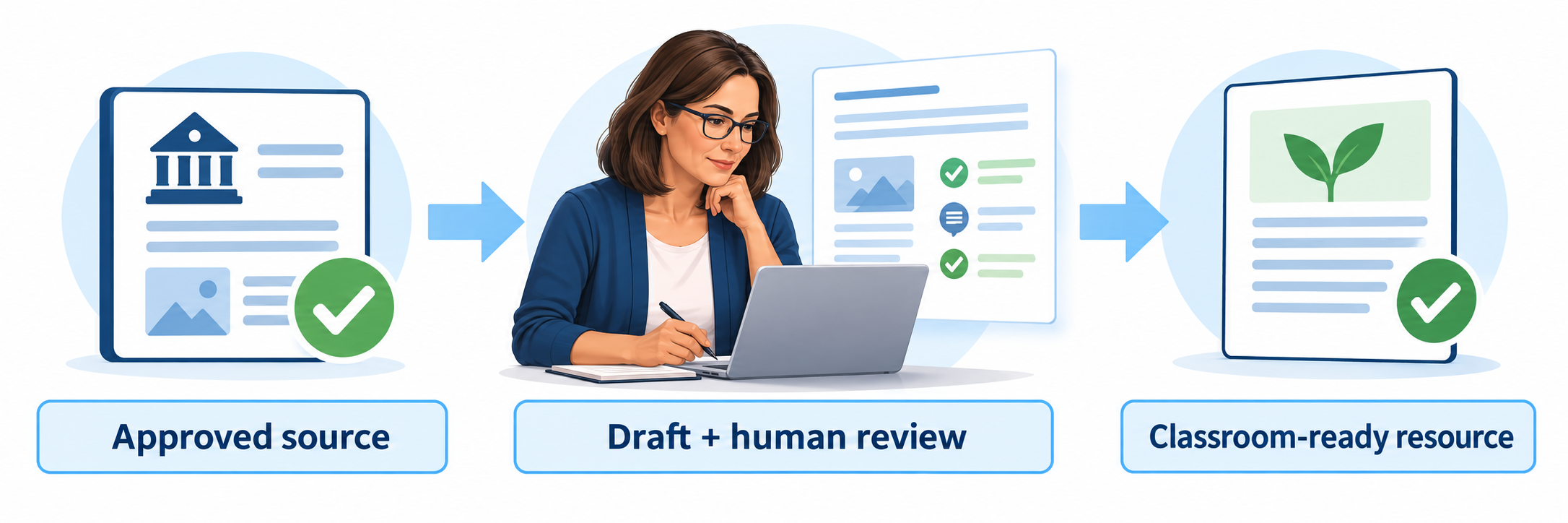
Keep the Teacher at the Center of the Workflow
Anchor
Begin with the adopted curriculum, verified source material, intended standard, learning objective, real calendar, and approved student need.
Generate
Ask Almanack for a bounded draft: lesson, unit, worksheet, slide deck, assessment, activity, translation, or differentiated version.
Review
Verify accuracy, alignment, accessibility, reading demand, answer key, source use, bias, directions, and classroom fit.
Deliver
Publish only the approved version through print, Google Workspace, Microsoft files, Google Classroom, or an authorized LMS route.
Use anonymous instructional descriptions by default. “Grade 7 students who need vocabulary scaffolds” is usually enough. Do not paste names, IEP text, assessment records, behavior histories, disability information, or identifiable student work into an AI prompt unless the district has explicitly approved that data flow.
Understand What Almanack Organizes
| Level | Role in Almanack | Teacher responsibility |
|---|---|---|
| Course | Container for a grade, subject, standards set, long-range plan, units, and lessons | Match the local course title, grade, scope, calendar, and adopted curriculum. |
| Unit | Groups related lessons and can be created manually or drafted with AI | Check sequence, prerequisite knowledge, assessment plan, time, and omissions. |
| Lesson | Connects objectives, standards or curriculum expectations, lesson plan, and attached resources | Verify that the selected standards and objectives actually describe the intended learning. |
| Resource | Worksheet, presentation, quiz, test, activity, game, organizer, recommendation, or other classroom artifact | Review every item, direction, answer, image, source, accommodation, and export before use. |
| Adaptation | Changes reading demand, language, scaffolding, depth, format, topic, pacing, or extension | Preserve the learning target and intellectual purpose while changing access or challenge. |
Connect and Govern
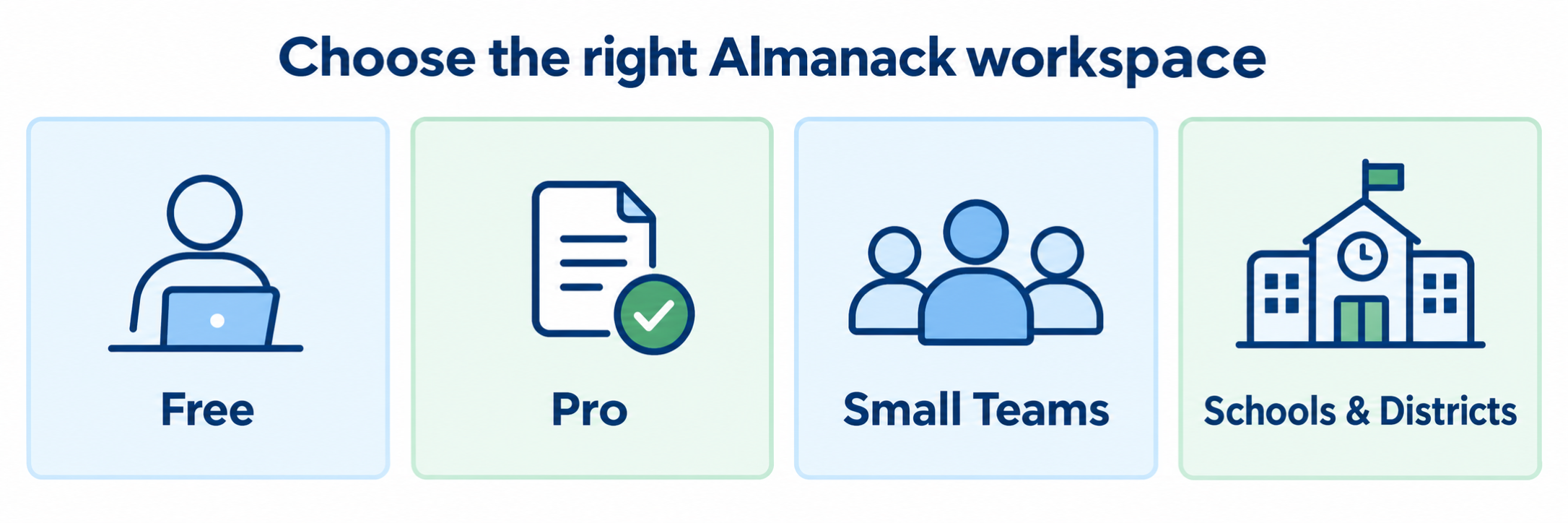
Decide which Almanack environment the district is supporting before teachers create accounts, connect Google services, or move instructional material.
Identify the doorway
| Plan | Publicly described capabilities | Implementation concern |
|---|---|---|
| Free | Standards-aligned planning, curriculum design, course and unit planning, presentations, basic worksheets and activities, quizzes, assessments, games, and video recommendations | Useful for evaluation, but district SSO, managed rostering, shared governance, and enterprise LMS connections are not described as Free features. |
| Pro | Free features plus unlimited generation and adaptation, fuller differentiation, DOK options, exports, report-card comments, integrations, and limited collaboration | An individually purchased subscription remains an individual account unless the vendor and district arrange otherwise. |
| Small Teams | Pro features plus unlimited collaborators, shared adaptation libraries, and team-planning tools | Define library ownership, publishing rights, common templates, review expectations, and what happens when staff leave. |
| Schools/Districts | Team features plus SSO and rostering, curriculum-coverage dashboard, priority support, and LMS integration including systems such as Canvas and Schoology | Confirm the actual contract, supported identity provider, roster scope, administrator roles, migration plan, LMS method, and data returned. |
Separate sign-in, provisioning, and classroom delivery
| Layer | Current public information | Verify during setup |
|---|---|---|
| Google sign-in | Workspace for Education or personal Google accounts can authenticate educators. | Approved domain, account matching, personal-account prohibition, scopes, logout, and duplicate behavior |
| Microsoft sign-in | Microsoft Entra ID, formerly Azure AD, can authenticate organizational accounts. | Tenant, claims, role mapping, provisioning, deprovisioning, and whether the contracted environment enables it |
| Clever and ClassLink | The public site lists educator SSO through Clever and ClassLink; the Schools/Districts plan also lists SSO and rostering. | Whether rostering covers educators, students, courses, or class relationships; sharing rules; stable IDs; sync schedule; and errors |
| Google Classroom | Almanack can access selected course and assignment information and publish resources on the teacher’s behalf when authorized. | OAuth scopes, correct Classroom, co-teachers, assignment state, student copy behavior, ownership, revocation, and result flow |
| Canvas, Schoology, and other LMS connections | LMS integration is advertised for Schools/Districts. | Connection method, launch context, content placement, roster use, assignment creation, grade return, deep linking, supported versions, and vendor setup |
Do not infer the roster model from the pricing label. Almanack’s school page emphasizes a teacher-side workflow that can operate without student data. Ask the vendor to document exactly which people and relationships the contracted roster imports.
Adopt the lowest-data workflow that works
Almanack’s school materials say teachers do not need to enter student names or sensitive information. Its current privacy policy also describes circumstances in which limited student information may be collected, including names, course grades, and teacher feedback. Treat these as different operating possibilities and document the district’s approved one.
- List the allowed data for prompts, uploads, report-card features, Google Classroom publishing, collaboration, exports, and support requests.
- Confirm the district agreement, data-processing terms, subprocessors, storage location, retention, deletion, incident notification, and account-closure process.
- Almanack states that prompts and required context may be sent to AI subprocessors, including OpenAI, Anthropic, Google, and other listed providers.
- Almanack states that it and its AI model providers do not use submitted prompts or content to train their models; staff still must share only authorized information.
- Use district-approved demonstration content rather than live student records during training.
Define curriculum authority
- Name the adopted curriculum, approved standards, instructional frameworks, pacing authority, supplementary-resource rules, assessment rules, and copyright expectations.
- Decide whether Almanack may draft courses and units, adapt existing lessons, create supplements, produce assessments, recommend videos, or write report-card comments.
- Establish required review for shared libraries and district templates.
- Make clear that an AI-aligned label does not replace reading the selected standard or confirming the task actually elicits it.
Run a bounded pilot
Almanack recommends a five-teacher, four-to-six-week school pilot. Include different grades, subjects, accessibility needs, and delivery routes. Measure setup effort, useful time saved, correction burden, curriculum fidelity, accessibility, export quality, teacher confidence, privacy compliance, and how often generated material reached students after meaningful review.
Plan, Generate, and Review
Start narrowly, keep the source visible, and treat every generated item as an editable draft.
Create the planning frame
Set up the course with the correct grade and subject. Add or select the intended standards set, then organize units and lessons around the district’s actual scope, sequence, assessment plan, and calendar. A lesson can hold standards, learning objectives, a lesson plan, and related resources in one place.
Write a bounded generation request
| Include | Example |
|---|---|
| Learning target and source | Create practice from this district-approved lesson and the attached public-domain source. |
| Grade, subject, and time | Grade 11 U.S. History; 35 minutes of a 55-minute period. |
| Evidence students produce | Students will make a claim and support it with two accurately cited details. |
| Access need without identity | Provide vocabulary preview, chunked directions, and optional sentence frames for students developing academic English. |
| Constraints | Preserve the source meaning, avoid invented quotations, identify an answer rationale, and use an accessible one-page layout. |
| Teacher review request | Flag statements requiring factual verification and identify where the draft changes the adopted lesson. |
Generate from an appropriate basis
Depending on the tool and plan, a resource may be based on learning objectives, existing Almanack material, pasted text, an uploaded file, a web link, a YouTube video with captions, or a teacher description. Confirm that the district permits the selected source to be uploaded or processed and that its current version is trustworthy.
A generated citation or source reference must be opened and checked. Verify that the source exists, supports the claim, is appropriate for students, and may be copied or adapted for the intended use.
Review before accepting “Looks Good”

| Review | Teacher check |
|---|---|
| Accuracy and sources | Facts, calculations, quotations, dates, vocabulary, examples, images, citations, links, and claims are correct and traceable. |
| Standards and purpose | The task teaches or measures the intended knowledge and practice; its rigor matches the selected standard. |
| Differentiation | Support, core, and extension versions preserve the same essential target unless the instructional plan intentionally changes it. |
| Assessment quality | Directions, item types, distractors, scoring, answer key, rationale, point values, and accommodations are defensible. |
| Accessibility and language | Layout, headings, reading order, contrast, alt text, tables, vocabulary, sentence structure, translation, and assistive-technology behavior work. |
| Context and belonging | Names, examples, histories, identities, perspectives, and assumptions are accurate, respectful, relevant, and free of avoidable stereotype. |
| Copyright and policy | The source may be used as proposed; the output follows district curriculum, assessment, privacy, academic-integrity, and AI-use rules. |
| Classroom reality | Timing, materials, devices, printing, grouping, teacher moves, expected misconceptions, safety, and closure are practical. |
Edit the resource and preserve provenance
Correct the draft in the Almanack editor or exported file. Record the approved source, standard, author or reviewer, date, intended course, and local version where the material will be shared or reused. Regeneration produces another draft; it does not resolve a known problem unless the new output is reviewed again.
Use report-card assistance cautiously
Report-card comments combine consequential student information with AI-generated language. Use the district-approved data path, minimum necessary information, current evidence, and human editing. Confirm the comment describes the correct student, uses supportable evidence, avoids diagnostic or fixed-trait claims, follows local conventions, and is entered into the authoritative reporting system by an authorized educator.
Export, Publish, and Improve
Choose the delivery route only after review, then inspect what students actually receive.
Match the output to its destination
| Route | Use | Final checks |
|---|---|---|
| PDF and print | Stable handouts, offline access, paper-and-pencil tasks, answer keys, and substitute materials | Pagination, clipping, contrast, font size, writable space, separate answer key, copier quality, and secure handling |
| Google Docs | Editable worksheets, lesson or unit plans, collaboration, and teacher revision | Correct account, owner, sharing, student-copy behavior, headings, tables, links, and revision history |
| Google Slides | Editable presentation resources | Slide order, images, notes, fonts, accessibility, animation loss, sharing, and presenter view |
| Microsoft Word or PowerPoint | Local editing and district Microsoft workflows | Downloaded file location, compatibility, fonts, page or slide layout, accessibility checker, and ownership |
| Google Classroom | Publish an approved resource into a selected teacher course and assignment workflow | Correct class, topic, instructions, due date, attachment permission, make-a-copy setting, co-teacher view, student preview, and revocation |
| Canvas, Schoology, or another LMS | District-contracted placement or launch when supported | Vendor-confirmed connection, course context, item visibility, file ownership, mobile behavior, grade return, and student preview |
Preview as a student
- Open the exact link, file, assignment, or paper version students will receive.
- Use a student or demonstration account to verify access, directions, attachments, edit rights, submission route, accommodations, and device behavior.
- Check that an answer key, teacher note, hidden solution, private comment, or source file did not travel with the student copy.
- Confirm that students submit in the intended LMS or classroom system rather than creating an unmonitored parallel workflow.
Teach students what AI did
Use the district’s age-appropriate disclosure and academic-integrity expectations. Students should understand whether AI helped draft, translate, illustrate, adapt, or format the material; which source remains authoritative; how they should cite or use AI in their own work; and where to report an error or accessibility barrier.
Evaluate usefulness rather than generation volume
| Evidence | Useful interpretation | Limitation |
|---|---|---|
| Accounts and logins | Whether approved educators reached the intended environment | Does not show meaningful planning or classroom use |
| Resources generated | Where staff are testing the tool and which formats attract demand | Does not show review, accuracy, approval, delivery, or reuse |
| Resources approved and delivered | How often a draft completed the district’s instructional workflow | Does not by itself establish student learning |
| Teacher time | Whether the tool reduced drafting work after review and correction are included | Self-report and novelty may distort early estimates |
| Correction and rejection patterns | Which subjects, formats, prompts, or workflows need better guardrails | Requires a psychologically safe way to document failure |
| Student work and feedback | Whether directions, scaffolds, challenge, access, and delivery supported the intended task | Must be interpreted with instruction, opportunity, and other evidence |
Curate what deserves reuse
Move reviewed material into the district’s approved shared library with a clear title, grade, course, standard, source, accessibility information, author or reviewer, version date, and editable master. Retire drafts and duplicates. A smaller trusted collection is more useful than thousands of unreviewed generated files.
Resolve the Failed Layer
| What you notice | Check first |
|---|---|
| The teacher cannot sign in | Approved route, plan, district domain, Google or Microsoft identity, Clever or ClassLink tile, account match, browser, and duplicate personal account |
| The teacher signs in but lacks district features | Personal versus managed account, license assignment, organization membership, role, SSO mapping, subscription state, and planned account migration |
| A team cannot find a shared resource | Plan level, library ownership, sharing scope, collaborator role, folder or course, publishing state, search terms, and creator account status |
| The wrong standards appear | Country or region, standards set, course, grade, version, manually entered expectations, selected lesson, and whether AI-generated alignment was reviewed |
| A generated answer is incorrect | Stop distribution; compare with the authoritative source; correct questions, answer key, rationale, and related versions; then re-export and replace every published copy |
| Differentiation removed the intended rigor | Original learning target, evidence students must produce, source complexity, scaffolds, answer cues, vocabulary load, and whether the adaptation changed the construct |
| An export looks different | Selected format and version, fonts, images, page or slide size, tables, equations, accessibility, account authorization, and fresh download |
| Google export or Classroom publishing fails | Correct Google account, granted scopes, pop-up or cookie settings, Drive storage, course permission, ownership, token revocation, and district Google policy |
| The LMS connection is missing | Schools/Districts entitlement, contracted LMS, vendor implementation status, administrator installation, course context, supported method, and teacher role |
| Student information entered a prompt or upload unexpectedly | Stop further use or sharing; preserve necessary evidence; follow the district privacy or incident route; review access, exports, source copies, deletion, and vendor support |
| A former employee owns essential materials | Account type, shared-library ownership, Google or Microsoft file ownership, transfer procedure, license removal, retention, and district master copy |
Good Almanack Habits
Anchor every draft
Keep the approved curriculum, source, standard, objective, and intended evidence visible.
Minimize data
Describe instructional needs without identifying students whenever the task permits.
Review the artifact
Check facts, answers, alignment, rigor, access, context, sources, and classroom practicality.
Publish deliberately
Use the approved destination, preview as a student, and keep a trusted editable master.
Official Almanack Resources
Plans, limits, standards libraries, AI models, integrations, exports, privacy terms, and interfaces may change. Confirm the district’s active agreement and current vendor guidance.
2026–27 edition. Official Almanack product, school, district, pricing, lesson-planning, course, unit, lesson, standards, resource-generation, worksheet, assessment, export, privacy, security, FERPA, and terms materials reviewed September 13, 2026. Plans, prices, limits, terminology, standards, curricula, resource types, integrations, identity providers, roster scope, LMS connections, exports, AI models, subprocessors, permissions, privacy terms, and interfaces may change. District curriculum, instructional-materials, assessment, student-record, privacy, accessibility, copyright, academic-integrity, AI-use, retention, procurement, and account-management policies remain controlling. Conceptual illustrations are SDLA material.