


5-Star Students Quick Start Guide
Recognize participation and positive behavior while keeping student engagement records consistent.
5-Star Students can support activities, events, interventions, behaviors, rewards, hall passes, surveys, and other school workflows. Your available tools, labels, and permissions depend on what your school has enabled. This guide begins with the common staff task of recognizing a student and awarding points.
What 5-Star Students Helps Schools Do
Track
Record participation in activities, events, interventions, and other enabled programs.
Recognize
Award configured points for positive behaviors and participation.
Reward
Let eligible students use earned points for school-defined rewards and incentives.
Review
Use reports to examine participation and behavior records over time.
Start with your school’s expectations: Ask which behaviors or activities staff should record, what point values mean, whether notes are appropriate, and whom to contact when a student or class is missing.
District Setup
School or district managers establish the roster, access, enabled features, point rules, privacy settings, and support process before staff begin recording activity.
Define the first use case
Begin with a bounded workflow, such as recognizing schoolwide expectations or recording participation at one type of event. Define which staff may record it and how the resulting data will be used.
- Name each behavior or participation category clearly.
- Set point values and limits that match the school’s recognition plan.
- Decide whether staff should enter notes and what those notes may contain.
- Communicate how corrections and disputed records will be handled.
Prepare rosters and access
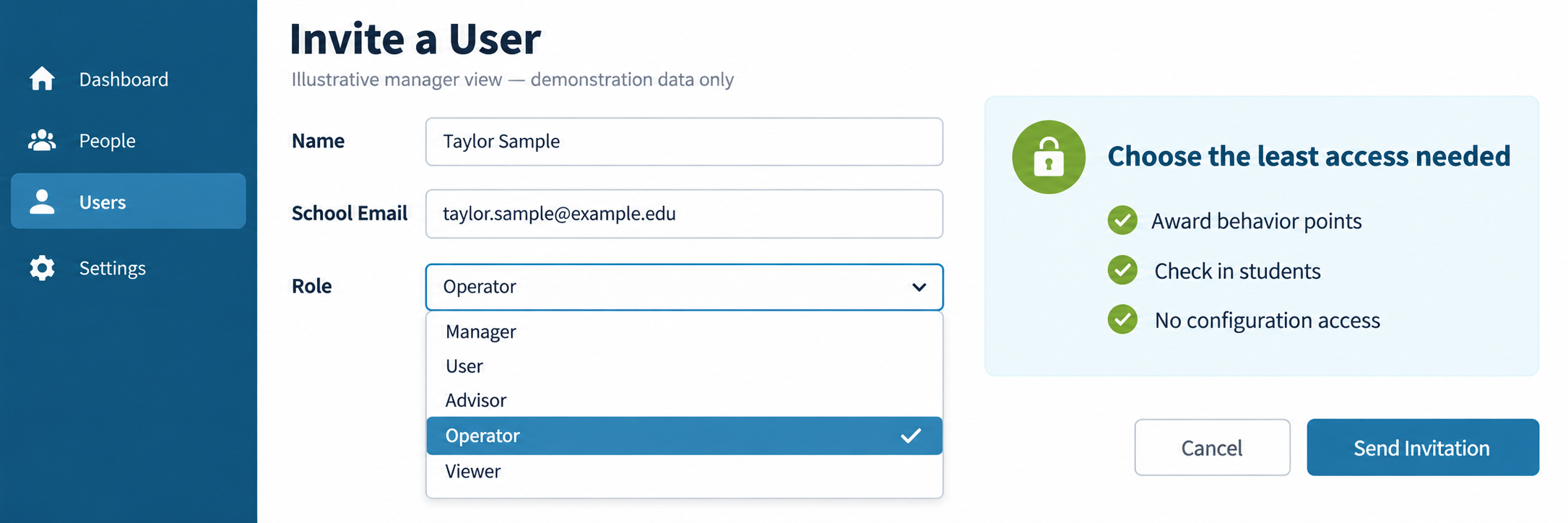
Confirm that student and staff records are current. Invite only the users who need application access and assign the least-permissive role that supports their work. A person appearing on the staff roster does not by itself mean that person has a user account.
| Decision | Confirm | Owner |
|---|---|---|
| Roster source | Student IDs, names, grades, classes, and staff assignments are current. | Data or SIS lead |
| User access | Managers, advisors, operators, and viewers receive only the access they need. | 5-Star manager |
| Student access | The school webpage, Student App, digital ID, point detail, and rewards are enabled only as intended. | Program owner |
| Support | Staff know whom to contact for missing students, access problems, or incorrect records. | Site support lead |
Protect student information
Review district approval, the vendor agreement, local retention requirements, and the school’s configuration before launch. Use only the student fields needed for the approved purpose. Explain whether students can view behavior details, notes, point totals, rewards, or other personal information.
Location clarification: Some schools enable self-check-in methods that use geolocation. According to the vendor’s Student Data FAQ, the app does not use background activity to monitor student whereabouts. Describe the school’s actual configuration rather than making a broad location-tracking claim.
Teacher Workflow
Once your account and permissions are ready, use the school’s approved categories to recognize students consistently. Menu names and available actions may differ by role and school configuration.
Sign in and confirm your access
- Use the sign-in method provided by your school.
- Confirm that you can see the students, classes, or assigned activities needed for your work.
- If a student, class, or feature is missing, stop and use the local support process. Do not create a duplicate student record.
Recognize a positive behavior
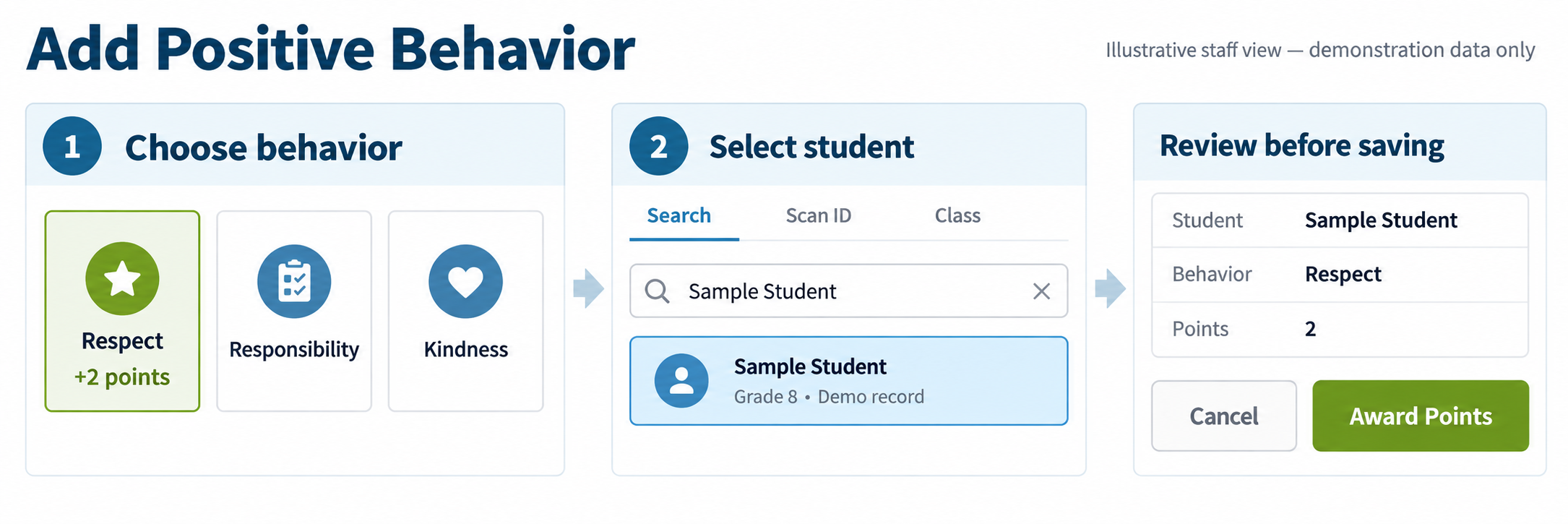
- Open the school’s behavior or recognition area in the website or Manager App.
- Select the approved behavior category.
- Find the student by the method your school supports, such as name lookup, ID entry, barcode scan, or class roster.
- Review the student and behavior before saving.
- Add a note only when local guidance permits it, and keep the note factual and necessary.
Use class and event tools carefully
If your role permits it, class rosters can make it faster to recognize one or more students. Event and intervention tools can record participation or check-ins. Before saving a group action, confirm the selected roster, date, activity, and point value.
- Scan or select each person only once unless the workflow explicitly permits repeat credit.
- Do not share staff credentials or leave a signed-in scanning device unattended.
- Use the approved correction process when the wrong student or category is selected.
- Escalate roster and permission problems instead of working around them.
Configure and Verify
A successful save is only the first check. Verify the record from the staff view and, when enabled, from the student-facing experience.
Run an end-to-end test
- Choose an authorized test student or demonstration record.
- Record one approved behavior or participation event.
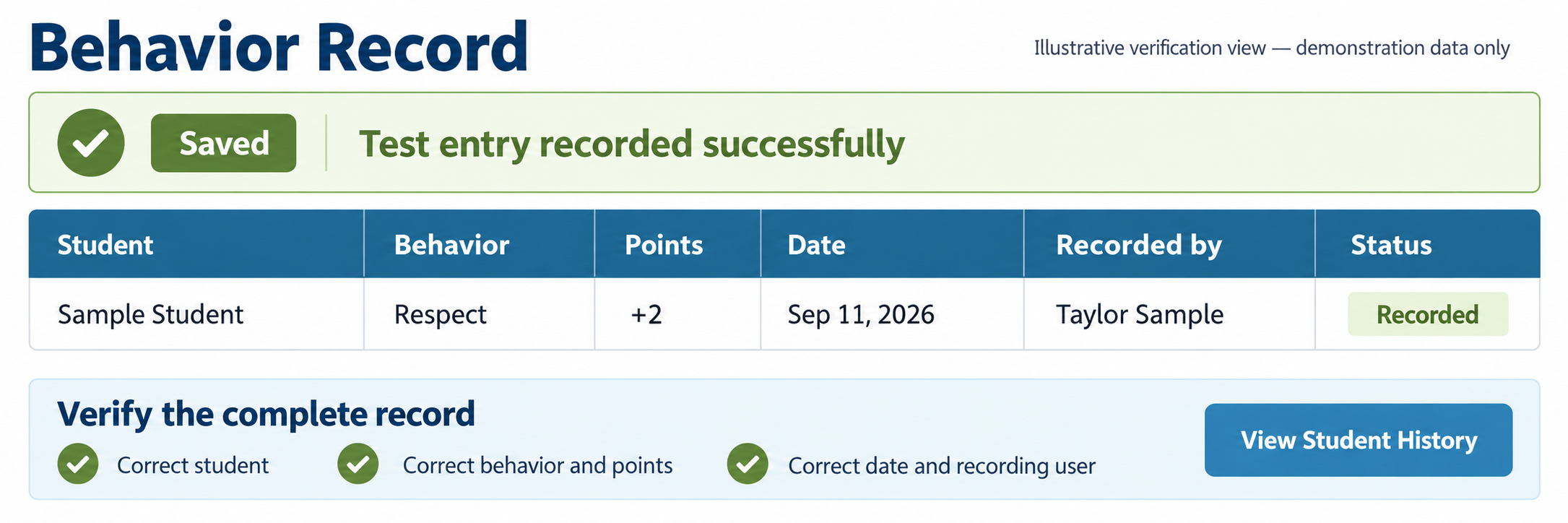
- Confirm that the correct student, category, date, staff user, and point value appear in the staff record.
- If student access is enabled, confirm that the intended point total or detail appears in the school webpage or Student App.
- Reverse or correct the test record using the school’s approved process.
Check common problems
| What you see | Check first | Next step |
|---|---|---|
| You cannot sign in. | Invitation, approved email address, sign-in method, and account status. | Contact the school’s 5-Star manager. |
| A student or class is missing. | Current SIS roster, sync timing, class assignment, and selected school. | Report the source roster issue; do not create a duplicate. |
| A behavior or feature is unavailable. | Your user role and the features enabled by the school. | Ask the program owner whether access is expected. |
| Points or details do not appear for the student. | Student App or school webpage settings, publishing status, eligibility, and refresh timing. | Compare the staff record with the student-facing configuration. |
| The wrong entry was saved. | Student, behavior, date, points, and recording user. | Use the approved correction process and document the change if required. |
Review use and data quality
- Check for unusually high, low, or duplicate activity.
- Review whether staff are using categories and notes consistently.
- Confirm that inactive users no longer have application access.
- Revisit point values, rewards, eligibility, and student-facing settings when the program changes.
- Export or retain reports only according to district policy.
Verification is shared: Program owners configure the system, data staff maintain accurate rosters, teachers record activity consistently, and support staff resolve access or sync problems. Test the complete path before expanding the workflow.
Good Recognition Practices
Be specific
Connect the recognition to the behavior or participation the student demonstrated.
Be timely
Record the recognition close enough to the event that it remains meaningful and accurate.
Be consistent
Use the school’s categories and point rules similarly across students and settings.
Be careful
Confirm the student before saving and keep optional notes factual, limited, and appropriate.
Official 5-Star Students Resources
Use current vendor documentation together with your school’s local setup, permissions, naming conventions, and support instructions.